
Why a practical ThinkPad troubleshooting guide matters (and what you’ll learn)
Have you ever had your trusty ThinkPad start acting up? Maybe your computer slows down, or your pc randomly freezes when you’re trying to get things done. It can be super frustrating when your machine, like a Lenovo ThinkPad P51 or any other model, doesn’t work right. You need quick answers so you can get back to what you were doing.
That’s why knowing how to troubleshoot your ThinkPad is so important. One of the first and smartest things to do when you notice a problem is a quick thinkpad warranty check. Finding out if your computer is still under warranty can save you money and worry. Lenovo offers easy ways to check your warranty status right from their support pages, like the Device Warranty Lookup tool. If your ThinkPad is covered, Lenovo might fix it for you without extra cost.
In this guide, we will walk you through simple steps to figure out what’s wrong with your ThinkPad. You’ll learn easy ways to keep your computer running smoothly, like how to clean my pc and how to optimize pc performance. We’ll also help you decide if your ThinkPad needs a simple fix or if it’s time to think about a replacement. By the end, you will feel much more confident in handling common ThinkPad problems yourself.
Staying up-to-date with technology is key in 2026. For clear daily AI updates that help you make smart tech choices, you should consider getting The AI Newsletter Worth Reading.
When your ThinkPad starts to act funny, one of the first and best things you can do is check its warranty. This can save you from worrying about repair costs. Luckily, checking your thinkpad warranty check status is pretty easy. Let’s walk through how you can do it.
Find Your ThinkPad’s Special Number
To check your warranty, you first need a special number called a serial number or product number (PN). Think of it like your computer’s ID card. Here’s where you can usually find it:
- On the computer itself: Look for a sticker on the bottom of your ThinkPad. Sometimes it’s under the battery. It’s often a mix of letters and numbers.
- Inside the computer’s settings: You can also find this number in your computer’s system information. Lenovo even has a video to help you find your Lenovo Warranty information using different methods, including special software like Lenovo Vantage.
Once you have this important number, you are ready for the next step.
How to Do a ThinkPad Warranty Check
Lenovo has easy online tools to help you find your warranty status. These tools let you put in your serial number and see if your computer is still covered.
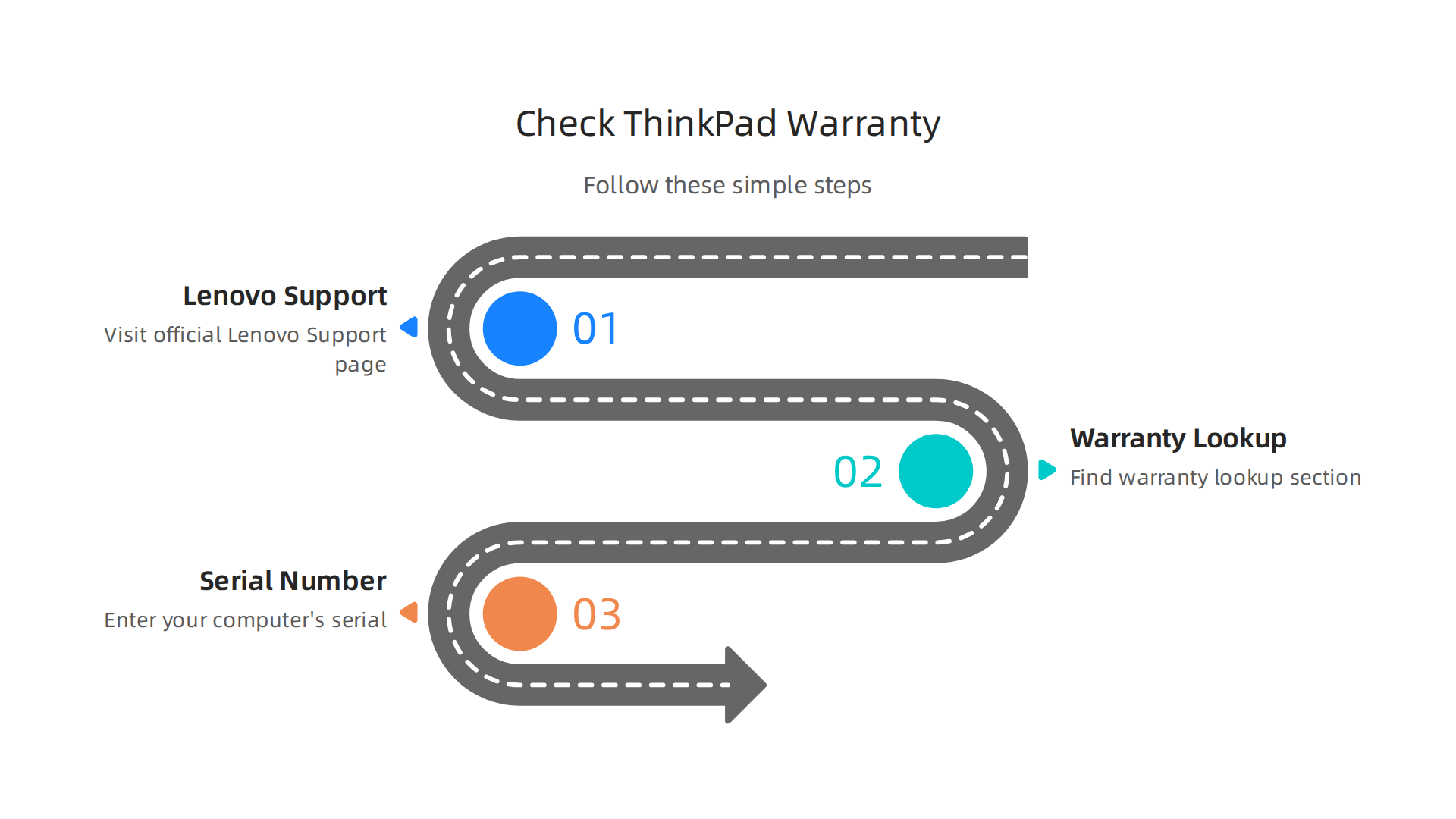
- Go to the Lenovo Support website: Start by visiting the official Lenovo Support page.
- Look for "Warranty Lookup": On the support page, you’ll find a section for checking your warranty. You can use tools like the Lenovo Support & downloads – Warranty Lookup site.
- Enter your serial number: Type in the serial number you found earlier. The website will then tell you details about your warranty. You can also use services like the Batch Warranty Lookup – Lenovo Support US if you have many devices to check.
The information you get will tell you when your warranty started, when it ends, and what type of warranty you have.
Understanding Your Lenovo Warranty
Lenovo offers different kinds of warranties. Knowing what kind you have is helpful:
- Base Warranty: This is the standard coverage that comes with your ThinkPad. It usually covers problems that happen because of how the computer was made, not because you dropped it or spilled something on it.
- Extended Warranty: You can often buy extra time for your warranty. This extends the period your computer is covered beyond the base warranty.
- Upgrades and Service Plans: Lenovo also offers upgrades like "on-site service" (someone comes to you to fix the computer) or "accidental damage protection" (which covers spills or drops). You can learn more about these options on the Lenovo Warranty Upgrade/Lookup & Services page. This is great for making sure your
Lenovo ThinkPad P51or any other model stays protected.
Sometimes, if your ThinkPad is older and no longer under warranty, you might start thinking about what’s next. If your computer keeps having problems, it might be time to consider new options. Learning about things like how to choose AI ready business computers in 2026 can help you decide if an upgrade is smarter than constant repairs.
Knowing your warranty status is a smart first step in troubleshooting any computer issue.

It helps you understand your choices for repair and when it might be time to look into new tech.
Knowing your ThinkPad’s warranty is a great start. But what if your computer is acting up and you’re not sure if it’s a small glitch or a bigger problem that needs a repair or even a warranty claim? This is where a little detective work helps. You can often figure out what’s wrong with your computer by checking some common parts yourself.

Many laptops, including your trusty Lenovo ThinkPad P51, might start having issues after a few years. In fact, reports from 2026 show that about one-third of all laptops might have a problem within three years of buying them, not counting accidental damage 1 in 3 Laptops fail over 3 years:. So, it’s good to know what to look for!
Diagnosing Hardware Issues: Battery, SSD, RAM, and Display
Before you think about sending your laptop away or buying a new one, let’s look at how you can spot problems with the battery, SSD, RAM, and display. These are some of the most common things to go wrong.
Is Your Battery Tired?
A common problem is a battery that doesn’t last long or won’t charge up fully.
- Signs of a bad battery:
- Your laptop dies quickly, even when it says it has power.
- It only works when plugged in.
- The laptop battery feels hot to the touch.
- The laptop’s bottom case might bulge a bit.
- What to check:
- You can often check your battery’s health in your computer’s settings. Windows has a special report you can run that tells you how well your battery is doing compared to when it was new.
- Make sure your charger is working right. Try a different charger if you have one.
Slowdowns and Freezes: Is Your SSD the Problem?
If your pc randomly freezes or takes a very long time to start up programs, your Solid State Drive (SSD) might be having issues. The SSD is where all your computer’s information is stored.
- Signs of an SSD problem:
- Programs take ages to open.
- Your computer gets stuck often.
- Files go missing or get corrupted.
- You see error messages about not being able to read or write data.
- What to check:
- There are free tools online that can check the "health" of your SSD. They look at special information called SMART attributes to tell you if the drive is failing. You can learn more about these tools and how to use them for an SSD Health Check.
- Make sure your SSD isn’t too full. A very full drive can slow things down.
Computer Crashing? It Could Be RAM
RAM (Random Access Memory) is like your computer’s short-term memory. If it’s not working right, your computer can act very strange.
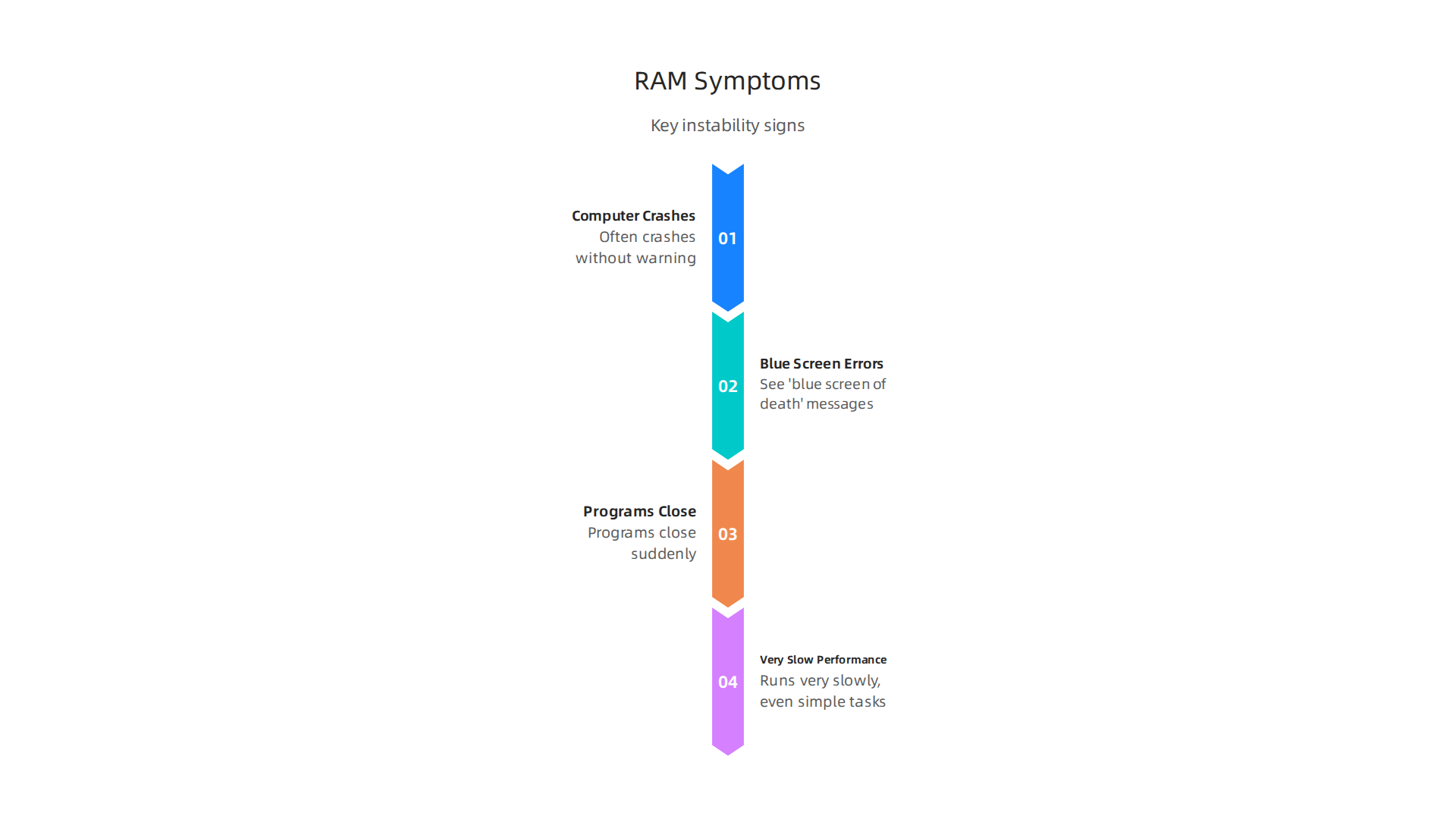
- Signs of RAM issues:
- Your computer often crashes without warning.
- You see "blue screen of death" error messages.
- Programs close suddenly.
- The computer runs very slowly, even with simple tasks.
- What to check:
- Modern computers have built-in memory diagnostic tools. You can run one to check your RAM for errors.
- If you’re comfortable, and your laptop allows, sometimes you can take out and re-seat the RAM sticks to make sure they’re connected well.
Display Troubles: Screen Goes Dark or Flickers
Problems with your screen can be very annoying, making it hard to use your laptop at all.
- Signs of display issues:
- The screen flickers on and off.
- There are strange lines or colored spots.
- Parts of the screen are darker than others.
- The screen doesn’t turn on at all, but the computer sounds like it’s running.
- What to check:
- Connect your ThinkPad to an external monitor or TV. If the picture looks good on the second screen, then the problem is likely with your laptop’s screen itself. If it’s bad on both, it might be the graphics chip.
- Gently move the screen back and forth. If the problem changes, it could be a loose cable inside.
Gathering Information Before You Act
After doing these basic checks, gather all the details. Write down what you saw, any error messages, and when the problems happen. This information will be very helpful if you need to do a thinkpad warranty check or talk to a repair person. Sometimes, just doing a good clean my pc and making sure to build and optimize your AI workstation for peak performance 2026 can make a big difference for your computer’s health.
When you’ve done your best to figure out the problem, you can then decide if it’s time to use your warranty or seek professional repair. Thinking about if you should repair or replace your computer is a big choice, and knowing what’s wrong helps a lot. For business users and those eager to keep up with the newest advancements in technology, staying informed is key.
Get clear daily AI updates and more from The AI Newsletter Worth Reading.
After you’ve looked into physical problems with your computer, it’s time to check its "brain" and how it talks to its parts. This means looking at BIOS, firmware, and driver updates. These are like the instruction manuals for your computer’s pieces. Keeping them fresh can often fix problems and even make your computer safer and faster.
BIOS, Firmware, and Driver Updates: When and How to Update Safely
Think of BIOS (Basic Input/Output System) and firmware as the very first set of instructions your computer runs when you turn it on. Drivers are special pieces of software that help your operating system (like Windows) talk to each part of your computer, like your graphics card or Wi-Fi chip. When these get old or have bugs, your computer might start to slow down, act strangely, or even experience a pc randomly freezes issue.
Why Updates Matter So Much
Updating these parts of your computer is super important for a few big reasons:
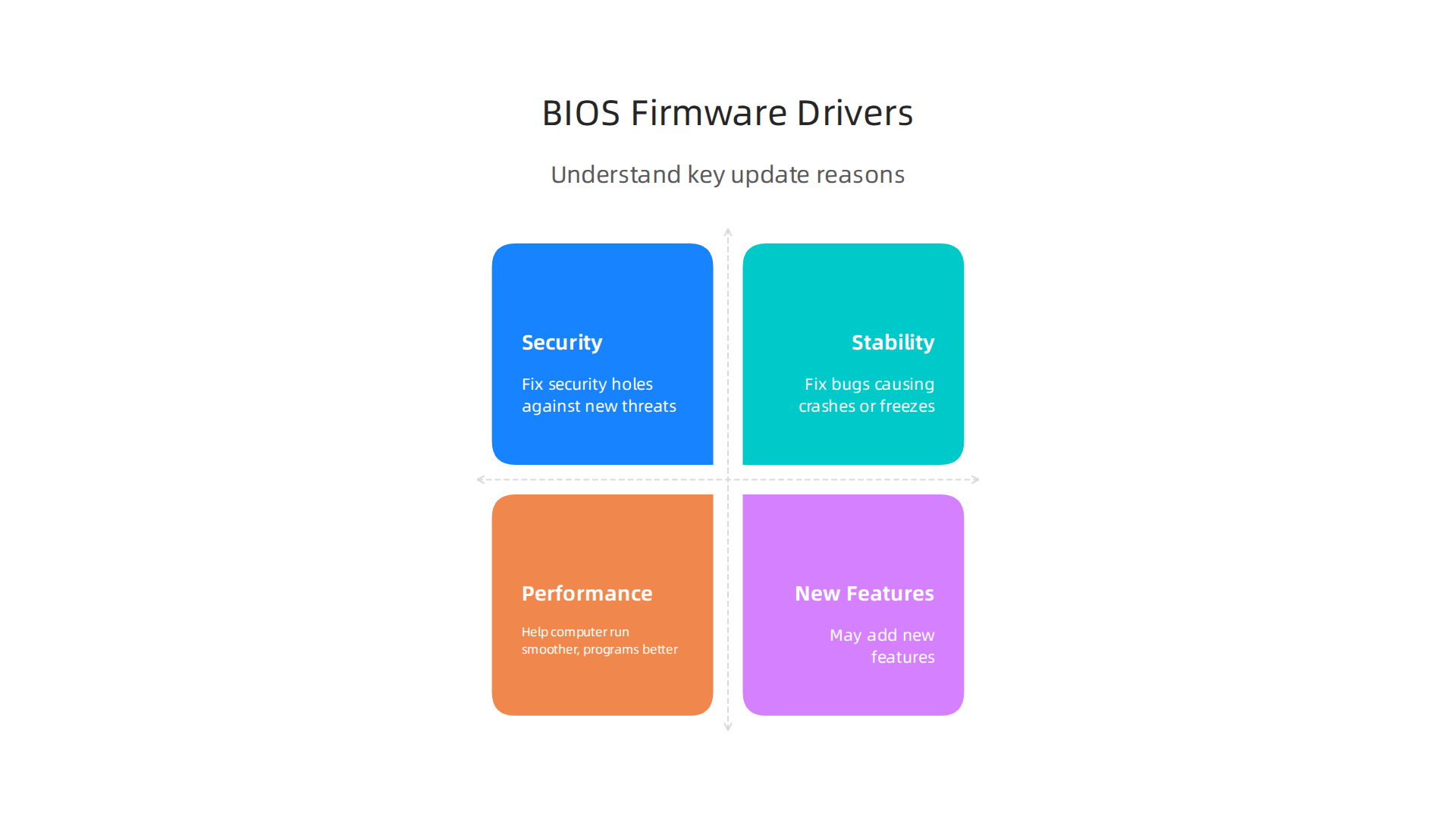
- Security: New updates often fix security holes that bad guys could use to get into your computer. In 2026, many companies like Lenovo release special updates to protect against new threats. For example, some ThinkPad models had important updates released this year to fix security issues, like an authorization bypass vulnerability Lenovo ThinkPad Auth Bypass Vulnerability. Keeping your
Lenovo ThinkPad P51updated helps keep your information safe. - Stability: Updates fix bugs that can cause crashes, freezes, or other weird behavior. If your
pc randomly freezes, an updated driver might be the answer. - Performance: Sometimes, new updates can help your computer run smoother or make programs work better. This helps
optimize pcperformance overall. - New Features: Rarely, updates might even add small new features or support for newer accessories.
Knowing Which Updates to Do
Not all updates are equally important.
- Priority 1: Security and Stability Updates: Always make time for these. If Lenovo releases a security advisory for your specific
ThinkPadmodel, you should update it as soon as you can. These are the ones that prevent serious problems. - Optional Updates: Some updates just add small improvements or fix very minor issues. You can usually wait a bit for these if you’re busy, but it’s still a good idea to install them eventually to help
clean my pcof small glitches.
How to Update Your ThinkPad Safely
Updating your BIOS, firmware, or drivers needs a little care. Here’s how to do it right:
- Back Up Your Files: Before any major update, especially a BIOS one, always make sure your important files are saved somewhere else. This is a golden rule for all computer care.
- Use Lenovo’s Official Tools: Go straight to the Lenovo support website for your specific
Lenovo ThinkPad P51model. They have tools like "Lenovo Vantage" that can scan your computer and tell you exactly which updates you need. Do not download drivers from random websites. - Plug In Your Laptop: When updating BIOS or firmware, your laptop must be plugged into power. If it loses power during the update, it could damage your computer and make it unusable.
- Do Not Interrupt: Once an update starts, do not turn off your computer or close the update window. Just let it finish, even if it seems to take a long time.
- Read Instructions Carefully: Every update might have slightly different steps. Read all the on-screen prompts and any notes on Lenovo’s website. For BIOS updates, sometimes you need to update one part (like the Embedded Controller Program, or ECP) before another, then do them quickly one after the other BIOS Upgrade.
- Check for Advisories: Regularly check Lenovo’s official security advisories to stay informed about critical updates for your ThinkPad. This is part of keeping your system secure and well-maintained. You can find general security information from Lenovo on their Product Security Advisories and Announcements page.
By following these steps, you can keep your ThinkPad running smoothly and securely. This can save you from bigger problems down the road and might even help prevent the need for a thinkpad warranty check. Staying informed about the latest tech news can also help you make smart choices for your business. For those looking to keep up with the fast-changing world of tech, especially AI, there’s a great resource available.
Get clear daily AI updates from The AI Newsletter Worth Reading. Staying informed is crucial for business leaders in 2026. Learn how to track important changes in the tech world for better decisions by reading about tracking major technology news for smart business decisions in 2026.
After making sure your computer’s brain and its instructions are up to date, there’s another big thing that affects how well your laptop runs: heat. If your Lenovo ThinkPad P51 or any PC gets too hot, it can slow down a lot. This is where cooling, thermal management, and smart performance tuning come in. Keeping your computer cool helps it run fast and prevents damage over time.

What is Thermal Throttling?
Think of your computer’s parts, like the main processor (CPU) and graphics chip (GPU), as little engines. When they work hard, they make heat. Computers have fans and heatsinks to move this heat away. But if the heat builds up too much, the computer gets scared of burning itself out. To protect itself, it automatically slows down. This slowing down is called "thermal throttling." When your PC does this, it might feel like your pc randomly freezes or just becomes very sluggish.
Diagnosing Too Much Heat
How can you tell if your laptop is getting too hot?
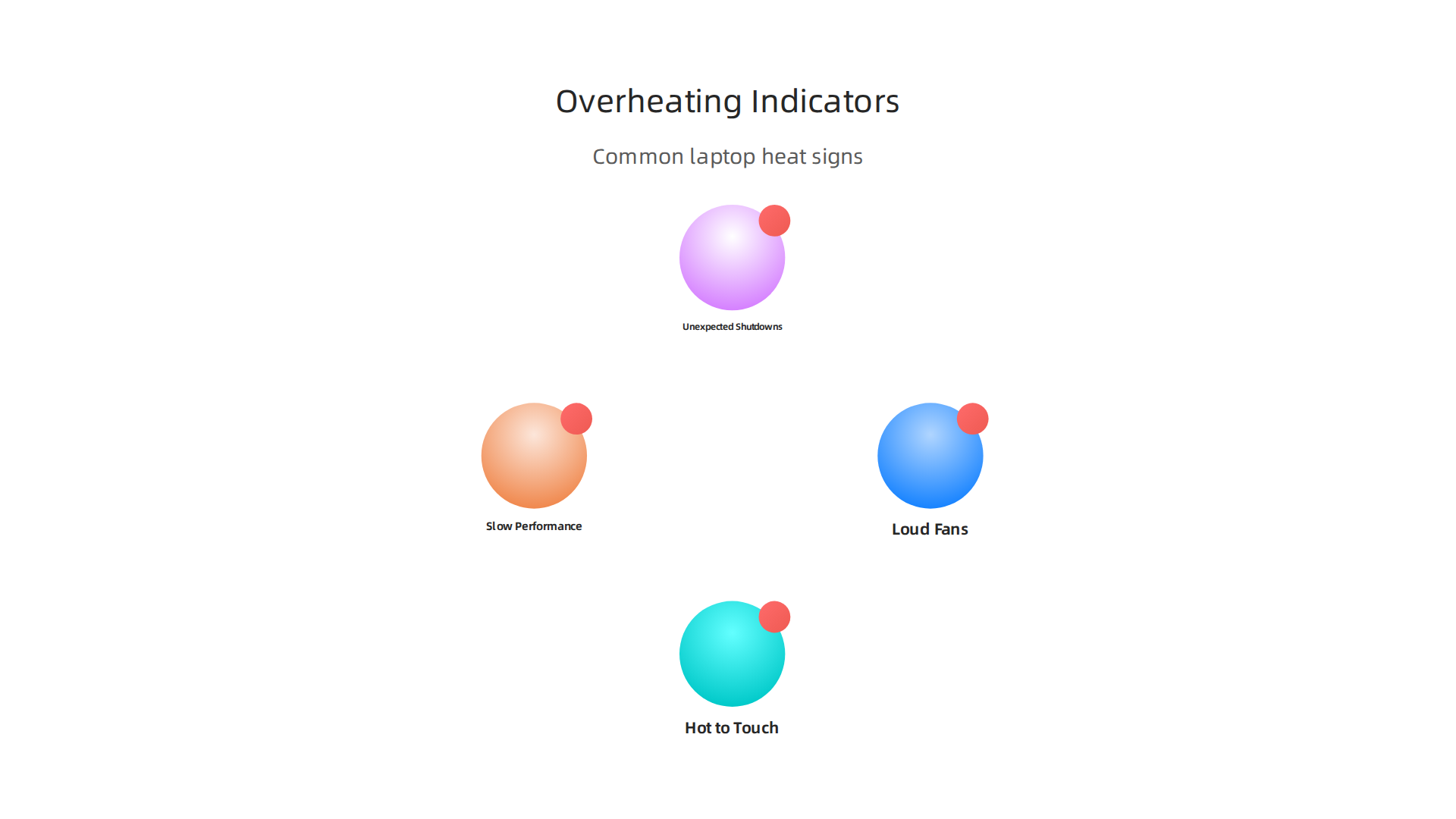
- Loud Fans: If the fans are always spinning very fast and making a lot of noise, especially when you’re not doing much, it’s a sign it’s trying hard to cool down.
- Hot to the Touch: The bottom or keyboard area of your laptop feels very warm or even hot.
- Slow Performance: Your computer suddenly gets very slow during games, video calls, or when doing big tasks. This is often thermal throttling at work How to Stop Your Laptop Overheating and Thermal Throttling.
- Unexpected Shutdowns: In very bad cases, an overheating laptop might just turn off by itself to prevent damage.
You can also use special programs to check the temperature of your CPU and GPU. Knowing the exact numbers can help you understand if there’s a real problem How to Cool Down the Laptop: 2026 Cooling Guide.
Cleaning Fans and Vents
Dust is the biggest enemy of a cool laptop. Over time, dust and lint can build up inside your laptop, blocking the airflow to the fans and heatsinks. This makes it much harder for your computer to get rid of heat. Cleaning your laptop’s fans and vents is a great way to clean my pc and improve its cooling.
Here’s how to clean them safely:
- Turn it Off and Unplug It: Make sure your laptop is completely off and not plugged into any power.
- Use Compressed Air: Get a can of compressed air. Use short bursts to blow dust out of the vents. These are the small openings on the sides or bottom of your laptop.
- Hold the Fan Still: If you can safely see the fan blades, gently hold them in place with a finger or a wooden toothpick while you spray. This stops them from spinning too fast and getting damaged How to Clean a Laptop Fan Safely: Step-by-Step Guide.
- Regular Cleaning: Most experts say you should clean your laptop vents every 6 to 12 months, or more often if you use it in dusty places or on soft surfaces like a bed Laptop Overheating and Fan Noise: What Buyers Need to Know in ….
Smart Performance Tuning and Placement
Beyond cleaning, you can also use your laptop’s settings and how you place it to help manage heat and optimize pc performance.
- Power Profiles: Your computer usually has different "power plans" or "power profiles" you can choose from. These might be called "Balanced," "Power Saver," or "High Performance." "Power Saver" will make your laptop run cooler by using less power, but it will also be slower. "High Performance" uses more power, which means more heat, but also more speed. Choose the one that fits what you’re doing.
- Firmware Thermal Settings: Sometimes, in your laptop’s BIOS settings, there are options to change how your fans behave or how your computer manages heat. Be careful with these, though. It’s usually best to leave them at their default settings unless you really know what you’re doing. Messing with these without care can sometimes lead to more heat problems or even needing a
thinkpad warranty checkif something goes wrong. - Proper Placement: Always use your laptop on a hard, flat surface like a desk. Soft surfaces, such as blankets or pillows, block the air vents on the bottom and sides, trapping heat inside. Elevating the back of your laptop a little bit, even with a book, can help a lot with airflow How to Cool Down Your Laptop: A Practical 2026 Guide.
- Close Unneeded Apps: Running many programs at once makes your computer work harder and generate more heat. Closing apps you’re not using can help reduce the load and keep temperatures down Thermal Throttling in OMEN Laptops: Myths vs Reality – HP.
By understanding how heat affects your computer and taking these simple steps, you can keep your Lenovo ThinkPad P51 running smoothly and prevent issues like thermal throttling. If you’re looking to push your system’s performance, learning how to improve its cooling and power management is key. This is especially true if you plan to build and optimize your AI workstation for peak performance in 2026.
After making sure your computer stays cool, the next big thing that can make your laptop slow or cause issues is its software. This includes the main operating system, like Windows or Linux, and all the little programs called drivers. Sometimes, problems here can make your computer act weird, even causing a pc randomly freezes situation.
Common Operating System Problems
Even if your Lenovo ThinkPad P51 is super clean and cool, the software inside can still cause trouble. Think of your operating system (OS) as the boss of your computer. If it has too much work to do, or if some of its workers (programs) aren’t getting along, things can slow down.
Here are some common OS-level issues:
- Too Many Programs Starting Up: Lots of apps want to start automatically when your computer turns on. This can make your system feel very sluggish right from the start.
- Background Processes: Many programs run quietly in the background, even when you’re not using them. They use up your computer’s brainpower and memory, making it harder for other tasks to run smoothly.
- System Errors or Corrupted Files: Sometimes, important system files can get broken or mixed up. This can lead to crashes, freezes, or programs not working right.
- Viruses and Malware: Nasty software can secretly run on your computer, stealing information or using up all its power, leading to major slowdowns and security risks.
Regularly checking what programs run when your computer starts and cleaning up old files can help a lot to optimize pc performance.
Driver Conflicts and Fixes
Drivers are like instruction manuals that tell your computer’s parts (like the screen, keyboard, or Wi-Fi chip) how to talk to the operating system. If these manuals are old, wrong, or get mixed up with each other, your computer won’t know how to use its parts correctly. This often leads to problems like your screen flickering, Wi-Fi not working, or your pc randomly freezes.
Here’s what you can do:
- Update Drivers: Always keep your drivers up to date. Lenovo, like other computer makers, often releases new drivers to fix bugs and improve performance. You can usually find these on the Lenovo support website for your specific
Lenovo ThinkPad P51model. - Roll Back Drivers: If a new driver causes problems, Windows and Linux often let you "roll back" to an older version that worked fine. This is a helpful trick to undo bad updates.
- Reinstall Drivers: Sometimes, a driver gets really broken. In this case, removing it completely and then installing a fresh copy can fix the issue.
It’s also important to keep your computer’s core instructions, called the BIOS or firmware, updated. Just like drivers, old firmware can have security holes or simply not work well with newer software. For example, in 2026, there have been several important security updates for ThinkPads and other systems to fix issues that could allow bad guys to get into your computer CVE-2026-0421: Lenovo ThinkPad Auth Bypass Vulnerability. Checking for updates can help prevent such problems and ensure your system runs safely. You can always check official advisories for updates to your computer’s security Lenovo Product Security Advisories and Announcements.
When a Clean OS Install is the Best Fix
Sometimes, if your computer is still slow, crashing, or having weird issues after trying everything else, a "clean OS install" might be the answer. This means completely erasing everything on your computer’s main storage and installing a fresh copy of Windows or Linux. It’s like giving your computer a brand new brain, free from old programs, broken files, or hidden problems.
This is a big step because you lose all your personal files and programs, so it’s super important to back up everything first. But for older computers or systems with lots of hidden issues, a clean install can make them feel brand new again. It’s often the fastest way to truly optimize pc performance when software problems are too deep to fix otherwise.
If you’ve tried these steps and still have major issues, you might want to consider a thinkpad warranty check to see if your computer is still covered for professional repair. Making sure your software is healthy is just as important as keeping your hardware cool for a fast and reliable computer. To stay on top of the latest in technology and how it affects your devices, you might find a helpful resource.
Get clear daily AI updates from The AI Newsletter Worth Reading.
Preventive Maintenance: Cleaning, Battery Care, and Storage
While keeping your software updated is key, giving your computer’s physical parts a little love helps a lot too. Regular care can stop problems before they start and truly optimize pc performance. Think of it as a routine check-up to keep your laptop running smoothly and avoid issues like your pc randomly freezes.
Keeping Your Laptop Clean
Dust is a computer’s worst enemy. It gets into vents and fans, blocking airflow and making your laptop heat up. When your computer gets too hot, it has to slow down to protect itself. This is why cleaning is so important.
- Vents and Fans: Use compressed air to gently blow dust out of the cooling vents. Remember to hold the fan blades still with a finger or a toothpick while you spray. This stops them from spinning too fast, which can damage them. You should do this every 6 to 12 months, or more often if your home is dusty How to Cool Down the Laptop: 2026 Cooling Guide. Dell also recommends powering down and unplugging your laptop before cleaning the vents How to Clean a Laptop Fan Safely: Step-by-Step Guide.
- Keyboard and Screen: A soft brush or a special cleaning cloth can remove dirt and smudges from your keyboard and screen. For deeper cleaning of the keyboard, compressed air can clear out crumbs and dust between the keys.
- Outside Surfaces: Use a slightly damp, soft cloth to wipe down the outer case of your
Lenovo ThinkPad P51. This keeps it looking good and helps to clean my pc from the outside in.
Battery Care Tips
Your laptop’s battery has a lifespan. You can make it last longer with a few simple habits:
- Avoid Extreme Charges: Try not to always let your battery drain completely or charge it all the way to 100% and leave it plugged in. Keeping it between 20% and 80% can actually extend its life.
- Cool Storage: If you’re not going to use your laptop for a long time, store it in a cool place with about 50% charge. This helps prevent the battery from losing its ability to hold a charge over time.
Documenting for Warranty and Resale
Keeping good records of your laptop’s health is a smart move. If you ever have a problem, having a history of what you’ve done can be very helpful.
- Log Book: Jot down when you cleaned your laptop, updated drivers, or fixed any issues. This helps you remember what’s been done and when.
- Warranty Check: If a serious problem comes up, your maintenance logs can support a thinkpad warranty check. Knowing when you cleaned the fans, for example, shows you’ve taken good care of the device.
- Repair or Replace: Sometimes, your computer might need a big repair. In 2026, experts often say that if the repair costs more than half the price of a new, similar laptop, it might be better to buy a new one Is It Worth Repairing a Laptop? (2026 Repair vs Replace Guide). Your logs help you decide if a repair is worth the money. If you decide to sell your laptop, showing good maintenance records can also help you get a better price.
When to Repair vs Replace: Cost, Parts, and Data Safety
Knowing when to repair your laptop versus buying a new one can save you money and headaches.

As we mentioned, if a repair costs too much, getting a new computer might be smarter. Let’s look at how to make that choice.
The Repair vs. Replace Decision
Many experts in 2026 use a simple rule: if the repair costs more than half (50%) of what a new, similar laptop would cost, it’s usually better to replace it. For example, if a new Lenovo ThinkPad P51 costs $1000 and the repair bill is $600, you might want to consider a replacement instead. This "50% rule" helps businesses and regular users decide wisely Repair vs Replace Student Laptop: 2026 Guide. Another good idea is to replace your laptop if it’s older than three years and has many problems The Laptop Repair Decision Framework: When to Repair, Upg….
Think about how old your laptop is. Most laptops will have some kind of issue within three years. Some reports show that about one-third of all laptops fail within three years of being bought 1 in 3 Laptops fail over 3 years:. If your laptop is already old and having issues like your pc randomly freezes, putting money into costly repairs might not be the best long-term solution. When deciding on a new device, you might want to consider how to choose AI ready business computers in 2026 to future-proof your tech.
Warranty and Repair Costs
Always check your warranty first! Your thinkpad warranty check can tell you if the repair is covered for free or at a lower cost. If it is, then repairing makes a lot of sense. Keep in mind that some repairs, like replacing a screen or motherboard, can be quite expensive. Parts alone can add up, not to mention the cost of labor. Simple fixes like a new battery or adding more storage are usually less costly and often worth doing.
Protecting Your Data Before Repair
Before sending your laptop in for any repair, protecting your data is super important. Here’s what you should do:
- Back Everything Up: Copy all your important files, photos, and documents to an external hard drive or a cloud service. This way, if anything goes wrong during the repair, your data is safe.
- Remove Sensitive Information: If possible, remove your hard drive or SSD if the repair doesn’t need it. This protects your private information from anyone who might work on your computer. If you cannot remove it, make sure everything is backed up and consider factory resetting the device if it’s going to a third-party repair shop.
Making these choices helps you keep your computer running well and your important data secure.
Knowing when to repair or replace your laptop is just one part of staying on top of tech. To get more helpful insights and keep up with the fast-changing world of AI and technology, consider subscribing.
The AI Newsletter Worth Reading
Summary
This practical guide explains how to troubleshoot common Lenovo ThinkPad problems, starting with a fast warranty check and moving through hardware and software diagnostics. It shows where to find your serial or product number, how to spot failing batteries, SSDs, RAM, and display issues, and how to decide whether a problem is a simple fix or a warranty/repair job. The article also covers safe BIOS, firmware, and driver updates, how to diagnose and reduce overheating and thermal throttling, and when a clean OS install is the right solution. You’ll get clear steps for cleaning fans and vents, tuning performance, protecting your data before repair, and using a simple repair-vs-replace cost rule. After reading, you’ll be able to identify the likely cause of many ThinkPad issues, perform basic fixes safely, and make informed choices about repairs or replacement.