
Introduction
You just got your MacBook Air 2022. It is sleek, light, and fast. But here is the real question: Can it handle your AI workload?
If you are like most professionals in 2026, you are juggling AI tools every day. Maybe you use ChatGPT for drafting emails. Maybe you run local models for image generation. Or maybe you are drowning in AI newsletters, tool reviews, and workflow tutorials that all promise the same thing.
That overwhelm is real. According to the latest AI Productivity Guide for 2026, professionals who use AI tools effectively are saving an entire workday every week. But getting there means cutting through the noise first.
That is where the MacBook Air 2022 shines.
With its M2 chip, this laptop delivers surprising power in a thin frame. It is not the most expensive Apple desktop replacement. It is not a gaming rig. But it offers something rare: true portability paired with enough processing muscle to run modern AI applications without breaking a sweat.
So why does this matter for you?
Because the right hardware is only half the equation. You also need practical workflows, real benchmarks, and honest tips that turn your machine into an actual productivity hub. That is exactly what this guide delivers.
We will cover how the MacBook Air 2022 handles real-world AI tasks. We will compare it to other options like the best mini PC setups and show you how to avoid common mistakes. And we will share strategies to keep your workflow smooth, even when things go wrong.
If you have been wondering whether your Apple MacBook trade in was worth it or how to get the most out of your current machine, you are in the right place.
Let us start with something simple. If you want daily AI updates that actually help, consider checking out The AI Newsletter Worth Reading.

It delivers clear, practical insights without the fluff.
1. Why the M2 Chip Matters for AI Tasks
The M2 chip is the engine that makes the MacBook Air 2022 work well with AI. Without it, this thin laptop would struggle. With it, things just run smoothly.
Two things make this possible.
First, the 16-core Neural Engine. This part of the chip is built just for machine learning. When you run an AI model, the Neural Engine handles the hard work. Your main processor stays free for other tasks. This means less lag.
Second, the unified memory. Instead of separate memory spots for different parts of the chip, everything shares one fast pool. Data moves faster because nothing needs to copy itself around. For AI jobs like running LLMs or making images, this matters a lot.
The numbers back this up. According to Apple M2 Processor Benchmarks and Specs from Notebookcheck, the M2 runs 18% faster than the M1 at the same power level.
Compared to older Intel MacBooks, the jump is even bigger. Some AI tasks run up to 40% faster.
Real-world tests show the same story. The MacBook Air 2022 runs mid-sized language models and image tools smoothly. It is not a desktop computer for heavy work. But for daily AI tasks, it holds up well.
If you want to see how the M2 stacks up against newer chips, the Apple Silicon for AI M4 vs M3 vs M2 Comparison guide breaks it down with clear numbers.
And if your AI workflow ever crashes, learning how to report a problem to Apple when your AI workflow crashes can help you fix things fast.
2. Maximizing RAM and Storage for AI Models
Your MacBook Air 2022 has unified memory. That means the AI model and the processor share the same pool of memory. No copying data back and forth. This is great for speed, but it means you need enough memory to hold the entire model.
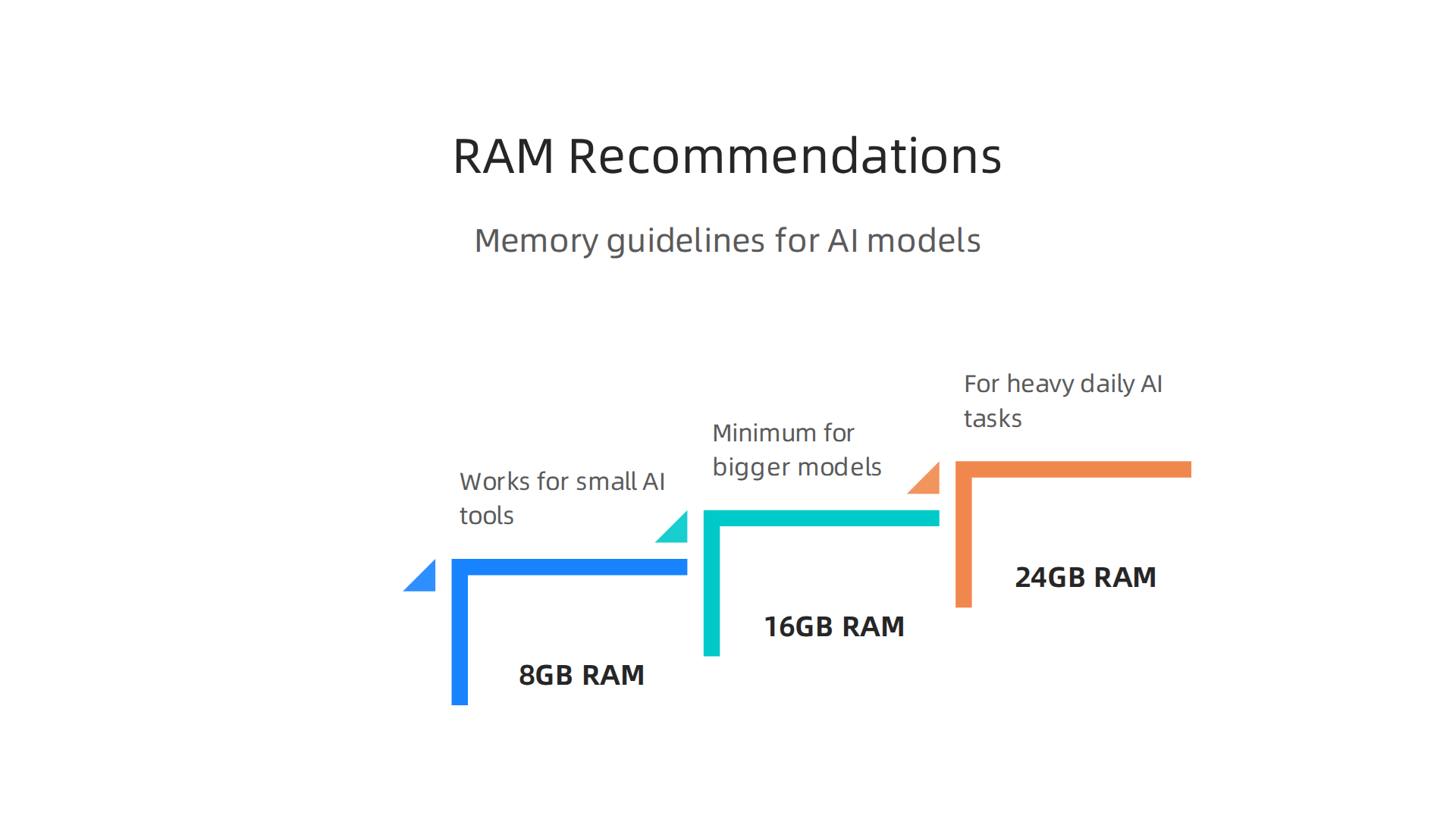
For small AI tools, 8GB works okay. But for bigger language models or image generators, you want more. A good rule is 16GB at minimum. If you plan to run heavy AI tasks daily, get 24GB if your budget allows.
The M2 chip supports up to 24GB of unified memory.
Here is why memory matters more than you think. When your model runs out of RAM, the system starts using your SSD as virtual memory. This is called swapping. It slows everything down. A lot. Apple’s own announcement of the M2 chip explains how the unified memory architecture makes this possible. You can check that Apple M2 breakthrough performance and capabilities page for the full details.
Now about storage. The MacBook Air 2022 comes with SSDs up to 2TB. A fast SSD matters because it loads your AI models and checkpoints faster. But here is the trick: if you have to choose between more RAM and more storage, pick RAM every time. You can always add an external drive later. You cannot add more RAM after purchase.
If you are still deciding which model fits your work, check out this picking the best MacBooks for AI guide. It compares options across the whole lineup.
Staying current on AI tools helps you make the most of your MacBook. Want the latest AI news and tips delivered daily? Get clear updates from The AI Newsletter Worth Reading and stay ahead.
3. Top AI Apps Optimized for MacBook Air 2022
Now that your MacBook Air 2022 has enough RAM and fast storage, it’s time to load it with AI apps that actually use the M2 chip’s power. The unified memory and Neural Engine make many AI tools run surprisingly fast on this laptop. Here are five apps that feel like they were made for your machine.
- ChatGPT for Mac – The official desktop app is lightweight and uses your Mac’s GPU for faster responses. It works great for writing, brainstorming, and coding help.
- MacWhisper – This native macOS app turns audio into text using OpenAI’s Whisper model. It runs completely offline and handles long recordings without slowing down.
- DiffusionBee – An image generator that runs locally on Apple Silicon. No cloud needed. You can create AI art right from your MacBook Air 2022 in seconds.
- LM Studio – Lets you download and run open-source language models like Llama and Mistral. It’s fully offline and optimized for M2 chips.
- Raycast – A keyboard launcher with built-in AI features. You can ask questions, summarize text, or control your Mac with natural language.
All these apps take advantage of the M2’s efficiency. That means your battery stays strong while you work.
For a full list of tools that perform well on Apple Silicon, take a look at this roundup of best AI apps for Mac from MacHow2.
If you’re still figuring out which AI tools deserve your time, this guide on finding trusted AI sources can help you cut through the noise.
4. Using Shortcuts and Automations for AI Workflows
Once you have the right apps installed, the next step is making them work together automatically. Your MacBook Air 2022 comes with the Shortcuts app built in. This tool lets you chain AI prompts and outputs across different apps without touching the keyboard.
For example, you can set up a daily AI briefing. Shortcuts grabs the top news headlines, sends them to ChatGPT for a one-paragraph summary, and reads it aloud through your speakers while you make coffee. All in one click.
Another powerful automation is image generation from clipboard. Copy an image to your clipboard, run a shortcut that sends it to DiffusionBee, and get a variation or upscale in seconds. No manual importing required.
Text summarization is equally simple. Highlight any text, trigger a shortcut, and have Raycast or ChatGPT summarize it instantly. You can then save the summary to a note or send it to your email.
For people who want more control, third-party tools like Keyboard Maestro and BetterTouchTool take automations further. They add custom triggers, complex conditions, and deeper integration with system events. You can create workflows that run AI models based on file changes, time schedules, or even mouse gestures.
A well-designed AI workflow saves you minutes every day. And minutes add up fast.

If you ever run into problems with automations going wrong, this guide on troubleshooting AI workflow crashes with Apple support can help you get back on track.
To get the most out of these automations, you need to keep up with the latest AI tools and updates. The Deep View Newsletter delivers clear daily AI news straight to your inbox, so you never miss a new workflow opportunity. The AI Newsletter Worth Reading is a great way to stay sharp.
5. Multitasking with AI Tools: Split View, Spaces, Stage Manager
Now that your shortcuts and automations are running smoothly, you need a way to juggle multiple AI tools without getting lost in a mess of windows. The MacBook Air 2022 has three built-in features that make this easy: Split View, Spaces, and Stage Manager.
Stage Manager groups your apps into sets on the left side of the screen. Click one set, and your AI writing tool, image generator, and chatbot all appear together. Click another, and you see your research notes, email, and planner. It cuts down clutter instantly.
Spaces lets you create separate full-screen desktops. You can dedicate one desktop to your coding environment, another to your LLM chat, and a third to your output viewer. Swipe between them with three fingers on the trackpad. No alt-tabbing through a stack of windows.
Split View is perfect when you need to see two apps side by side. Drag one window to the left edge and another to the right edge. Now you can tweak your AI prompt in one pane and watch the output update in real time.
Here is a real-world example. A developer using the MacBook Air 2022 sets up Space 1 with VS Code for writing code. Space 2 holds ChatGPT for asking questions about the code. Space 3 shows a live preview of the app they are building. The developer switches between spaces in a heartbeat. No slowdowns. No confusion.
These multitasking tools turn your MacBook Air 2022 into a command center for AI work.

For more tips on getting the most from your setup, check out this guide on picking the best MacBooks for AI for your 2026 projects. It covers which models handle heavy multitasking best.
6. Local vs Cloud AI Processing: When to Use Which
Now that your multitasking setup is ready, the next question is where to run your AI workloads. Your MacBook Air 2022 can handle some models right on the device. But other jobs are better sent to the cloud. Here is how to decide which approach fits each task.
The M2 chip inside the MacBook Air 2022 has a 16-core Neural Engine that can run about 15.8 trillion operations per second. That is enough power for lightweight models like small language assistants, text summarizers, and basic image editing tools. Running these locally means zero latency. No waiting for an internet request. No monthly fees. You just open the app and go.
But heavier models need more muscle. Large language models like GPT-4, video generators, or advanced image upscalers require cloud servers. The MacBook Air 2022 has a unified memory limit of 8GB or 16GB. That is not enough for models that need 32GB or more of VRAM. Offloading these to the cloud costs money per request, but you get professional-grade results instantly.
Here is a simple strategy. Use local processing for quick edits, small drafts, and personal assistants. Use cloud processing for complex analysis, full content generation, and media creation.
The blend gives you speed when you need it and power when you must have it.
For a deeper look at how different setups compare, check out this guide on enterprise AI platforms for 2026. It helps you match processing type to your workload.
If you want to stay on top of which AI models run best locally versus in the cloud, The AI Newsletter Worth Reading delivers daily updates straight to your inbox. No fluff, just practical AI news.
7. Battery Life Management for Heavy AI Workloads
Now that you know when to run AI locally versus in the cloud, let’s talk about what happens to your battery when you push the MacBook Air 2022 with local models. The M2 chip has special efficiency cores that keep power draw lower during sustained AI inference. That is a big help. But running AI models still eats energy fast.
Here is the honest truth. If you use your MacBook Air 2022 for normal tasks like web browsing and writing, you might get 15 hours or more. Apple’s newer MacBook Air with M5 shows up to 18 hours for video playback in Apple’s official battery ratings for MacBook Air. But when you start running continuous AI inference, that number drops hard. Expect about 3 to 4 hours of steady AI work on a full charge.
Do not panic. You can stretch that battery further with a few simple habits. First, lower your screen brightness. The display is a big power hog. Second, close every app you are not using. Background apps fight for system resources and drain your battery. Third, turn on optimized energy settings. Go to System Settings and select Low Power Mode. That caps performance slightly but gives you more runtime.
Also, avoid running multiple AI models at the same time. The MacBook Air 2022 handles one local model fine. Piling on two or three will drain your battery in under two hours. Stick to one task at a time.
If you want to upgrade your hardware for longer AI sessions, check out this guide on best MacBooks for AI projects. It compares battery performance across different models.
8. Integrating AI with macOS Native Features (Spotlight, Siri, Quick Look)
Your MacBook Air 2022 already comes with tools you can use for AI work. You probably use Spotlight to find files or Siri to set reminders. But these native features can also help you run AI tasks faster. Here is how to make them work for you.
Use Spotlight as a quick launchpad for AI scripts and tools. Press Command + Space and type the name of an AI app or script. For example, if you have a local text generation model saved as a shortcut, Spotlight finds it in seconds. You do not need to dig through folders every time.
Siri shortcuts can trigger complex AI workflows with voice commands. Open the Shortcuts app on your Mac. Create a shortcut that runs an AI model or opens a set of tools. Then say "Hey Siri" followed by the shortcut name. Siri runs it without you touching the keyboard. This is great when you need to start a long AI task while you step away.
Quick Look previews of AI-generated images and documents save time. Select a file and press the Space bar. You see the image or document content without opening any app. This works for AI output like generated pictures, text files, or CSV exports. You check results fast and move on.
Newer MacBook models include even deeper AI features, as shown in The best MacBooks of 2026. But your MacBook Air 2022 already handles these tricks well.
If you want to stay updated on more AI tips like this, The AI Newsletter Worth Reading delivers clear daily updates straight to your inbox.
These small habits turn your everyday Mac features into AI helpers. No extra software needed.
9. Security and Privacy Considerations for AI on MacBook Air
Using AI on your MacBook Air 2022 is exciting, but it also raises important questions about safety. Here is the good news: running AI locally on your machine keeps your sensitive data off third-party servers. When you use a local AI model instead of a cloud service, your private information never leaves your laptop. That alone reduces a lot of risk.
Your MacBook Air already comes with strong built-in protections. FileVault encrypts your entire drive so that even if someone gets physical access to your computer, they cannot read your files.

Gatekeeper checks that every app you run has been verified by Apple. And the T2 security chip in your MacBook Air handles encrypted storage and secure boot processes. These features protect both your AI tools and the data they process.
Here are a few best practices to keep your AI work safe:
Sandbox your AI apps. When you download a new AI tool, run it in a separate user account or a container. This limits what the app can access if something goes wrong.
Vet your models carefully. Only download AI models from trusted sources. Bad actors can hide malware in fake model files. Check reviews and community feedback before running anything unfamiliar on your MacBook Air.
Use encrypted containers for sensitive AI data. Tools like VeraCrypt let you create a secure folder that locks with a password. Store your training datasets and AI outputs there when you are not using them.
Apple has been paying closer attention to AI security too. In 2026, the company started accelerating security updates in response to AI-powered hacking risks. This means your MacBook Air gets fixes faster when new threats appear.
If you run into security issues with your AI workflow, you can learn how to report a problem to Apple when your AI workflow crashes. Getting fast help keeps your projects moving without putting your data at risk.
Staying safe does not have to be hard. A few small habits make a big difference when you are exploring AI on your MacBook Air 2022.
10. Future-Proofing Your MacBook Air for Emerging AI Tech
Building on that foundation of safety, let us talk about how to keep your MacBook Air 2022 ready for the AI tools of tomorrow. The good news is that Apple designed this laptop with future AI features in mind.
The M2 chip inside your MacBook Air includes a 16-core Neural Engine built specifically for machine learning tasks. As Apple rolls out more on-device AI features in future macOS updates, that Neural Engine will become even more useful. Your machine is already set up to handle those improvements without needing new hardware.
But to really get the most out of your laptop for years to come, you need the right configuration. If you are buying new or upgrading, aim for at least 16GB of RAM and a 512GB SSD. These specs give your MacBook Air the memory and storage space to handle larger AI models and bigger datasets without slowing down. That upfront investment will extend your laptop’s useful life by several years.
Staying ahead also means keeping an eye on Apple’s machine learning framework updates and community optimizations. The AI space moves fast, and new techniques can make older models run faster on the same hardware. Following these changes helps you squeeze every bit of performance from your MacBook Air 2022. You can find more guidance on picking the best MacBooks for AI if you are considering other options.
Apple is also adapting its overall approach to keep users safe as AI evolves, with accelerated security updates in response to AI-powered threats becoming the new normal. That level of commitment means your MacBook Air will keep getting better protection over time.
To stay on top of all the AI tools and updates that matter for your workflow, get clear daily AI updates from The AI Newsletter Worth Reading. It helps you keep your MacBook Air ready for whatever comes next.
Summary
This guide explains how the MacBook Air 2022 with Apple’s M2 chip performs as an everyday AI machine and how to get the most from it. It breaks down why the 16‑core Neural Engine and unified memory matter, recommends RAM and storage configurations, and gives practical rules of thumb for running local models versus sending jobs to the cloud. You’ll find a curated list of apps that run well on Apple Silicon, step‑by‑step ideas for automations and multitasking, and concrete tips to stretch battery life during sustained inference. The article also covers macOS integrations like Shortcuts, Spotlight and Siri, plus security practices to keep data safe when using AI tools. Finally, it shows how to future‑proof your setup with the right specs and update strategies so your MacBook Air stays useful as AI evolves. After reading, you’ll know which workloads your Air can handle, how to configure it for speed and safety, and when to offload heavier tasks to cloud services.