Tag: gpu for ai

  • PC Parts Compatibility for AI: Build a Powerful, Bottleneck-Free Workstation

    PC Parts Compatibility for AI: Build a Powerful, Bottleneck-Free Workstation

    Why PC parts compatibility matters for AI workloads (and what this guide will solve)

    If you’re thinking about building a computer for AI tasks like teaching new models or making smart predictions, you might imagine it’s just like putting together a super powerful gaming PC. But here’s the thing: making sure your pc parts compatibility is right for AI is actually quite different from what a typical "pc master race" gamer would look for.

    AI tasks, like training complex models, fine-tuning them, or running quick guesses (inferencing), put very different demands on your computer parts. For example, a gaming PC might focus on having a super-fast graphics card to draw game worlds smoothly. But for AI, the graphics card (GPU) needs a lot of special memory, often called HBM, and very fast ways to send information to other GPUs. For instance, connections like NVLink can offer much higher speeds between GPUs than the standard PCIe connections found in most regular computers, making a big difference for large AI projects. Some reports show NVLink 4.0, used in high-end AI GPUs, can be over seven times faster than PCIe 5.0 for moving data between parts NVLink vs PCIe: Do You Actually Need NVLink? (2026).

    This means that simply choosing parts that seem strong for an "affordable gaming pc" might not give you the performance you need for serious AI work. Without the right pc parts compatibility, your system could slow down, waste a lot of time, and even cost you more money in the long run due to inefficient operations.

    Illustrating the frustration of inefficient operations due to poor PC parts compatibility for AI tasks.

    You need a computer that can handle huge amounts of data and perform many calculations at once without bottlenecks.

    This guide is here to help you understand all the important details about pc parts compatibility for AI. We will walk you through each component, like the CPU, GPU, memory, and storage, and explain what to look for. Our goal is to give you a clear, easy-to-follow checklist. This way, you can pick the best parts, avoid expensive mistakes, and make sure your computer runs as fast and smoothly as possible for all your AI projects in 2026. If you’re ready to start building your ideal machine, you might find our guide on how to build and optimize your AI workstation for peak performance 2026 very helpful.

    Want to keep up with the latest AI trends and tools? Get clear daily AI updates from The Deep View Newsletter.

    When building a computer for AI, understanding the difference between your Central Processing Unit (CPU) and your Graphics Processing Unit (GPU) is very important.
    An infographic comparing the distinct roles of CPU and GPU in handling various AI workloads.

    It’s not just about getting the fastest parts; it’s about making sure your pc parts compatibility is perfect for how AI tasks actually run.

    The CPU’s Role in AI

    Think of the CPU as the brain of your computer. It’s really good at handling many different tasks one after another, like a skilled manager organizing a team. In AI work, the CPU mostly helps with:

    • Getting Data Ready: Before a GPU can train an AI model, the data often needs to be cleaned, sorted, and prepared. This is called data preprocessing, and the CPU handles it well. For example, if you’re working with text, the CPU will get all the words in order.
    • Running the Show: The CPU tells all the other parts of your computer what to do. It starts and stops AI programs and makes sure everything works together smoothly. This is like the CPU being the conductor of an orchestra.
    • Lighter AI Tasks: For simple AI tasks or when you’re just using a small AI model, the CPU can do the work itself.

    While the CPU is very important, it’s generally not the star for heavy AI computations.

    The GPU’s Power for AI

    The GPU is like a team of super-fast math helpers. Instead of doing one task after another, it can do thousands of simple math problems all at once. This is why GPUs are so critical for AI:

    • Training AI Models: Training an AI model involves huge amounts of calculations, usually with something called "tensors" (which are like big grids of numbers). GPUs are built to do these kinds of calculations super fast, much quicker than a CPU ever could. This is their main job for AI.
    • Making Predictions (Inferencing): Once an AI model is trained, the GPU can also help it make quick predictions or decisions. If you’re building a system that needs to understand images or voices in real-time, a powerful GPU will be key. Many AI guides highlight the GPU as the most important piece of hardware for AI workloads AI Workstation 2026 Guide: What Hardware to Buy Now.

    How CPU Features Affect GPU Performance and PC Parts Compatibility

    Even though the GPU does the heavy lifting, your CPU still needs to be a good match. Here’s what to look for regarding pc parts compatibility:

    1. Socket Type: This is the shape and pin layout on the motherboard where the CPU sits. Your CPU’s socket must match your motherboard’s socket. For instance, Intel’s 10th and 11th Gen CPUs use the LGA1200 socket, requiring specific motherboards Compatibility of 10th and 11th Generation Intel® Desktop Processors. If these don’t match, nothing will work. You can usually find a list of compatible CPUs for a motherboard, or vice-versa, in a "Motherboard – Processor Compatibility" list from the manufacturer.
    2. PCIe Lanes: These are like highways that connect your CPU to other parts, especially your powerful GPUs. The more PCIe lanes your CPU and motherboard offer, the more fast connections your GPUs can have.
      • Speed Matters: Newer standards like PCIe 5.0 are much faster. For instance, AMD’s AM5 platform supports 28 PCIe lanes and PCIe 5.0, which can move data at 4GB per second per lane ECE 571 – Advanced Microprocessor-Based Design Lecture 31.
      • Enough Lanes: If you plan to use multiple GPUs for big AI models, you need a CPU that provides enough lanes so each GPU can run at its best speed. Some CPUs, like AMD Threadripper or Intel EPYC, are designed for many GPUs because they have lots of PCIe lanes Best AI Workstation Builds in 2026. Without enough lanes, even the best GPUs can slow down, creating a bottleneck.
    3. Platform I/O (Input/Output): This refers to how well the CPU and motherboard work together to manage all the data flowing in and out of the system. A good CPU and chipset will ensure that data can move quickly between the GPU, memory, and storage without delays.

    Choosing the right CPU and motherboard with enough PCIe lanes is crucial for excellent pc parts compatibility.
    Visualizing the collaboration and careful planning required for optimal CPU and GPU compatibility in AI builds.

    It helps your powerful GPUs talk to the rest of the system as fast as possible, which means your AI tasks will run much quicker. If you’re looking for different build ideas, you might find useful information on how to choose the best prebuilt gaming PCs for AI work in 2026. This isn’t like an affordable gaming pc where you might skimp on these details; for serious AI, every connection counts.

    After making sure your CPU and GPU work well together, you need to think about the motherboard. The motherboard is like the main street of your computer. It connects all the important parts: the CPU, GPU, memory, and storage. For good pc parts compatibility, especially when building a powerful AI computer, choosing the right motherboard is a must.

    Here are the important things about a motherboard for your AI setup:

    Chipset

    The chipset is like a tiny manager on the motherboard. It helps the CPU talk to everything else. Different chipsets support different CPUs, memory types (like DDR4 or DDR5), and how many fast connections (PCIe lanes) are available for things like your graphics cards and speedy storage drives. For example, Intel’s 700 series chipsets help manage how the CPU connects to other parts, making sure data flows smoothly.

    PCIe Slot Layout

    You already know PCIe lanes are like highways. The motherboard has slots for your GPUs that use these lanes. For serious AI work, you might need several powerful GPUs. Your motherboard must have enough PCIe slots that run at high speeds, like PCIe 5.0 x16, to let your GPUs do their best work. Some motherboards even have special slots for fast storage that use PCIe 5.0 x4 lanes.

    M.2 and NVMe Slots

    These are for super-fast storage drives, often called NVMe SSDs. They are much quicker than older hard drives. For AI, you’ll be loading and saving huge amounts of data. Having multiple M.2 slots that connect directly to the CPU or chipset using PCIe lanes means your data can move very fast. This helps stop delays when your AI model is training or working. Many modern motherboards, like the X870 MAX GAMING WIFI7, support PCIe 5.0 x4 mode for M.2 drives, which is great for fast data access.

    BIOS Support

    The BIOS (Basic Input/Output System) is like the motherboard’s instruction book. It tells your computer how to start up and how to talk to your CPU, memory, and other main parts. Sometimes, when new CPUs come out, the motherboard might need a BIOS update to recognize and work with them. If your BIOS is too old, your new CPU might not work at all, even if the socket matches. For example, some AMD Ryzen 5000 series CPUs needed a BIOS update on older motherboards to work right. You can usually find a Motherboard – Processor Compatibility list from your motherboard maker that tells you which BIOS version you need for each CPU.

    Practical Checks Before You Buy

    To avoid headaches, always do these checks:

    • CPU Support List (QVL): Every motherboard manufacturer has a list on their website that shows every CPU that works with their specific motherboard model. Check this list carefully to ensure your chosen CPU is supported.
    • BIOS Version: Note the required BIOS version for your CPU. If the motherboard you buy has an older BIOS, you might need to update it. Some motherboards have a "BIOS Flashback" feature that lets you update the BIOS without a CPU installed, which is very handy.
    • Online Compatibility Checkers: Before you spend your money, use an online tool to check your pc parts compatibility. Websites like PC Build Compatibility Checker or PC Component Compatibility Checker let you pick out your CPU, motherboard, RAM, and GPU to see if they all fit together. These tools are like your personal pc master race guide, helping you avoid mistakes that even experienced builders can make.

    Choosing the right motherboard with the correct chipset, enough fast PCIe slots, and up-to-date BIOS support is key for building an AI computer that runs smoothly. It’s not just about raw power; it’s about making sure all your parts can talk to each other without bottlenecks.

    To learn more about putting together a high-performing system, consider reading about how to build and optimize your AI workstation for peak performance 2026.

    Staying informed about the fast-moving world of AI tools and hardware is also a smart move for any business leader. Get clear daily AI updates to help you navigate this space.

    The AI Newsletter Worth Reading

    The motherboard connects everything, but what gets connected in terms of memory and storage is just as important for pc parts compatibility in an AI setup.
    An infographic detailing optimal memory and storage solutions crucial for AI performance.

    Think of memory (RAM) as your computer’s short-term workspace and storage as its long-term filing cabinet. Both need to be big and fast for AI tasks.

    Memory and storage choices for AI performance

    When working with AI, especially training large models, your computer needs a lot of space to hold data it’s actively thinking about. This is where memory, or RAM, comes in.

    What to know about RAM for AI

    RAM is like your desk. The bigger the desk, the more papers (data) you can have open at once. For AI, this means holding larger datasets or working with bigger "batch sizes" during training. Batch size refers to how many examples your AI model looks at at one time. More RAM lets you use bigger batch sizes, which can sometimes speed up training. Experts suggest that AI workloads often need a lot of system RAM, sometimes from 128 GB up to 2 TB for very big projects, depending on how much data you are feeding the AI and what you want to achieve How Much RAM Do AI Workloads Really Need?.

    Beyond just how much RAM you have, its speed also matters. Faster RAM can move data to and from your CPU quicker, which helps prevent delays. Look for memory with high clock speeds and good timing. Also, how RAM is set up in "channels" can make a difference. Using two or four sticks of RAM instead of just one (dual-channel or quad-channel memory) can allow your CPU to access data even faster. This is like having more lanes on a highway. GPU memory capacity also directly impacts how well your system performs for AI INOM. For big language models (LLMs) in 2026, serving them can require hundreds of gigabytes of RAM per server, with high memory bandwidth being key for good performance Efficient LLM Inference: Bandwidth, Compute ….

    Storage choices for AI

    Storage is where all your large AI datasets, programs, and models live permanently. For AI, you need storage that’s not only big but also very fast.

    • NVMe SSDs: These are the top choice for AI. NVMe (Non-Volatile Memory Express) drives are super-fast storage that connect directly to your motherboard’s PCIe slots, just like your powerful graphics cards. They can read and write data much, much faster than older SATA SSDs or traditional hard drives. This means your computer can load huge datasets quickly, which is critical for training AI models without long waits. NVMe drives offer very low delay and high data flow, which is perfect for today’s AI tasks The Semiconductor Ecosystem at the Foundation of Data Centers.
    • SATA SSDs: These are still good and faster than old hard drives, but they are not as quick as NVMe drives. They connect using SATA cables. For some less demanding AI tasks or for storing data that isn’t accessed all the time, SATA SSDs can be a more affordable option.
    • Hard Drives (HDDs): These are the slowest. They are good for storing very large amounts of data that you don’t need to access quickly, like backups. For active AI work, they are usually too slow and will cause major delays.

    When picking storage, also think about "read/write IOPS" and "endurance." IOPS means "Input/Output Operations Per Second," and a higher number means the drive can handle more requests for data at once. Endurance refers to how much data can be written to the drive over its lifetime before it starts to wear out. AI workloads involve a lot of writing, so high endurance is a plus.

    Making smart choices for memory and storage makes sure your pc parts compatibility is strong, helping your AI computer run smoothly and efficiently.

    A visual metaphor for making smart, organized choices for memory and storage to ensure smooth AI operations.

    If you’re looking for guidance on what AI hardware to choose for your business, exploring resources like AI Hardware 2026: A Business Leader’s Guide to Growth can be very helpful.

    After picking out your fast memory and huge storage, the next big steps for great pc parts compatibility in an AI computer are making sure it gets enough power and stays cool. Powerful AI components, especially the graphics cards, use a lot of electricity and create a lot of heat. If your computer does not have enough power or gets too hot, it will slow down, crash, or even get damaged. This is why the power supply (PSU) and cooling system are super important for stable AI training runs.

    PSU and cooling: ensuring stable AI training runs

    Think of your power supply unit (PSU) as the heart of your computer. It gives power to every part. For AI, your graphics processing unit (GPU) is usually the hungriest for power. AI training is a tough job that makes GPUs work at their highest level for a long time. This means they pull a lot of power consistently.

    Power Supply Unit (PSU) needs for AI

    Choosing the right PSU is key. You need one strong enough to handle all your components, especially if you plan to use multiple powerful GPUs.
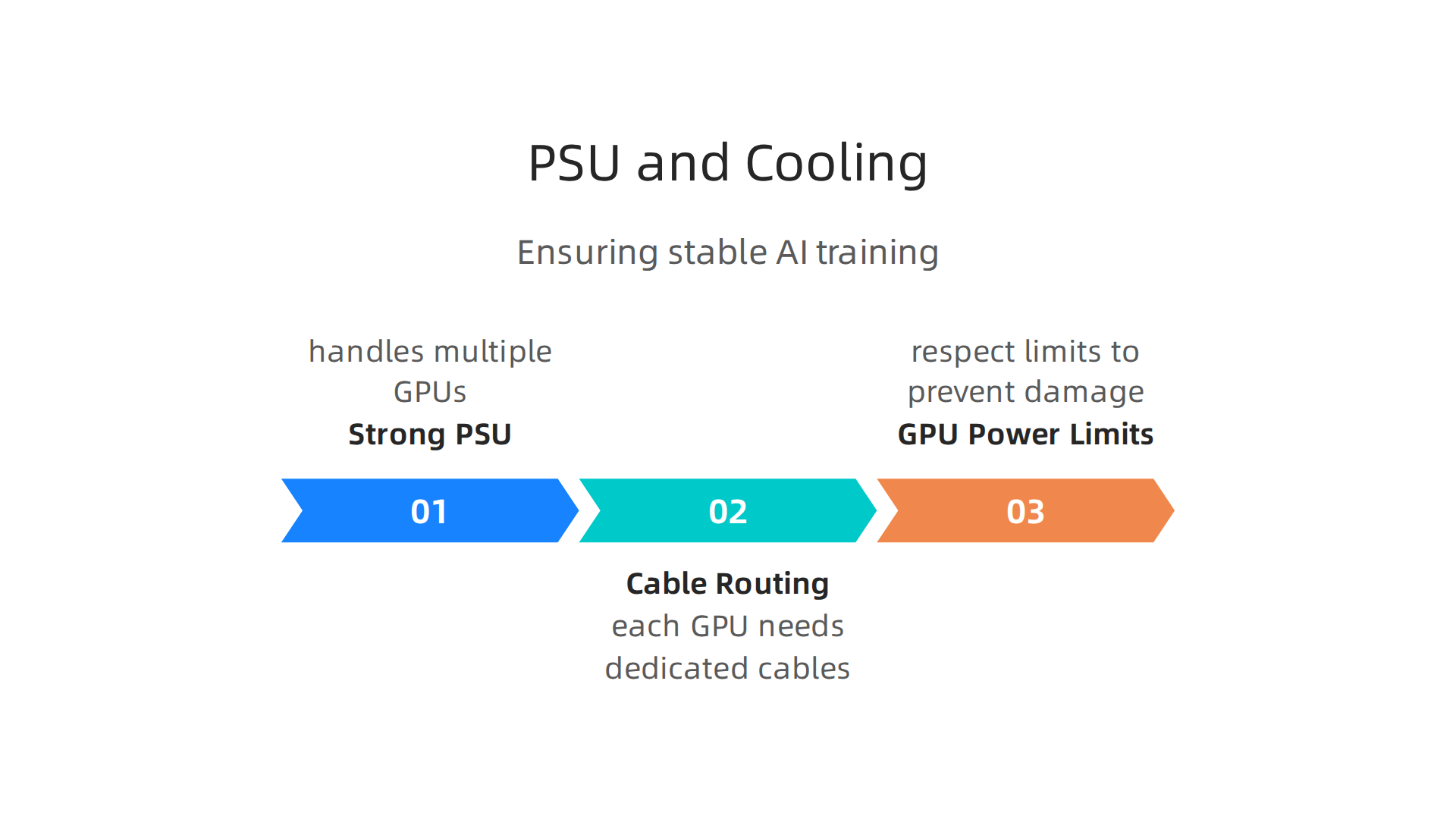
    An infographic illustrating the critical considerations for power supply units in AI computer builds.

    For example, modern high-end NVIDIA RTX 5000 series graphics cards often need power supplies around 1000W or even higher NVIDIA RTX 5000 series graphic card PSU recommendation. If you’re building a system with one of these, or even considering two for a dual-GPU setup, you will need a very powerful PSU. Experts suggest looking for a PSU with at least 1200W or more to ensure you have enough power, especially for future GPU upgrades 7 Best Pre-Built AI Workstations 2026 — Tested & Ranked.

    When you have more than one GPU, like in a multi-GPU setup, power distribution becomes even more important.

    • Cable Routing and Connectors: Each powerful GPU needs its own set of power cables from the PSU. Make sure your PSU has enough PCIe power connectors (often 6-pin or 8-pin) for all your graphics cards. Connect them directly to the PSU. Do not daisy-chain cables if you can help it, as this can lead to unstable power delivery.
    • GPU Power Limits: Some GPUs have limits on how much power they can draw. You need to respect these limits to prevent damage and ensure stability. A good PSU provides clean, stable power even when all parts are working hard.

    Cooling strategies for AI workloads

    AI training pushes your components, especially GPUs, to their limits. This creates a lot of heat. Keeping these parts cool is not just about making them last longer; it is also about keeping them running fast. When a part gets too hot, it automatically slows down to protect itself, which means your AI training takes longer.

    • GPU Cooling: Modern GPUs come with strong cooling systems, but for AI, you might need even more. Good airflow in your computer case is a must. Many AI workstations are designed with chassis and power supplies ready for continuous workloads, and stable cooling is a top priority Workstation for Artificial Intelligence: AI Hardware Guide ….
    • Case Airflow: Make sure your computer case has plenty of fans pulling cool air in and pushing hot air out. A good case design helps move air over your hot components. You might want to invest in extra case fans. When buying an AI PC, always check that the cooling system is good enough for steady AI work Budget Guide: How to Buy an AI PC Without Breaking the ….
    • CPU Cooling: While GPUs do most of the heavy lifting in AI training, your CPU still needs good cooling. A large air cooler or a liquid cooler (AIO) is a good choice for keeping your CPU temperatures in check.

    Getting your power and cooling right is a big part of achieving great pc parts compatibility for your AI build.

    Depicting the confidence that comes from a well-planned and stable AI computer build with adequate power and cooling.

    It ensures that your expensive components can perform their best without overheating or crashing. If you want to dive deeper into making your AI setup perfect, exploring how to Build and Optimize Your AI Workstation for Peak Performance 2026 can offer more insights.

    Stay informed about the latest advancements in AI and technology that can impact your hardware choices.

    Get clear daily AI updates from The AI Newsletter Worth Reading.

    When you are building a computer for AI, the graphics processing unit, or GPU, is like the brain of your machine. It does most of the heavy math that AI needs, whether you are teaching an AI new things (training) or using an AI that has already learned (inference). Getting the right GPU and making sure it works well with all your other parts is a huge part of good pc parts compatibility.

    GPU selection and multi-GPU setups for AI

    Choosing the best GPU for AI depends on what kind of AI work you want to do. Different GPUs are better for different jobs. This choice greatly affects how well your whole system works together.

    What to look for in an AI GPU

    Not all GPUs are made the same, especially for AI tasks. Here are the main things to think about:
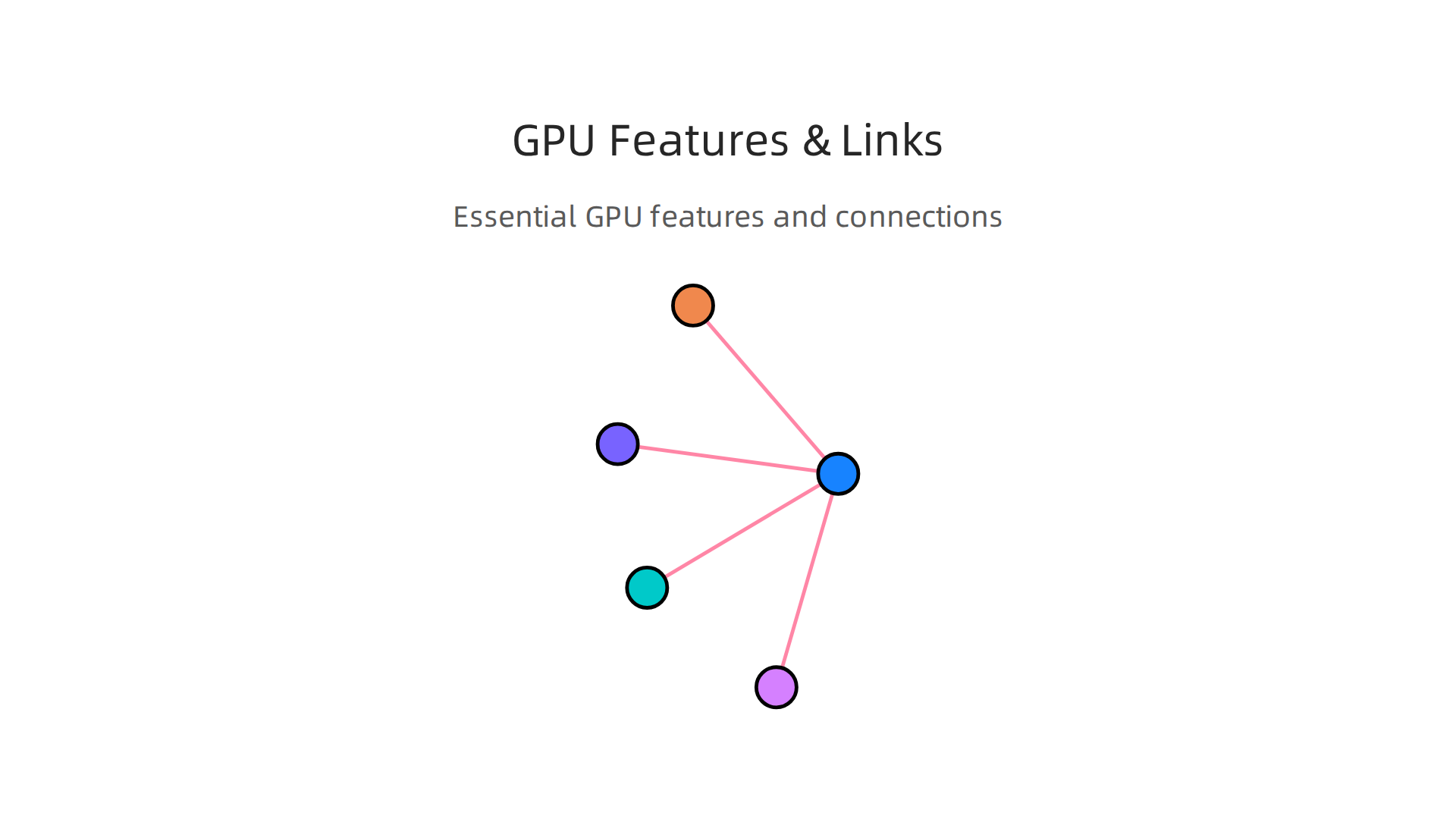
    An infographic highlighting essential GPU features and interconnection methods vital for AI workloads.

    • VRAM (Video RAM): This is super important. VRAM is like the GPU’s own memory. The more VRAM a GPU has, the bigger and more complex AI models it can handle. For training large AI models, you need a lot of VRAM. For example, some of the top NVIDIA GPUs like the H100 or H200 have 80GB or even 141GB of HBM3/HBM3e memory, which is designed for very big AI tasks NVIDIA GPU Architecture Explained: A Guide for AI (August …. For using AI models (inference), you might not need as much, but more is always better. For serious AI work, aim for at least 24GB or more.
    • Tensor Cores: These are special parts inside NVIDIA GPUs that are built to speed up AI calculations. If your GPU has Tensor Cores, it can do AI math much faster. NVIDIA’s newer architectures like Hopper and Blackwell have advanced Tensor Cores that make AI training and inference very quick NVIDIA GPU Architectures Guide for 2026 – CloudMinister.
    • GPU Architecture: This refers to the overall design of the GPU. Newer designs, like NVIDIA’s Blackwell or Hopper, are made to be more powerful and efficient for AI work than older ones. These new designs often come with more VRAM and better Tensor Cores.

    Multi-GPU setups: more power for AI

    Sometimes, one powerful GPU is not enough. For really big AI projects or when you want to train models faster, you might need to use more than one GPU in your computer. This is called a multi-GPU setup. This is where pc parts compatibility gets even more important.

    How GPUs talk to each other

    When you have many GPUs, they need a way to share information and work together. There are two main ways they connect:

    1. PCIe (PCI Express): This is the normal way parts connect to your motherboard. GPUs use PCIe slots to plug in. PCIe 5.0 x16, a common type, offers good speed, but it routes data through your CPU first. While good for single GPUs or simple multi-GPU inference, it can become a bottleneck for heavy multi-GPU training Multi-GPU for AI – NVLink vs PCIe, Builds & Setup (2026) – VRAM First.
    2. NVLink: This is a special connection made by NVIDIA that lets GPUs talk directly to each other without going through the CPU. NVLink is much faster than PCIe. For example, NVLink 4.0 on an H100 GPU gives 900 GB/s of speed, while PCIe 5.0 x16 maxes out at about 128 GB/s NVLink vs PCIe: GPU Interconnect for AI 2026 | packet.ai. This huge speed difference means that with NVLink, your GPUs can share data very quickly, which is great for training large AI models. However, NVLink is usually found on high-end NVIDIA professional GPUs and only a few consumer cards like the RTX 3090, as the RTX 4090 and newer consumer cards don’t support it Multi-GPU for Local AI in 2026: NVLink vs PCIe and When a Second ….

    Compatibility for multi-GPU builds

    Using multiple GPUs needs careful planning:

    • Motherboard and CPU: Your motherboard needs enough PCIe slots, and they should be the right kind (like x16 slots) and spaced apart so your big GPUs can fit. Your CPU also needs enough PCIe lanes to support all those GPUs. If your CPU doesn’t have enough lanes, your GPUs might run slower. For serious AI work, you might want to consider a special CPU and motherboard setup that gives more PCIe lanes, like those found in workstation-class systems.
    • Physical Size: High-end GPUs are often very big. Make sure your computer case has enough room for all of them and that they get enough air for cooling. We talked about cooling in the last section, and it is even more important with multiple GPUs.

    Getting these parts to work together well is key to building an AI computer that performs great. If you are aiming for a powerful setup, exploring options like using AI Hardware 2026: A Business Leaders Guide to Growth can help you decide.

    To ensure all your parts fit and work together perfectly, you can use online tools. These tools check things like CPU socket fit, RAM type, GPU length, and power needs PC Part Compatibility Checker: CPU, GPU, PSU & Case | SpecsCalc. They help prevent common mistakes when building a custom PC.

    Making sure all your computer parts work together is a big deal, especially for AI builds. We just talked about how powerful GPUs and their connections are key for good pc parts compatibility. Now, let’s look at how to double-check everything before you buy and what to think about when you want to make your computer better later on.

    Your Essential PC Parts Compatibility Checklist

    Before you spend your money, it’s smart to have a checklist. This helps you avoid common mistakes and makes sure your new computer will run smoothly. Here are the main things to check for pc parts compatibility:

    • CPU and Motherboard Socket: This is the most important check. Your CPU needs to fit the exact socket type on your motherboard. For example, an Intel CPU might need an LGA 1700 socket, while an AMD CPU might need an AM5 socket. You can often find this info on the product page for each part PC Parts Compatibility Guide UK: How to Check Your ….
    • RAM Type: Computers today use either DDR4 or DDR5 memory. Your motherboard can only use one type, so your RAM sticks must match what your motherboard supports.
    • GPU Size: High-end GPUs for AI can be very large. You need to make sure your computer case has enough space for your GPU to fit. Also, check that your motherboard has the right type and number of PCIe slots for your GPU or multiple GPUs.
    • Power Supply (PSU) Wattage: Your power supply needs to be strong enough to power all your parts, especially a powerful GPU or several GPUs. It also needs the right cables to connect to your GPU and other components.
    • CPU Cooler Height: If you are using a large air cooler for your CPU, make sure it is not too tall for your computer case to close properly.
    • Case Size and Airflow: Beyond just fitting the GPU, your case needs to have good airflow to keep all your hot AI components cool. This is extra important for multi-GPU setups.

    Smart Tools to Check Compatibility

    Luckily, you do not have to guess if your parts will work together. There are many free online tools that can help you with pc parts compatibility. These tools let you pick your CPU, motherboard, RAM, GPU, power supply, cooler, and case. Then, they instantly tell you if there are any issues.

    Some popular compatibility checkers will review socket types, memory types, GPU physical size, power needs, and even cooler height to make sure everything lines up Build Compatibility Checker — Free Online PC Hardware Tool …. Tools like these are great for saving time and preventing headaches. For example, some tools check over 40 rules in real time to ensure your chosen parts will work together perfectly PC Builder Online India – Build Your PC Free · GetPC.co.in.

    Planning for Future Upgrades

    Thinking about future upgrades for your AI PC is also part of good pc parts compatibility. Sometimes you want to make your computer faster or more powerful down the road.

    • GPU-First Upgrade: Many AI builders choose to upgrade their GPU first, as it often has the biggest impact on AI performance. If you do this, make sure your existing CPU is still powerful enough to keep up, or it could slow down your new GPU. Also, your power supply needs to handle the increased power demand.
    • CPU-First Upgrade: If your CPU is old, upgrading it can make your whole system faster. But be careful: a new CPU often means you might also need a new motherboard and new RAM because of how parts fit together. This can turn a simple upgrade into a bigger project.
    • Platform Compatibility: Some computer platforms (the combination of CPU and motherboard) offer more room for upgrades than others. If you plan to upgrade often, look for platforms that support multiple generations of CPUs or have plenty of PCIe slots for extra GPUs. This flexibility is key if you want to scale up your AI work without rebuilding everything from scratch.
    • Budget Considerations: When planning upgrades, especially for an affordable gaming pc that also handles AI, always think about the cost versus the performance boost. Sometimes, small upgrades can give good results for the money. Other times, saving up for a bigger upgrade makes more sense for a much larger performance jump.

    By doing your homework and using the right tools, you can make sure your AI computer build is a success from the start and can grow with your needs. Building and optimizing your AI workstation for peak performance is a continuous journey.

    To stay on top of the latest AI hardware and software trends that impact compatibility and performance, you need reliable information.
    Get clear daily AI updates from The AI Newsletter Worth Reading.

    Summary

    This article explains why PC parts compatibility is critical when building machines for AI workloads and how that differs from standard gaming builds. It covers the distinct roles of CPUs and GPUs, why PCIe lanes and inter‑GPU links like NVLink matter, and how motherboard chipset, BIOS, RAM type, and NVMe storage affect performance. The guide also walks through PSU sizing and cooling strategies needed for sustained training runs, how to choose GPUs (and plan multi‑GPU setups), and practical checks such as socket matching, BIOS versions, and physical fit. You will learn concrete rules of thumb—like targeting larger GPU VRAM and high system RAM for big models—and get a simple pre‑purchase checklist plus tools to verify compatibility so you can avoid bottlenecks, wasted spend, and upgrade headaches.


  • Build and Optimize Your AI Workstation for Peak Performance 2026

    Build and Optimize Your AI Workstation for Peak Performance 2026

    It’s 2026, and artificial intelligence (AI) is no longer just a buzzword. It’s a tool that many businesses, big and small, use every day. From making special pictures to writing new ideas, AI helps teams get more done. But here’s the thing: for your team to really shine with AI, the computer they use needs to be up to the task. Having the right "optimum tech" or a powerful "pc setup" is super important.

    When your computer can handle AI tasks right on your desk, it changes a lot. First, it helps you work much faster. Instead of waiting for things to load or process on a faraway server, your ideas can come to life in moments. This quickness means your team can try out new things and fix problems much quicker. Think of it like drawing. If your pencil moves slowly, you can’t sketch as many ideas. A fast computer is like a super-fast pencil for AI.

    This speed also helps save money. When you run AI tasks on your own computer, you don’t have to pay for expensive cloud services as often. For small to medium businesses (SMBs), this can make a big difference in costs. Plus, when developers and creators have powerful tools that work smoothly, they are happier and get more done. It boosts their productivity and keeps them focused on creating, not waiting.

    For example, to run even a small AI model, you need a computer with at least 16GB of system memory (RAM) and a graphics card with 8GB of its own memory (VRAM). For bigger tasks, you’ll need 24GB or more VRAM and maybe 64GB to 128GB of system RAM [1, 2]. Picking the right parts for your pc setup is key to making sure your AI efforts pay off.

    Screenshot of the AI Tools News Today website, a resource for businesses seeking insights on AI-ready computer configurations.

    In this guide, we’ll walk you through how to build an AI workstation that balances great performance with a smart budget. You’ll get an easy-to-follow checklist and recommendations for hardware that will keep your team at the top of their game without breaking the bank.

    Do you want to stay updated on the latest AI trends and tools that can help your business thrive?
    Get clear daily AI updates from The Deep View Newsletter.

    Choosing the right parts for your computer is a big step in getting your team ready for AI tasks.

    A person intently planning and making strategic decisions regarding optimal hardware choices for an AI workstation.

    Think of these parts like the different players on a sports team. Each one has a special job that helps the whole team win. For AI, you need a strong CPU (the "brain"), a powerful GPU (the "muscle"), lots of RAM (the "short-term memory"), and fast storage (the "long-term memory"). Getting the right optimum tech in your pc setup means your AI projects will run smoothly and quickly.

    Graphics Card (GPU) is Key

    The most important part for most AI tasks is the Graphics Processing Unit, or GPU. It’s like the main engine for AI. GPUs are very good at doing many calculations at once, which is exactly what training AI models and using them (called "inference") needs.

    • Training small models or fine-tuning: If you’re working with smaller AI models, or just tweaking existing ones, a GPU with about 8GB to 16GB of its own memory (VRAM) is often enough. For example, running a 7-billion parameter AI model comfortably needs 16GB of VRAM Local AI Hardware Requirements (2026): Complete Guide.
    • Larger AI models: For bigger jobs, like training large language models or working with complex image AI, you’ll need much more VRAM. A graphics card with 24GB or even 32GB of VRAM is much better. Some of the best consumer-grade cards in 2026, like the NVIDIA RTX 4090, offer 24GB VRAM, which is great for many tasks Best AI PC Builds for Running Local LLMs in 2026 – Newegg.

    Screenshot of the Newegg homepage, a prominent online retailer for computer hardware components relevant to AI PC builds.

    You might wonder about consumer GPUs (made for gamers) versus professional GPUs (made for serious work). Consumer GPUs, like the RTX series, offer great performance for their price, especially if you’re building a budget-friendly AI workstation. Professional cards are more expensive but offer more VRAM and special features for huge projects. For most small and medium businesses, a powerful consumer GPU can be a very smart choice for your AI pc setup.

    Central Processing Unit (CPU) and System Memory (RAM)

    While the GPU does the heavy lifting for AI math, the CPU is still very important. It handles everything else, like getting your data ready for the GPU (data preprocessing), running the operating system, and managing other programs. A CPU with many "cores" (the parts that do work) helps a lot with these tasks. It keeps the data flowing smoothly to the GPU so your graphics card isn’t waiting around.

    For system memory, or RAM, you need a good amount too. It holds all the data that your CPU and GPU are working on at that moment. For basic AI tasks, 32GB of RAM is a good start in 2026. But for more serious work, like if your GPU doesn’t have enough VRAM and needs to use some of the system RAM (called "CPU offloading"), 64GB or even 128GB of RAM is much better How Much RAM for Local AI in 2026? Memory Guide. This makes sure everything runs quickly without slowing down.

    Fast Storage for Data

    Finally, don’t forget storage. AI models and the data they learn from can be very large. You need fast storage, like NVMe SSDs, to quickly load and save these files. Slow storage can make your whole system feel sluggish, even if you have a powerful GPU and lots of RAM. Having 2TB or more of fast NVMe storage is often recommended for serious AI work Best PC for AI, Machine Learning & Data Science (2026) | CORSAIR.

    Smart Choices for Your Budget

    Building an AI workstation is about finding the right balance. You want enough power without spending too much.

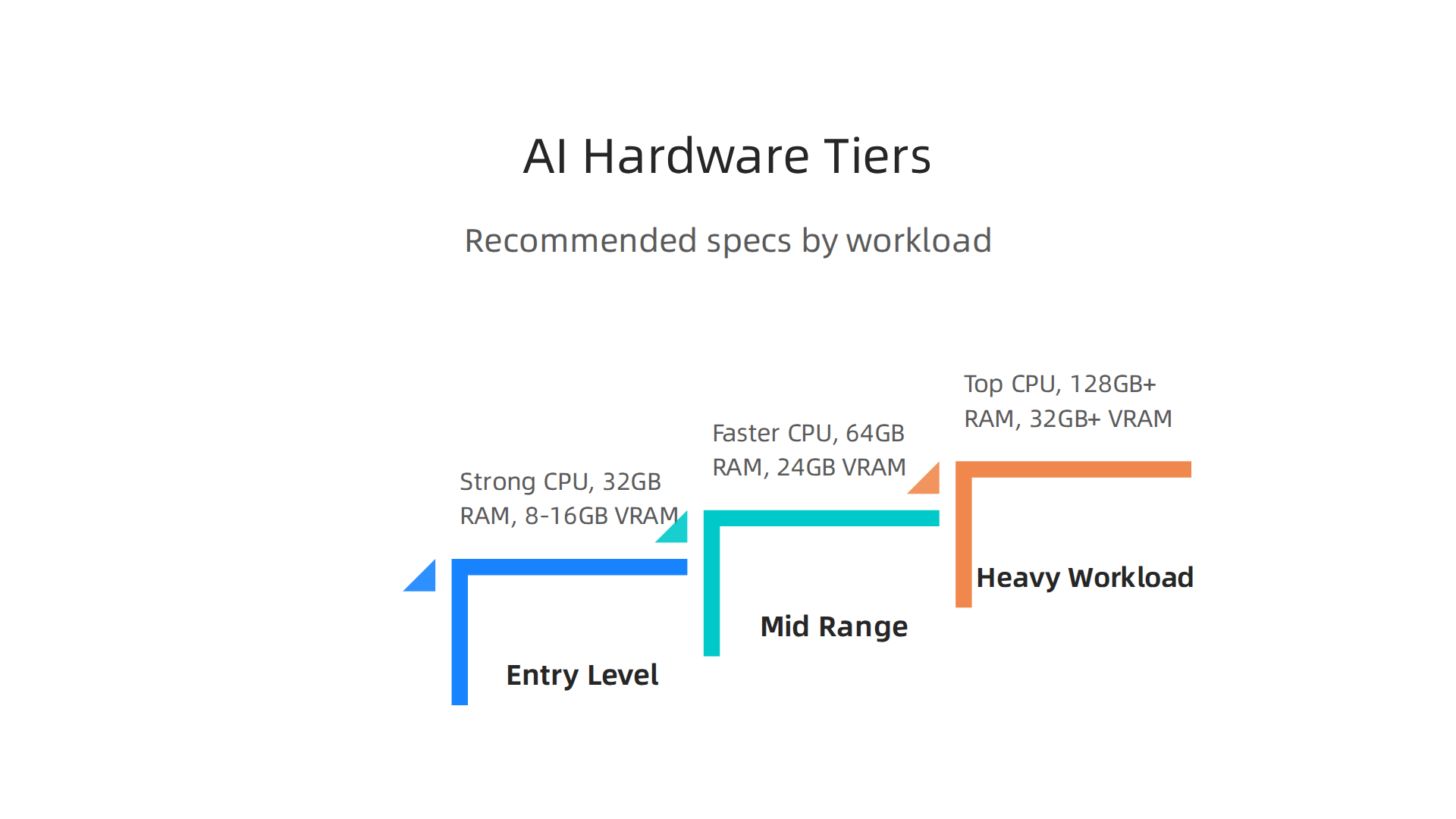
    An infographic illustrating recommended hardware specifications for entry-level, mid-range, and heavy AI workloads.

    • For entry-level AI: A strong CPU, 32GB of RAM, and a consumer GPU with 8-16GB VRAM, along with a fast 1TB NVMe SSD, can get you started.
    • For mid-range tasks: Upgrade to a faster CPU with more cores, 64GB of RAM, and a GPU with 24GB VRAM.
    • For heavy AI workloads: Consider a top-tier CPU, 128GB+ of RAM, and a GPU with 32GB+ VRAM (or even two GPUs), plus multiple large, fast NVMe drives.

    You can often save money by looking into options like used PC parts for AI or even finding a used gaming PC for AI that you can upgrade. This smart approach to building your pc setup means you can get the optimum tech you need without stretching your budget too thin.

    Choosing the right computer parts is just the first step for AI work. Think of it this way: even the fastest race car needs a good driver and the right fuel to win. For your AI pc setup, the "driver" is the software that makes everything run. Getting this software stack right is key to having the most optimum tech and smooth performance. It makes sure your powerful GPU can actually do its job well.

    Understanding the AI Software Stack

    The software stack for AI has different layers, much like a sandwich. Each layer needs to work with the ones above and below it.

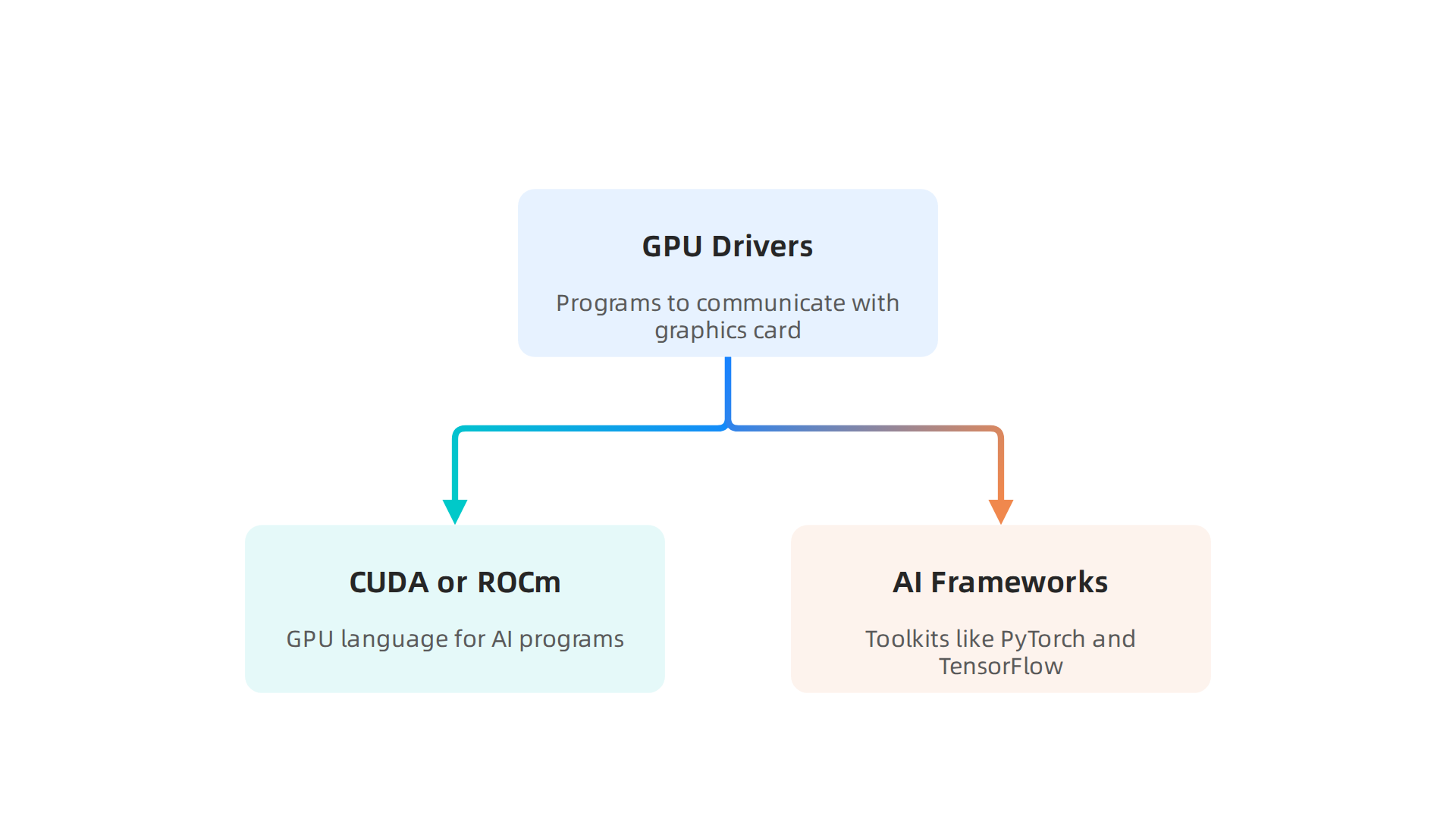
    An infographic illustrating the hierarchical layers of the AI software stack, from GPU drivers to AI frameworks.

    1. GPU Drivers: These are special programs that let your operating system (like Windows or Linux) talk to your graphics card. Without the right driver, your GPU can’t do much.
    2. CUDA or ROCm (The GPU Language): This is the magic layer that lets AI programs tell your GPU what to do.

    Screenshot of the NVIDIA homepage, highlighting their leadership in GPU technology and AI computing solutions.

    *   **ROCm** is AMD's answer, and it works with AMD GPUs. It has gotten much better in 2026, with more official support for consumer cards like the RX 7900 XTX [AMD ROCm vs CUDA for Local AI [2026 Compared]](https://www.kunalganglani.com/blog/amd-rocm-vs-cuda-local-ai-open-source-guide). However, CUDA often still performs 10% to 30% better than ROCm [ROCm vs CUDA: GPU Computing Comparison (July 2026)](https://www.thundercompute.com/blog/rocm-vs-cuda-gpu-computing).
    
    1. AI Frameworks: These are the big toolkits that AI developers use, like PyTorch and TensorFlow. They use CUDA or ROCm to send tasks to the GPU.

    Avoiding Software Conflicts

    The tricky part is making sure all these layers are compatible. For example, a new version of PyTorch might need a specific version of CUDA, which in turn needs a certain NVIDIA driver. If these versions don’t match, your AI programs might crash or run very slowly. AMD’s ROCm also has detailed compatibility lists, showing which versions work with different GPUs and operating systems ROCm 7.14.0 compatibility matrix – ROCm Documentation.

    It’s a good idea to always check the "compatibility matrix" for your chosen CUDA or ROCm version and your AI frameworks. This small step can save you a lot of headaches. Staying on top of updates and new releases in the world of AI technology is essential for any business.
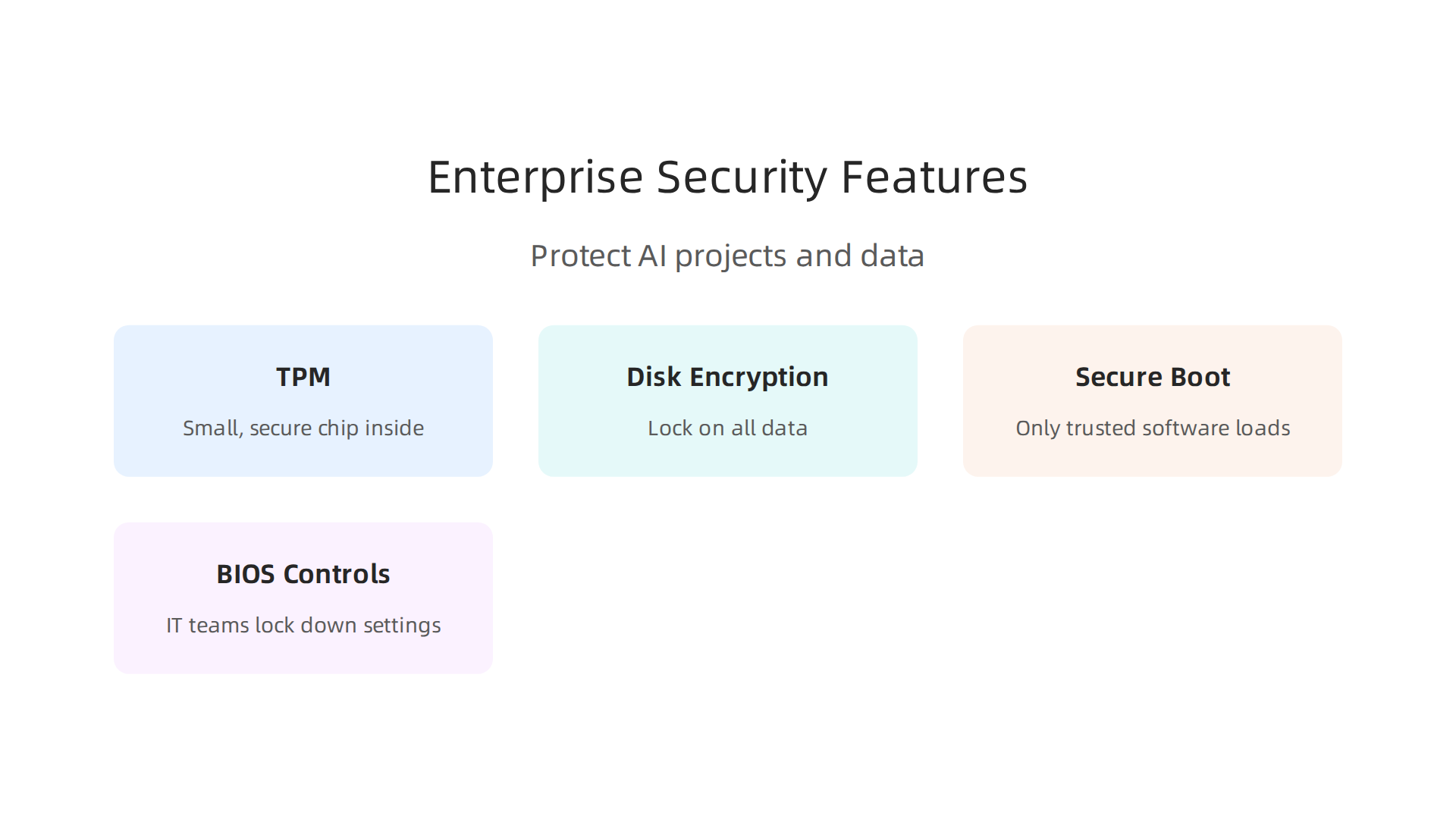
    Boosting Performance Without New Hardware

    Even with your current pc setup, you can make your AI tasks run faster by tuning your software.

    • Mixed Precision Training: This is a smart trick where your AI model uses smaller, simpler numbers for some calculations. This speeds up training and saves GPU memory (VRAM). It’s like doing some math with rough estimates instead of always exact numbers, which is often good enough for AI and much faster. Many modern AI frameworks support this.
    • Memory Management: Being careful about how your programs use VRAM and system RAM can make a big difference. Closing other programs, reducing the "batch size" (how many pieces of data the GPU processes at once), or optimizing your code to use less memory can lead to faster training and inference.
    • Software Updates: Keeping your GPU drivers, CUDA/ROCm, and AI frameworks updated to compatible versions can often bring performance improvements and new features. It’s like getting a tune-up for your car.

    By focusing on these software aspects, you can squeeze out more performance from your existing hardware, ensuring you truly have the optimum tech for your AI projects. If you’re looking to understand more about choosing the best systems, check out our guide on how to choose AI ready business computers in 2026.


    Staying informed about the latest developments in AI tools and compatible software can also help you make smart choices. It ensures your software stack remains efficient and powerful.

    Get clear daily AI updates from The AI Newsletter Worth Reading.

    Okay, your powerful AI graphics card needs to crunch huge amounts of data. But if that data can’t get to the GPU fast enough, it’s like having a super-fast car stuck in traffic. That’s why memory, storage, and how your computer moves data around (called I/O) are just as important for a truly optimum tech setup.

    A person focused on a screen displaying complex charts and data, representing efforts to analyze and optimize data flow.

    We need to prevent any slow-downs, or "bottlenecks," that stop your AI projects from running smoothly.

    Making Sure Your AI Data Flows Fast

    When you train an AI model, it needs to read huge collections of information, called datasets. It also saves its progress often, creating "checkpoints." If these files are slow to load or save, your GPU will sit idle, waiting for data. That’s wasted time and power.

    1. Dataset Formats:
    The way your data is stored matters. Some formats, like TFRecord for TensorFlow or Arrow for PyTorch, are made to be read very quickly. They pack data efficiently and can be streamed to the GPU without much fuss. Using these formats can speed up your AI work a lot.

    2. Smart Storage Choices (Storage Tiers):
    Think of your storage as different lanes on a highway.

    • NVMe SSDs: These are the fastest lanes. They’re like rocket ships for data. For AI work, your active datasets and checkpoints should be on NVMe (Non-Volatile Memory Express) drives. These plug right into your motherboard and are much faster than older SSDs. Making sure your NVMe drive is running at its full speed, like PCIe Gen4 x16, is important to avoid a data jam Local AI Performance & Optimization (2026 Admin Guide).
    • SATA SSDs: These are still fast, like a regular highway. Good for less critical data or older projects.
    • HDDs (Hard Disk Drives): These are the slowest, like a country road. They’re good for storing really large amounts of archived data that you don’t need to access often.

    Having the right storage for the right job means your pc setup has the optimum tech for speed.

    3. Moving Data Smartly (I/O Strategies):
    Getting data from your storage to your GPU involves many parts, including your computer’s brain (CPU) and its operating system.

    • Operating System Tuning: Even the operating system (like Linux) can be tweaked to help. Special settings in the "kernel" (the core of the OS) can help data flow better. For example, using larger memory pages, called "Transparent Huge Pages," can make things faster Linux Kernel & OS Optimization for AI/ML Workloads in 2026. Some tools can even use AI to automatically fine-tune your Linux kernel for better performance Tuning the Linux kernel with AI brings significant performance.
    • Caching: Your computer can temporarily store frequently used data in a faster memory area, called a cache. This is like putting your favorite tools right next to you instead of walking to the shed every time. For large datasets, smart caching helps a lot.
    • RAID: This is a way to combine several hard drives to act like one. You can set it up for extra speed (reading and writing across multiple drives at once) or for safety (if one drive fails, your data is still safe on others). For AI, a RAID setup focused on speed can be helpful for very demanding projects.

    Practical Steps for a Better PC Setup

    To make sure your pc setup is ready for heavy AI work in 2026:

    • Invest in NVMe: Make sure your main drives for AI datasets and checkpoints are NVMe SSDs.
    • Check PCIe Lanes: In your computer’s settings (BIOS), make sure your GPU and NVMe drives are using all their available speed lanes, especially for PCIe Gen4 x16.
    • Optimize Your OS: If you’re using Linux, look into tools and settings for kernel tuning. For example, setting vm.swappiness to 0 can stop your computer from using slower storage as "fake" RAM, which is good if you have enough actual RAM Linux OS & Kernel Tuning – GPU Cluster Knowledge Base. You can also dedicate specific CPU cores and memory to your AI tasks.
    • Data Organization: Store your most important, actively used AI datasets on the fastest NVMe drives. Move older or less used data to slower, cheaper storage like larger HDDs.

    By paying attention to these details, you’re not just buying powerful parts; you’re building a truly efficient machine. This helps define technology that works for you, ensuring your AI work runs faster and smoother. If you are interested in seeing how operating systems are evolving to integrate AI, you can read about Integrating Artificial Intelligence into Operating Systems.

    After making sure your powerful AI graphics card gets data quickly, the next step is to look at how your computer’s main brain, the operating system (OS), and its core, the kernel, work. Getting these right is key for truly stable and optimum tech performance when doing AI tasks. Without proper settings, even the best hardware can slow down.

    OS-Level Settings for AI

    Think of your operating system as the boss of your computer. It decides who gets to use the CPU, memory, and other resources. For AI, you want your important AI programs to get priority.

    • CPU Scheduling: Your CPU has to manage many tasks at once. "CPU scheduling" is how it decides which task runs when. For AI, we want AI training or inference tasks to run smoothly without other programs hogging the CPU. You can often tweak settings in Linux to give your AI jobs more CPU time. Using special groups called "cgroups" helps you set aside CPU cores and memory just for your AI programs, keeping them separate from other tasks Beyond the GPU: Linux Kernel & OS Optimization for AI/ML Workloads in 2026.
    • Kernel Tuning: The kernel is the very heart of the OS. It manages everything. For AI, certain kernel settings can boost speed. For example, some tools can use AI itself to automatically find the best kernel settings for your system, leading to better performance Tuning the Linux kernel with AI brings significant performance. This kind of smart tuning can really make your pc setup shine.

    Containerization for AI Work

    Making sure your AI work can be repeated exactly the same way every time is super important. That’s where containers come in.

    • What are Containers? Imagine a small, self-contained box that holds everything your AI program needs to run: the code, its tools, and all its settings. This box is a container. Docker is a popular tool for making and running these containers.

    Screenshot of the Docker homepage, showcasing the platform for containerizing and managing applications, including AI workloads.

    • Why They Help AI:
      • Reproducible: Because everything is bundled, your AI model will run the same way on your computer as it does on a friend’s computer, or on a big server farm. This means fewer "it works on my machine" problems.
      • Consistent: Containers help keep your different AI projects separate. One project’s tools won’t mess with another’s.
      • Easy to Move: You can easily move your containerized AI projects from one machine to another. This is great for sharing your work or moving to bigger computers if your AI needs more power.

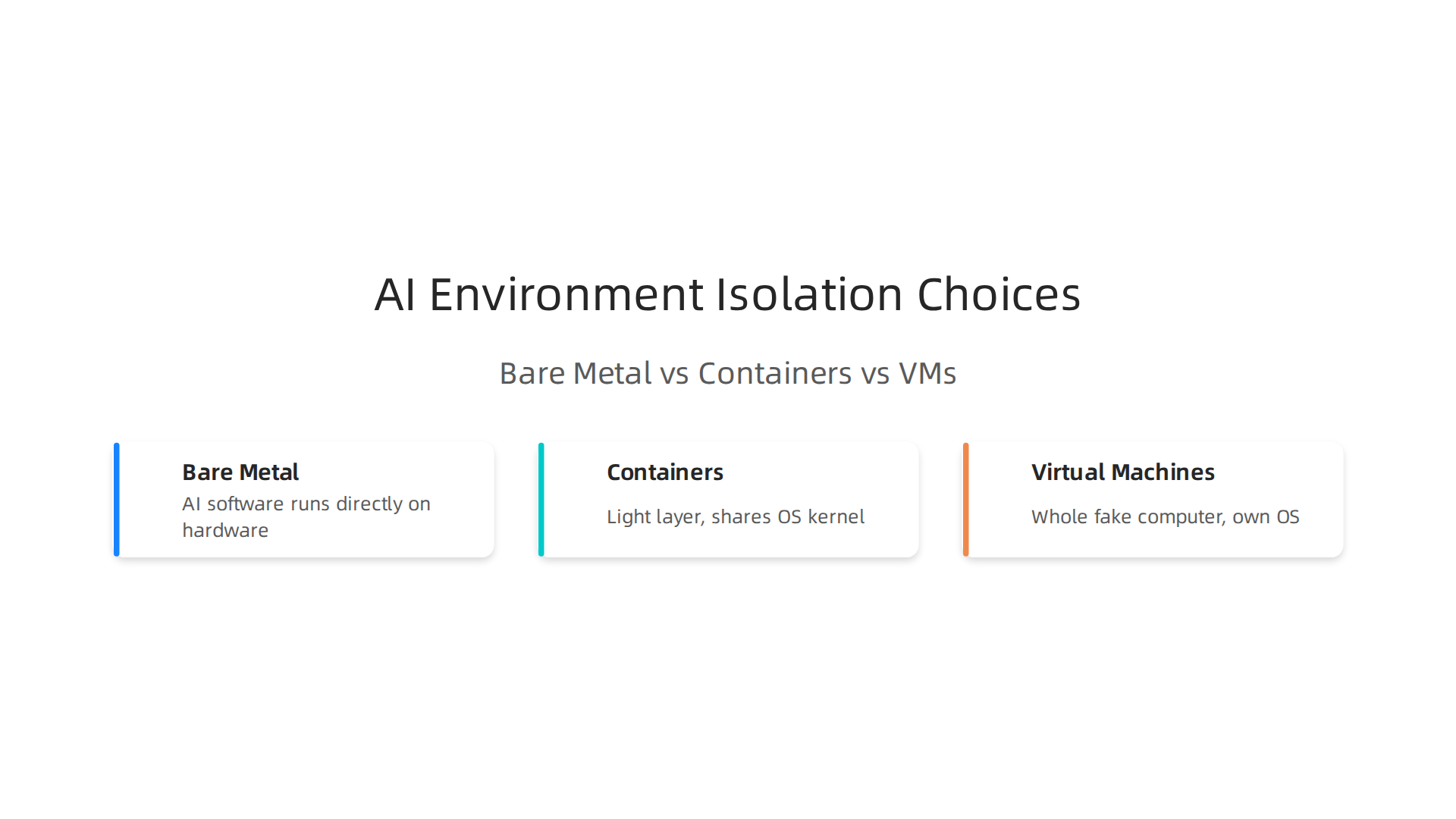
    Containers vs. Virtual Machines vs. Bare Metal

    When setting up your AI environment, you have choices for how isolated your programs are.

    An infographic comparing Bare Metal, Containers, and Virtual Machines for AI project deployment and isolation.

    • Bare Metal: This means your AI software runs directly on your computer’s hardware, with only the operating system in between. It’s the fastest way to run things because there’s no extra layer slowing it down. This gives you the maximum optimum tech speed. However, it can be harder to manage many different projects or quickly switch between environments.
    • Containers: As we talked about, containers add a light layer on top of your OS. They give you a good balance of speed and flexibility. They’re much faster than VMs because they share the OS kernel with the host machine.
    • Virtual Machines (VMs): A VM creates a whole fake computer inside your real computer, with its own OS. This offers the best isolation and security. You can run Windows on a Linux machine, for example. But VMs are slower than containers or bare metal because they have more layers to go through. They’re useful if you need to run AI on a very different operating system or need strict isolation.

    For most AI tasks in 2026, especially for local development on your pc setup, containers are a great middle ground. They offer solid performance and the flexibility to manage many projects. For the absolute fastest training or inference, bare metal is often preferred, but it needs more careful manual setup and management.

    To stay on top of all the new ways operating systems and other technology are evolving with AI, it helps to keep learning.

    For clear, daily AI updates that help you make sense of the fast-moving world of AI and technology, consider subscribing to The AI Newsletter Worth Reading.

    After setting up your computer’s brain and packaging your AI programs in containers, you might think you’re ready to go. But wait! How do you know if your setup is truly performing at its best? This is where measuring things becomes super important. You need to look at tooling, profiling, and observability to measure before you optimize.

    Think of it like tuning a car. You don’t just change parts; you first check what’s wrong with special tools. For your AI pc setup, you need similar checks to find out if anything is slowing it down.

    Tooling, profiling, and observability: measure before you optimize

    "Profiling" simply means watching your AI program as it runs to see which parts are fast and which are slow. This helps you find the weak spots that keep your computer from reaching its optimum tech potential. You need to keep an eye on a few key things:

    • CPU Usage: This shows how hard your computer’s main brain is working. Is it busy doing AI tasks, or is something else taking up its time?
    • GPU Usage: Your graphics card is like the powerhouse for AI. You want to make sure it’s working hard on your AI calculations and not just sitting idle.
    • Memory Usage: This includes both your computer’s main memory (RAM) and the special memory on your graphics card (VRAM). If you run out of memory, everything slows down.
    • Input/Output (I/O): This checks how fast data moves around your system. If your computer can’t get data to the GPU fast enough, your AI will wait, even if the GPU is powerful.

    Watching these numbers helps you see exactly where to make changes. For example, tools like the PyTorch Profiler can show you a detailed timeline of what your AI model is doing, frame by frame, to spot bottlenecks in its operation Profiling in PyTorch (Part 1): A Beginner’s Guide to torch. …. This kind of detailed view helps you understand the inner workings of your AI tasks.

    A Simple Plan for Better Performance

    To make sure your AI runs as fast as it can, follow these steps:

    1. Measure First: Before changing anything, measure how well your AI is performing right now. Note down the CPU, GPU, memory, and I/O numbers. Many useful technology tools exist for this Best Machine Learning Profiling Software.
    2. Change One Thing: Make just one small change to your settings, code, or hardware.
    3. Measure Again: Run your AI program and measure its performance again. Compare the new numbers to the old ones to see if your change helped or hurt.
    4. Repeat: Keep doing this cycle. Each time, you’ll learn more about what makes your specific AI work faster.

    This way, you’re not just guessing what might help. You’re using real numbers to guide your choices, making your performance checks "reproducible." This means you can do the same test multiple times and get the same results, confirming your improvements. It’s how experts ensure their pc setup is always top-notch for AI. For more tips on setting up your computer for AI, check out how to choose AI-ready business computers in 2026.

    Keeping track of these details is part of "observability." It’s about having a clear picture of what’s happening inside your system at all times. This helps you react quickly if problems come up and ensures your AI projects stay on track. Learning about new tools and trends can also help you keep your systems updated; you can even build a tech radar to track AI trends and tools in 2026.

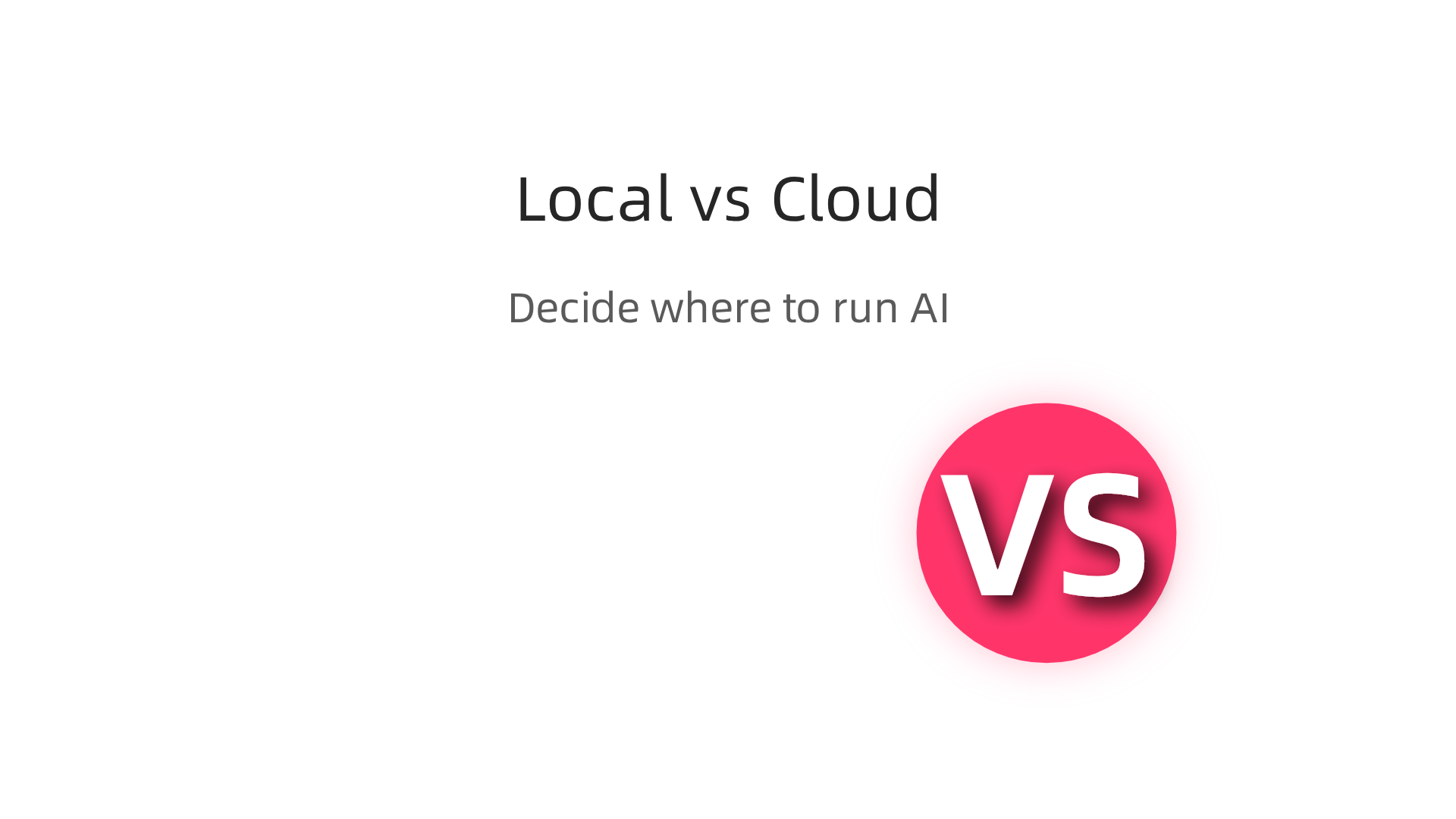
    After you know how well your AI is running, the next big question is where it should run. Should your AI tasks stay on your own computer, known as your local pc setup? Or should you send them to the cloud, which is like using super powerful computers far away over the internet? This choice is called using "hybrid workflows," and it’s key to getting the most out of your optimum tech.

    A person thoughtfully considering options, symbolizing the decision-making process for hybrid AI workflows (local vs. cloud).

    Hybrid workflows: when to offload to cloud or keep work local

    Think of it like deciding where to do your cooking. You can cook at home (local) or order from a restaurant (cloud). Both have good and bad points. For AI, picking the right place helps you save money, finish tasks faster, and keep your information safe. Businesses in 2026 often use a mix of both. This blend of local and cloud resources for AI is often called a hybrid AI architecture Hybrid AI Architecture: 6-Criterion Decision Matrix (2026).

    Here’s how you can decide:

    An infographic outlining key factors to consider when deciding between local and cloud resources for AI workloads.

    • Data Security: If your AI works with very private or secret information, it’s often best to keep it on your local pc setup. This way, you have full control over your data. Many businesses choose local models for sensitive data Local AI vs Cloud AI in 2026: When to Run Models on Your Own ….
    • Cost: Running AI in the cloud can be like paying-as-you-go. You only pay for what you use. Setting up a powerful local computer for AI can cost a lot of money upfront, like buying all your own kitchen tools. But for many tasks, local can be cheaper in the long run Designing Hybrid Cloud‑Local LLMs: A 2026 Architecture ….
    • Speed and Time: For some fast, small jobs, your local computer might be quicker because there’s no internet delay. But for huge jobs that need a lot of computing power, the cloud can finish them much faster by using many computers at once On-Premise vs Cloud AI Deployment: A Decision ….
    • Growing Bigger (Scalability): The cloud makes it easy to handle much more work when you need to, and then shrink back down later. Your local computer has a fixed amount of power.

    Many people choose a mix, which is called a "hybrid approach." For example, you might use your local machine for everyday tasks or for data that needs to stay private. Then, for really hard problems or when you need a lot of power, you send those tasks to the cloud. This smart way of working helps you get the best of both worlds, leading to optimum tech performance.

    To set up these hybrid workflows, you can:

    1. Sort Your Work: Look at all your AI tasks and decide which ones need to stay local (due to privacy or cost) and which ones can go to the cloud (for speed or big jobs). You can classify tasks by how complex they are or how sensitive their data is Hybrid AI Strategy Guide — Achieving 50% Cost Reduction with ….
    2. Use Smart Routing: Set up your system to automatically send tasks to the right place. Simple or sensitive tasks stay local, while more complex tasks go to the cloud. This creates a "tiered inference architecture" that routes requests efficiently Local-First AI Agents: Hybrid Cloud-Edge Architectures for ….
    3. Use Tools that Help: There are tools that can help you manage where your AI runs, making it easier to switch between local and cloud.

    Choosing the right approach for your AI setup is a big part of mastering technology in 2026. For more ideas on finding the right tools, check out how to choose AI for business tools that deliver real results in 2026.

    Staying updated on these new ways of working is very important.

    Get clear daily AI updates from The Deep View Newsletter. The AI Newsletter Worth Reading

    Summary

    This guide explains how to build and optimize an AI workstation that balances performance and budget so teams can run local AI smoothly in 2026. It covers hardware essentials — why GPUs (VRAM), CPUs, system RAM and NVMe storage matter — and gives concrete spec ranges for entry, mid and heavy workloads. The article also walks through software considerations like drivers, CUDA vs ROCm, AI frameworks and containerization, plus OS and kernel tuning to avoid slowdowns. You’ll learn practical performance boosts such as mixed precision, memory management, and I/O strategies, how to measure bottlenecks with profiling tools, and when hybrid cloud workflows make sense. By the end you’ll know which parts to pick, how to tune the stack, and cost-saving options like used parts or hybrid routing to get optimum tech without overspending.

  • Used PC Parts for AI Build a Powerful Budget AI Computer

    Used PC Parts for AI Build a Powerful Budget AI Computer

    Building your own computer for Artificial Intelligence (AI) projects can be very exciting. Everyone is talking about AI in 2026, and you might want to try it yourself. But, buying all new computer parts can be quite expensive. This is where buying used PC parts comes in handy. You can save a lot of money, but you need to know what to look for.

    The thing is, AI jobs are a bit special. Whether you are teaching a computer new things (called training) or having it answer questions (called inference), AI needs specific computer parts to work well. Regular computer parts, especially the main brain called the CPU, aren’t usually enough on their own. For most AI tasks, you really need a strong graphics card, known as a GPU. In fact, studies in 2026 show that GPUs can make training large AI models much, much faster than using only CPUs, sometimes 100 times faster CPU vs GPU Server Performance Benchmarks 2026 Guide.

    This means that not just any used PC parts will do for your AI work. You need to pick wisely. Many people look for a used gaming PC for AI because gaming computers often have powerful GPUs that are also good for AI.

    This guide is here to help you. We will give you simple, clear steps to check and pick the best used PC parts. We will cover main parts like CPUs, GPUs, memory, storage drives, motherboards, and even power and cooling systems. Our goal is to make sure you can find good quality used PC parts that fit your AI projects without breaking the bank.

    An individual confidently planning their AI build, focusing on smart, budget-friendly choices.

    You will learn how to make smart choices and build a great computer for AI on a budget.

    To keep up with all the new AI tools and tips, consider signing up for The AI Newsletter Worth Reading.

    AI tasks are not like simply browsing the internet or typing up a document. Your regular computer is good for those everyday things. But AI needs a very special kind of power. When you think about buying used PC parts, it’s really important to know these differences. This helps you pick parts that actually work well for AI.

    Here’s how AI work is different:

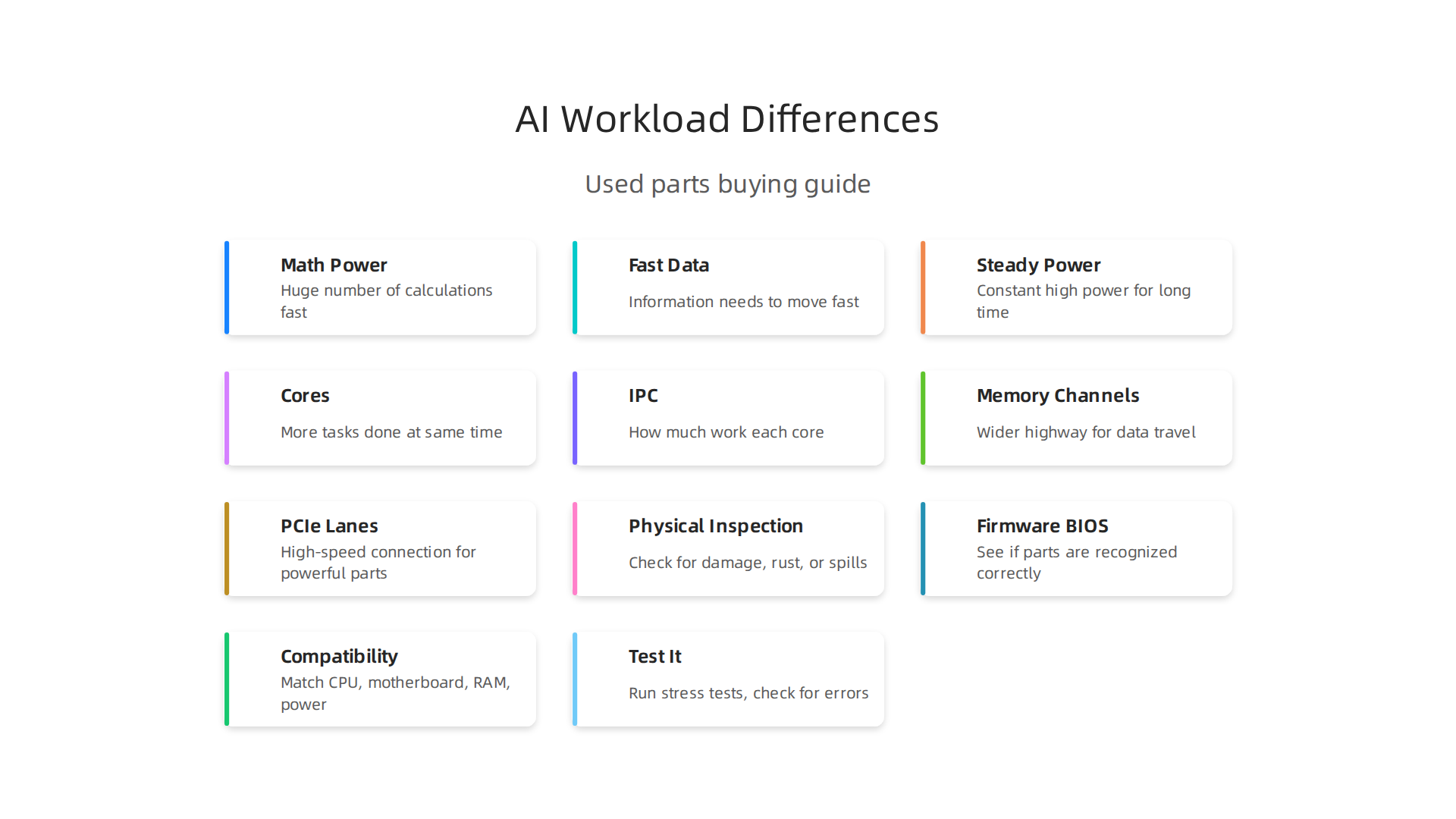
    This infographic highlights the fundamental ways AI tasks diverge from general PC use, emphasizing compute intensity, data movement, and sustained throughput.

    It Needs Lots of Math Power (Compute Intensity)

    Imagine a calculator doing a million sums at once. That’s kind of what AI training is like. It needs to do a huge number of calculations very, very fast. Regular computer brains, called CPUs, are good at doing a few sums super quickly, one after another. But Graphics Processing Units (GPUs) are built differently. They can do many, many simple sums all at the same time. This is why GPUs are so much better for AI. They offer the massive math power, or "compute intensity," that AI needs to learn and run models quickly. You can learn more about why GPUs are better for AI in 2026 by looking at studies that compare CPU vs GPU for AI in 2026.

    Chip.computer offers resources and comparisons for various computer components, including CPU vs. GPU analysis for AI applications.

    Fast Data Moving (Memory Bandwidth and VRAM)

    AI models, especially the big ones, use a lot of information. This information needs to move in and out of the GPU’s memory incredibly fast. Think of it like a highway for data. If the highway is small, cars (data) get stuck. AI needs a super wide and fast highway.

    • VRAM is special memory that lives right on the GPU. The bigger and faster this VRAM is, the more information an AI model can hold and process directly on the GPU. This is super important because if the VRAM is too small, the AI model won’t fit, or it will run very slowly. For AI, having a lot of VRAM and fast "memory bandwidth" is key to smooth operations. In 2026, some top GPUs for AI inference have huge amounts of VRAM and very high memory bandwidth, as detailed in benchmarks for the Best GPU for AI Inference in 2026.

    Steady Power, Not Just Quick Bursts (Sustained Throughput)

    Most regular computer tasks, like opening an app, need a quick burst of power then not much for a while. AI is different. It needs constant, high power for a long time. It’s like running a marathon versus a short sprint. An AI computer needs to keep processing data without slowing down for hours, maybe even days, for big projects. This "sustained throughput" means the parts need to handle heavy work without getting too hot or running out of steam.

    How This Maps to Used Parts

    When looking for used PC parts for AI, these differences mean you must focus on:

    • GPU Architecture: Look for GPUs made for strong parallel processing. Gaming GPUs are a good starting point because they have this design.
    • VRAM: Prioritize GPUs with as much VRAM as you can afford. This is often the biggest bottleneck for AI projects.
    • CPU Cores and Memory Channels: While the GPU does the heavy lifting, a decent CPU helps get data ready. More CPU cores and faster system memory (RAM) channels mean data can flow to the GPU faster. This helps prevent the GPU from waiting for information.
    • Storage Speed: A fast SSD (Solid State Drive) is important to load your AI data quickly into memory, so your powerful GPU isn’t sitting idle.

    Understanding these points helps you make smart choices. You can find good used PC parts that truly support your AI work, rather than just buying what’s cheapest and hoping it works.

    When you understand what makes AI tick, you know which types of parts are best. But knowing what to look for and actually checking the parts are two different things. It is very important to carefully inspect any used PC parts before you buy them. This helps you make sure you are getting good value and avoiding problems.

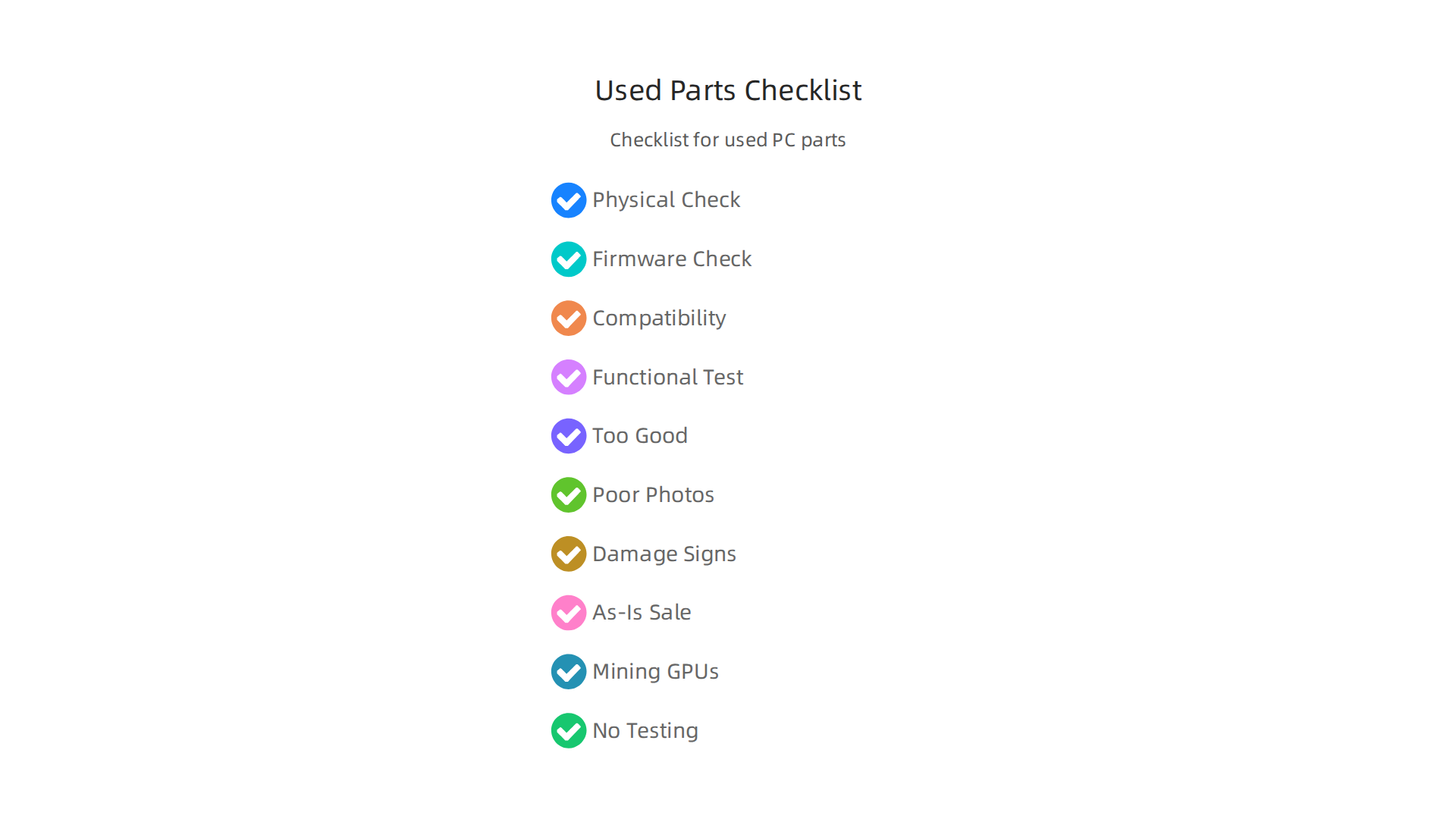
    Here is a simple checklist to help you evaluate used computer parts:

    A step-by-step checklist to guide buyers through the process of inspecting and validating used PC components for AI builds.

    1. Look Closely at the Part (Physical Inspection)

    First, always check the part with your own eyes.

    A person meticulously examining a computer component, embodying the thorough inspection needed for used parts.

    • Pictures are key: If buying online, make sure the seller shows many clear pictures of the actual item, not just stock photos. Look for pictures of the front, back, and all sides.
    • Signs of damage: Check for bent pins (especially on CPUs), broken fan blades, missing screws, or any rust. Rust is a bad sign. Look for any spills or water marks. These things can mean the part was not cared for well, as suggested in guides for buying used PC parts safely in 2026.
    • Motherboard check: If it’s a motherboard, look closely at where the CPU goes and where the memory (RAM) sticks slide in. Make sure these areas look clean and undamaged.
    • GPU check: For graphics cards, check for burn marks around the power connectors. If it was used for cryptocurrency mining, it might have been pushed very hard, which can wear it out. It is crucial to be wary of crypto-mined hardware when buying used PC parts.

    2. Peek into the Computer’s Brain (Firmware/BIOS)

    Once you can turn the computer on, you can do some basic checks.

    • BIOS: The BIOS (Basic Input/Output System) is like the computer’s basic settings menu. You can often get into it by pressing a special key (like F2, Delete, or F10) when the computer first starts. For example, knowing the Lenovo ThinkPad BIOS key can be helpful.
    • Check components: In the BIOS, you can usually see if the CPU, RAM, and storage are recognized correctly. This is a quick way to see if the main parts are working.

    3. Do the Parts Play Nicely Together (Compatibility)

    Even good parts need to fit together.

    • Match parts: Before you buy, make sure the CPU and motherboard have the right socket type. Also, check that the RAM is the right kind (like DDR4 or DDR5) for your motherboard.
    • Power needs: Think about how much power the new part needs. Will your computer’s power supply be strong enough? This is very important. You can check model numbers and chipset types to make sure parts will work together, which is vital for enterprise IT teams considering used components.

    4. Turn it On and Test it Out (Test-Boot Expectations)

    The real test is seeing the part in action.

    • Basic boot: At the very least, you should try to get the computer to turn on and show something on the screen.
    • Stress tests: For parts like graphics cards, run special tests to make them work hard. Tools like Heaven benchmark or 3DMark can help. Watch for strange colors, flickering, or the computer crashing. A good test lasts at least 15 minutes, looking for issues like overheating or odd fan noises, as advised by experts on buying used PC parts.
    • Memory test: For RAM, you can use a program like MemTest to check for errors. Used RAM is often considered safe to buy and a good way to save money, similar to buying a used CPU.
    • Warranty and return: Always ask about a warranty or return policy, especially if you’re buying from a seller you don’t know well. Reliable sellers often offer some kind of protection.

    How Different Buyers Can Use This Checklist

    • Creators: If you are a video editor or 3D artist, your main focus will be on the GPU’s VRAM and performance during stress tests. You need a graphics card that can handle heavy creative tasks without slowing down. Getting a used gaming PC for AI can be a great way to save money while still getting strong performance.
    • SMB CTOs (Small to Medium Business Chief Technology Officers): You will look at the bigger picture. Does the part have good reviews for reliability? Will it last? You also need to make sure the parts are compatible with your existing systems. Companies like Puget Systems release yearly reliability reports that can help you choose the most reliable PC hardware.
    • Consultants: You might be buying for different clients with different needs. This means you need to be very good at the compatibility checks to make sure the parts work for specific projects. You might also prioritize parts from brands known for making good components.
    • Researchers: For AI research, you need powerful GPUs with lots of VRAM and good cooling to handle long processing times. Stress tests are especially important for you to ensure sustained performance.

    By following these steps, you can feel more confident when buying used PC parts. It helps you pick the right parts that will help you reach your goals, whether you are building a best budget gaming PC or a powerful machine for AI.

    Staying updated on the latest in AI and tech is crucial for smart hardware decisions.

    Get clear daily AI updates from The AI Newsletter Worth Reading.

    Choosing a CPU, or Central Processing Unit, for AI workloads is a bit like picking the right brain for your computer. While Graphics Processing Units (GPUs) often get most of the attention for heavy AI training, the CPU still plays a very important role. It handles many tasks like getting data ready, running smaller AI models, and keeping the whole system working smoothly. When looking for used PC parts, especially CPUs, knowing what specs matter most can save you a lot of trouble.

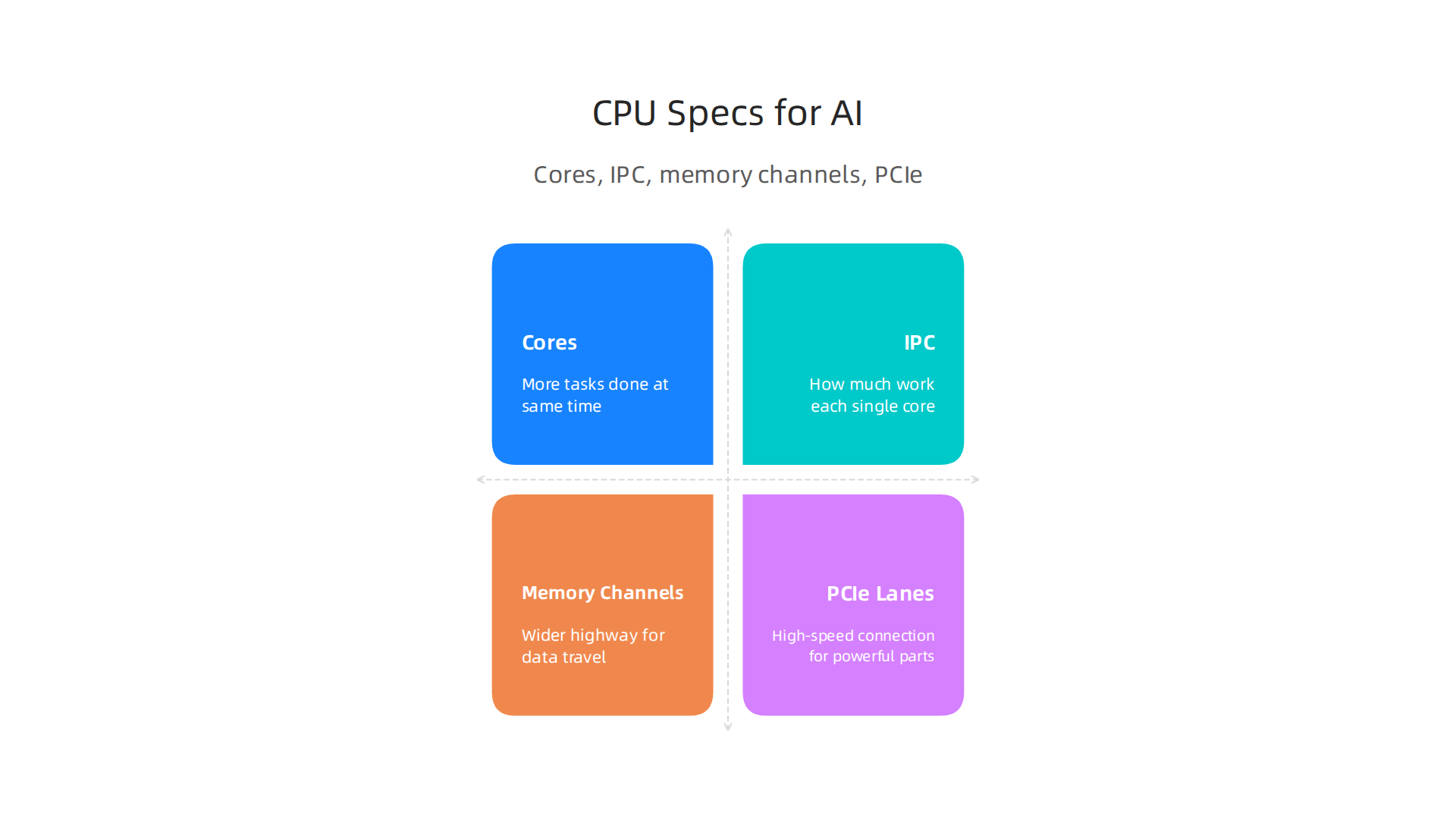
    Here are the main things to look at when choosing a CPU for AI tasks:

    This infographic breaks down the most critical CPU specifications for effective AI performance, from core count to PCIe lanes.

    What CPU Specs Matter Most for AI?

    Different parts of the CPU help with different AI jobs.

    • Cores (The Number of Workers)
      Think of CPU cores as the number of small workers inside the chip. More cores mean more tasks can be done at the same time. For AI, having many cores is good for:

      • Data Prep: Cleaning and organizing large amounts of data before it goes to an AI model.
      • Smaller AI Models: Running less complex AI programs or many small ones all at once.
      • Inference: When the AI model is already trained and you’re just using it to make predictions or decisions. While GPUs are usually faster for this, some simpler AI inference can be handled well by CPUs, especially if you want to save money. In 2026, many benchmarks still show a big difference, with GPUs being much faster for AI training compared to CPUs, but CPUs can be a good choice for some inference tasks, as noted in a guide about CPU vs GPU Inference in 2026.
      • General system tasks that keep your AI work flowing.
    • IPC (How Smart Each Worker Is)
      IPC stands for "Instructions Per Cycle." This tells you how much work each single core can do in one go. A CPU with high IPC means each worker is very efficient and fast.

      • For AI: High IPC is key for tasks that can’t be split up easily among many cores. It helps speed up parts of an AI program that need one core to focus intensely on a single job.
    • Memory Channels (The Data Highway)
      Memory channels are like roads that let your CPU talk to the computer’s memory (RAM). More memory channels mean a wider highway, allowing data to travel much faster between the CPU and RAM.

      • For AI: This is super important when you’re working with large datasets. AI models often need quick access to a lot of information, and a CPU with more memory channels can feed that data faster, keeping your AI processing from slowing down. You also need to make sure your RAM type (like DDR4 or DDR5) matches what your chosen motherboard and CPU support.
    • PCIe Lanes (High-Speed Connection Roads)
      PCIe (Peripheral Component Interconnect Express) lanes are like special high-speed roads for connecting powerful parts, such as graphics cards (GPUs) and fast storage drives (NVMe SSDs), directly to the CPU.

      • For AI: If you plan to use several powerful GPUs for deep learning or have very fast storage for huge AI datasets, having many PCIe lanes is crucial. It ensures all these fast parts can talk to each CPU worker without traffic jams. Experts at Puget Systems often recommend single-socket CPU workstations for AI development to avoid memory mapping issues, which can affect how well GPUs use the available memory, as discussed in their Hardware Recommendations for AI Development.

    Puget Systems offers hardware recommendations and solutions for high-performance computing, including AI development workstations.

    How to Evaluate Used CPUs and Motherboards for AI

    When buying used pc parts, especially for AI, checking the CPU and motherboard carefully is a must.

    1. Physical Check: Just like with other used PC parts, look closely at the CPU. Are there any bent pins? Bent pins can stop a CPU from working. For the motherboard, check the CPU socket to make sure it’s clean and has no damage.
    2. Compatibility is Key: This is probably the most important step for a used CPU and motherboard.
      • Socket Match: The CPU and motherboard must have the same socket type (like AM5 for newer AMD CPUs or LGA1700 for many Intel CPUs). An easy way to find out your CPU’s socket type is by checking Windows System Information or using free software like CPU-Z, and then looking up the CPU model’s socket type online. You can also see a CPU Socket Upgrade Path for 2026 to understand future options.
      • Motherboard’s CPU Support List: Even if the socket matches, not all CPUs work with all motherboards. You need to visit the motherboard maker’s website and check their official list of supported CPUs. This list will also tell you if you need a specific BIOS version for your CPU to work. You can find many guides on checking CPU & Motherboard Compatibility, which is a crucial step for a smooth PC build.
      • RAM Type: Ensure the motherboard supports the type of RAM you plan to use (DDR4 or DDR5).
    3. Longevity: For used pc parts, especially for a workstation that will be running AI tasks often, you want parts that are known to last. Research different brands and models for their reliability.

    Choosing the right used CPU and motherboard for AI workloads means balancing raw power with smart compatibility checks. By understanding cores, IPC, memory channels, and PCIe lanes, and then carefully checking for compatibility, you can put together a strong AI machine without breaking the bank. To learn more about setting up your system, check out our guide on How to Choose AI-Ready Business Computers in 2026.

    While CPUs handle many important AI tasks, the Graphics Processing Unit (GPU) is usually the star for most serious AI work. When you’re looking for used PC parts to build an AI machine, especially a used GPU, understanding its specific features is key. Choosing the right GPU means looking at more than just its name.

    Here’s what matters most when picking a used GPU for AI workloads:

    How VRAM, Bandwidth, and Performance Impact AI

    GPUs have special parts that make them really good for AI.

    • VRAM Size (Dedicated Memory)
      VRAM stands for Video Random Access Memory. Think of it as the GPU’s own workspace. Large AI models, especially big language models (LLMs) used in 2026, need a lot of VRAM to fit all their data. If a model doesn’t fit in the VRAM, it simply can’t run, or it will run very slowly by moving data back and forth to slower system memory. For training big AI models, VRAM capacity is a top concern because it needs to hold the model, training data, and more. A common rule of thumb for estimating VRAM needed for generative AI is around 2x the model parameters in billions, plus more for context length, though this can vary greatly HOWTO: Estimating and Profiling GPU Memory Usage for Generative AI. Many experts agree that VRAM is a critical "on/off" switch for whether a model can even run GPU VRAM vs Memory Bandwidth for AI & LLMs.

    • Memory Bandwidth (How Fast Data Moves)
      Memory bandwidth is how quickly the VRAM can send and receive data to the GPU’s main processing parts. Even if you have a lot of VRAM, if the data can’t move fast enough, the GPU’s power can be wasted. This is super important for AI tasks where the GPU is constantly moving new information, like when an AI model is making predictions (this is called inference). In 2026, many AI experts point out that for inference, memory bandwidth often matters more than just the sheer processing power GPU Memory Bandwidth: Why It Matters More Than VRAM. Fast memory bandwidth ensures the GPU cores are always busy and not waiting for data GPU Memory Bandwidth and Its Impact on Performance.

    • Architecture Generation (Modern Smarts)
      Newer GPU generations often have special parts built just for AI tasks, like NVIDIA’s Tensor Cores. These specialized cores can do AI math much faster. So, a newer, even mid-range, GPU might outperform an older, more powerful one that lacks these AI-specific features. When looking at used GPUs, try to find one from a more recent generation, even if it’s a few years old.

    • FP/INT Performance (Math Power)
      AI uses different types of math, called Floating Point (FP) and Integer (INT) operations. Different GPUs are better at different types of these calculations. For AI training, FP16 (half-precision floating point) and FP32 (single-precision floating point) performance are usually most important. For inference, INT8 (8-bit integer) can be very efficient. Checking a GPU’s performance in these specific areas gives you a better idea of its real-world speed for AI. GPU memory, bandwidth, and compute power all influence how fast an AI model can make predictions What Factors Influence Inference Speed in Machine Learning.

    Used Consumer GPUs vs. Older Data-Center GPUs vs. New Entry-Level GPUs

    When building an AI system with used PC parts, you have choices:

    • Used Consumer GPUs (e.g., from gaming PCs): These are often the best option for a best budget gaming PC that you adapt for AI. They are usually much cheaper than data-center cards. Gaming GPUs like NVIDIA’s RTX series often have good VRAM and bandwidth for their price, making them great for learning and smaller AI projects. However, they might not have as much VRAM or the high-speed connections (like NVLink) found in expensive data-center GPUs.

    • Older Data-Center GPUs (e.g., NVIDIA Tesla, Quadro): These cards were built for professional use and often have lots of VRAM and features like ECC memory (error-correcting memory) for reliability. However, they can be very expensive even used, and might require special cooling or power setups. Their performance for general AI tasks might also be beaten by newer consumer cards, especially if the architecture is very old.

    • Entry-Level New GPUs: Sometimes, a brand new entry-level GPU from the latest generation might be a better choice than a very old used high-end card. Newer cards benefit from improved architectures and AI-specific features. You get a warranty too, which used parts don’t always have.

    Deciding between these means balancing cost, performance, and specific AI needs. For most people getting started with AI, a well-chosen used consumer GPU offers the best bang for your buck in 2026.

    Staying current with the rapidly changing AI landscape and the tools that power it is vital for any business.
    For clear, daily updates on AI and technology, consider subscribing to The AI Newsletter Worth Reading.

    After picking the right used GPU for your AI projects, other parts of your computer also play a big role.

    A team collaborating to strategize on system architecture, ensuring all components work in harmony for optimal AI performance.

    This includes your computer’s main memory (RAM), storage drives, and the motherboard that connects everything. When building with used PC parts, understanding these components means your AI system can work smoothly and quickly.

    Memory (RAM): Speed and Capacity for AI

    Think of RAM as the computer’s short-term memory or workbench for the CPU. While your GPU has its own special memory (VRAM), the main system RAM is still very important. It holds the operating system, other programs, and parts of your AI model or data that don’t fit into the GPU’s VRAM.

    • Memory Bandwidth and Channels: This refers to how fast your RAM can send and receive data. Higher bandwidth means faster data flow. Motherboards often have "channels" for RAM, like two or four. Using all the channels (e.g., two sticks of RAM instead of one large stick) can make the memory work much faster. This is called dual-channel or quad-channel memory, and it’s a good thing for AI tasks, especially when the CPU is moving data around. Remember, the GPU cannot directly use the computer’s system RAM; it first needs to load data into its own dedicated memory GPU Memory Explained: VRAM, Shared Memory, and How Much You ….

    • Buying Used RAM: When looking for used RAM, check the type (like DDR4 or DDR5) and speed (measured in MHz, like 3200MHz or 6000MHz). Make sure all the RAM sticks you buy are the same type and speed for the best performance. Also, check how much RAM your motherboard supports. Most personal AI setups in 2026 can benefit from 32GB to 64GB of fast DDR4 or DDR5 RAM.

    • ECC Support: ECC stands for Error-Correcting Code. This kind of RAM can fix small errors in data automatically. It’s usually found in very high-end servers or workstations where every piece of data must be perfect. For most home AI builders using a best gaming desktop as a base, ECC RAM is often not necessary and can cost more.

    Storage: Datasets, Endurance, and Speed

    AI models and the data they use can be huge. You need plenty of space to store them, and fast space at that.

    • Storage for Datasets and Swapping: AI models need quick access to large datasets. Sometimes, if your GPU’s VRAM is full, your computer might use a part of your storage drive as extra, slower memory. This is called "swapping" or "paging." Having a fast storage drive helps here, even though it’s still much slower than true VRAM.

    • SSD Endurance: You’ll want to use Solid State Drives (SSDs) instead of older, slower Hard Disk Drives (HDDs). SSDs are much faster. When buying used SSDs, think about "endurance." This means how much data can be written to the drive over its lifetime before it might wear out. AI tasks, especially training, involve writing lots of data, so a drive with good endurance is helpful. Ask the seller about the "Total Bytes Written" (TBW) if possible.

    • NVMe vs. SATA: These are two main types of SSDs. NVMe SSDs are much faster than SATA SSDs. They plug directly into your motherboard using a special slot. For AI, where you’re loading huge amounts of data, an NVMe SSD is a much better choice for speed. SATA SSDs are still good and faster than old hard drives, but NVMe is the king for high-speed data access in 2026.

    Motherboards: The Foundation of Your AI Build

    The motherboard is like the central nervous system of your computer. It connects your CPU, RAM, GPU, and storage.

    • CPU Socket Compatibility: This is super important. Your used CPU and motherboard must have the exact same "socket" type. For example, an Intel CPU needs an Intel motherboard with the right socket, and an AMD CPU needs an AMD motherboard with its matching socket. You can’t mix and match brands, and even within the same brand, sockets change over time CPU & Motherboard Compatibility 2026: AM5, AM4, LGA1851 …. A simple mismatch means your parts won’t work together at all. You can often check the CPU support list on the motherboard maker’s website.

    • RAM Type and Slots: Make sure your motherboard supports the type of RAM you plan to use (DDR4 or DDR5) and has enough slots for the amount you want.

    • PCIe Slots: These are the slots where your GPU(s) plug in. Make sure your motherboard has enough PCIe slots for your chosen GPU setup and that they are the right version (e.g., PCIe 4.0 or PCIe 5.0). A newer PCIe version means faster communication between your GPU and the rest of the system.

    Carefully checking these details when buying used PC parts will save you headaches and help you build a powerful AI machine on a budget.

    After making sure your CPU, RAM, storage, and motherboard all work well together, there are still a few more things to think about when building your AI computer with used pc parts. These include how your computer gets power, how it stays cool, and how it connects to the internet or other computers. Paying attention to these parts helps your AI system run smoothly for a long time without issues.

    Power Supply (PSU): The Heart of Your System

    The Power Supply Unit, or PSU, is like the heart of your computer. It gives power to all your parts, especially your powerful GPU(s) and CPU. If your PSU isn’t strong enough, your computer might turn off when doing hard AI tasks, or it might not even turn on.

    • Capacity is Key: PSUs are measured in watts (W). AI GPUs need a lot of power. If you are using one or more powerful GPUs, you need a PSU with high wattage. Always check what your GPU and CPU need and add a little extra power just in case. When buying used pc parts, look for well-known brands that have a good history.
    • Efficiency Ratings: You’ll see ratings like "80 Plus Bronze," "Gold," or "Platinum." These tell you how well the PSU turns wall power into computer power without wasting too much as heat. Gold or Platinum PSUs are more efficient, meaning they save a little on your electricity bill and produce less heat inside your computer.
    • Buying Used PSUs: A used PSU can be a good way to save money, but be careful. It’s one of the parts you don’t want to fail. Try to get one that’s not too old and comes from a reliable seller. Make sure it has all the right cables for your GPU(s) and other parts.

    Cooling Solutions: Keeping Things Chill

    AI workloads make your computer work very hard, and hard work creates a lot of heat. If your computer gets too hot, it will slow down or even break. Good cooling is a must for stable, sustained performance, especially if you’re turning a best budget gaming pc into an AI powerhouse.

    • Case Airflow: The computer case isn’t just a box; it helps move hot air out and pull cool air in. A case with good airflow and enough fan slots is important. Make sure you have fans moving air in from the front or bottom and out from the back or top. A good case is vital for preventing overheating. You can learn more about making sure all your computer parts work well together in a PC Compatibility Guide.
    • CPU Coolers: Your CPU needs its own cooler. You can choose between air coolers (a big metal heatsink with a fan) or liquid coolers (which use water to move heat away). Both can be bought used. Just make sure they fit your CPU’s socket and your case.
    • GPU Cooling: Most GPUs come with their own fans and heatsinks. But when you’re running AI tasks, they can still get very hot. Good case airflow helps these GPU coolers do their job even better.
    • Dust Control: Over time, dust can clog up fans and heatsinks, stopping them from cooling properly. Regularly cleaning your used computer parts will help keep them working at their best.

    Networking and Data Transfer: Fast Connections for AI

    If your AI project uses very large datasets or needs to work with other computers, how your computer connects to the network is very important.

    • Fast Ethernet is Best: For AI tasks, a wired Ethernet connection is usually much better than Wi-Fi. It’s faster and more reliable. Most motherboards today have Gigabit Ethernet, which is good. If you’re working with extremely large datasets or multiple computers (a "multi-node" setup), you might want to look for 10 Gigabit Ethernet for super-fast data transfer.
    • Large Datasets: If your AI models need to pull in tons of data from your network or from cloud storage, a speedy network connection will save you a lot of time. This is especially true if you are building a used gaming PC for AI and want to get the most out of it.

    Making smart choices for power, cooling, and networking will help your used PC parts come together to create a reliable and powerful AI system that can handle tough jobs day after day.

    Stay ahead with the latest AI and tech trends by getting expert insights every day.
    The AI Newsletter Worth Reading

    Buying used PC parts can save you a lot of money, especially when building a powerful computer for AI tasks. But it is important to be careful. You need to know what to look for to make sure you get good parts that will last. This means checking for problems, understanding warranties, and knowing how to talk to sellers.

    Red Flags to Watch For When Buying Used PC Parts

    When you are looking for used pc parts, some things should make you think twice.

    A visual guide to critical red flags to identify and avoid when purchasing used PC components to ensure a safe and reliable investment.

    Being aware of these signs can help you avoid bad deals and save you trouble later.

    • Deals That Are Too Good to Be True: If a price seems much lower than everything else, it might be a scam or the part could be broken. Always be careful of such low prices, as they often hide problems.
    • Poor Photos or Stock Images: A good seller will show clear, real pictures of the actual part they are selling. If the pictures are blurry, or they are just showing photos from the internet, it is a bad sign. You need to see what you are actually buying.
    • Signs of Damage: Look closely for bent metal, missing screws, or strange marks. Rust can be a big problem, especially inside power supplies or on motherboards. If you see signs of liquid, like water stains, definitely do not buy it. You can learn more about things to watch out for in a guide on buying used PC parts in 2026.
    • "As-Is" Sales: If a seller says "as-is" without any promise that it works, it means they might not offer returns or help if something goes wrong. It’s usually best to avoid these sales, especially for important parts.
    • Graphics Cards (GPUs) from Mining: GPUs that were used for crypto mining often worked very hard for a long time. This can make them wear out faster. If you are buying a used GPU, ask the seller about its history. It is generally safer to avoid these if you can. Experts like PCWorld recommend avoiding crypto-mined hardware when trying to safely buy used PC parts in 2026.

    PCWorld provides comprehensive technology news, reviews, and guides, including advice on buying used PC components safely.

    • Testing is Key: No matter what, you should test any used pc parts as soon as you get them. For GPUs, run games or special programs to make sure they work well and do not overheat. For other parts like RAM, tools like MemTest can check for issues.

    Warranties and Refurbishment

    Buying refurbished parts can be a good middle ground between new and used. These parts have been checked and fixed by experts.

    • Look for a Warranty: When buying refurbished electronics, always ask about a warranty. Even a short 90-day warranty gives you peace of mind that the part works. A lack of warranty can be a warning sign.
    • Manufacturer Refurbished vs. Seller Refurbished: Parts fixed by the original company (manufacturer refurbished) are often more trustworthy than those fixed by a smaller seller. Manufacturer refurbished items usually have better quality control. For example, if you are looking for an AI-ready laptop, you might consider an Apple Certified Refurbished Macbook Air for AI for greater assurance.
    • Clear Refurbishment Process: Good refurbishers will tell you what they did to fix the part. This might include running tests, replacing old parts, and making sure it works like new. They should also provide clear details on the item’s condition.

    Getting the Best Deals and Reducing Risks for Your Team

    For businesses or teams buying used pc parts, there are extra steps to make sure your investments are smart and safe.

    • Trusted Sellers and Marketplaces: Websites like eBay are often recommended because they offer buyer protection. Always check seller ratings and reviews. Buying directly from well-known retailers or manufacturers can also be safer, as they often provide better warranties.
    • Meeting in Person: If you can, meet the seller in person, especially for expensive parts. This lets you inspect the item yourself before you buy it. You can check for physical damage and even ask to see it working.
    • Detailed Information: For important purchases, ask the seller for as much detail as possible. This includes model numbers, proof of purchase, and why they are selling the part. Good sellers will be happy to give you this information.
    • Consider What’s Safe to Buy Used: Some parts are safer to buy used than others. Memory (RAM) and CPUs are often considered very safe used purchases because they have few moving parts and a low failure rate. However, Power Supply Units (PSUs) and sometimes GPUs carry more risk. You can find more details in guides like Used PC Parts: What’s Safe to Buy in 2026 and What’s Not.

    By being careful and doing your homework, you can find great deals on used pc parts and build a strong AI computer without spending too much. This approach helps you get a powerful machine, maybe even a best budget gaming pc ready for AI, while avoiding common problems.

    Summary

    This guide explains how to buy and evaluate used PC parts specifically for AI projects, focusing on real-world checks and compatibility rather than just low prices. It covers why GPUs (VRAM and memory bandwidth) matter more than CPUs for most AI workloads, what CPU specs still affect performance, and how RAM, storage, motherboards, power, cooling, and networking fit into an AI-ready build. You’ll get a simple physical-inspection checklist, BIOS and boot tests, stress-test recommendations, and clear red flags to avoid — including crypto-mined GPUs and vague "as-is" listings. The article also explains which used parts are generally safer to buy and offers guidance for creators, SMB CTOs, consultants, and researchers. After reading, you’ll know what to check before buying, how to test parts on arrival, and how to assemble a reliable AI-capable machine on a budget.

  • How to Choose AI-Ready Business Computers in 2026

    How to Choose AI-Ready Business Computers in 2026

    Artificial intelligence (AI) is changing how businesses work in 2026. From making tasks easier to helping with big decisions, AI is everywhere. Because of this, picking the right computer for your business is more important than ever. You need laptops and PCs that can handle AI tasks well, not just today, but for a long time to come. This is where "AI-readiness" truly matters.

    Many businesses make a common mistake. They often buy new computers based on exciting marketing words or big numbers on a spec sheet. But sometimes, what sounds great on paper doesn’t work so well in the real world. A computer might be advertised as "AI-ready," but that can mean different things. It’s like buying a car that says "fast" without knowing if it’s fast for city driving or only on a race track. For businesses, this mistake can lead to wasted money and slower work.

    Actually, there are different kinds of AI work, also called "workloads." In 2026, many companies are focused on what is called "inference." This is when an AI model that has already been taught uses what it learned to make predictions or answer questions. Think of it as the AI doing its job after it’s finished school. Inference tasks often need quick bursts of power, but they are not as heavy as "training" tasks, where the AI is learning from scratch AI training vs inference: the 2026 economics split. Experts like Deloitte say that by 2026, inference workloads will make up about two-thirds of all AI computing

    Explore Deloitte's insights on technology trends and AI computing forecasts for businesses.

    More compute for AI, not less. This means what a business needs in a laptop might be different from what a big AI lab needs.

    So, when you are looking at business laptops or PCs, like different thinkpad models, you shouldn’t just look at the highest numbers. You need to think about how the computer will perform day after day. Does it offer good, steady performance for the kind of AI tasks your team actually does? Is it easy for your IT team to set up and keep running? For example, a Lenovo ThinkPad X Series might be perfect for one business, while another might need a different setup entirely. Understanding these details helps you get a better return on your investment.

    Staying on top of all the new AI tools and computer tech can be tricky.


    Get clear daily AI updates from The AI Newsletter Worth Reading.


    Understand Your AI Workloads: Inference, Fine-Tuning, and Local Tooling

    It’s true that keeping up with all the new AI tools and computer technology can feel like a lot.

    A team actively engaged in learning new technological concepts and tools.

    But to pick the best computers for your business, you need to know exactly what kind of AI work your team will do.

    Understanding different AI workloads helps in selecting the right business hardware.

    It’s not just about "AI" in general; it’s about the specific tasks, also called "workloads."

    We already talked about inference, which is when an AI uses what it learned to give answers or make predictions. This needs quick power bursts. But there are other important types of AI work too:

    • Fine-Tuning: Imagine you have a very smart AI model, like a big brain that knows a lot about everything. Fine-tuning is like teaching that smart brain a special new skill, using a smaller set of your own company’s information. It’s not learning from scratch, but adapting what it already knows to your exact needs. This kind of work needs more computer power than just inference, especially good memory and a strong graphics processor (GPU) 5 types of AI workloads and how to deploy them. Fine-tuning tasks often involve reading large amounts of data and doing many quick calculations.
    • Local Tooling/Experimentation: Sometimes, your team might want to test new AI ideas or use smaller AI tools right on their own computers. This is like having a small AI lab on a laptop. For these tasks, you need a computer that can handle the work quickly without relying on the internet or a big cloud service. A computer with a good built-in GPU and enough memory will help these local AI tools run smoothly.

    Different companies have different needs. A study found that businesses are using AI for many different things, not just one type of workload AI Workload Priorities Diversify as Enterprises Push Compute Beyond Training. This means there’s no single "best" computer.

    Matching Workloads to Computer Needs

    When you look at different thinkpad models or other business PCs, think about these things:

    • Latency (Speed): How fast does your AI need to give answers? For quick customer service chatbots, you need very low latency. Inference tasks often need fast responses.
    • Memory (RAM): How much information does your AI need to hold in its active "brain" at once? Fine-tuning and local experimentation can use a lot of memory.
    • Local GPU vs. Cloud Hybrid: Do you need a powerful graphics card right inside the computer (a local GPU) for heavy work, or can your computer send tasks to bigger, more powerful computers over the internet (cloud hybrid)? Many daily inference tasks can run well on laptops with newer AI-ready chips, while more intense fine-tuning might need a stronger local GPU or a mix of local and cloud power. For example, a dedicated ibuypower pc with a strong GPU might be great for local AI model experimentation, while a portable lenovo thinkpad x series or a lenovo thinkpad t14 gen 2 could handle most on-device inference tasks just fine. If you’re considering a more budget-friendly approach to local AI computing, looking into a used gaming pc for ai might be an option.

    To pick the right computer, you also need to know about the parts inside it.

    Essential hardware components and their roles in various AI tasks.

    These parts are called hardware specs. Think of them as the engine and other important bits of a car. Each part helps with different kinds of AI work.

    CPUs: The Brains for Everyday AI

    The CPU, or Central Processing Unit, is like the main brain of your computer. For AI, how powerful your CPU needs to be depends on the task.

    • CPU Cores: CPUs have "cores," which are like mini-brains working together. More cores can help with tasks that need many things done at once.
    • Single-Thread Performance: This means how fast one of those mini-brains can work on its own. For quick AI tasks like simple searches or small actions (often called inference), fast single-thread performance is very important. Many newer thinkpad models have CPUs that are great for this kind of quick, on-the-spot AI work.
    • Platform Memory Bandwidth: This is about how fast the CPU can get information from the computer’s memory (RAM). Good bandwidth helps the CPU keep working smoothly without waiting for data. For light AI use and small learning tasks, a strong CPU is key, as it often handles many calculations that lead to the AI’s answer. Benchmarks like Cinebench help show how well a CPU performs for rendering and multi-threaded tasks, which can be similar to some AI workloads How to Use and Interpret Cinebench 2026 Results. For a deeper look into CPU performance for AI, you can explore comparisons like CPU Vs GPU In 2026: Key Differences, Use Cases, And Tips.

    GPUs: The Muscle for Heavier AI Tasks

    The GPU, or Graphics Processing Unit, is like the muscle of your computer, especially for AI. It’s really good at doing many math problems at the same time, which is exactly what AI needs for training and fine-tuning.

    • Integrated vs. Discrete GPUs:
      • Integrated GPUs are built right into the main CPU chip. They share memory with the CPU and are good for lighter AI tasks, like running a simple AI chatbot on your lenovo thinkpad x series.
      • Discrete GPUs are separate, more powerful chips with their own dedicated memory (VRAM). These are found in powerful laptops or desktop computers, like an ibuypower pc, and are much better for heavy AI work.
    • Dedicated VRAM (Video RAM): This is super important for AI. VRAM is special memory just for the GPU. The more VRAM a GPU has, the bigger and more complex AI models it can handle directly on the computer. For tasks like fine-tuning a large AI model or doing a lot of local experimentation, you’ll want a GPU with plenty of VRAM. A good example of understanding which laptop graphics card is best for various AI tasks can be found in resources like Understanding the Best Laptop Graphics Card 2026.

    RAM: The AI’s Short-Term Memory

    RAM (Random Access Memory) is where your computer keeps information that it’s actively using right now. For AI, having enough RAM is super important.

    • Holding Large Models: If you’re working with big AI models or lots of data at once, you need a lot of RAM. Fine-tuning, for example, often needs 16GB, 32GB, or even 64GB of RAM to hold the AI model and the data it’s learning from.
    • Speed Matters: The speed of your RAM also makes a difference. Faster RAM means the CPU and GPU can get the information they need more quickly. This leads to smoother and faster AI processing.

    Storage: The AI’s Long-Term Memory

    Storage is where your computer saves everything permanently, like programs and all your AI data.

    • SSD vs. HDD:
      • SSDs (Solid State Drives) are much faster than older HDDs (Hard Disk Drives). For AI, you definitely want an SSD. It allows the computer to load large AI models and datasets quickly, which speeds up both training and inference.
      • Capacity: AI models and data sets can be huge. Make sure your computer has enough storage space, usually 512GB or 1TB (terabyte) or more for serious AI work. Fast storage is crucial for AI workloads, as models can quickly read and write large files during training or fine-tuning AI Workloads Storage Architecture.

    Choosing the right mix of these hardware parts will make sure your AI tasks run smoothly. When looking at different lenovo thinkpad t14 gen 2 models or other laptops, remember to match these specs to the AI work you plan to do. For businesses exploring powerful local setups, sometimes even checking out Gaming PC Deals 2026 How AI Hardware Makes Mid-Range Systems Outperform can offer surprising value. If you’re considering MacBooks for AI, you might find valuable insights in this guide to Picking the Best MacBooks for AI for Your 2026 Projects.

    Once you know what computer parts are best for AI, there’s another big thing for businesses to think about: how safe and easy those computers are to handle. This is super important when a company buys many computers for its team, especially for sensitive AI work. Features like strong security, being able to manage many devices at once, and easy setup help save money and keep everything running smoothly.

    Security Features: Keeping AI Safe

    For businesses, especially those dealing with important AI projects, security is key.

    Key security features critical for protecting business AI projects and data.

    Good thinkpad models and other business laptops come with special tools to keep your data and AI models safe.

    • Trusted Platform Module (TPM): This is a small, secure chip inside the computer. It helps make sure your computer starts up safely and that no one has changed its important software. It also helps with things like disk encryption. Many security checklists for 2026 say you need TPM for high-risk users Endpoint Security Hardening in 2026: A Practical Checklist for ….
    • Disk Encryption: Imagine putting a lock on all the data on your computer’s hard drive. That’s what disk encryption does. If a laptop like a lenovo thinkpad x series gets lost or stolen, your important AI data stays private because it’s scrambled and locked.
    • Secure Boot: This feature helps protect your computer when it first turns on. It makes sure that only trusted software loads. This stops bad software from hijacking your computer right from the start. Keeping Secure Boot enabled is a key part of protecting endpoints Guidance for Managing UEFI Secure Boot. In 2026, many companies are updating how they manage Secure Boot to keep up with new threats Secure Boot Certificate Rollout 2026: Critical Update for Windows Devices.
    • BIOS Controls: The BIOS is like the computer’s basic instruction book. Business-focused machines give IT teams special controls here. They can lock down settings to make sure users can’t change important security features, which helps keep all computers on the network just as safe.

    Manageability and Fleet Deployment: Easy for IT

    When a company has many AI-ready computers, like a fleet of lenovo thinkpad t14 gen 2 laptops, managing them all can be a big job. This is where manageability features really shine.

    • Remote Management: IT teams need to set up, update, and fix computers without being right next to them. Tools for remote management let them do this from afar. This means they can get new AI-capable computers ready quickly and push out important security updates to everyone at once.
    • Driver Updates and MDM: Keeping drivers (small programs that help hardware work) up to date is crucial for AI. Business computers often work well with special software called Mobile Device Management (MDM). MDM helps IT teams easily manage all devices, including making sure all drivers are current and secure. For anyone looking to select the right technologies to help their business grow, understanding these management systems is key Unlock Growth by Selecting the Right Smart Technologies in 2026.

    These features help businesses reduce their Total Cost of Ownership (TCO). This means they spend less money over time because their IT teams can work more efficiently. Instead of manually fixing each computer, they can manage many thinkpad x series laptops at once, saving time and money. For businesses trying to use AI to grow, picking computers with these enterprise features is a smart move.

    Even with the best parts, how a computer handles heat is super important for AI work. When a computer runs hard, it gets hot. If it gets too hot, it has to slow down to protect itself. This slowing down is called "throttling," and it can really mess up AI tasks that need to run fast for a long time.

    Short Tests vs. Long Work

    Many computer tests, called benchmarks, only show how fast a computer can go for a few seconds. They are like a quick sprint. But AI work is more like a marathon. It needs the computer to stay fast for many minutes or even hours.

    If a thinkpad models laptop or a powerful desktop like an ibuypower pc can’t keep itself cool during these long tasks, its great parts won’t perform their best. The computer will get hot, slow down, and your AI projects will take much longer to finish. This is why "sustained throughput" matters. It means the computer can keep up its speed over a long time, not just for a quick burst.

    What to Look For to Avoid Slowdowns

    When picking a computer for AI, especially models like the lenovo thinkpad x series or lenovo thinkpad t14 gen 2, here are some things to check:

    • Good Cooling Design: Look for computers that have big fans, many vents, or even special liquid cooling systems. These designs help move heat away from the important parts so they can keep working at full speed.
    • Vendor Thermal Profiles: Check what the company that makes the computer says about its cooling. Some computer brands let you pick different "thermal profiles" or modes. These can make the fans spin faster to keep things cooler, even if it means a bit more noise.
    • Independent Stress Tests: Don’t just trust the company’s numbers. Look for reviews from other websites or experts who test computers. They often run special "stress tests" that push the computer hard for a long time. These tests will show if a computer can keep its speed up or if it starts to slow down because of heat.
    • Reviews for Gaming PCs: Many gaming computers need good cooling for long play sessions. You can often learn a lot about a laptop’s cooling abilities by reading reviews focused on gaming performance, as AI tasks can be just as demanding. For budget-friendly options, consider a used gaming PC for AI to get strong cooling and graphics power.

    By looking into these details, you can pick a computer that won’t surprise you with slowdowns when you need it most.

    After thinking about how to keep your computer cool, it’s also important to pick the right type of machine from the start. Not all computers are made the same, especially when we talk about business needs. This is where different thinkpad models and other business computers come in. They are built with different things in mind, like how tough they are or how easy they are to fix.

    ThinkPad Models and Comparable Business Lines: Matching Features to Use Cases

    Choosing a computer for AI is not just about raw power. It’s also about how reliable it is, how long it will last, and if it can work well with the special software you use. Business laptops, like the various thinkpad models, are often designed with these practical needs in mind.

    Here are some key things that make business laptops different and why they matter for AI:

    Important features of business laptops relevant for AI work beyond raw power.

    • Durability (How Tough It Is): Business laptops are often built to be stronger. They can handle being carried around and opened many times. This is important for AI users who might take their laptop to different places. A strong laptop means fewer broken parts and less time away from your important AI projects.
    • Serviceability (How Easy to Fix): When something breaks, how easy is it to get fixed or upgraded? Business laptops are usually made so that IT teams can swap out parts like memory or storage more easily. This helps keep costs down over time. Keeping track of your business hardware lifecycle is key, as companies often refresh power-user laptops every 2 to 3 years to meet high demands, according to experts in 2026 Enterprise IT Hardware Refresh Cycles: 2026 Guide.
    • ISV Support (Software Works Right): ISV stands for "Independent Software Vendor." This means that companies making professional AI software have tested their programs on certain business laptops. When a laptop has ISV support, it’s more likely your specialized AI tools will run smoothly without unexpected problems.
    • Total Cost of Ownership (TCO): When buying a computer for business, the sticker price is just the start. You also need to think about how much it will cost to maintain, fix, and update it over its lifetime. Studies show the purchase price is only a small part of the total cost Enterprise Laptop Manufacturer Selection Guide. This is where good durability and serviceability save money.

    Picking the Right Laptop for Your AI Work

    To make a good choice, think about how you will use the computer. Here’s a simple guide to help match different business laptop families to common AI jobs:

    • Road Warrior (Someone Who Travels a Lot): If you are always on the go, you need a light laptop with a long battery life. Models like the lenovo thinkpad x series are perfect for this. They are thin, easy to carry, and reliable.
    • Data Scientist (Needs Lots of Power): For heavy AI tasks that need strong processing and lots of memory, you might look at more powerful thinkpad models, such as the lenovo thinkpad t14 gen 2 or other laptops in the T-series. These often have better cooling and can handle more demanding work. For even more power, a dedicated desktop like an ibuypower pc might be considered.
    • Developer Workstation (Building AI Tools): Similar to a data scientist, a developer needs top-notch performance. They might also need many ports to connect extra screens or devices. High-end ThinkPads or powerful custom desktops are good fits here.
    • Hybrid Worker (Mix of Home and Office): If you work both at home and in an office, you need a laptop that’s good for both. A balanced option like the lenovo thinkpad t14 gen 2 gives you good power for AI tasks while being easy to move around.

    Making smart choices about your AI hardware helps you unlock growth by selecting the right smart technologies in 2026. Stay ahead with daily AI and technology insights by signing up for The AI Newsletter Worth Reading.

    Connectivity, Expandability, and Peripherals: Building an AI-Ready Workstation

    Beyond choosing the right core computer, like a powerful thinkpad models laptop, how you connect it to other things is just as important for serious AI work. This means looking at ports, extra graphics cards, docking stations, and how your computer talks to the internet and stores files. These parts help make sure your AI tasks run smoothly and you can work without frustrating slowdowns.

    Ports: Your Computer’s Connection Points

    Modern laptops, including many lenovo thinkpad x series or the lenovo thinkpad t14 gen 2, come with different types of ports. For AI, you will want ports that are fast and versatile.

    • Thunderbolt or USB4: These are very important. They let you connect to many devices at once through a single cable. You can plug in fast external storage, multiple screens, and even an external GPU.
    • Ethernet: While Wi-Fi is common, a wired Ethernet connection is much faster and more stable. This is key for downloading large AI datasets or sending results to the cloud without interruptions.
    • Other USB Ports: Having a mix of USB-A and USB-C ports allows you to connect all your devices, from keyboards and mice to external hard drives.

    External GPU Enclosures (eGPUs): More Graphics Power

    Sometimes, even a strong laptop might not have enough graphics power for very demanding AI tasks. This is where an external GPU enclosure comes in. It’s a box that holds a desktop graphics card and connects to your laptop, usually through a Thunderbolt port. This can give your laptop a big boost in AI processing, making it almost as powerful as a desktop computer like an ibuypower pc.

    However, it’s good to know that using an eGPU can mean a small loss in performance. For instance, connecting an external GPU through Thunderbolt 4 might mean your graphics card works 15% to 30% slower than if it were inside a desktop computer My 1-Year Review of Using an External GPU (eGPU) with a Thin …. Newer connections like Thunderbolt 5 can reduce this loss to about 5% to 15% The best eGPU enclosures for Linux in 2026, from TB5 to …. For best results, it’s often better to use an external screen with your eGPU setup instead of your laptop’s built-in screen, as this can improve performance

    Explore community insights and guides on external GPU setups for enhanced performance.

    eGPU Performance: Internal vs. External Display. If you’re looking for extra power on a budget, sometimes even a used gaming PC for AI can offer a strong GPU.

    Docking Strategies: One Cable Does It All

    A docking station is a hub that connects to your laptop with one cable and lets you plug in all your other devices: monitors, keyboard, mouse, Ethernet, and external drives. This is super helpful if you move your laptop between different workspaces, making it easy to set up your full AI workstation quickly.

    Storage Tiers and Backup: Keeping Your Data Safe

    AI work often involves huge amounts of data. Having the right storage is crucial.

    • NVMe SSDs: These are the fastest storage drives, perfect for your operating system and active AI projects that need quick access to data.
    • SATA SSDs: Still very fast, but a bit slower than NVMe. Good for storing larger datasets that you don’t need to access constantly.
    • External Hard Drives: Useful for long-term storage or backups.

    Always have a backup plan for your important AI experiments and data. Losing your work due to a broken drive can set your projects back significantly. Make sure you regularly copy your data to another drive or a cloud service. This way, your local experiments are safe and you can always go back to a previous version if needed.

    After figuring out the best ways to connect your AI workstation, it’s time to think about the money side of things. For teams, buying computers like different thinkpad models for AI isn’t just about picking the fastest machine. It’s also about smart spending, making sure those computers last, and getting good value for your money. This is especially true when you’re looking at a fleet of lenovo thinkpad x series laptops or even powerful desktop ibuypower pc setups for your whole team.

    Budgeting for Your AI Team

    When you buy computers for a team, you usually think about two main ways to spend money:

    • Capital Expenses (Capex): This is when you buy something outright, like a new lenovo thinkpad t14 gen 2 laptop or an external GPU. It’s a big, one-time payment. This kind of spending is often seen as an investment that adds value over time.
    • Operating Expenses (Opex): These are the ongoing costs, like paying for software licenses each month, cloud services, or even repair services. These are smaller, regular payments that keep things running.

    Choosing between Capex and Opex depends on your team’s needs and how your company likes to manage money. For example, buying powerful workstations (Capex) might cost more upfront, but it could save you money in monthly cloud fees (Opex) if your team does a lot of AI work locally.

    Warranty and Service Tiers

    For businesses, a good warranty is super important. If a computer breaks down, you need to fix it fast so your team can keep working. Most manufacturers offer different warranty plans:

    • Standard Warranty: Covers basic repairs for a certain time, usually a year.
    • Extended Warranty: Gives you coverage for a longer period, like three or five years.
    • On-Site Service: This means a technician comes to your office to fix the computer, which saves time compared to sending it in.
    • Accidental Damage Protection: Covers things like spills or drops, which can be a lifesaver in a busy workplace.

    A better warranty can mean less downtime for your team, which keeps your AI projects on track.

    Expected Lifecycle of AI Machines

    How long should an AI-ready computer last? For simple office tasks, a computer might be good for five years or more. But for demanding AI work, new technologies come out quickly. A machine that’s great today might not be fast enough in three years.

    You can check how powerful a computer is using special tests called benchmarks. These tests measure how well a CPU, GPU, and NPU perform with AI tasks, giving you a good idea of its capabilities today and how long it might remain competitive Laptop AI Benchmarks 2026 — NPU TOPS & LLM tokens/sec. Paying attention to thermal management is also key to ensuring your laptops stay fast over time Why Laptop Cooling Matters More Than Ever in 2026.

    Return on Investment (ROI) Checklist for AI Tools

    Measuring ROI means looking at how much value you get back from your investment.

    Professionals analyzing financial data to determine return on investment for business decisions.

    For AI-capable computers, here’s a simple checklist:

    • Productivity Gains: How much faster can your team complete AI tasks? If a better computer cuts down project time by 20%, that’s a big win.
    • Software Licensing Costs: Factor in the price of AI software and tools. Sometimes, free or open-source tools can lower your Opex.
    • Cloud vs. Local Costs: This is a big one. Running AI models on your own powerful computers (local) means less money spent on cloud services. But if your team only needs AI power sometimes, cloud services can be cheaper. A general idea is that a gaming laptop can be 54% less costly than a desktop for similar performance, which might affect the cloud vs. local calculation too Gaming Laptop vs Desktop 2026: 54% Gap, $919 Entry.
    • Training and Learning: If your team learns how to use these powerful machines better, they become more efficient.

    By carefully planning your budget and thinking about ROI, you can make sure your team has the best tools for AI work without overspending. It helps to choose the right AI tools for business that deliver real results. For more details on smart spending, check out tips on tech for less AI operations cut costs without cutting corners in 2026. Also, understanding how to choose AI for business tools that deliver real results in 2026 can help ensure your investments pay off.

    Summary

    As AI becomes central to everyday business work in 2026, choosing the right laptops and desktops requires more than trusting marketing labels like

  • Picking the Best MacBooks for AI for Your 2026 Projects

    Picking the Best MacBooks for AI for Your 2026 Projects

    Why this guide on MacBooks for sale matters in 2026

    Buying a new MacBook in 2026 can feel a bit tricky, especially if you need it for serious work like Artificial Intelligence (AI).

    A professional contemplates options, considering the best MacBook for their AI work needs.

    With Apple releasing powerful new chips like the M5, M5 Pro, and M5 Max in their latest models, it’s tough to know which one is best for you and your team. You might be wondering, "Do I need the very latest M5 MacBook Pro, or is an M1-level performance still acceptable in 2026?"

    Screenshot of the 9to5Mac homepage, a resource for Apple news and reviews.

    Many professionals and teams are looking for macbooks for sale that can handle their AI projects, big data, or creative tasks without breaking the bank. It’s a real challenge to figure out the right specs and where to find the best deals. You also need to think about how these powerful new MacBooks fit into your workflow, especially if you’re exploring tools like AI virtual assistants for businesses or other advanced AI solutions.

    Screenshot of the AIToolsNewsToday homepage, a source for AI tools and strategy.

    That’s why this guide is here. We want to help you cut through the confusion. We’ll show you which MacBook models are best for different kinds of AI work and everyday tasks. We’ll explain the important specs like memory and processing power, and how they impact performance for things like running four new MacBooks in 2026 for private AI. Plus, we’ll give you clear advice on where to find macbooks for sale with confidence. By the end, you’ll know exactly what to look for and where to buy your next Apple laptop.

    If you’re interested in staying on top of the latest in AI and tech, make sure you get clear daily AI updates from The AI Newsletter Worth Reading.

    Screenshot of The Deep View's newsletter subscription page for AI updates.

    The truth is, Apple’s macOS ecosystem brings some big advantages for anyone doing AI work in 2026.

    A team collaborates seamlessly, benefiting from an efficient Apple ecosystem for AI projects.

    Whether you’re a creative person, a data expert, or a developer, MacBooks offer a smooth and powerful experience. The special chips like the M5, M5 Pro, and M5 Max are built to handle tough tasks, especially with their Neural Engine parts that are perfect for machine learning and AI processes. This means your MacBook can learn and think faster when running AI tools.

    For creators, MacBooks are known for handling big video projects and detailed graphics work easily. For data analysts, the speed and memory bandwidth of Apple Silicon chips help with crunching large numbers and running complex models. Developers also love how easy it is to set up and run their code for AI projects, with many useful apps available in the macOS environment. In fact, many people find that Apple devices are great for improving how they work with AI and for daily tasks, as outlined in guides about which AI productivity workflows actually deliver ROI in 2026.

    When you’re looking for macbooks for sale, it’s also important to think about things beyond just raw power. MacBooks are famous for their excellent battery life, letting you work on AI projects for hours without needing to plug in. They are also very portable, making it easy to take your work anywhere. Another big plus is how well Apple devices work together. Your MacBook can connect seamlessly with other Apple products. For example, future developments like apple ar glasses or other AI powered smart glasses could potentially integrate smoothly with your MacBook for an even bigger workflow. This close integration might even extend to advanced wearables like the Viture Pro XR/AR glasses, making your digital workspace truly unified.

    Of course, no system is perfect. While MacBooks are great for many AI tasks, some super specialized AI work might still need powerful desktop computers. But for most professionals and teams, the balance of power, battery, portability, and integration makes MacBooks a very strong choice for AI workflows in 2026.

    Choosing the right MacBook for your AI work means looking at what you need to do and how much you want to spend.

    An individual plans their tech purchase, balancing desired features with budget constraints.

    It’s not just about finding macbooks for sale; it’s about finding the right one for you. Apple offers a few main lines: the MacBook Air and the MacBook Pro. Each has different features that make them better for certain kinds of AI tasks.

    Matching MacBook Models to Your AI Tasks

    Think about what kind of AI work you’ll be doing most often:

    This infographic breaks down the ideal MacBook models for various AI workloads, from light LLM interaction to heavy model training.

    • Prompt-Heavy LLM Work and Light AI Tasks: If your main work involves using AI tools that respond to text prompts, like large language models (LLMs), or running smaller AI tasks, a MacBook Air with an M5 chip is often a great choice. It’s powerful enough for everyday AI use and very portable. Many M1-level MacBooks from older years are still good for these types of tasks in 2026, showing how capable even the base models are. In fact, one report says that M1-level performance still acceptable in 2026 for many users. The M5 MacBook Air offers even more speed and efficiency.
    • Content Creation with AI, Basic Model Inference: For creative tasks like editing photos or videos with AI help, or running AI models that have already been trained (this is called inference), the MacBook Pro with an M5 chip is a solid step up. It has more power and can handle more demanding apps.
    • Medium Model Training and Complex AI Development: If you’re training your own AI models, working with larger datasets, or doing heavy development, you’ll want the MacBook Pro models with the M5 Pro or M5 Max chips. These chips have more computing cores and much more memory, which are key for faster AI processing. They are built to handle the most demanding jobs, as Apple announced when they introduced MacBook Pro with all-new M5 Pro and M5 Max. The Neural Engine in these chips is also much faster, speeding up AI-specific tasks.

    Budget vs. Performance for Different Users

    When looking at macbooks for sale, your budget plays a big role.

    • Individual Professionals and Consultants: If you’re working for yourself or in a small team and need a balance of power and price, the MacBook Air M5 or a base MacBook Pro M5 is likely your sweet spot. They offer strong performance for most AI productivity tools without the highest price tag. You might also find good deals on slightly older M3 or M4 models that still perform well.
    • Small to Medium Businesses (SMBs): For SMBs, it’s often about getting enough power for your team without breaking the bank. A mix of MacBook Air M5s for lighter tasks and MacBook Pro M5s or M5 Pros for those doing more intensive AI work can be a good strategy. This helps you manage costs while ensuring everyone has the tools they need. Checking out guides on how to choose and use an AI powered research assistant in 2026 can help you decide which models will best support your team’s AI research needs.
    • High-End Developers and Researchers: For those who push AI to its limits, the MacBook Pro with the M5 Max chip is the way to go. While it costs more, the increased performance and memory can save you a lot of time on complex projects. These powerful chips can offer huge gains in AI performance.

    No matter which MacBook you choose, remember that staying informed about the latest AI tools and trends is crucial for making the most of your technology. Get clear daily AI updates from The AI Newsletter Worth Reading.

    When you are looking at macbooks for sale for AI tasks, it’s really important to understand what’s inside. The different parts of a MacBook work together, but some are more key for AI work than others. Let’s break down the main hardware pieces you should think about:

    A visual guide to essential MacBook hardware components and their roles in optimizing AI performance.

    CPU, GPU, Neural Engine, RAM, and Storage Explained

    • CPU (Central Processing Unit): Think of the CPU as the brain that handles most of the general tasks on your computer. For AI, it’s good for running programs and managing data flow. But for heavy AI math, it’s not the main worker. Apple’s M-series chips combine many parts, and the CPU is one powerful piece of that. You can see how Apple’s CPUs compare from M1 through M5 Max.
    • GPU (Graphics Processing Unit): The GPU is super important for AI. It’s built to do many calculations at the same time, which is exactly what training AI models and running complex AI processes need. The more cores your GPU has, the faster it can crunch numbers. MacBook Pro models with M5 Pro and M5 Max chips have much more powerful GPUs, which is why they’re better for demanding AI tasks.
    • Neural Engine: This is Apple’s special part made just for AI and machine learning. It makes AI tasks run really fast and efficiently. The Neural Engine in the M5 chip is much faster than older versions, offering a big boost for AI performance, according to Apple’s announcement about the M5 chip’s leap in AI performance. When you use AI tools built for Apple’s system, the Neural Engine is key to making them snappy.
    • RAM (Random Access Memory): RAM is like your computer’s short-term memory. For AI, it holds the models and the data they are working on. Apple’s "unified memory" is a special thing where the CPU, GPU, and Neural Engine all share the same pool of memory. This makes everything very fast. If you’re working with large AI models or big datasets, you’ll want as much RAM as possible. More RAM means your MacBook can handle bigger AI problems without slowing down.
    • Storage (SSD): This is where your files, programs, and AI models live permanently. Fast SSD storage means your computer can load and save huge AI datasets and trained models quickly. For AI work, storage speed is often more important than just having a lot of space, though capacity is also needed for large projects.

    Trade-offs: What to Consider

    Choosing your MacBook for AI also means thinking about some trade-offs:

    • More RAM vs. External Compute: Having a lot of RAM lets you run many AI tasks right on your MacBook, which can be faster and more private. But if your tasks are too big, you might need to use cloud computing services. These services offer almost unlimited power but can cost more over time.
    • Storage Speed vs. Capacity: For AI, quick access to data is vital. A super-fast SSD will make loading and saving models much smoother. You’ll need enough space for your projects, but a slower, larger drive won’t help if your daily work needs speed.
    • Thermal Constraints: Powerful chips make heat. MacBook Pro models usually have better cooling systems than MacBook Airs, which means they can keep working hard on tough AI tasks for longer without getting too hot and slowing down. If you plan on long AI training sessions, a MacBook Pro’s cooling is a big plus.

    Understanding these hardware pieces helps you pick the best MacBook for your specific AI work. To stay on top of the rapidly changing world of AI tools, make sure you know where to find reliable information. Discover trusted sources by checking out 10 Top AI Websites Professionals Trust.

    Now that you know what’s inside a MacBook for AI work, you might be wondering where to get one. Finding the right macbooks for sale means looking at a few different places. You can buy them new, refurbished, or through special business channels.

    Explore the pros and cons of purchasing MacBooks through new, refurbished, or enterprise channels.

    Each way has its own good and bad points.

    Buying New MacBooks

    When you buy a new MacBook, you get the latest technology, like the super-fast M5 chips with their advanced Neural Engine. This is great because it means your computer will be powerful and ready for AI tasks for many years. New MacBooks come with a full warranty directly from Apple, giving you peace of mind if something goes wrong. The downside is the price; new MacBooks are the most expensive option. But for serious AI professionals, getting the most cutting-edge performance can be worth the cost.

    Looking at Refurbished MacBooks

    Refurbished MacBooks are computers that have been returned, fixed up, and then sold again. They often cost much less than new ones, sometimes 15% to 30% less, which can save you a lot of money Is it Worth Buying a Refurbished Mac? Pros and Cons. When you buy a refurbished MacBook from a trusted seller, it usually comes with a warranty and has been checked to make sure it works well. In 2026, many places offer refurbished Macs, and they can be a smart choice if you want good value.

    There are a few things to think about with refurbished MacBooks:

    • Cost Savings: You can get a very capable MacBook for less money.
    • Quality: Reputable sellers, including Apple’s own Certified Refurbished store, thoroughly check and repair these machines. Sometimes, they even put new batteries and outer shells on them. This means you can get a machine that feels almost new The Ultimate Guide to Buying a Refurbished Mac in 2026.
    • Older Models: You might not always find the absolute newest M5 chip models right away in the refurbished market. But you can often find powerful M4 or M3 models that are still excellent for AI work.

    Choosing a reputable seller is key for refurbished macbooks for sale. Always check their return policy and what kind of warranty they offer.

    Enterprise and Business Purchases

    For businesses and larger teams, buying MacBooks often happens through enterprise channels. This can mean getting special pricing for bulk orders or having dedicated support from Apple or authorized resellers. These channels can help make sure all your team’s devices are set up the same way and make managing them easier. When buying for a business, warranties, quick repairs, and good customer support are very important to keep work flowing smoothly.

    Important Considerations: Warranties, Returns, and Support

    No matter where you buy your MacBook, always look into the warranty, return policy, and available support.

    • Warranties: A good warranty protects your investment. New MacBooks come with Apple’s standard warranty, and you can usually buy extra coverage like AppleCare. For refurbished models, check what the seller offers. Some give a full year, while others might offer less.
    • Return Windows: Make sure you have enough time to return the MacBook if it doesn’t meet your needs. This is extra important for AI tasks, as you’ll want to test its performance with your specific workflows.
    • Support: Knowing you can get help if you have a problem is important. Apple’s support is generally strong, but for enterprise buyers, dedicated account managers or specialized tech support can be a huge benefit.

    Finding the right macbooks for sale involves more than just picking a model; it’s also about choosing the best purchase path for your needs. If you want to keep up with how AI is changing and how these tools can help your business, it’s smart to stay informed.

    Want to make sure you’re always getting the freshest news and tips in the fast-moving world of AI? Get clear daily AI updates from The AI Newsletter Worth Reading.

    After picking out the right MacBook for your AI tasks, the next important step is making sure you have the right software. What good is a powerful machine without the tools to use it? Luckily, macOS is a great place for AI work because many important AI programs run well on Apple’s special M-series chips.

    AI Frameworks and Tools Made for macOS

    Apple has worked hard to make its M-series chips, like the M5, M5 Pro, and M5 Max, very good for AI. These chips have something called a Neural Engine, which is designed specifically for machine learning tasks, making AI operations super fast. The M5 chip has an improved 16-core Neural Engine that boosts AI performance significantly Apple Unleashes M5, The Next Big Leap in AI Performance For Apple Silicon.

    Because of this, many big AI frameworks now run directly on macOS with great speed.

    An overview of major AI frameworks and tools optimized for Apple's macOS ecosystem and M-series chips.

    • PyTorch and TensorFlow: These are two of the most popular tools for building AI models. In 2026, they work very well on Apple Silicon, taking advantage of the Metal framework for fast calculations on the GPU and Neural Engine Train Your Machine Learning and AI Models on Apple GPUs. This means you can train and run complex AI models right on your MacBook without needing expensive cloud computers as much. Many developers compare PyTorch vs TensorFlow for different tasks, and both are strong contenders on Mac.
    • Core ML: This is Apple’s own framework for bringing machine learning into apps. It’s built to get the best performance from Apple hardware, including the Neural Engine. Core ML can handle advanced AI models, including those for creating new content Core ML – Machine Learning – Apple Developer.
    • MLX: This is a newer framework from Apple designed specifically for the unique architecture of Apple Silicon. It makes it easier for researchers and developers to create custom AI solutions that run very efficiently on Macs.

    Most modern AI development can happen natively on Apple Silicon. While some very specialized or older tools might still need a workaround like a virtual machine, these cases are becoming rarer.

    Top macOS Apps for AI Work in 2026

    Beyond the core frameworks, a lot of user-friendly apps are making AI more accessible on MacBooks. These apps help with everything from crafting the best questions for an AI to creating new content.

    • Prompt Engineering Tools: With generative AI becoming so common, writing good "prompts" (the instructions you give to an AI) is a skill. There are many macOS apps now that help you store, organize, and test your AI prompts to get better results.
    • Local Inference Apps: These apps let you run AI models directly on your MacBook. This is great for privacy, speed, and saving money on cloud services. With an M5 chip, you can run powerful language models or image generators locally, making your MacBook a personal AI powerhouse.
    • AI-Powered Content Generation: From writing assistants that help you brainstorm ideas and draft emails to tools that generate images or even video clips, macOS has a growing number of apps that use AI to boost creativity. Programs that help you quickly make videos with AI avatars are becoming very popular. You can even find great options for best AI avatar tools for video content in 2026.
    • Productivity Apps with AI: Many everyday apps are adding AI features. For example, Apple’s Shortcuts app lets you build complex workflows that can use AI to automate tasks Apple Will Let You Build Workflows Using AI in Its New Shortcuts App. Other tools, like those for note-taking or task management, often include AI to summarize information or suggest next steps, making your work faster and smarter Best Mac Productivity Apps in 2026. These AI tools can really help you get more done and see a good return on your investment in time and effort Which AI Productivity Workflows Actually Deliver ROI in 2026?.

    Having the right software on your MacBook means you can unlock its full potential for AI, making it a truly powerful tool for your work.

    Now that you know which software tools can make your MacBook shine for AI tasks, let’s talk about how to set up your Mac itself. Getting the most out of your powerful machine means making a few smart choices about settings, adding helpful accessories, and knowing when to use extra computing power.

    Practical Tweaks for macOS and Your MacBook

    Even the best MacBooks for sale need a little tuning to perform their best for demanding AI work. Here are some simple ways to make your Mac even better:

    • Adjust Energy Settings: For big AI tasks, you want your MacBook to use its full power. Go to System Settings > Battery and choose "High Power Mode" if your model has it. This tells your Mac to use more battery and run hotter to get tasks done faster. For lighter work, "Low Power Mode" helps save battery.
    • Keep Your Software Updated: Always make sure your macOS and all your AI tools are the latest versions. Apple often releases updates that make its chips work even better for AI. These updates can bring speed boosts and new features, so don’t skip them.
    • Manage Heat: Heavy AI tasks make your MacBook work hard, which means it can get warm. Make sure your Mac is on a flat, hard surface so air can flow around it. You might also consider a laptop stand to help with cooling. A cooler Mac usually runs faster and lasts longer.
    • Optimize Storage: AI models and data can take up a lot of space. Keep your MacBook’s storage tidy. Delete old files you don’t need and use external hard drives for big datasets. This helps your Mac run smoothly. You can find many tips for setting up your Mac for better work, like those in this helpful video on How to set up your mac for maximum productivity in 2026.

    Most AI tasks can run right on your Apple Silicon MacBook without needing special workarounds. Apple has made huge strides, but sometimes, for very old tools or specific research needs, you might still hear about virtualization. This is less common now, but good to know for the few older tools that might not run directly on macOS.

    When to Use External Power

    Even with a super-fast M5 chip, some AI projects are just too big for any single laptop. This is where external compute comes in handy:

    • External GPUs (eGPUs): While Apple’s M-series chips have powerful built-in graphics, for extremely graphics-heavy AI training, an external GPU might offer a boost. However, with Apple’s continuous improvements to their integrated chips, the need for eGPUs is less common in 2026 than it used to be. It’s usually only for highly specialized tasks.
    • Cloud Computing (Cloud Bursting): For very large AI models or intense training that takes many hours, using cloud services is often the best choice. This is like "renting" super powerful computers over the internet. You can develop your AI models on your MacBook and then send the really big jobs to the cloud. This saves your MacBook from overheating and frees it up for other tasks.

    By smartly managing your MacBook’s settings and knowing when to tap into external power, you can tackle almost any AI challenge. To dive deeper into making the most of your AI tools, consider reading about how to choose and use an AI powered research assistant in 2026 to streamline your work.

    By smartly managing your MacBook’s settings and knowing when to tap into external power, you can tackle almost any AI challenge. But before you even start looking at new "macbooks for sale," it’s super important to know exactly what you need.

    A professional reviews a checklist, ensuring all considerations are met before a significant tech investment.

    Thinking ahead can save you money and make sure you get the best tool for your AI work.

    Buying Checklist and ROI Considerations Before You Search ‘Macbooks for Sale’

    Before you buy a new MacBook, take a moment to think about a few key things. This little checklist helps you make a smart choice and get good value for your money.

    What Do You Need Your MacBook to Do?

    • Performance: Think about the AI tasks you’ll be doing. Are they small, quick jobs, or big, complex projects that need a lot of power? For heavy AI work, you’ll want a MacBook with a powerful M-series chip (like an M3 or M4 Pro/Max), lots of RAM (memory), and plenty of storage. More power means your AI models will train faster.
    • Software: Make sure your favorite AI tools and programs will work smoothly on macOS and Apple’s own chips. Most popular AI software works great, but it’s always good to double-check.
    • Budget: How much can you spend? MacBooks can be a big investment. Think about the total cost, not just the sticker price. This might include accessories, extra storage, or even subscriptions to cloud computing services for bigger tasks.

    Thinking About What You Get Back (ROI)

    ROI stands for Return on Investment. It’s about figuring out if what you spend on a MacBook will help you or your business earn more or save time.

    • For Yourself: If you’re buying a MacBook for your own AI projects, how much faster will it help you finish tasks? Will it let you take on bigger, more exciting projects? A faster machine can mean more finished work, which is a great return on your money.
    • For a Team or Business: If you’re buying MacBooks for a whole team, the ROI can be even bigger. Faster machines for everyone means the team can be more productive, develop AI solutions quicker, and bring new ideas to life. This can really help your business grow. To better understand how AI can help your business grow, you might want to learn about AI virtual assistants for businesses master your 2026 strategy.
    • Consider Refurbished Options: Don’t forget that "macbooks for sale" doesn’t always mean brand new. You can often find refurbished MacBooks that work just like new ones but cost a lot less. Buying a refurbished Mac can save you anywhere from 15% to 30% of the price of a brand new one, according to experts. These often come with warranties and have been checked thoroughly, so any serious problems are already fixed. Many people find refurbished Macs to be a good deal because they offer lower prices and often still let you get full AppleCare coverage, as discussed in the Apple Communities. You can read more about if it’s worth buying a refurbished Mac pros and cons and check out a helpful guide on the ultimate guide to buying a refurbished Mac in 2026.

    By doing a little homework before you buy, you can make sure your investment in a MacBook helps you or your team achieve great things with AI. Stay updated with the latest in AI to make the best purchasing decisions.
    The AI Newsletter Worth Reading

    Summary

    This guide helps professionals and teams choose the right MacBook for AI work in 2026 by explaining the new M5 family (M5, M5 Pro, M5 Max), how different models match specific workflows, and what hardware specs actually matter. It walks you through which machines suit prompt-heavy tasks, content creation, or heavy model training, and explains key components—CPU, GPU, Neural Engine, RAM, and SSD—plus the trade-offs between portability, battery life, and cooling. The article also covers where to buy (new, refurbished, or enterprise channels), what macOS-native AI tools and frameworks run best on Apple Silicon, and practical setup tweaks to boost performance. You’ll learn when local inference is viable versus when to offload to cloud compute, how much memory and storage to target, and a pre-purchase checklist to maximize ROI for individuals or teams. By reading this, you’ll be able to pick the right MacBook model, find trustworthy buying options, and configure your Mac to handle real-world AI workflows efficiently.