
Using the right apps on your MacBook Pro is super important in 2026. Think of your MacBook Pro as a powerful helper. To make it work its best for you, you need to pick the right tools, or apps. For people who do a lot of creative work or need to get things done quickly, good apps mean better results and less stress.
What good apps bring to your MacBook Pro
Professionals and creators get a lot from having a smart collection of apps.
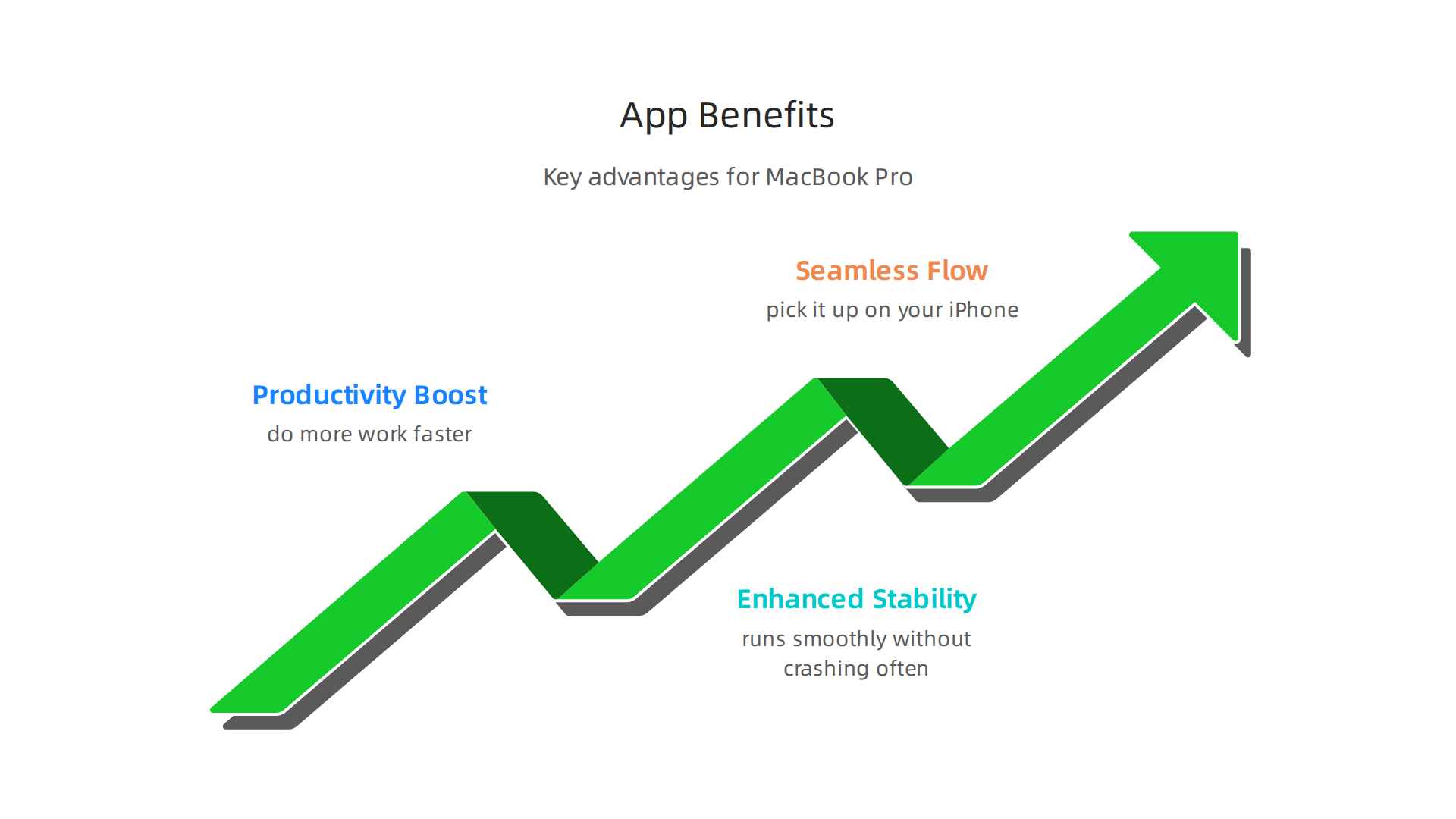
These apps help you be more productive, meaning you can do more work faster. They also make sure your computer runs smoothly without crashing often. This is called stability. Plus, many good apps let you start a task on your MacBook Pro and then easily pick it up on your iPhone or Apple Watch. This makes your work flow much better between all your Apple devices. In fact, many people look for the best Mac productivity apps in 2026 to make their daily tasks easier.
How your MacBook Pro’s insides affect your apps
The kind of MacBook Pro you have also changes which apps work best. Newer MacBook Pros often have special chips inside called Apple Silicon. Older ones might have Intel chips. These different chips mean some apps run much faster on the new Apple Silicon models, while others might still work fine on older Intel Macs. Also, the latest macOS software updates bring new features that apps can use. So, keeping your macOS updated is often a good idea for the best app experience. If you are looking to choose a new device, understanding these differences is key, especially when picking the best MacBooks for AI for your 2026 projects.
Snapchat for MacBook Pro: What you need to know
You might be wondering if you can use apps like Snapchat on your MacBook Pro. It’s a popular question! While Snapchat doesn’t have an official app made just for the MacBook Pro, there are ways to still enjoy it on your bigger screen. We will look at what those ways are and how realistic they are for you. Getting the most out of your MacBook Pro means understanding both its power and how to get your favorite apps, like Snapchat, to work well with it.
Staying up-to-date with technology can be a challenge. If you want simple, clear updates about AI and other tech trends, there’s a great option for you.
Get clear daily AI updates from The Deep View Newsletter
Running Snapchat on a MacBook Pro: options, limitations, and best practices
As we talked about, there isn’t an official Snapchat app made just for the MacBook Pro.

But don’t worry, you still have ways to use Snapchat on your big computer screen! Let’s look at how you can do it and what to keep in mind.
Using Snapchat on the Web
The easiest way to get Snapchat on your MacBook Pro is to use its website. This is called Snapchat for Web. You simply open your web browser, like Safari or Chrome, and go to the Snapchat website. You can then log in with your username and password, just like on your phone.
With Snapchat for Web, you can send and get messages, view Snaps, and even make video calls using your MacBook Pro’s camera and microphone. It’s a great way to stay connected without picking up your phone. However, it’s not exactly the same as the phone app. You might notice some features are missing or work a little differently. For example, some filters or games might not be there.
Running iOS Apps on Apple Silicon Macs
Newer MacBook Pro models, along with the MacBook Air M2 chip, come with special Apple Silicon chips inside (like M1, M2, or M3). These Macs can run many apps that were originally made for iPhones and iPads. This is a neat trick! You can often find these apps in the Mac App Store in a special "iPhone & iPad Apps" section.
However, Snapchat’s maker has chosen not to make their iPhone app available directly on the Mac App Store for Apple Silicon Macs. This means you can’t just download the Snapchat phone app onto your MacBook Pro like you might with other apps. There are some tools like PlayCover that try to let you run any iOS app on these Macs, but they can be tricky to set up and may not always work perfectly for snapchat for macbook pro.
Using Emulators for Snapchat
Another option is to use something called an "emulator." An emulator is like a program that makes your MacBook Pro pretend to be another type of device, like an Android phone. Then, you can install the Android version of Snapchat onto that "fake" phone running on your Mac.
One popular emulator is BlueStacks. It lets you run many Android apps on your Mac, including Snapchat. This way, you can get almost all the features of the Snapchat phone app, including sending Snaps, video calls, and using filters. But, emulators can sometimes be slow or use up a lot of your computer’s power. It’s like running a whole other computer inside your MacBook Pro. You can learn more about using emulators for Snapchat on Mac in guides like How to get Snapchat on Mac: Web and emulator guide 2026.
Important Things to Remember
No matter how you choose to run Snapchat on your MacBook Pro, it’s very important to think about your privacy and security.
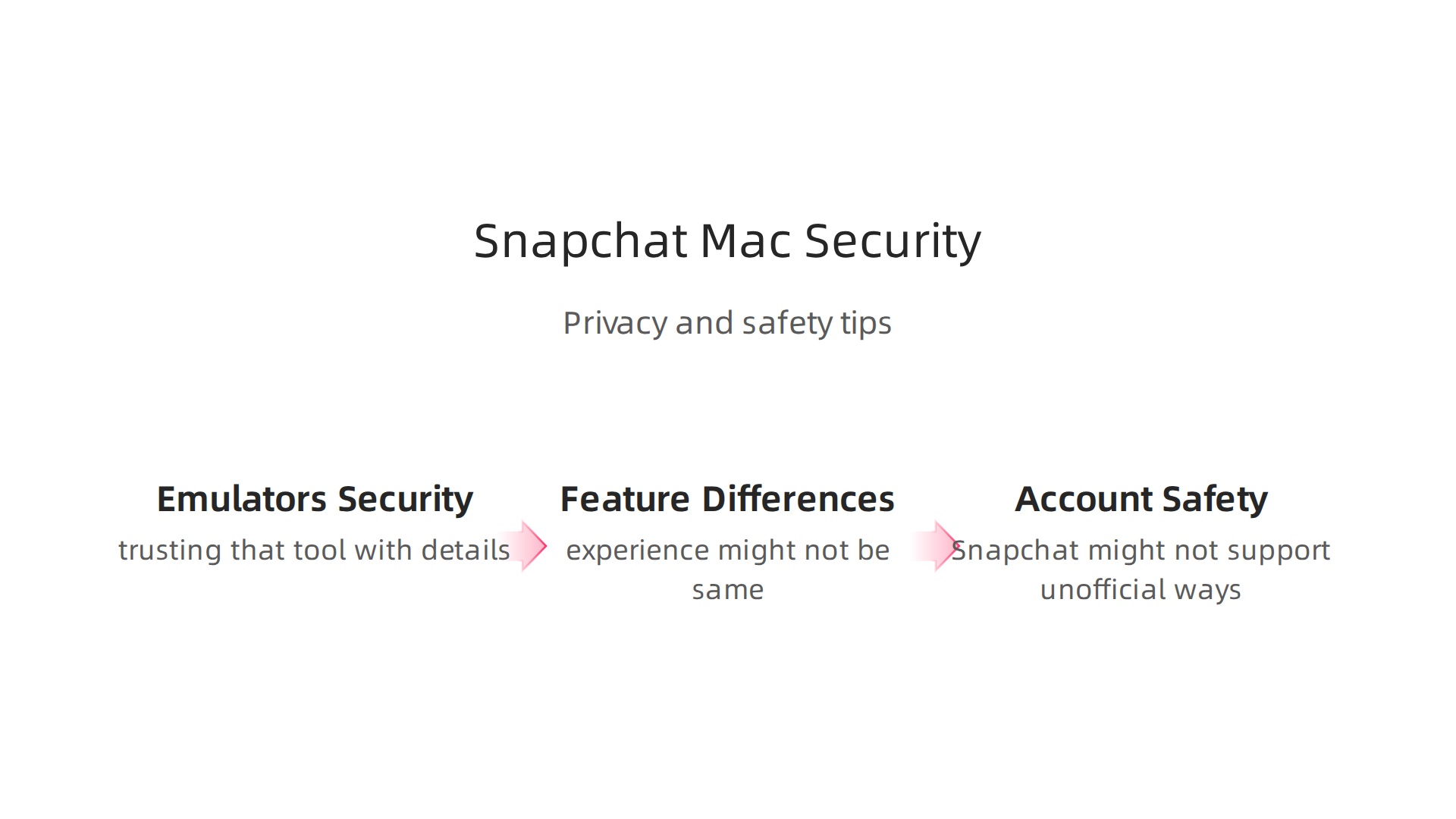
- Security for Emulators and Third-Party Tools: If you use an emulator or any other tool that isn’t the official Snapchat website, you are trusting that tool with your Snapchat account details. Always be careful about what apps you download and install. Make sure they come from trusted sources to avoid problems.
- Feature Differences: Remember that even with emulators, the experience might not be exactly the same as on your phone. Features like notifications might not work perfectly, and using your Mac’s camera or microphone might need extra setup.
- Account Safety: Snapchat is designed for mobile use, and they might not fully support using it on a computer through unofficial ways. This means if something goes wrong with your account while using an emulator, Snapchat support might not be able to help as easily.
By understanding these options and their limits, you can pick the best way to enjoy snapchat for macbook pro while keeping your device and account safe.
Now that we’ve looked at different ways to use Snapchat on your MacBook Pro, let’s think about how your Mac can help you get work done every day. Beyond social media, your MacBook Pro is a powerful tool for staying organized and productive. In 2026, many amazing apps are made specifically for macOS that can truly change how you work.
Core Categories for Productivity
To make the most of your MacBook Pro, you’ll want to install apps that fit different parts of your workday.
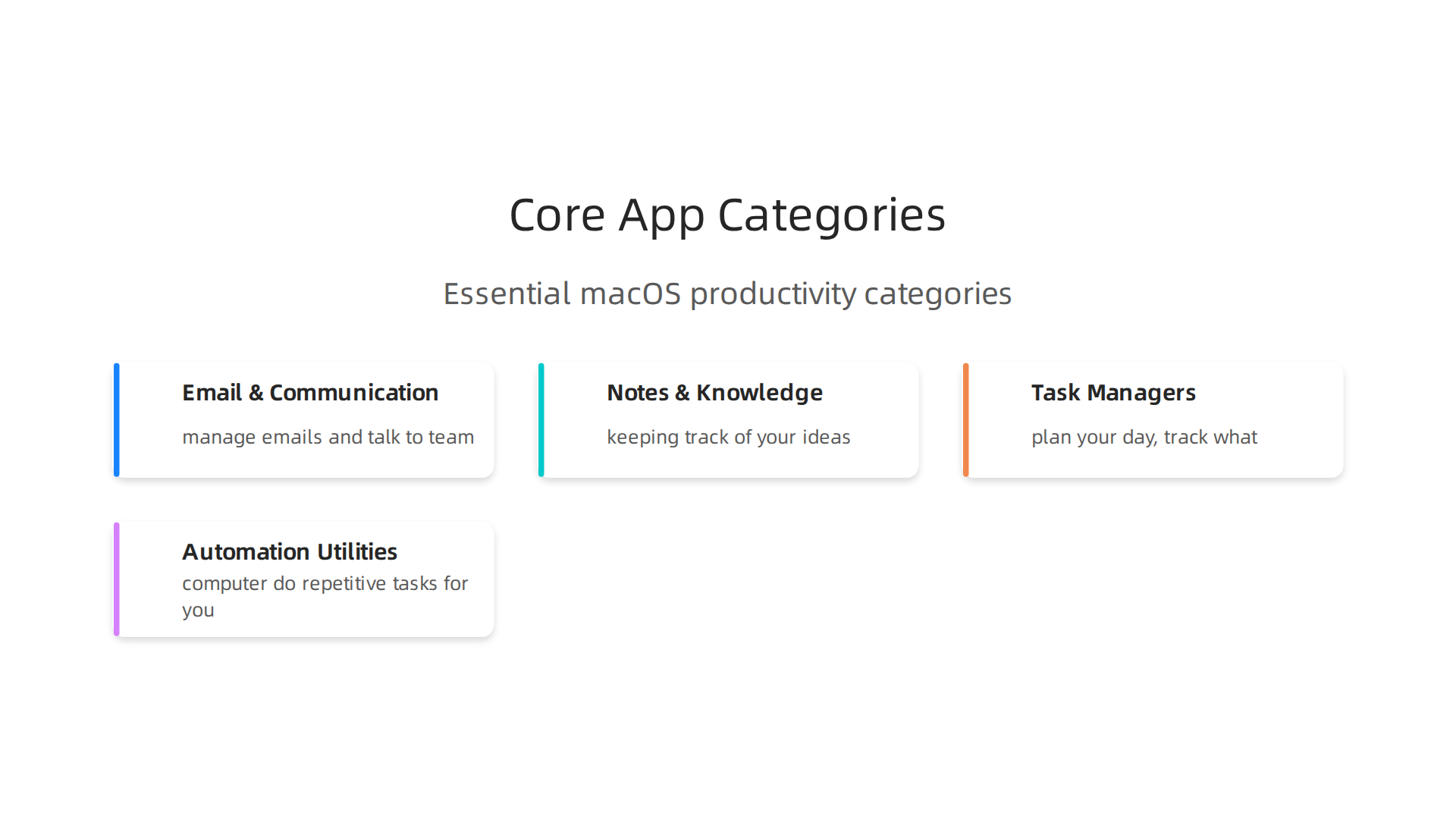
Here are some main types of apps that pros use:
- Email and Communication: These apps help you manage your emails and talk to your team. Many people use Apple’s own Mail app, but others like special apps that help them sort emails faster or connect to more services. Think about how you chat with coworkers or clients.
- Notes and Knowledge Management: These apps are for keeping track of your ideas, meeting notes, and important information. They let you organize everything so you can find it easily later. Some popular ones act like a second brain, linking ideas together.
- Task Managers: These apps help you plan your day, keep track of what you need to do, and make sure you don’t miss anything important. They can be simple to-do lists or complex tools for managing big projects. Many people find apps like Things 3 to be very helpful for best macOS productivity apps in 2026.
- Automation Utilities: These are smart tools that help your computer do repetitive tasks for you. They can save you a lot of time by automating things like moving files or starting apps.
Native macOS Apps and Performance
When you pick apps for your MacBook Pro, it’s good to know the difference between native macOS apps and other apps. Native apps are built especially for your Mac’s operating system. This means they often run super smoothly, use less battery, and work perfectly with other Apple features. They feel like a natural part of your computer.
Well-made third-party apps can also perform great, but they need to be designed to integrate well with macOS. For example, apps running on newer Macs with Apple Silicon chips (like the M1, M2, or M3) can be very fast, even on a MacBook Air for creative work. If an app is not well-made, it might feel slow or crash sometimes. Choosing apps that are built for your specific Mac can give you the best speed and experience, especially when you are picking the best MacBooks for AI for your 2026 projects.
Tips for Choosing Apps Based on Your Role
The best apps for you depend on what you do.
- Marketer: You might need apps for social media scheduling, email campaigns, or design. Tools that help with AI inbound marketing or customer relations can be very useful.
- Creator (e.g., designer, writer, video editor): Look for powerful tools that help with your specific craft, along with apps for organizing your projects and ideas. Good note-taking and file management are key.
- Founder or Business Owner: You’ll likely need apps for project management, communication with your team, financial tracking, and perhaps automation to help run your business smoothly. Knowing how to choose AI for business tools can make a big difference.
- Developer: Coding tools, version control systems, and terminal enhancers are a must. Many developers also rely on strong note-taking apps and task managers to keep their complex projects in order.
No matter what you do, choosing the right apps for your MacBook Pro can help you work smarter, not harder. Explore popular options and try what feels best for you.
Staying up to date on the latest AI tools and trends is crucial for any pro.
The AI Newsletter Worth Reading to get clear daily AI updates from The Deep View Newsletter.
For those who create things, like photos, videos, or music, your MacBook Pro is much more than a tool for everyday tasks.

It’s a powerful machine ready to handle big creative jobs. To make your creative work smooth and quick in 2026, it’s key to pick the right software and set up your Mac smartly.
What to Look for in Creative Software
When choosing apps for editing photos, making videos, or doing graphic design, there are a few important things your MacBook Pro apps need to do:
- Fast Graphics (GPU Acceleration): Creative work often needs a lot of graphics power. Good software uses your Mac’s Graphics Processing Unit (GPU) to speed up tasks like adding effects to videos or changing photos. This makes everything faster, so you don’t wait as long.
- Made for Your Mac (Native Apple Silicon Support): Just like with productivity apps, creative apps that are built for Apple Silicon chips (like M1, M2, M3) run much better. They use less power and work more smoothly than older apps. For example, even an MacBook Air M2 chip real world performance for AI and creative pros can handle some big tasks thanks to these chips.
- Right Saving Options (Codec and Export): After you create something, you need to save it in the right format. Good creative software gives you many choices for how to save your files (these are called codecs and export options). This helps you make sure your work looks great everywhere it’s shared. Sometimes, new AI tools can also help, like when Meshy AI turns text and images into 3D models in minutes or Promptchan AI guide generate images and videos from text in 2026.
Smart Ways to Work with Your MacBook Pro
Creative professionals often use special ways to work to get the most out of their Mac:
- Quick Storage: Creative files, like 4K videos or large photos, take up a lot of space. Using fast external hard drives or SSDs connected to your MacBook Pro can help your computer run faster because it doesn’t have to save and load huge files from its main drive.
- Extra Screens: Many creators use more than one screen. An external display lets you see more of your work at once, which is great for editing.
- True Colors: When you edit photos or videos, it’s very important that the colors you see on your screen are accurate. Pros often use special tools to make sure their screen shows colors correctly. This way, what they see on their Mac is what others will see too.
Choosing the Best Mac for Your Budget
For freelancers or small creative businesses, buying a powerful MacBook Pro can be a big expense. You need to balance what you can spend with the power you need.
- High-End MacBook Pro: These are best if you do a lot of heavy video editing or 3D work. They have the most powerful chips and lots of memory.
- MacBook Air or Mac Mini: If your creative work is lighter, like basic photo editing or writing, a MacBook Air or even an apple mini mac might be enough. They cost less but can still perform well for many creative tasks, especially with Apple Silicon chips. You can save money by looking for a used gaming PC for AI unlock powerful performance on a budget as well.
- Thinking About Upgrades: Remember that Macs are built to last. If you’re on a tight budget, you could consider buying a slightly older model or even looking into how to sell macbook air to help fund an upgrade. Make sure to get enough storage and memory upfront, as these often can’t be upgraded later.
Beyond everyday tasks and creative projects, your MacBook Pro is also a powerhouse for developers, engineers, and advanced users. These folks need special tools to build software, manage complex systems, and work super efficiently. In 2026, a MacBook Pro helps you tackle big coding jobs and smart workflow setups.
Essential Tools for Building Things
If you’re making apps or working with code, your MacBook Pro needs specific kinds of software.
- Terminals and Command Lines: These are like a secret text-based window into your computer. Developers use them to tell the computer exactly what to do with simple text commands. It’s much faster for many tasks than clicking around with a mouse.
- Running Other Systems (Containerization and VMs): Sometimes, you need to test your software on a different computer setup without actually having another computer. Tools like Docker or virtual machines (VMs) let your MacBook Pro pretend to be another computer. This is great for making sure your app works for everyone, no matter what kind of computer they have.
- Coding Tools (IDEs): These are big software suites that help you write code. They check your work for mistakes, help you organize your project, and make it easier to build apps.
- Testing Your Code (CI-local environments): Before you share your new app with the world, you need to test it. CI-local environments let you run tests right on your MacBook Pro to catch problems early.
Handling Different Computer Types on Your Mac
Modern MacBook Pros use special Apple Silicon chips (like M1, M2, M3). These are very powerful but work differently from older Intel chips (x86).
- Building for Everyone: As a developer, you might need to make sure your app works on both new Apple Silicon Macs and older Intel-based computers, or even Windows machines. Your MacBook Pro can do this. Tools help you build your app so it runs smoothly on different kinds of computer chips.
- Emulating Older Systems: Sometimes, you need to run old software that was made for Intel chips on your Apple Silicon Mac. Special programs can "emulate" or pretend to be an Intel chip, allowing that older software to run. This is key for managing cross-platform builds and making sure your creations are widely compatible. For business leaders looking to stay informed on such advancements, it’s wise to build a tech radar to track AI trends and tools in 2026.
Smart Ways to Work Faster
Power users make their MacBook Pro work extra hard for them with clever helper apps.
- Window Managers: If you have many apps open at once, a window manager helps you arrange them neatly on your screen. This means you can see everything you need without moving windows around by hand.
- Keyboard Remapping: You can change what your keyboard keys do. This lets you set up custom shortcuts that save you time, especially if you type a lot of code or use specific commands often.
- Automation Scripts: These are like mini-programs that do repetitive tasks for you. For example, you could write a script to move files, open certain apps, or do a daily check of your work. Many users find helpful tools by checking out lists of Mejores apps de productividad para Mac en 2026.
For those who rely on their MacBook Pro for deep technical work, these tools and methods make all the difference. Staying on top of the latest tech is crucial.
If you want to keep up with fast-changing tech news and make smart business choices, you should definitely check out the latest insights.
The AI Newsletter Worth Reading
Staying on top of the latest tech is crucial for smart business decisions, and that includes making sure your computer is safe and private. Your MacBook Pro is a powerful tool, but like any strong tool, it needs good care, especially when it comes to keeping your information safe.
Security, backup, and privacy essentials for MacBook Pro users
Keeping your MacBook Pro secure means protecting your files, your online life, and even your computer itself.

Here’s how to do it in 2026.
Keep Your Data Safe with Backups and Encryption
First, always make copies of your important files. This is called backing up. If something goes wrong with your MacBook Pro, you won’t lose your photos, work, or other important items. Apple’s built-in tool, Time Machine, is a great place to start. It saves copies of your files to an external hard drive automatically. You should also check these backups now and then to make sure they work. Having a plan for backing up your important data is one of the 20 Best Ways to Protect Your MacBook Data in 2026.
Another key step is to lock your entire computer with encryption. Think of it like a secret code that scrambles all your data. If your MacBook Pro gets lost or stolen, no one can read your files without the correct password. macOS has a feature called FileVault that does this for you. Just turn it on in your computer’s settings.
Also, use strong passwords for everything. Make them long and mix up letters, numbers, and symbols. A password manager can help you remember them all. For an extra layer of security, set up multi-factor authentication. This means you need more than just a password to log in, like a special code sent to your phone.
Control Your Apps and Their Permissions
Your MacBook Pro has smart ways to protect your privacy. One is called "sandboxing," which means apps can only do certain things in their own little box, keeping them from messing with other parts of your computer. Another is "notarization," where Apple checks apps for bad stuff before you can run them easily.
But you also need to check your app settings. Apps often ask for permission to use your camera, microphone, or location. You should regularly look at these settings and only allow apps you trust to access this information. In 2026, checking app permissions is a key part of macOS Cybersecurity & Privacy. If you see an app like, say, Snapchat for MacBook Pro asking for something it doesn’t really need, turn that permission off.
Keep Your Team’s Devices Secure
If you work in a team or business, keeping all MacBook Pros safe is even more important. This involves:
- Device Management: Having a clear plan for how everyone uses their computers, including strong passwords and keeping software updated.
- Regular Backups: Making sure everyone’s work is backed up, sometimes to a central company storage.
- Incident Readiness: Knowing what to do if a computer gets lost, stolen, or hacked. This means having steps ready to protect company data.
Staying informed about the latest security updates and best practices is a big part of protecting your devices. Just like you’d track the latest tech news, you should also keep up with security advice. For leaders, making smart decisions includes keeping an eye on risks. You can learn more about managing digital threats by tracking major technology news for smart business decisions in 2026.
Staying smart about your MacBook Pro means more than just keeping it safe. It also means making it work smarter for you. Once you have good security in place, you can think about helpful utility apps that save you time and make daily tasks easier. These tools can really speed up how you work every day.
Utility apps to speed up workflows (automation, window management, clipboard managers)
High-impact utility apps are like helpful assistants for your MacBook Pro. They can do little tasks for you, expand text, or help you manage your computer screen so you can focus on important work.
Think about automation builders. These apps let you set up small rules. For example, you can tell your computer to move certain files to a folder automatically. Text expanders are another time-saver. If you type the same phrases often, you can set up a short code. Type the code, and the app instantly types out the whole phrase for you. This is great for anyone who spends a lot of time writing.
Window management apps help you keep your screen neat. Maybe you have a MacBook Pro and also use an apple air mac or apple mini mac with an extra screen. These apps let you quickly arrange windows just how you like them, making it easy to switch between different programs. Clipboard managers are also super useful. Instead of only remembering the last thing you copied, they remember many things. So you can copy several items and then paste them one by one without going back and forth.
These lightweight apps can also make it easier to work across all your Apple devices. You can start something on your iPhone or iPad and finish it on your MacBook Pro without missing a beat. Learn more about improving your setup by reading our guide on how to master iPhone mirroring Mac for maximum productivity.
It is important to remember that while these apps are helpful, adding too many can sometimes make your MacBook Pro run slower or use more battery. Always choose apps that you truly need and make sure they come from trusted sources. When you install new apps, especially utility apps that ask for deep access to your system, be careful. Always review their permissions. This includes checking apps that ask for things like Accessibility, Screen Recording, or permission to control other apps, as noted in recent security updates for macOS. You can find more details on being cautious with app permissions in the Apple macOS Privacy and Security Update, Final Week for April 2026. While an app like snapchat for macbook pro is mostly for fun, remember to distinguish between entertainment apps and tools that truly boost your workflow.
For more insights into the latest AI tools and technology that can further enhance your business operations and personal productivity, consider subscribing to our newsletter.
The AI Newsletter Worth Reading
Choosing, installing, and managing apps on macOS: licensing, updates, and performance tips
Making smart app choices is key to a smooth experience on your MacBook Pro.

It is not just about finding an app, but about picking the right one and keeping it healthy. Let us look at what to think about before you click "install."
A decision checklist for selecting apps
Before adding any new app to your MacBook, take a moment to consider a few things. First, check its compatibility. Does it work well with your specific macOS version and your Mac’s chip? For example, if you want to use an app like snapchat for macbook pro, you should know that Macs with Apple Silicon chips (like M1, M2, or M3) can run many iPhone and iPad apps directly. However, not all iOS apps are made available for Mac, so you need to check the Mac App Store or developer’s website. If an iOS app is not in the Mac App Store, there are other ways to run it, but these can be more complicated, as explained in guides on How to Run Any iOS App or Game On a Mac in 2025 or How to Run iPhone and iPad Apps on Your Mac. You can also watch a helpful video guide on How To Run iOS Apps on MacOs.
Next, think about support. Can you get help if the app breaks or you have questions? Good customer support is important. Also, look at the pricing model. Is it a one-time purchase, or do you have to pay a monthly fee? For businesses, consider if the app offers team deployment options, making it easier to install and manage for many users. Understanding these points helps you pick tools that truly fit your needs, whether you have a powerful MacBook Pro or a lighter apple air mac or apple mini mac.
macOS app lifecycle: installation sources, automatic updates, notarization, and version management
When it comes to getting apps, the Mac App Store is often the safest place. Apps here are usually checked by Apple for bad stuff. However, many great apps are downloaded directly from a developer’s website. Apple has a system called notarization, where they check these apps for security issues before you even download them. This helps keep your Mac safe from harmful software.
Keeping your apps up to date is super important. Most apps offer automatic updates, which is easy because they just update themselves. Some apps might need you to update them manually. Always make sure your apps are the latest versions to get new features and important security fixes. Tracking which version of an app you have installed can help with troubleshooting if issues come up.
Maintenance tips to keep MacBook Pros running smoothly (storage, permissions, and routine checks)
To keep your MacBook Pro, or even if you decide to sell macbook air and upgrade, running its best, regular maintenance is key. One simple tip is to manage your storage. Macs can slow down if their hard drive is too full. Delete old files, clear your Downloads folder, and uninstall apps you do not use anymore.
Also, regularly check app permissions. Just like we talked about before, apps should only have access to what they truly need. You can find these settings in your Mac’s System Settings. Routine checks, like restarting your Mac every now and then, can also clear out temporary files and make things run better. For more information on getting the best speed out of your computer, explore our guide on picking the best MacBooks for AI for your 2026 projects.
Summary
This article explains how to pick and use the best apps for your MacBook Pro in 2026, covering productivity, creative work, developer workflows, and privacy. It compares Apple Silicon and Intel Macs so you can choose apps that run faster and more reliably on your hardware, and it outlines practical ways to use Snapchat on a Mac — via Snapchat Web, emulators, or experimental iOS app solutions — while noting limits and risks. You’ll also get guidance on the core app categories professionals need, what to look for in creative software (GPU acceleration, native Apple Silicon builds, and export settings), and tips for storage and multi-display setups. The article stresses security: backups, FileVault encryption, app notarization, permission checks, and business device management. It finishes with maintenance advice — updates, version checks, and storage hygiene — so your MacBook Pro stays fast and stable. After reading, you’ll know the realistic options for running mobile apps on macOS, how to choose apps for your role, and practical steps to keep your Mac secure and performant.