Why PC parts compatibility matters for AI workloads (and what this guide will solve)
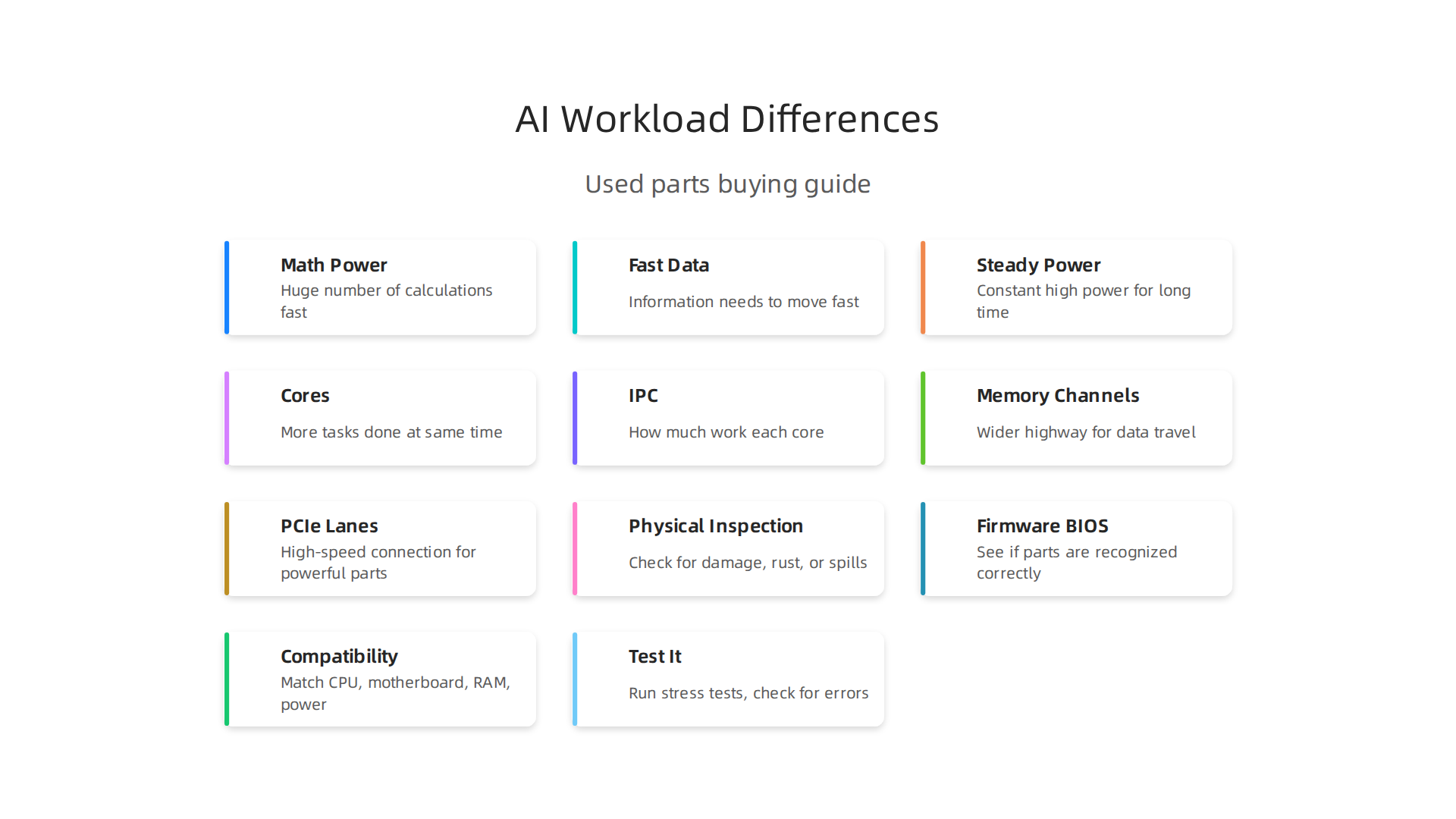
If you’re thinking about building a computer for AI tasks like teaching new models or making smart predictions, you might imagine it’s just like putting together a super powerful gaming PC. But here’s the thing: making sure your pc parts compatibility is right for AI is actually quite different from what a typical "pc master race" gamer would look for.
AI tasks, like training complex models, fine-tuning them, or running quick guesses (inferencing), put very different demands on your computer parts. For example, a gaming PC might focus on having a super-fast graphics card to draw game worlds smoothly. But for AI, the graphics card (GPU) needs a lot of special memory, often called HBM, and very fast ways to send information to other GPUs. For instance, connections like NVLink can offer much higher speeds between GPUs than the standard PCIe connections found in most regular computers, making a big difference for large AI projects. Some reports show NVLink 4.0, used in high-end AI GPUs, can be over seven times faster than PCIe 5.0 for moving data between parts NVLink vs PCIe: Do You Actually Need NVLink? (2026).
This means that simply choosing parts that seem strong for an "affordable gaming pc" might not give you the performance you need for serious AI work. Without the right pc parts compatibility, your system could slow down, waste a lot of time, and even cost you more money in the long run due to inefficient operations.

You need a computer that can handle huge amounts of data and perform many calculations at once without bottlenecks.
This guide is here to help you understand all the important details about pc parts compatibility for AI. We will walk you through each component, like the CPU, GPU, memory, and storage, and explain what to look for. Our goal is to give you a clear, easy-to-follow checklist. This way, you can pick the best parts, avoid expensive mistakes, and make sure your computer runs as fast and smoothly as possible for all your AI projects in 2026. If you’re ready to start building your ideal machine, you might find our guide on how to build and optimize your AI workstation for peak performance 2026 very helpful.
Want to keep up with the latest AI trends and tools? Get clear daily AI updates from The Deep View Newsletter.
When building a computer for AI, understanding the difference between your Central Processing Unit (CPU) and your Graphics Processing Unit (GPU) is very important.
It’s not just about getting the fastest parts; it’s about making sure your pc parts compatibility is perfect for how AI tasks actually run.
The CPU’s Role in AI
Think of the CPU as the brain of your computer. It’s really good at handling many different tasks one after another, like a skilled manager organizing a team. In AI work, the CPU mostly helps with:
- Getting Data Ready: Before a GPU can train an AI model, the data often needs to be cleaned, sorted, and prepared. This is called data preprocessing, and the CPU handles it well. For example, if you’re working with text, the CPU will get all the words in order.
- Running the Show: The CPU tells all the other parts of your computer what to do. It starts and stops AI programs and makes sure everything works together smoothly. This is like the CPU being the conductor of an orchestra.
- Lighter AI Tasks: For simple AI tasks or when you’re just using a small AI model, the CPU can do the work itself.
While the CPU is very important, it’s generally not the star for heavy AI computations.
The GPU’s Power for AI
The GPU is like a team of super-fast math helpers. Instead of doing one task after another, it can do thousands of simple math problems all at once. This is why GPUs are so critical for AI:
- Training AI Models: Training an AI model involves huge amounts of calculations, usually with something called "tensors" (which are like big grids of numbers). GPUs are built to do these kinds of calculations super fast, much quicker than a CPU ever could. This is their main job for AI.
- Making Predictions (Inferencing): Once an AI model is trained, the GPU can also help it make quick predictions or decisions. If you’re building a system that needs to understand images or voices in real-time, a powerful GPU will be key. Many AI guides highlight the GPU as the most important piece of hardware for AI workloads AI Workstation 2026 Guide: What Hardware to Buy Now.
How CPU Features Affect GPU Performance and PC Parts Compatibility
Even though the GPU does the heavy lifting, your CPU still needs to be a good match. Here’s what to look for regarding pc parts compatibility:
- Socket Type: This is the shape and pin layout on the motherboard where the CPU sits. Your CPU’s socket must match your motherboard’s socket. For instance, Intel’s 10th and 11th Gen CPUs use the LGA1200 socket, requiring specific motherboards Compatibility of 10th and 11th Generation Intel® Desktop Processors. If these don’t match, nothing will work. You can usually find a list of compatible CPUs for a motherboard, or vice-versa, in a "Motherboard – Processor Compatibility" list from the manufacturer.
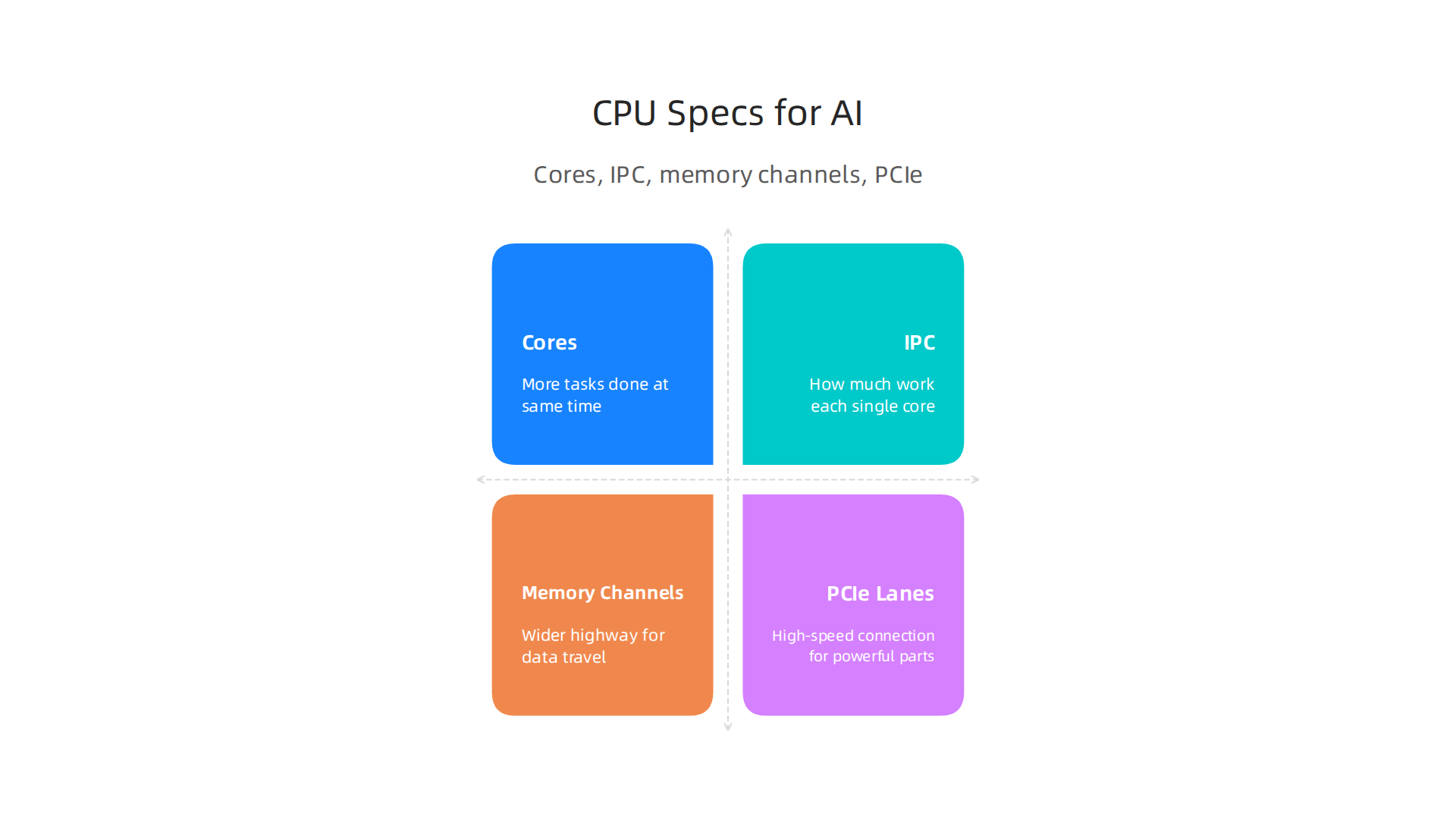
- PCIe Lanes: These are like highways that connect your CPU to other parts, especially your powerful GPUs. The more PCIe lanes your CPU and motherboard offer, the more fast connections your GPUs can have.
- Speed Matters: Newer standards like PCIe 5.0 are much faster. For instance, AMD’s AM5 platform supports 28 PCIe lanes and PCIe 5.0, which can move data at 4GB per second per lane ECE 571 – Advanced Microprocessor-Based Design Lecture 31.
- Enough Lanes: If you plan to use multiple GPUs for big AI models, you need a CPU that provides enough lanes so each GPU can run at its best speed. Some CPUs, like AMD Threadripper or Intel EPYC, are designed for many GPUs because they have lots of PCIe lanes Best AI Workstation Builds in 2026. Without enough lanes, even the best GPUs can slow down, creating a bottleneck.
- Platform I/O (Input/Output): This refers to how well the CPU and motherboard work together to manage all the data flowing in and out of the system. A good CPU and chipset will ensure that data can move quickly between the GPU, memory, and storage without delays.
Choosing the right CPU and motherboard with enough PCIe lanes is crucial for excellent pc parts compatibility.

It helps your powerful GPUs talk to the rest of the system as fast as possible, which means your AI tasks will run much quicker. If you’re looking for different build ideas, you might find useful information on how to choose the best prebuilt gaming PCs for AI work in 2026. This isn’t like an affordable gaming pc where you might skimp on these details; for serious AI, every connection counts.
After making sure your CPU and GPU work well together, you need to think about the motherboard. The motherboard is like the main street of your computer. It connects all the important parts: the CPU, GPU, memory, and storage. For good pc parts compatibility, especially when building a powerful AI computer, choosing the right motherboard is a must.
Here are the important things about a motherboard for your AI setup:
Chipset
The chipset is like a tiny manager on the motherboard. It helps the CPU talk to everything else. Different chipsets support different CPUs, memory types (like DDR4 or DDR5), and how many fast connections (PCIe lanes) are available for things like your graphics cards and speedy storage drives. For example, Intel’s 700 series chipsets help manage how the CPU connects to other parts, making sure data flows smoothly.
PCIe Slot Layout
You already know PCIe lanes are like highways. The motherboard has slots for your GPUs that use these lanes. For serious AI work, you might need several powerful GPUs. Your motherboard must have enough PCIe slots that run at high speeds, like PCIe 5.0 x16, to let your GPUs do their best work. Some motherboards even have special slots for fast storage that use PCIe 5.0 x4 lanes.
M.2 and NVMe Slots
These are for super-fast storage drives, often called NVMe SSDs. They are much quicker than older hard drives. For AI, you’ll be loading and saving huge amounts of data. Having multiple M.2 slots that connect directly to the CPU or chipset using PCIe lanes means your data can move very fast. This helps stop delays when your AI model is training or working. Many modern motherboards, like the X870 MAX GAMING WIFI7, support PCIe 5.0 x4 mode for M.2 drives, which is great for fast data access.
BIOS Support
The BIOS (Basic Input/Output System) is like the motherboard’s instruction book. It tells your computer how to start up and how to talk to your CPU, memory, and other main parts. Sometimes, when new CPUs come out, the motherboard might need a BIOS update to recognize and work with them. If your BIOS is too old, your new CPU might not work at all, even if the socket matches. For example, some AMD Ryzen 5000 series CPUs needed a BIOS update on older motherboards to work right. You can usually find a Motherboard – Processor Compatibility list from your motherboard maker that tells you which BIOS version you need for each CPU.
Practical Checks Before You Buy
To avoid headaches, always do these checks:
- CPU Support List (QVL): Every motherboard manufacturer has a list on their website that shows every CPU that works with their specific motherboard model. Check this list carefully to ensure your chosen CPU is supported.
- BIOS Version: Note the required BIOS version for your CPU. If the motherboard you buy has an older BIOS, you might need to update it. Some motherboards have a "BIOS Flashback" feature that lets you update the BIOS without a CPU installed, which is very handy.
- Online Compatibility Checkers: Before you spend your money, use an online tool to check your
pc parts compatibility. Websites like PC Build Compatibility Checker or PC Component Compatibility Checker let you pick out your CPU, motherboard, RAM, and GPU to see if they all fit together. These tools are like your personalpc master raceguide, helping you avoid mistakes that even experienced builders can make.
Choosing the right motherboard with the correct chipset, enough fast PCIe slots, and up-to-date BIOS support is key for building an AI computer that runs smoothly. It’s not just about raw power; it’s about making sure all your parts can talk to each other without bottlenecks.
To learn more about putting together a high-performing system, consider reading about how to build and optimize your AI workstation for peak performance 2026.
Staying informed about the fast-moving world of AI tools and hardware is also a smart move for any business leader. Get clear daily AI updates to help you navigate this space.
The AI Newsletter Worth Reading
The motherboard connects everything, but what gets connected in terms of memory and storage is just as important for pc parts compatibility in an AI setup.
Think of memory (RAM) as your computer’s short-term workspace and storage as its long-term filing cabinet. Both need to be big and fast for AI tasks.
Memory and storage choices for AI performance
When working with AI, especially training large models, your computer needs a lot of space to hold data it’s actively thinking about. This is where memory, or RAM, comes in.
What to know about RAM for AI
RAM is like your desk. The bigger the desk, the more papers (data) you can have open at once. For AI, this means holding larger datasets or working with bigger "batch sizes" during training. Batch size refers to how many examples your AI model looks at at one time. More RAM lets you use bigger batch sizes, which can sometimes speed up training. Experts suggest that AI workloads often need a lot of system RAM, sometimes from 128 GB up to 2 TB for very big projects, depending on how much data you are feeding the AI and what you want to achieve How Much RAM Do AI Workloads Really Need?.
Beyond just how much RAM you have, its speed also matters. Faster RAM can move data to and from your CPU quicker, which helps prevent delays. Look for memory with high clock speeds and good timing. Also, how RAM is set up in "channels" can make a difference. Using two or four sticks of RAM instead of just one (dual-channel or quad-channel memory) can allow your CPU to access data even faster. This is like having more lanes on a highway. GPU memory capacity also directly impacts how well your system performs for AI INOM. For big language models (LLMs) in 2026, serving them can require hundreds of gigabytes of RAM per server, with high memory bandwidth being key for good performance Efficient LLM Inference: Bandwidth, Compute ….
Storage choices for AI
Storage is where all your large AI datasets, programs, and models live permanently. For AI, you need storage that’s not only big but also very fast.
- NVMe SSDs: These are the top choice for AI. NVMe (Non-Volatile Memory Express) drives are super-fast storage that connect directly to your motherboard’s PCIe slots, just like your powerful graphics cards. They can read and write data much, much faster than older SATA SSDs or traditional hard drives. This means your computer can load huge datasets quickly, which is critical for training AI models without long waits. NVMe drives offer very low delay and high data flow, which is perfect for today’s AI tasks The Semiconductor Ecosystem at the Foundation of Data Centers.
- SATA SSDs: These are still good and faster than old hard drives, but they are not as quick as NVMe drives. They connect using SATA cables. For some less demanding AI tasks or for storing data that isn’t accessed all the time, SATA SSDs can be a more affordable option.
- Hard Drives (HDDs): These are the slowest. They are good for storing very large amounts of data that you don’t need to access quickly, like backups. For active AI work, they are usually too slow and will cause major delays.
When picking storage, also think about "read/write IOPS" and "endurance." IOPS means "Input/Output Operations Per Second," and a higher number means the drive can handle more requests for data at once. Endurance refers to how much data can be written to the drive over its lifetime before it starts to wear out. AI workloads involve a lot of writing, so high endurance is a plus.
Making smart choices for memory and storage makes sure your pc parts compatibility is strong, helping your AI computer run smoothly and efficiently.

If you’re looking for guidance on what AI hardware to choose for your business, exploring resources like AI Hardware 2026: A Business Leader’s Guide to Growth can be very helpful.
After picking out your fast memory and huge storage, the next big steps for great pc parts compatibility in an AI computer are making sure it gets enough power and stays cool. Powerful AI components, especially the graphics cards, use a lot of electricity and create a lot of heat. If your computer does not have enough power or gets too hot, it will slow down, crash, or even get damaged. This is why the power supply (PSU) and cooling system are super important for stable AI training runs.
PSU and cooling: ensuring stable AI training runs
Think of your power supply unit (PSU) as the heart of your computer. It gives power to every part. For AI, your graphics processing unit (GPU) is usually the hungriest for power. AI training is a tough job that makes GPUs work at their highest level for a long time. This means they pull a lot of power consistently.
Power Supply Unit (PSU) needs for AI
Choosing the right PSU is key. You need one strong enough to handle all your components, especially if you plan to use multiple powerful GPUs.
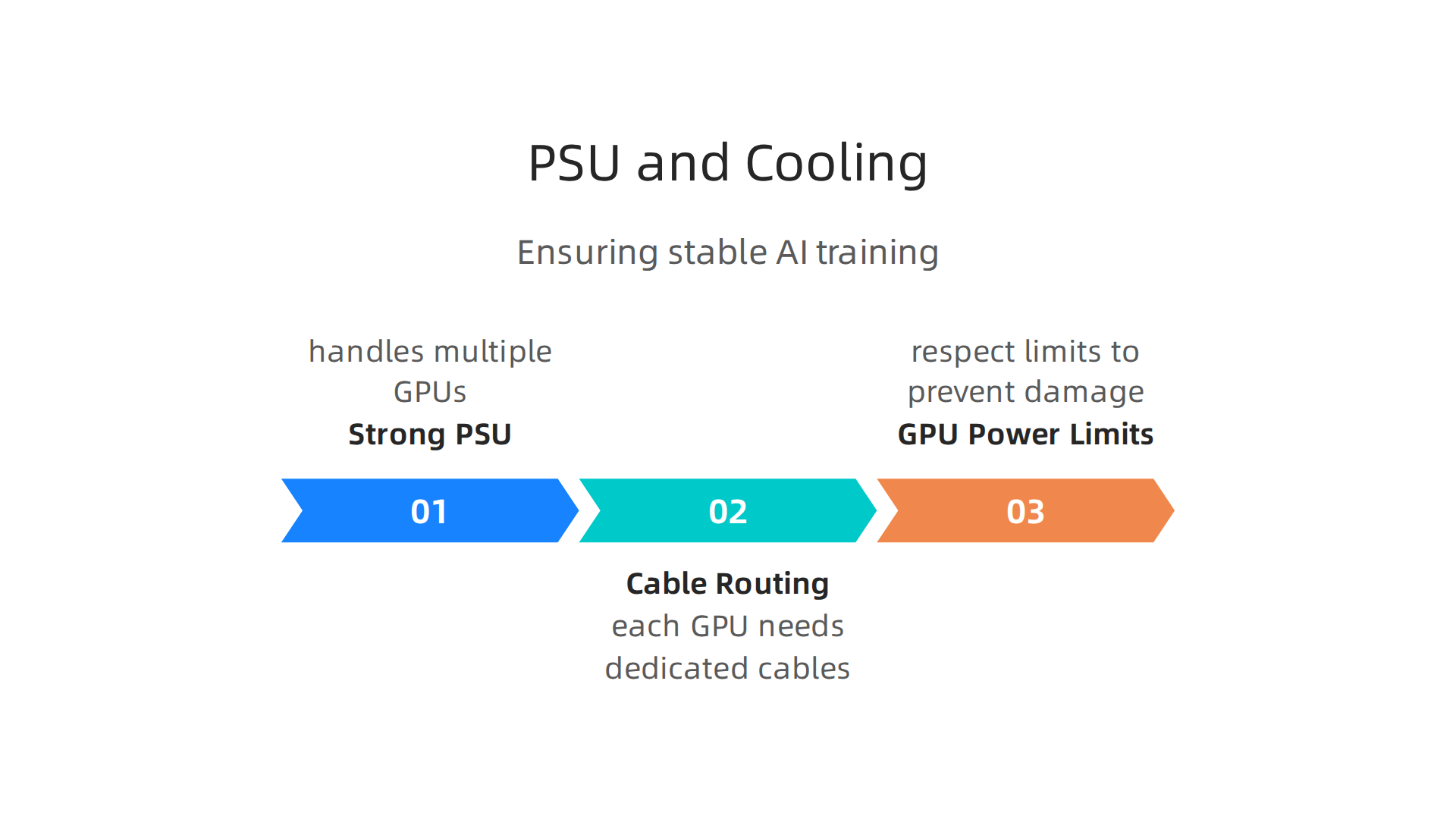
For example, modern high-end NVIDIA RTX 5000 series graphics cards often need power supplies around 1000W or even higher NVIDIA RTX 5000 series graphic card PSU recommendation. If you’re building a system with one of these, or even considering two for a dual-GPU setup, you will need a very powerful PSU. Experts suggest looking for a PSU with at least 1200W or more to ensure you have enough power, especially for future GPU upgrades 7 Best Pre-Built AI Workstations 2026 — Tested & Ranked.
When you have more than one GPU, like in a multi-GPU setup, power distribution becomes even more important.
- Cable Routing and Connectors: Each powerful GPU needs its own set of power cables from the PSU. Make sure your PSU has enough PCIe power connectors (often 6-pin or 8-pin) for all your graphics cards. Connect them directly to the PSU. Do not daisy-chain cables if you can help it, as this can lead to unstable power delivery.
- GPU Power Limits: Some GPUs have limits on how much power they can draw. You need to respect these limits to prevent damage and ensure stability. A good PSU provides clean, stable power even when all parts are working hard.
Cooling strategies for AI workloads
AI training pushes your components, especially GPUs, to their limits. This creates a lot of heat. Keeping these parts cool is not just about making them last longer; it is also about keeping them running fast. When a part gets too hot, it automatically slows down to protect itself, which means your AI training takes longer.
- GPU Cooling: Modern GPUs come with strong cooling systems, but for AI, you might need even more. Good airflow in your computer case is a must. Many AI workstations are designed with chassis and power supplies ready for continuous workloads, and stable cooling is a top priority Workstation for Artificial Intelligence: AI Hardware Guide ….
- Case Airflow: Make sure your computer case has plenty of fans pulling cool air in and pushing hot air out. A good case design helps move air over your hot components. You might want to invest in extra case fans. When buying an AI PC, always check that the cooling system is good enough for steady AI work Budget Guide: How to Buy an AI PC Without Breaking the ….
- CPU Cooling: While GPUs do most of the heavy lifting in AI training, your CPU still needs good cooling. A large air cooler or a liquid cooler (AIO) is a good choice for keeping your CPU temperatures in check.
Getting your power and cooling right is a big part of achieving great pc parts compatibility for your AI build.

It ensures that your expensive components can perform their best without overheating or crashing. If you want to dive deeper into making your AI setup perfect, exploring how to Build and Optimize Your AI Workstation for Peak Performance 2026 can offer more insights.
Stay informed about the latest advancements in AI and technology that can impact your hardware choices.
Get clear daily AI updates from The AI Newsletter Worth Reading.
When you are building a computer for AI, the graphics processing unit, or GPU, is like the brain of your machine. It does most of the heavy math that AI needs, whether you are teaching an AI new things (training) or using an AI that has already learned (inference). Getting the right GPU and making sure it works well with all your other parts is a huge part of good pc parts compatibility.
GPU selection and multi-GPU setups for AI
Choosing the best GPU for AI depends on what kind of AI work you want to do. Different GPUs are better for different jobs. This choice greatly affects how well your whole system works together.
What to look for in an AI GPU
Not all GPUs are made the same, especially for AI tasks. Here are the main things to think about:
- VRAM (Video RAM): This is super important. VRAM is like the GPU’s own memory. The more VRAM a GPU has, the bigger and more complex AI models it can handle. For training large AI models, you need a lot of VRAM. For example, some of the top NVIDIA GPUs like the H100 or H200 have 80GB or even 141GB of HBM3/HBM3e memory, which is designed for very big AI tasks NVIDIA GPU Architecture Explained: A Guide for AI (August …. For using AI models (inference), you might not need as much, but more is always better. For serious AI work, aim for at least 24GB or more.
- Tensor Cores: These are special parts inside NVIDIA GPUs that are built to speed up AI calculations. If your GPU has Tensor Cores, it can do AI math much faster. NVIDIA’s newer architectures like Hopper and Blackwell have advanced Tensor Cores that make AI training and inference very quick NVIDIA GPU Architectures Guide for 2026 – CloudMinister.
- GPU Architecture: This refers to the overall design of the GPU. Newer designs, like NVIDIA’s Blackwell or Hopper, are made to be more powerful and efficient for AI work than older ones. These new designs often come with more VRAM and better Tensor Cores.
Multi-GPU setups: more power for AI
Sometimes, one powerful GPU is not enough. For really big AI projects or when you want to train models faster, you might need to use more than one GPU in your computer. This is called a multi-GPU setup. This is where pc parts compatibility gets even more important.
How GPUs talk to each other
When you have many GPUs, they need a way to share information and work together. There are two main ways they connect:
- PCIe (PCI Express): This is the normal way parts connect to your motherboard. GPUs use PCIe slots to plug in. PCIe 5.0 x16, a common type, offers good speed, but it routes data through your CPU first. While good for single GPUs or simple multi-GPU inference, it can become a bottleneck for heavy multi-GPU training Multi-GPU for AI – NVLink vs PCIe, Builds & Setup (2026) – VRAM First.
- NVLink: This is a special connection made by NVIDIA that lets GPUs talk directly to each other without going through the CPU. NVLink is much faster than PCIe. For example, NVLink 4.0 on an H100 GPU gives 900 GB/s of speed, while PCIe 5.0 x16 maxes out at about 128 GB/s NVLink vs PCIe: GPU Interconnect for AI 2026 | packet.ai. This huge speed difference means that with NVLink, your GPUs can share data very quickly, which is great for training large AI models. However, NVLink is usually found on high-end NVIDIA professional GPUs and only a few consumer cards like the RTX 3090, as the RTX 4090 and newer consumer cards don’t support it Multi-GPU for Local AI in 2026: NVLink vs PCIe and When a Second ….
Compatibility for multi-GPU builds
Using multiple GPUs needs careful planning:
- Motherboard and CPU: Your motherboard needs enough PCIe slots, and they should be the right kind (like x16 slots) and spaced apart so your big GPUs can fit. Your CPU also needs enough PCIe lanes to support all those GPUs. If your CPU doesn’t have enough lanes, your GPUs might run slower. For serious AI work, you might want to consider a special CPU and motherboard setup that gives more PCIe lanes, like those found in workstation-class systems.
- Physical Size: High-end GPUs are often very big. Make sure your computer case has enough room for all of them and that they get enough air for cooling. We talked about cooling in the last section, and it is even more important with multiple GPUs.
Getting these parts to work together well is key to building an AI computer that performs great. If you are aiming for a powerful setup, exploring options like using AI Hardware 2026: A Business Leaders Guide to Growth can help you decide.
To ensure all your parts fit and work together perfectly, you can use online tools. These tools check things like CPU socket fit, RAM type, GPU length, and power needs PC Part Compatibility Checker: CPU, GPU, PSU & Case | SpecsCalc. They help prevent common mistakes when building a custom PC.
Making sure all your computer parts work together is a big deal, especially for AI builds. We just talked about how powerful GPUs and their connections are key for good pc parts compatibility. Now, let’s look at how to double-check everything before you buy and what to think about when you want to make your computer better later on.
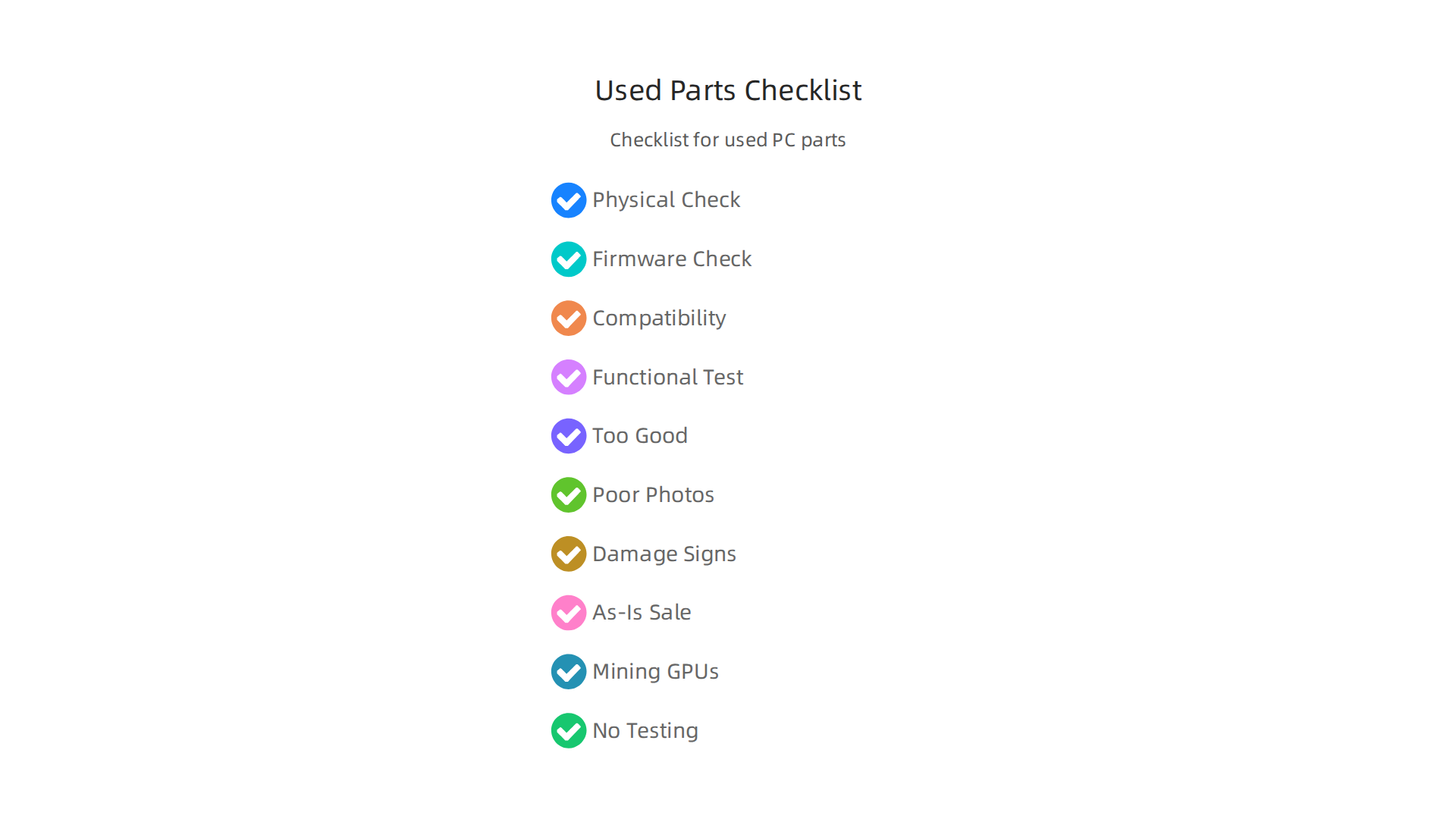
Your Essential PC Parts Compatibility Checklist
Before you spend your money, it’s smart to have a checklist. This helps you avoid common mistakes and makes sure your new computer will run smoothly. Here are the main things to check for pc parts compatibility:
- CPU and Motherboard Socket: This is the most important check. Your CPU needs to fit the exact socket type on your motherboard. For example, an Intel CPU might need an LGA 1700 socket, while an AMD CPU might need an AM5 socket. You can often find this info on the product page for each part PC Parts Compatibility Guide UK: How to Check Your ….
- RAM Type: Computers today use either DDR4 or DDR5 memory. Your motherboard can only use one type, so your RAM sticks must match what your motherboard supports.
- GPU Size: High-end GPUs for AI can be very large. You need to make sure your computer case has enough space for your GPU to fit. Also, check that your motherboard has the right type and number of PCIe slots for your GPU or multiple GPUs.
- Power Supply (PSU) Wattage: Your power supply needs to be strong enough to power all your parts, especially a powerful GPU or several GPUs. It also needs the right cables to connect to your GPU and other components.
- CPU Cooler Height: If you are using a large air cooler for your CPU, make sure it is not too tall for your computer case to close properly.
- Case Size and Airflow: Beyond just fitting the GPU, your case needs to have good airflow to keep all your hot AI components cool. This is extra important for multi-GPU setups.
Smart Tools to Check Compatibility
Luckily, you do not have to guess if your parts will work together. There are many free online tools that can help you with pc parts compatibility. These tools let you pick your CPU, motherboard, RAM, GPU, power supply, cooler, and case. Then, they instantly tell you if there are any issues.
Some popular compatibility checkers will review socket types, memory types, GPU physical size, power needs, and even cooler height to make sure everything lines up Build Compatibility Checker — Free Online PC Hardware Tool …. Tools like these are great for saving time and preventing headaches. For example, some tools check over 40 rules in real time to ensure your chosen parts will work together perfectly PC Builder Online India – Build Your PC Free · GetPC.co.in.
Planning for Future Upgrades
Thinking about future upgrades for your AI PC is also part of good pc parts compatibility. Sometimes you want to make your computer faster or more powerful down the road.
- GPU-First Upgrade: Many AI builders choose to upgrade their GPU first, as it often has the biggest impact on AI performance. If you do this, make sure your existing CPU is still powerful enough to keep up, or it could slow down your new GPU. Also, your power supply needs to handle the increased power demand.
- CPU-First Upgrade: If your CPU is old, upgrading it can make your whole system faster. But be careful: a new CPU often means you might also need a new motherboard and new RAM because of how parts fit together. This can turn a simple upgrade into a bigger project.
- Platform Compatibility: Some computer platforms (the combination of CPU and motherboard) offer more room for upgrades than others. If you plan to upgrade often, look for platforms that support multiple generations of CPUs or have plenty of PCIe slots for extra GPUs. This flexibility is key if you want to scale up your AI work without rebuilding everything from scratch.
- Budget Considerations: When planning upgrades, especially for an affordable gaming pc that also handles AI, always think about the cost versus the performance boost. Sometimes, small upgrades can give good results for the money. Other times, saving up for a bigger upgrade makes more sense for a much larger performance jump.
By doing your homework and using the right tools, you can make sure your AI computer build is a success from the start and can grow with your needs. Building and optimizing your AI workstation for peak performance is a continuous journey.
To stay on top of the latest AI hardware and software trends that impact compatibility and performance, you need reliable information.
Get clear daily AI updates from The AI Newsletter Worth Reading.
Summary
This article explains why PC parts compatibility is critical when building machines for AI workloads and how that differs from standard gaming builds. It covers the distinct roles of CPUs and GPUs, why PCIe lanes and inter‑GPU links like NVLink matter, and how motherboard chipset, BIOS, RAM type, and NVMe storage affect performance. The guide also walks through PSU sizing and cooling strategies needed for sustained training runs, how to choose GPUs (and plan multi‑GPU setups), and practical checks such as socket matching, BIOS versions, and physical fit. You will learn concrete rules of thumb—like targeting larger GPU VRAM and high system RAM for big models—and get a simple pre‑purchase checklist plus tools to verify compatibility so you can avoid bottlenecks, wasted spend, and upgrade headaches.