Why the Touch Bar still matters for professional workflows (and when to skip it)
The MacBook Touch Bar. Perhaps you remember it from its earlier days, or maybe you’re looking at an older MacBook Pro model in 2026 and wondering what this unique feature is all about. This slim, touch-sensitive strip replaced the usual function keys above the keyboard on many Apple laptops for a time. Even though newer models, like those with the MacBook Air M2 chip or the latest MacBook Air M3 chip, no longer include it, the MacBook Touch Bar can still be a powerful tool for certain types of work.
First, let’s understand what the Touch Bar is. It was an OLED display that changed what it showed based on the app you were using. This meant you could see different buttons and sliders that were most helpful at that moment. It also included Touch ID for secure logins and quick purchases. The Touch Bar was a main feature on many MacBook Pro models from 2016 through some 2020 versions, with a few different sizes available during those years, as explained in a guide to which MacBooks have a Touch Bar.
For professionals, the main promise of the Touch Bar was to make your work faster and smoother.

Imagine you’re deep into a project. Instead of moving your mouse to click on menus, you could tap a custom button or slide a finger to adjust a setting directly on the Touch Bar. This helps with faster context switching. It means less time searching for tools and more time actually doing your work. These small, quick actions add up, making frequent tasks much more efficient.
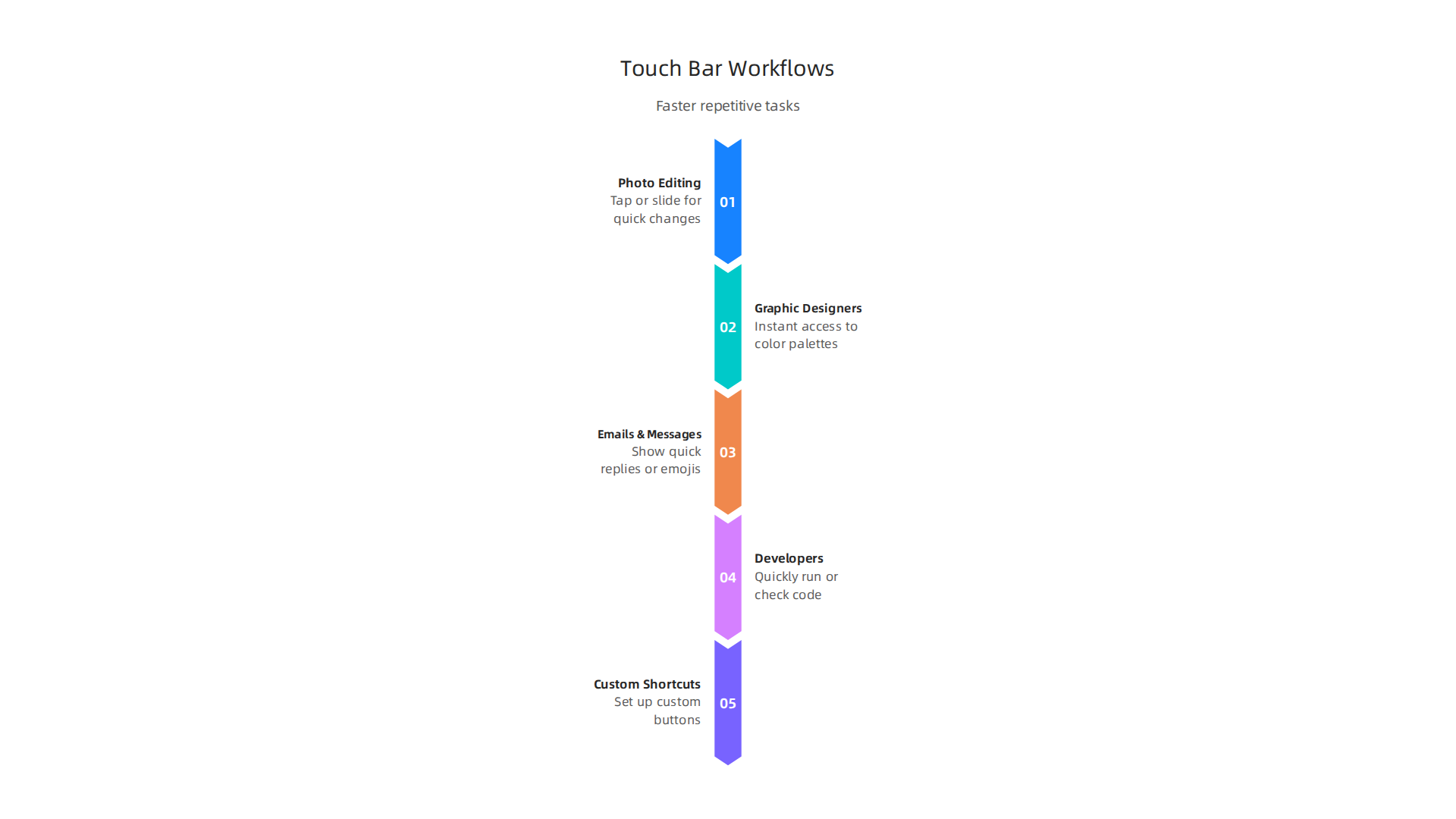
So, which professionals truly benefit most from the MacBook Touch Bar? If you work a lot with creative apps like video editing software, photo editors, or music production tools, the Touch Bar can be very useful. For example, a video editor might see a timeline scrubber to quickly jump through footage. A graphic designer could get instant access to color palettes or brush sizes. These app-specific shortcuts help micro-optimize your workflow. They bring the most important controls right to your fingertips without cluttering your main screen.
In 2026, if you’re thinking about getting a MacBook Pro with a Touch Bar, it’s good to know what to expect. While new apps might not build features specifically for it anymore, many older, established professional apps still support it well. The macOS operating system also continues to support the Touch Bar on compatible models. Just be sure that any used MacBook you consider is in good shape and running a recent enough version of macOS for your needs. Remember to protect your tech investment with a good MacBook cover to keep it safe.
Staying up to date on technology, especially AI, is crucial for professionals. For clear, daily insights, consider subscribing to The AI Newsletter Worth Reading.
The MacBook Touch Bar, at its heart, was an advanced narrow screen right above the keyboard. It was designed to be a dynamic control panel, meaning what you saw on it changed depending on what you were doing on your computer. This clever strip was actually an OLED Retina display, offering clear, bright controls at your fingertips Touch Bar | OLED panel, T2, Discontinued. Think of it like a mini touchscreen that showed you the most useful buttons for the app you had open. It even had its own small computer chip, called the T1, and ran a special version of Apple’s WatchOS system Apple’s new MacBook Pro Touch Bar is powered by a variant of WatchOS.
The Touch Bar took the place of the old physical function keys (F1, F2, F3, etc.). Instead of fixed buttons, it showed things like volume sliders, brightness controls, or even emojis when you were typing. For apps like photo editors, it might show tools for cropping or changing colors. This made the controls always seem to be in the right place at the right time. Users could also change what appeared on their Touch Bar through System Settings, making it truly their own. Developers could add support for the Touch Bar into their own apps, giving users more ways to interact Here’s How Devs Will Use MacBook Pro Touch Bar.
Apple first brought out the MacBook Touch Bar in late 2016 with new MacBook Pro models MacBook Pro. For several years, it was a standout feature on most 13-inch, 15-inch, and 16-inch MacBook Pros until about 2020. You can find a full history of which models included it in guides like Which Macbook Pro Has The Touch Bar?. The very last Mac to have a Touch Bar was the 13-inch MacBook Pro with the M2 chip. After that, Apple moved away from the Touch Bar. Newer MacBooks, like those with the MacBook Air M3 chip, do not have this feature.
By 2026, the Touch Bar is no longer found on new MacBooks. People often found that they missed the feel of physical keys, especially for important buttons like the Escape key The Touch Bar was supposed to be the future MacBooks. Nakonec it became one of the biggest mistakes Apple. This meant users often had to look down at the Touch Bar to make sure they were pressing the right spot, which could slow things down. However, for those buying older MacBook Pro models, understanding what the Touch Bar is and how it works can help you decide if a used model is right for your needs. If you are considering an older model, you might want to learn more about picking the best MacBooks for AI for your 2026 projects. While the Touch Bar may be a thing of the past for new devices, it still offers unique ways to work on compatible MacBooks.
Even though new computers today, like the latest MacBooks, do not have the Touch Bar, it still has special uses for those who own older models. This small, helpful screen can make certain tasks much faster. It’s especially good for jobs where you do the same small things over and over.
Faster Work for Editors and Creators
Imagine you are editing photos or videos. Normally, you might click through menus to find tools like brushes, color sliders, or crop buttons.
With the MacBook Touch Bar, these tools can pop up right on the bar. This means you don’t have to move your mouse around as much. Instead, you can tap or slide on the Touch Bar to make quick changes. This can really speed up your work. For example, if you’re a designer, the Touch Bar could show you all your favorite colors or fonts at a glance. Even though touchscreens sometimes take a little longer for certain tasks than a mouse, having the right tools instantly available can be a big help for creative apps To Touch or not to Touch.
Smart Shortcuts for Everyone
The Touch Bar is also great for other daily tasks. If you spend a lot of time writing emails or messages, it can show you quick replies or even your most-used emojis. This makes talking to people faster. For developers, some found the Touch Bar very useful for quickly running code or checking different parts of their programs Touch Bar MacBooks In 2026: Developer Verdict. In fact, about half of surveyed individuals said they use the Touch Bar on their Mac, and for those who own a MacBook Pro, that number goes up to three out of four Will anyone miss the Touch Bar?.
You can even make the Touch Bar do exactly what you want it to for different apps. Tools like BetterTouchTool let you set up custom shortcuts, showing only the few most important things you need for each program Customize Your Mac’s Touch Bar with BetterTouchTool. This kind of smart setup can save a lot of time for individuals and small teams. It turns the Touch Bar into your own special control panel, helping you get more done.
If you are looking for ways to boost how much work you can do, choosing the right tools is key. Learning how to use features like the MacBook Touch Bar smartly, or finding the right accessories like a good MacBook cover or a MacBook Air sleeve for protection, can make a difference. Staying informed about technology trends, even older ones, helps you make the best choices for your needs.
Staying updated on the latest tech, including how older features can still be useful, is important for smart business decisions.
The AI Newsletter Worth Reading
Get clear daily AI updates from The Deep View Newsletter.
Subscribe to The Deep View Newsletter
Top apps and Touch Bar customizations for professionals
Even though the MacBook Touch Bar might seem like a small feature, for many professionals, it’s a powerful tool when set up correctly.
This little screen can make a big difference in how fast you work, especially in creative jobs, coding, and talking with others.
Apps That Work Best with the Touch Bar
For people who create things, like graphic designers or video editors, the Touch Bar is very handy. Programs like Final Cut Pro can show you quick buttons for editing tasks right on the bar. This means you can cut clips, change colors, or adjust sounds without digging through menus. Having these controls at your fingertips speeds up the whole process Best Touch Bar Apps for MacBook Pro. It’s all about making your workflow smoother and saving precious time.
Developers also found special uses for the Touch Bar. Imagine you’re writing computer code; the Touch Bar can show you shortcuts to run your code, move between parts of your program, or even help you find errors faster. Tools like those listed on various tech forums help coders set up their Touch Bar for very specific coding needs Best apps to get the best out of Touch Bar? : r/macbookpro.
For daily communication, some apps can put your favorite emojis or quick response phrases on the Touch Bar. This makes sending messages or emails much quicker, helping you stay in touch without slowing down.
Making the Touch Bar Your Own
The real power of the Touch Bar for professionals comes from making it do exactly what you need. You can create your own special buttons and shortcuts. For example, if you always do a set of actions in an app, you can create a single "macro" button on the Touch Bar to do all of them at once. This is like having a super shortcut.
Apps like BetterTouchTool are famous for letting you customize your MacBook Touch Bar to an amazing degree BetterTouchTool is the best app for the MacBook Pro Touch Bar. You can set up "context-aware" controls. This means the buttons on your Touch Bar change depending on what you’re doing in an app. If you’re drawing, you might see brush sizes. If you’re writing, you might see formatting tools. This kind of smart setup helps you always have the right tools ready.
You can even make app-specific "palettes" for the Touch Bar. These are groups of buttons that only show up when you’re using a certain program. For instance, a video editor could have one palette for cutting, another for color correction, and another for sound mixing. It’s about bringing your most used actions closer to you. You can even find community-made lists of apps and settings to explore, helping you unlock even more potential for your MacBook Touch Bar PCVD’s ultimate lists of Touch Bar app/ softwares curated from github , product hunt etc..
Getting the most out of your MacBook Touch Bar means taking the time to set it up for your specific tasks. Tools for customization are key. To learn more about how to choose the right technology for your professional projects, check out our guide on picking the best MacBooks for AI for your 2026 projects.
Building on basic Touch Bar setups, professionals can go even further by creating smart shortcuts and automations. This means less repetitive clicking and more focus on your actual work.
Smart Automations for Your MacBook Touch Bar
Imagine making your MacBook Touch Bar do complex tasks with just one tap. This is possible through smart automations.

You can map common system shortcuts to the Touch Bar, like saving files, undoing mistakes, or even opening your most used folders. This keeps your hands on the keyboard and speeds up your workflow. Studies show that well-designed touch interfaces can make tasks faster, though care must be taken to avoid errors Investigating a multi-touch user interface for three-dimensional CAD operations.
You can also link your Touch Bar to automation tools on your Mac, like AppleScript or Automator. For example, a single button on your Touch Bar could trigger a script that resizes all your images, uploads them to a cloud service, and then sends you a notification. For developers, this can mean quickly running code or switching between important parts of their programs. In fact, many developers in 2026 rely on custom Touch Bar key bindings for tasks like building and running code Touch Bar MacBooks In 2026: Developer Verdict. This deep integration turns your Touch Bar into a personal control center, making your macbook touch bar even more powerful.
Third-Party Tools for Next-Level Customization
While BetterTouchTool (mentioned before) is a great starting point, other tools let you get even more out of your Touch Bar. These utilities offer powerful ways to truly make the Touch Bar your own, boosting your daily productivity.
For example, apps like Pock turn your Touch Bar into a small dock, showing you active apps and widgets right on the bar Pock: Widgets manager for MacBook Touch Bar. This frees up screen space on your main display and puts important controls in easy reach. Another open-source tool, MTMR (My TouchBar My Rules), lets you create custom buttons and scripts for almost anything you can imagine, even letting you use community-made plugins Toxblh/MTMR: 🌟 [My TouchBar My rules]. The Touch Bar …. These tools allow for incredible levels of customization and can save valuable time, making tasks more efficient Customize Your Mac’s Touch Bar with BetterTouchTool – LifeTips.
For teams, some advanced tools even let you create and share Touch Bar profiles. This means a whole team can use the same specialized shortcuts for their projects, ensuring everyone works faster and in the same way. When choosing any tech gadget for business, especially one that boosts productivity, it’s good to think about how it fits into your daily tasks. Learn more in our guide on how to choose tech gadgets for business productivity in 2026.
Staying up to date on all the latest tech and AI trends can be tricky, but it’s important for keeping your business smart and effective.
Get clear daily AI updates from The AI Newsletter Worth Reading.
Limitations, compatibility concerns, and alternatives
Even with all the cool ways to customize the Touch Bar, it also has some clear downsides.
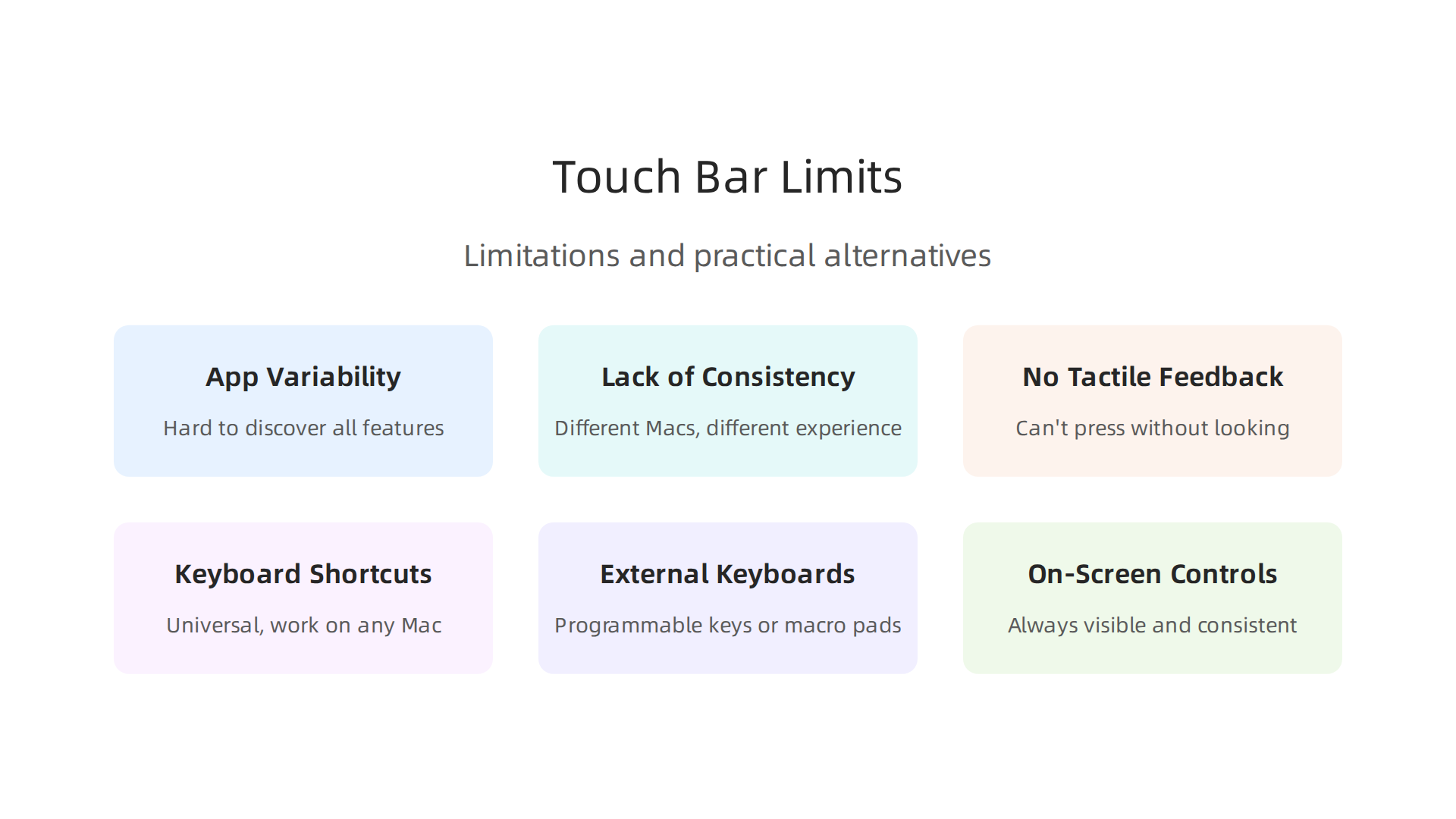
For one, knowing what the macbook touch bar can do changes from app to app. This makes it hard for people to discover all its features, or even remember what buttons might pop up at any given time. It’s not always obvious where to look for controls, which can slow you down instead of speeding you up.
Another big concern is how the Touch Bar works across different Macs. Not all MacBook models have it. For example, newer models like the MacBook Air M2 chip don’t have a Touch Bar at all. In fact, Apple stopped putting the Touch Bar in its latest MacBook Pro models around 2021, and the last 13-inch model with it was released in 2022 Did Apple stop making MacBook Pro with TouchBar?. This means if you use different Macs for your work, the experience won’t be the same on all of them. This lack of consistency can be frustrating and make it harder to switch between devices smoothly.
Accessibility is another point of worry. Since the Touch Bar is a flat, smooth strip, it doesn’t give you the same clicky feel as a real button. This lack of "tactile feedback" means you can’t press a button without looking at it. For users with visual impairments, this is a big problem, as they might not be able to easily tell which button they’re touching Apple’s New Touch Bar May Present Usability Challenges For Blind Users. Also, many users, especially coders, found it hard to live without a physical Escape key, which the Touch Bar often replaced The Problem With the Touch Bar.
So, what if your MacBook doesn’t have a Touch Bar, or you simply prefer other ways to work? There are great alternatives that give you similar speed boosts.
- Keyboard Shortcuts: The simplest way to speed things up is to learn your app’s built-in keyboard shortcuts. These are universal and work on any Mac, no matter the model.
- External Keyboards: Many professionals use external keyboards, some of which have extra programmable keys or macro pads. These can give you even more customization than the Touch Bar, with the added benefit of physical buttons. When considering options for your setup, it’s wise to think about picking the best MacBooks for AI for your 2026 projects, as well as compatible accessories.
- On-Screen Controls: You can also use on-screen menus and toolbars. While they might take an extra click, they are always visible and consistent. Some apps even let you customize these on-screen controls.
Ultimately, whether you have a MacBook with a Touch Bar or are looking for alternatives, the goal is to make your computer work for you. There are many ways to make your daily tasks faster and easier, ensuring you stay productive in 2026.
Buying, setup, and calculating ROI for teams
When you’re thinking about buying new computers for your team, figuring out if a MacBook with a Touch Bar is right for everyone can be tricky.

Since Apple has mostly moved away from the Touch Bar in newer models like those with the MacBook Air M3 chip or even recent MacBook Pros, it’s wise to think about consistency. Having different models with and without a Touch Bar can make things confusing for your team.
For teams still using MacBooks with a Touch Bar, customization tools can make a big difference. Apps like BetterTouchTool let users change their Touch Bar to fit exactly what they do, which can be super helpful for getting tasks done faster. You can make custom buttons and shortcuts for specific apps, making the macbook touch bar much more useful than its basic settings How to Customize the MacBook’s Touch Bar with BetterTouchTool. This kind of personalization can really speed up workflows for specific roles, like designers or coders.
A Smart Way to Think About Your Team’s Investment
To decide if the Touch Bar (or any tech feature) is a good investment, think about its "Return on Investment," or ROI. For a team, ROI means how much benefit you get back compared to what you spend.
Here’s a simple way to look at it:
- Time Saved: How many minutes or hours does a new tool or feature save each person each week?
- Team Size: How many people on your team will use this feature and save that time?
- Frequency: How often will they use it?
Let’s say a special Touch Bar setup saves a designer 10 minutes a day on a task they do every day. Over a week, that’s 50 minutes. If you have 5 designers, that’s 250 minutes saved per week, or over 4 hours. Over a year, this adds up to many hours, which can mean big savings for the company. This shows that even small time savings can make a big difference when many people use a tool often.
Studies have shown that Macs, in general, can offer a great return for businesses. Companies report benefits like employees saving 100 minutes per month on productive tasks and needing less IT support The Total Economic Impact™ Of Apple Mac At Work. Another study found that Macs could save organizations hundreds of dollars per device over a few years, mainly through lower support costs and better employee performance The $543 Question: What If Skipping Macs Is Actually ….
Piloting New Workflows
If you’re unsure about a new piece of tech like the macbook touch bar or even a new macbook cover for protecting devices, try it out with a small group first. This is called a pilot program.
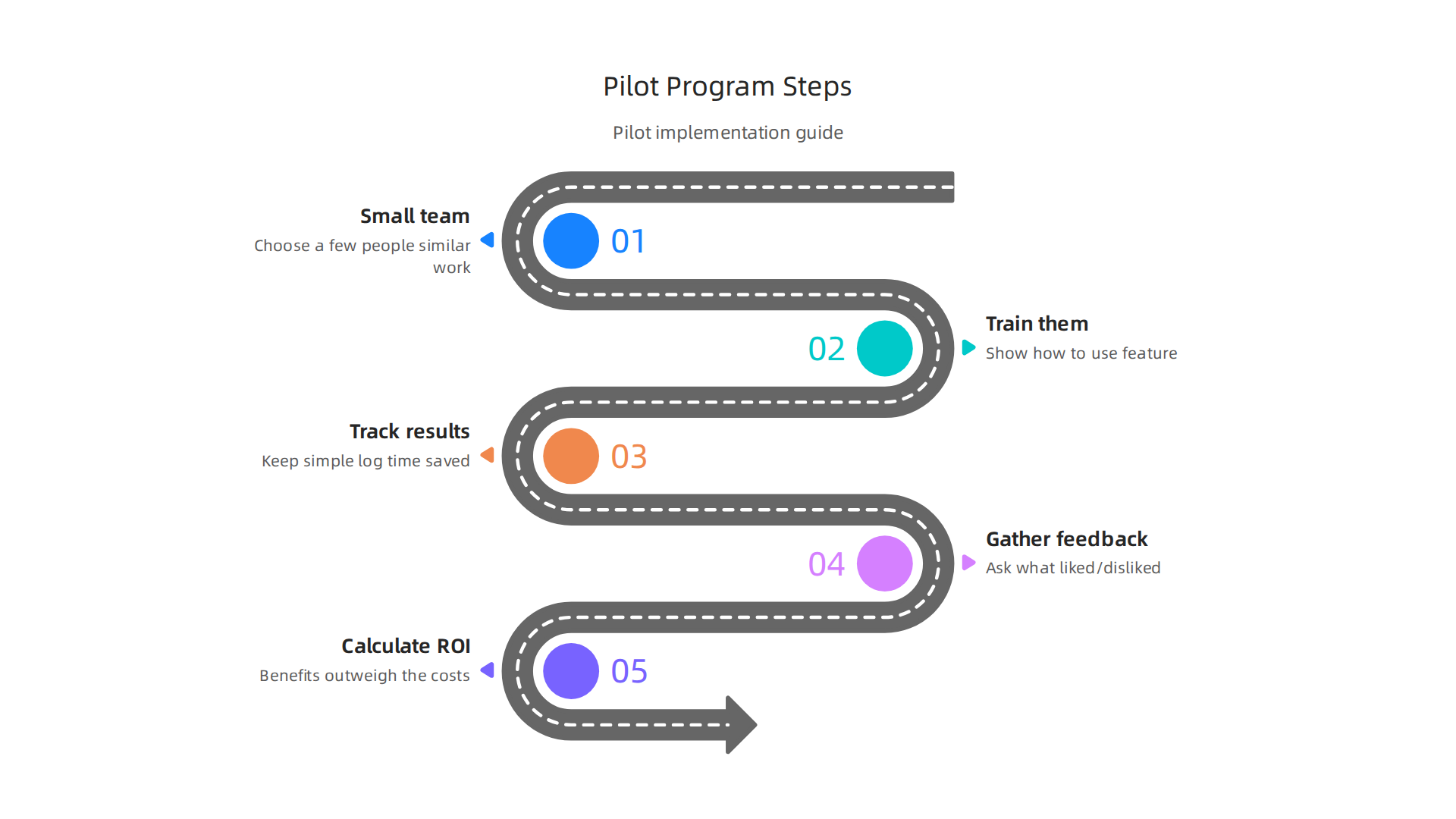
- Pick a small team: Choose a few people who do similar work.
- Train them: Show them how to use the new feature or tool, like customizing the Touch Bar or learning new shortcuts.
- Track results: Have them keep a simple log of how much time they feel they are saving or if their work feels easier.
- Gather feedback: Ask them what they liked and disliked.
- Calculate ROI: Use the time-saved method to see if the benefits outweigh the costs.
This way, you can make smart choices about your team’s tech. Investing in the right tools, whether it’s a specific MacBook model or simply how to how to choose tech gadgets for business productivity, helps everyone work better and faster in 2026.
If you want to stay ahead with the latest tools and insights for business productivity,
The AI Newsletter Worth Reading offers clear daily updates.
Summary
This article explains what the MacBook Touch Bar is, why it mattered for professional workflows, and when it still makes sense to use one in 2026. It covers the Touch Bar’s history, how the OLED strip adapted to apps, and which users — especially video editors, designers, music producers, and some developers — gain the biggest speedups. You’ll learn practical ways to customize the bar with tools like BetterTouchTool and MTMR, build automations and macros, and pick apps that return the most value. The piece also outlines clear limitations (tactile feedback, cross‑device consistency, and accessibility), how to evaluate alternatives, and a simple ROI method to decide for teams. Finally, it gives buying, setup and pilot recommendations so you can decide whether an older Touch Bar MacBook fits your workflows or if shortcuts and external keyboards are better options.