Tag: pillar-ai-hardware

  • MacBook Touch Bar: Why It Still Matters for Professionals in 2026

    MacBook Touch Bar: Why It Still Matters for Professionals in 2026

    Why the Touch Bar still matters for professional workflows (and when to skip it)

    The MacBook Touch Bar. Perhaps you remember it from its earlier days, or maybe you’re looking at an older MacBook Pro model in 2026 and wondering what this unique feature is all about. This slim, touch-sensitive strip replaced the usual function keys above the keyboard on many Apple laptops for a time. Even though newer models, like those with the MacBook Air M2 chip or the latest MacBook Air M3 chip, no longer include it, the MacBook Touch Bar can still be a powerful tool for certain types of work.

    First, let’s understand what the Touch Bar is. It was an OLED display that changed what it showed based on the app you were using. This meant you could see different buttons and sliders that were most helpful at that moment. It also included Touch ID for secure logins and quick purchases. The Touch Bar was a main feature on many MacBook Pro models from 2016 through some 2020 versions, with a few different sizes available during those years, as explained in a guide to which MacBooks have a Touch Bar.

    For professionals, the main promise of the Touch Bar was to make your work faster and smoother.

    A professional concentrating on their work, embodying efficiency and smooth task execution.

    Imagine you’re deep into a project. Instead of moving your mouse to click on menus, you could tap a custom button or slide a finger to adjust a setting directly on the Touch Bar. This helps with faster context switching. It means less time searching for tools and more time actually doing your work. These small, quick actions add up, making frequent tasks much more efficient.

    So, which professionals truly benefit most from the MacBook Touch Bar? If you work a lot with creative apps like video editing software, photo editors, or music production tools, the Touch Bar can be very useful. For example, a video editor might see a timeline scrubber to quickly jump through footage. A graphic designer could get instant access to color palettes or brush sizes. These app-specific shortcuts help micro-optimize your workflow. They bring the most important controls right to your fingertips without cluttering your main screen.

    In 2026, if you’re thinking about getting a MacBook Pro with a Touch Bar, it’s good to know what to expect. While new apps might not build features specifically for it anymore, many older, established professional apps still support it well. The macOS operating system also continues to support the Touch Bar on compatible models. Just be sure that any used MacBook you consider is in good shape and running a recent enough version of macOS for your needs. Remember to protect your tech investment with a good MacBook cover to keep it safe.

    Staying up to date on technology, especially AI, is crucial for professionals. For clear, daily insights, consider subscribing to The AI Newsletter Worth Reading.

    The MacBook Touch Bar, at its heart, was an advanced narrow screen right above the keyboard. It was designed to be a dynamic control panel, meaning what you saw on it changed depending on what you were doing on your computer. This clever strip was actually an OLED Retina display, offering clear, bright controls at your fingertips Touch Bar | OLED panel, T2, Discontinued. Think of it like a mini touchscreen that showed you the most useful buttons for the app you had open. It even had its own small computer chip, called the T1, and ran a special version of Apple’s WatchOS system Apple’s new MacBook Pro Touch Bar is powered by a variant of WatchOS.

    The Touch Bar took the place of the old physical function keys (F1, F2, F3, etc.). Instead of fixed buttons, it showed things like volume sliders, brightness controls, or even emojis when you were typing. For apps like photo editors, it might show tools for cropping or changing colors. This made the controls always seem to be in the right place at the right time. Users could also change what appeared on their Touch Bar through System Settings, making it truly their own. Developers could add support for the Touch Bar into their own apps, giving users more ways to interact Here’s How Devs Will Use MacBook Pro Touch Bar.

    Apple first brought out the MacBook Touch Bar in late 2016 with new MacBook Pro models MacBook Pro. For several years, it was a standout feature on most 13-inch, 15-inch, and 16-inch MacBook Pros until about 2020. You can find a full history of which models included it in guides like Which Macbook Pro Has The Touch Bar?. The very last Mac to have a Touch Bar was the 13-inch MacBook Pro with the M2 chip. After that, Apple moved away from the Touch Bar. Newer MacBooks, like those with the MacBook Air M3 chip, do not have this feature.

    By 2026, the Touch Bar is no longer found on new MacBooks. People often found that they missed the feel of physical keys, especially for important buttons like the Escape key The Touch Bar was supposed to be the future MacBooks. Nakonec it became one of the biggest mistakes Apple. This meant users often had to look down at the Touch Bar to make sure they were pressing the right spot, which could slow things down. However, for those buying older MacBook Pro models, understanding what the Touch Bar is and how it works can help you decide if a used model is right for your needs. If you are considering an older model, you might want to learn more about picking the best MacBooks for AI for your 2026 projects. While the Touch Bar may be a thing of the past for new devices, it still offers unique ways to work on compatible MacBooks.

    Even though new computers today, like the latest MacBooks, do not have the Touch Bar, it still has special uses for those who own older models. This small, helpful screen can make certain tasks much faster. It’s especially good for jobs where you do the same small things over and over.
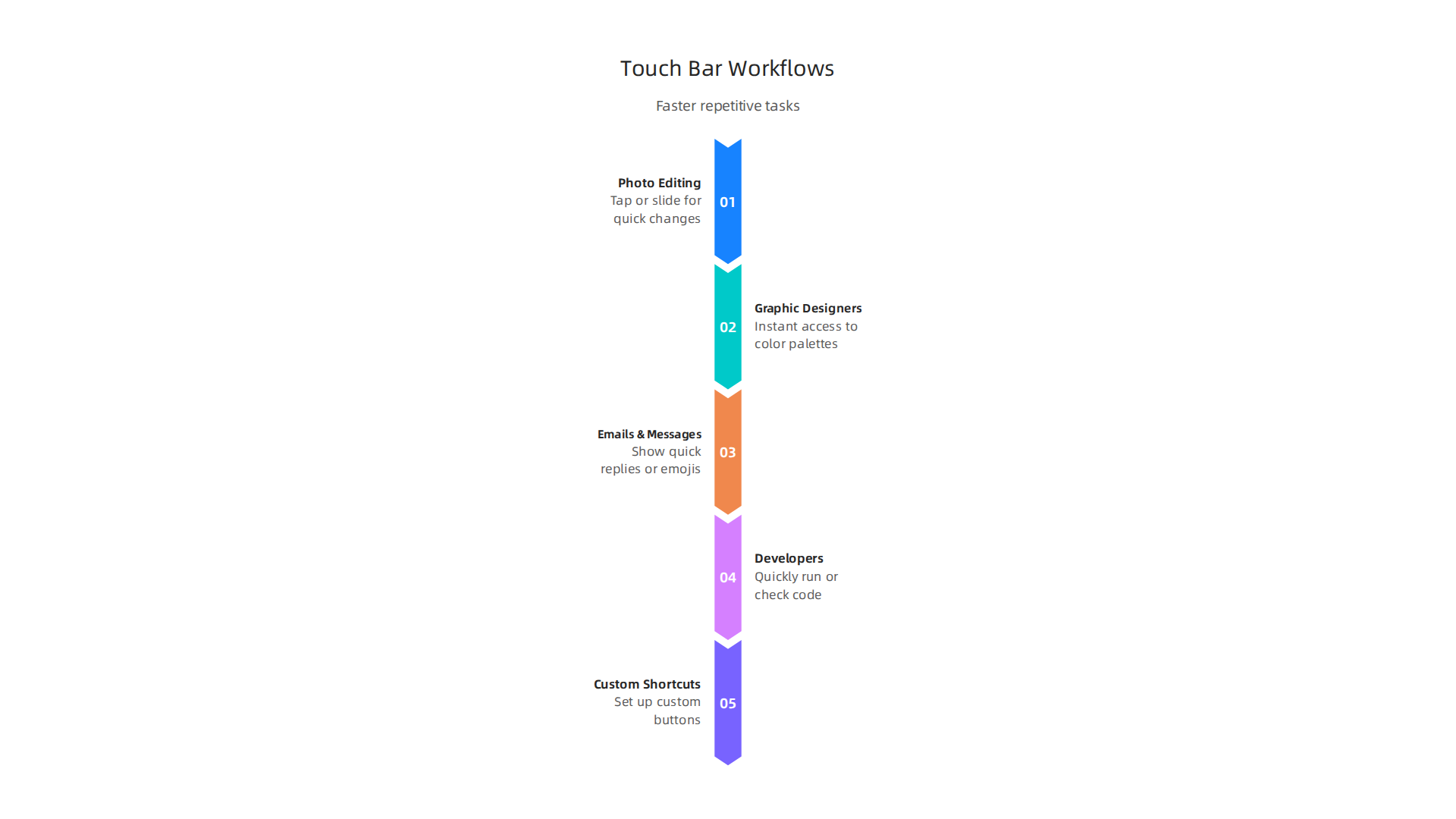
    Visualizing the professional workflows that gain significant speed and efficiency from the MacBook Touch Bar's dynamic controls.

    Faster Work for Editors and Creators

    Imagine you are editing photos or videos. Normally, you might click through menus to find tools like brushes, color sliders, or crop buttons.

    A graphic designer or video editor immersed in a creative project, utilizing tools to bring their vision to life.

    With the MacBook Touch Bar, these tools can pop up right on the bar. This means you don’t have to move your mouse around as much. Instead, you can tap or slide on the Touch Bar to make quick changes. This can really speed up your work. For example, if you’re a designer, the Touch Bar could show you all your favorite colors or fonts at a glance. Even though touchscreens sometimes take a little longer for certain tasks than a mouse, having the right tools instantly available can be a big help for creative apps To Touch or not to Touch.

    Smart Shortcuts for Everyone

    The Touch Bar is also great for other daily tasks. If you spend a lot of time writing emails or messages, it can show you quick replies or even your most-used emojis. This makes talking to people faster. For developers, some found the Touch Bar very useful for quickly running code or checking different parts of their programs Touch Bar MacBooks In 2026: Developer Verdict. In fact, about half of surveyed individuals said they use the Touch Bar on their Mac, and for those who own a MacBook Pro, that number goes up to three out of four Will anyone miss the Touch Bar?.

    You can even make the Touch Bar do exactly what you want it to for different apps. Tools like BetterTouchTool let you set up custom shortcuts, showing only the few most important things you need for each program Customize Your Mac’s Touch Bar with BetterTouchTool. This kind of smart setup can save a lot of time for individuals and small teams. It turns the Touch Bar into your own special control panel, helping you get more done.

    If you are looking for ways to boost how much work you can do, choosing the right tools is key. Learning how to use features like the MacBook Touch Bar smartly, or finding the right accessories like a good MacBook cover or a MacBook Air sleeve for protection, can make a difference. Staying informed about technology trends, even older ones, helps you make the best choices for your needs.

    Staying updated on the latest tech, including how older features can still be useful, is important for smart business decisions.

    The AI Newsletter Worth Reading

    Get clear daily AI updates from The Deep View Newsletter.
    Subscribe to The Deep View Newsletter

    Top apps and Touch Bar customizations for professionals

    Even though the MacBook Touch Bar might seem like a small feature, for many professionals, it’s a powerful tool when set up correctly.

    Illustrating key applications and customization methods that maximize the utility of the MacBook Touch Bar for various professional roles.

    This little screen can make a big difference in how fast you work, especially in creative jobs, coding, and talking with others.

    Apps That Work Best with the Touch Bar

    For people who create things, like graphic designers or video editors, the Touch Bar is very handy. Programs like Final Cut Pro can show you quick buttons for editing tasks right on the bar. This means you can cut clips, change colors, or adjust sounds without digging through menus. Having these controls at your fingertips speeds up the whole process Best Touch Bar Apps for MacBook Pro. It’s all about making your workflow smoother and saving precious time.

    Developers also found special uses for the Touch Bar. Imagine you’re writing computer code; the Touch Bar can show you shortcuts to run your code, move between parts of your program, or even help you find errors faster. Tools like those listed on various tech forums help coders set up their Touch Bar for very specific coding needs Best apps to get the best out of Touch Bar? : r/macbookpro.

    For daily communication, some apps can put your favorite emojis or quick response phrases on the Touch Bar. This makes sending messages or emails much quicker, helping you stay in touch without slowing down.

    Making the Touch Bar Your Own

    The real power of the Touch Bar for professionals comes from making it do exactly what you need. You can create your own special buttons and shortcuts. For example, if you always do a set of actions in an app, you can create a single "macro" button on the Touch Bar to do all of them at once. This is like having a super shortcut.

    Apps like BetterTouchTool are famous for letting you customize your MacBook Touch Bar to an amazing degree BetterTouchTool is the best app for the MacBook Pro Touch Bar. You can set up "context-aware" controls. This means the buttons on your Touch Bar change depending on what you’re doing in an app. If you’re drawing, you might see brush sizes. If you’re writing, you might see formatting tools. This kind of smart setup helps you always have the right tools ready.

    You can even make app-specific "palettes" for the Touch Bar. These are groups of buttons that only show up when you’re using a certain program. For instance, a video editor could have one palette for cutting, another for color correction, and another for sound mixing. It’s about bringing your most used actions closer to you. You can even find community-made lists of apps and settings to explore, helping you unlock even more potential for your MacBook Touch Bar PCVD’s ultimate lists of Touch Bar app/ softwares curated from github , product hunt etc..

    Getting the most out of your MacBook Touch Bar means taking the time to set it up for your specific tasks. Tools for customization are key. To learn more about how to choose the right technology for your professional projects, check out our guide on picking the best MacBooks for AI for your 2026 projects.

    Building on basic Touch Bar setups, professionals can go even further by creating smart shortcuts and automations. This means less repetitive clicking and more focus on your actual work.

    Smart Automations for Your MacBook Touch Bar

    Imagine making your MacBook Touch Bar do complex tasks with just one tap. This is possible through smart automations.

    A team collaborating on a complex project, symbolizing streamlined workflows and smart automations for efficiency.

    You can map common system shortcuts to the Touch Bar, like saving files, undoing mistakes, or even opening your most used folders. This keeps your hands on the keyboard and speeds up your workflow. Studies show that well-designed touch interfaces can make tasks faster, though care must be taken to avoid errors Investigating a multi-touch user interface for three-dimensional CAD operations.

    You can also link your Touch Bar to automation tools on your Mac, like AppleScript or Automator. For example, a single button on your Touch Bar could trigger a script that resizes all your images, uploads them to a cloud service, and then sends you a notification. For developers, this can mean quickly running code or switching between important parts of their programs. In fact, many developers in 2026 rely on custom Touch Bar key bindings for tasks like building and running code Touch Bar MacBooks In 2026: Developer Verdict. This deep integration turns your Touch Bar into a personal control center, making your macbook touch bar even more powerful.

    Third-Party Tools for Next-Level Customization

    While BetterTouchTool (mentioned before) is a great starting point, other tools let you get even more out of your Touch Bar. These utilities offer powerful ways to truly make the Touch Bar your own, boosting your daily productivity.

    For example, apps like Pock turn your Touch Bar into a small dock, showing you active apps and widgets right on the bar Pock: Widgets manager for MacBook Touch Bar. This frees up screen space on your main display and puts important controls in easy reach. Another open-source tool, MTMR (My TouchBar My Rules), lets you create custom buttons and scripts for almost anything you can imagine, even letting you use community-made plugins Toxblh/MTMR: 🌟 [My TouchBar My rules]. The Touch Bar …. These tools allow for incredible levels of customization and can save valuable time, making tasks more efficient Customize Your Mac’s Touch Bar with BetterTouchTool – LifeTips.

    For teams, some advanced tools even let you create and share Touch Bar profiles. This means a whole team can use the same specialized shortcuts for their projects, ensuring everyone works faster and in the same way. When choosing any tech gadget for business, especially one that boosts productivity, it’s good to think about how it fits into your daily tasks. Learn more in our guide on how to choose tech gadgets for business productivity in 2026.

    Staying up to date on all the latest tech and AI trends can be tricky, but it’s important for keeping your business smart and effective.

    Get clear daily AI updates from The AI Newsletter Worth Reading.

    Limitations, compatibility concerns, and alternatives

    Even with all the cool ways to customize the Touch Bar, it also has some clear downsides.
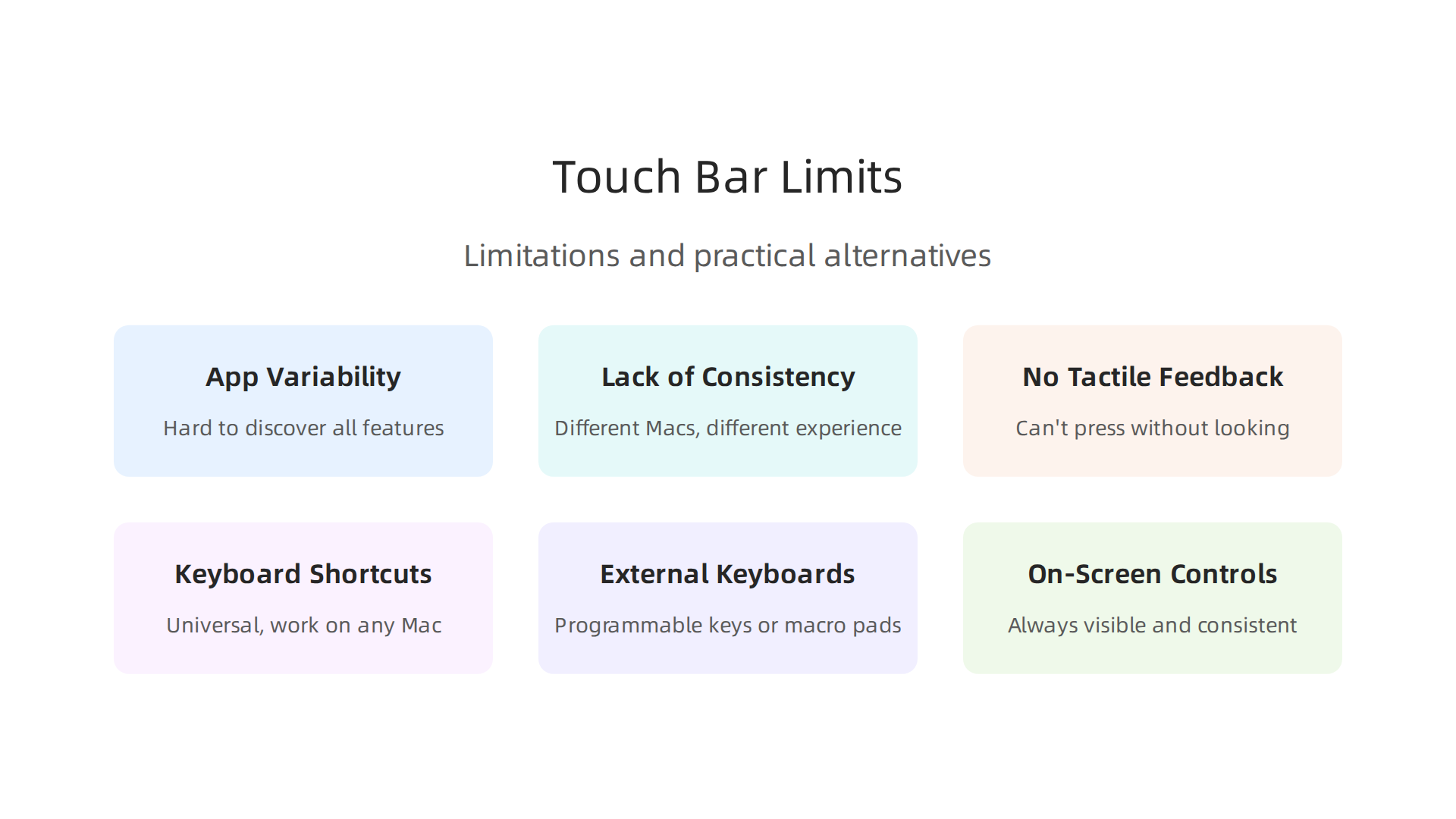
    An overview of the MacBook Touch Bar's limitations and practical alternatives for achieving similar productivity benefits.

    For one, knowing what the macbook touch bar can do changes from app to app. This makes it hard for people to discover all its features, or even remember what buttons might pop up at any given time. It’s not always obvious where to look for controls, which can slow you down instead of speeding you up.

    Another big concern is how the Touch Bar works across different Macs. Not all MacBook models have it. For example, newer models like the MacBook Air M2 chip don’t have a Touch Bar at all. In fact, Apple stopped putting the Touch Bar in its latest MacBook Pro models around 2021, and the last 13-inch model with it was released in 2022 Did Apple stop making MacBook Pro with TouchBar?. This means if you use different Macs for your work, the experience won’t be the same on all of them. This lack of consistency can be frustrating and make it harder to switch between devices smoothly.

    Accessibility is another point of worry. Since the Touch Bar is a flat, smooth strip, it doesn’t give you the same clicky feel as a real button. This lack of "tactile feedback" means you can’t press a button without looking at it. For users with visual impairments, this is a big problem, as they might not be able to easily tell which button they’re touching Apple’s New Touch Bar May Present Usability Challenges For Blind Users. Also, many users, especially coders, found it hard to live without a physical Escape key, which the Touch Bar often replaced The Problem With the Touch Bar.

    So, what if your MacBook doesn’t have a Touch Bar, or you simply prefer other ways to work? There are great alternatives that give you similar speed boosts.

    • Keyboard Shortcuts: The simplest way to speed things up is to learn your app’s built-in keyboard shortcuts. These are universal and work on any Mac, no matter the model.
    • External Keyboards: Many professionals use external keyboards, some of which have extra programmable keys or macro pads. These can give you even more customization than the Touch Bar, with the added benefit of physical buttons. When considering options for your setup, it’s wise to think about picking the best MacBooks for AI for your 2026 projects, as well as compatible accessories.
    • On-Screen Controls: You can also use on-screen menus and toolbars. While they might take an extra click, they are always visible and consistent. Some apps even let you customize these on-screen controls.

    Ultimately, whether you have a MacBook with a Touch Bar or are looking for alternatives, the goal is to make your computer work for you. There are many ways to make your daily tasks faster and easier, ensuring you stay productive in 2026.

    Buying, setup, and calculating ROI for teams

    When you’re thinking about buying new computers for your team, figuring out if a MacBook with a Touch Bar is right for everyone can be tricky.

    Business professionals engaged in a strategic discussion, weighing investment decisions for their team's technology.

    Since Apple has mostly moved away from the Touch Bar in newer models like those with the MacBook Air M3 chip or even recent MacBook Pros, it’s wise to think about consistency. Having different models with and without a Touch Bar can make things confusing for your team.

    For teams still using MacBooks with a Touch Bar, customization tools can make a big difference. Apps like BetterTouchTool let users change their Touch Bar to fit exactly what they do, which can be super helpful for getting tasks done faster. You can make custom buttons and shortcuts for specific apps, making the macbook touch bar much more useful than its basic settings How to Customize the MacBook’s Touch Bar with BetterTouchTool. This kind of personalization can really speed up workflows for specific roles, like designers or coders.

    A Smart Way to Think About Your Team’s Investment

    To decide if the Touch Bar (or any tech feature) is a good investment, think about its "Return on Investment," or ROI. For a team, ROI means how much benefit you get back compared to what you spend.

    Here’s a simple way to look at it:

    • Time Saved: How many minutes or hours does a new tool or feature save each person each week?
    • Team Size: How many people on your team will use this feature and save that time?
    • Frequency: How often will they use it?

    Let’s say a special Touch Bar setup saves a designer 10 minutes a day on a task they do every day. Over a week, that’s 50 minutes. If you have 5 designers, that’s 250 minutes saved per week, or over 4 hours. Over a year, this adds up to many hours, which can mean big savings for the company. This shows that even small time savings can make a big difference when many people use a tool often.

    Studies have shown that Macs, in general, can offer a great return for businesses. Companies report benefits like employees saving 100 minutes per month on productive tasks and needing less IT support The Total Economic Impact™ Of Apple Mac At Work. Another study found that Macs could save organizations hundreds of dollars per device over a few years, mainly through lower support costs and better employee performance The $543 Question: What If Skipping Macs Is Actually ….

    Piloting New Workflows

    If you’re unsure about a new piece of tech like the macbook touch bar or even a new macbook cover for protecting devices, try it out with a small group first. This is called a pilot program.
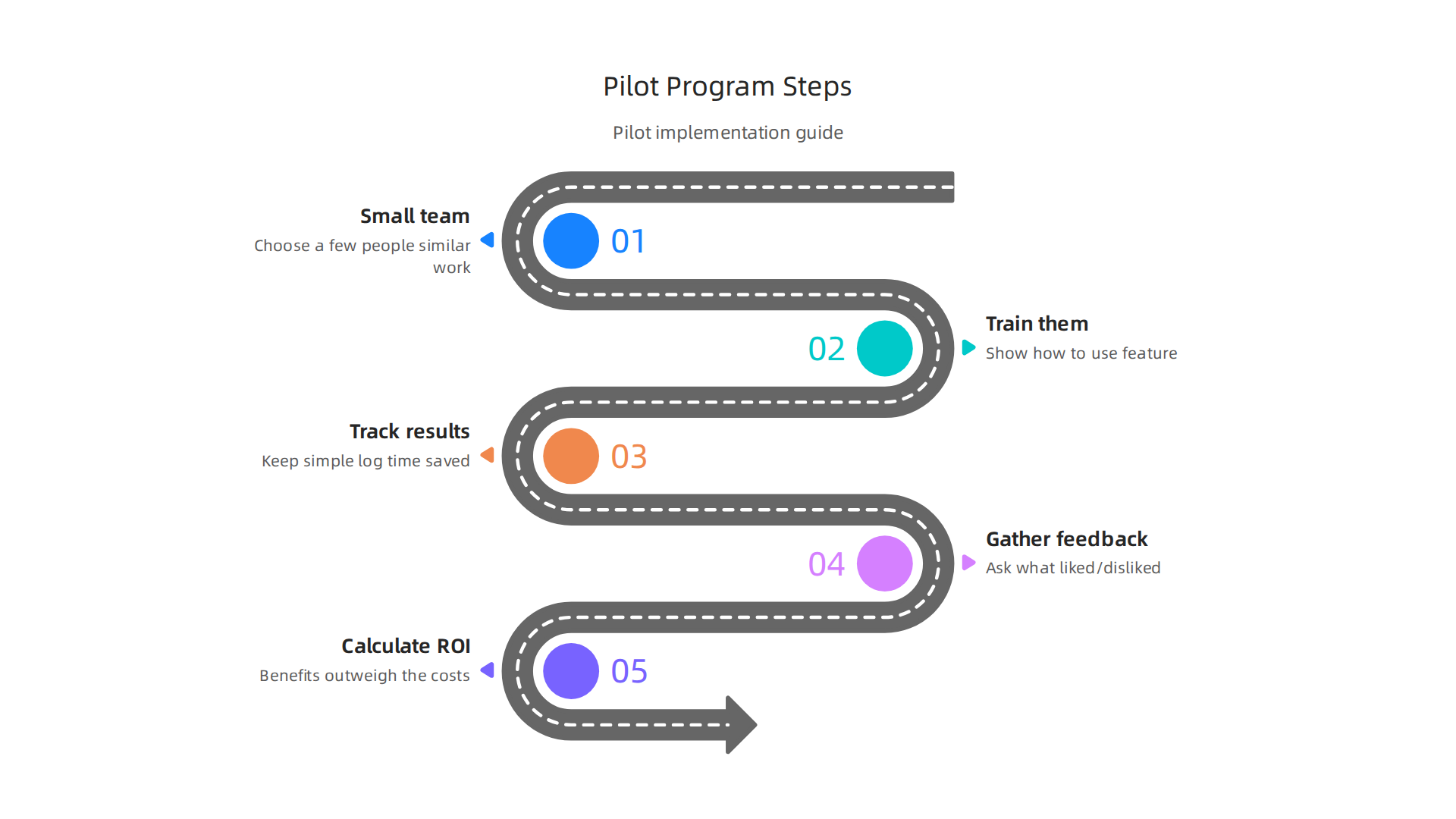
    A step-by-step guide for implementing a pilot program to evaluate new technology or workflows within a team.

    1. Pick a small team: Choose a few people who do similar work.
    2. Train them: Show them how to use the new feature or tool, like customizing the Touch Bar or learning new shortcuts.
    3. Track results: Have them keep a simple log of how much time they feel they are saving or if their work feels easier.
    4. Gather feedback: Ask them what they liked and disliked.
    5. Calculate ROI: Use the time-saved method to see if the benefits outweigh the costs.

    This way, you can make smart choices about your team’s tech. Investing in the right tools, whether it’s a specific MacBook model or simply how to how to choose tech gadgets for business productivity, helps everyone work better and faster in 2026.

    If you want to stay ahead with the latest tools and insights for business productivity,
    The AI Newsletter Worth Reading offers clear daily updates.

    Summary

    This article explains what the MacBook Touch Bar is, why it mattered for professional workflows, and when it still makes sense to use one in 2026. It covers the Touch Bar’s history, how the OLED strip adapted to apps, and which users — especially video editors, designers, music producers, and some developers — gain the biggest speedups. You’ll learn practical ways to customize the bar with tools like BetterTouchTool and MTMR, build automations and macros, and pick apps that return the most value. The piece also outlines clear limitations (tactile feedback, cross‑device consistency, and accessibility), how to evaluate alternatives, and a simple ROI method to decide for teams. Finally, it gives buying, setup and pilot recommendations so you can decide whether an older Touch Bar MacBook fits your workflows or if shortcuts and external keyboards are better options.


  • PC Parts Compatibility for AI: Build a Powerful, Bottleneck-Free Workstation

    PC Parts Compatibility for AI: Build a Powerful, Bottleneck-Free Workstation

    Why PC parts compatibility matters for AI workloads (and what this guide will solve)

    If you’re thinking about building a computer for AI tasks like teaching new models or making smart predictions, you might imagine it’s just like putting together a super powerful gaming PC. But here’s the thing: making sure your pc parts compatibility is right for AI is actually quite different from what a typical "pc master race" gamer would look for.

    AI tasks, like training complex models, fine-tuning them, or running quick guesses (inferencing), put very different demands on your computer parts. For example, a gaming PC might focus on having a super-fast graphics card to draw game worlds smoothly. But for AI, the graphics card (GPU) needs a lot of special memory, often called HBM, and very fast ways to send information to other GPUs. For instance, connections like NVLink can offer much higher speeds between GPUs than the standard PCIe connections found in most regular computers, making a big difference for large AI projects. Some reports show NVLink 4.0, used in high-end AI GPUs, can be over seven times faster than PCIe 5.0 for moving data between parts NVLink vs PCIe: Do You Actually Need NVLink? (2026).

    This means that simply choosing parts that seem strong for an "affordable gaming pc" might not give you the performance you need for serious AI work. Without the right pc parts compatibility, your system could slow down, waste a lot of time, and even cost you more money in the long run due to inefficient operations.

    Illustrating the frustration of inefficient operations due to poor PC parts compatibility for AI tasks.

    You need a computer that can handle huge amounts of data and perform many calculations at once without bottlenecks.

    This guide is here to help you understand all the important details about pc parts compatibility for AI. We will walk you through each component, like the CPU, GPU, memory, and storage, and explain what to look for. Our goal is to give you a clear, easy-to-follow checklist. This way, you can pick the best parts, avoid expensive mistakes, and make sure your computer runs as fast and smoothly as possible for all your AI projects in 2026. If you’re ready to start building your ideal machine, you might find our guide on how to build and optimize your AI workstation for peak performance 2026 very helpful.

    Want to keep up with the latest AI trends and tools? Get clear daily AI updates from The Deep View Newsletter.

    When building a computer for AI, understanding the difference between your Central Processing Unit (CPU) and your Graphics Processing Unit (GPU) is very important.

    An infographic comparing the distinct roles of CPU and GPU in handling various AI workloads.

    It’s not just about getting the fastest parts; it’s about making sure your pc parts compatibility is perfect for how AI tasks actually run.

    The CPU’s Role in AI

    Think of the CPU as the brain of your computer. It’s really good at handling many different tasks one after another, like a skilled manager organizing a team. In AI work, the CPU mostly helps with:

    • Getting Data Ready: Before a GPU can train an AI model, the data often needs to be cleaned, sorted, and prepared. This is called data preprocessing, and the CPU handles it well. For example, if you’re working with text, the CPU will get all the words in order.
    • Running the Show: The CPU tells all the other parts of your computer what to do. It starts and stops AI programs and makes sure everything works together smoothly. This is like the CPU being the conductor of an orchestra.
    • Lighter AI Tasks: For simple AI tasks or when you’re just using a small AI model, the CPU can do the work itself.

    While the CPU is very important, it’s generally not the star for heavy AI computations.

    The GPU’s Power for AI

    The GPU is like a team of super-fast math helpers. Instead of doing one task after another, it can do thousands of simple math problems all at once. This is why GPUs are so critical for AI:

    • Training AI Models: Training an AI model involves huge amounts of calculations, usually with something called "tensors" (which are like big grids of numbers). GPUs are built to do these kinds of calculations super fast, much quicker than a CPU ever could. This is their main job for AI.
    • Making Predictions (Inferencing): Once an AI model is trained, the GPU can also help it make quick predictions or decisions. If you’re building a system that needs to understand images or voices in real-time, a powerful GPU will be key. Many AI guides highlight the GPU as the most important piece of hardware for AI workloads AI Workstation 2026 Guide: What Hardware to Buy Now.

    How CPU Features Affect GPU Performance and PC Parts Compatibility

    Even though the GPU does the heavy lifting, your CPU still needs to be a good match. Here’s what to look for regarding pc parts compatibility:

    1. Socket Type: This is the shape and pin layout on the motherboard where the CPU sits. Your CPU’s socket must match your motherboard’s socket. For instance, Intel’s 10th and 11th Gen CPUs use the LGA1200 socket, requiring specific motherboards Compatibility of 10th and 11th Generation Intel® Desktop Processors. If these don’t match, nothing will work. You can usually find a list of compatible CPUs for a motherboard, or vice-versa, in a "Motherboard – Processor Compatibility" list from the manufacturer.
    2. PCIe Lanes: These are like highways that connect your CPU to other parts, especially your powerful GPUs. The more PCIe lanes your CPU and motherboard offer, the more fast connections your GPUs can have.
      • Speed Matters: Newer standards like PCIe 5.0 are much faster. For instance, AMD’s AM5 platform supports 28 PCIe lanes and PCIe 5.0, which can move data at 4GB per second per lane ECE 571 – Advanced Microprocessor-Based Design Lecture 31.
      • Enough Lanes: If you plan to use multiple GPUs for big AI models, you need a CPU that provides enough lanes so each GPU can run at its best speed. Some CPUs, like AMD Threadripper or Intel EPYC, are designed for many GPUs because they have lots of PCIe lanes Best AI Workstation Builds in 2026. Without enough lanes, even the best GPUs can slow down, creating a bottleneck.
    3. Platform I/O (Input/Output): This refers to how well the CPU and motherboard work together to manage all the data flowing in and out of the system. A good CPU and chipset will ensure that data can move quickly between the GPU, memory, and storage without delays.

    Choosing the right CPU and motherboard with enough PCIe lanes is crucial for excellent pc parts compatibility.

    Visualizing the collaboration and careful planning required for optimal CPU and GPU compatibility in AI builds.

    It helps your powerful GPUs talk to the rest of the system as fast as possible, which means your AI tasks will run much quicker. If you’re looking for different build ideas, you might find useful information on how to choose the best prebuilt gaming PCs for AI work in 2026. This isn’t like an affordable gaming pc where you might skimp on these details; for serious AI, every connection counts.

    After making sure your CPU and GPU work well together, you need to think about the motherboard. The motherboard is like the main street of your computer. It connects all the important parts: the CPU, GPU, memory, and storage. For good pc parts compatibility, especially when building a powerful AI computer, choosing the right motherboard is a must.

    Here are the important things about a motherboard for your AI setup:

    Chipset

    The chipset is like a tiny manager on the motherboard. It helps the CPU talk to everything else. Different chipsets support different CPUs, memory types (like DDR4 or DDR5), and how many fast connections (PCIe lanes) are available for things like your graphics cards and speedy storage drives. For example, Intel’s 700 series chipsets help manage how the CPU connects to other parts, making sure data flows smoothly.

    PCIe Slot Layout

    You already know PCIe lanes are like highways. The motherboard has slots for your GPUs that use these lanes. For serious AI work, you might need several powerful GPUs. Your motherboard must have enough PCIe slots that run at high speeds, like PCIe 5.0 x16, to let your GPUs do their best work. Some motherboards even have special slots for fast storage that use PCIe 5.0 x4 lanes.

    M.2 and NVMe Slots

    These are for super-fast storage drives, often called NVMe SSDs. They are much quicker than older hard drives. For AI, you’ll be loading and saving huge amounts of data. Having multiple M.2 slots that connect directly to the CPU or chipset using PCIe lanes means your data can move very fast. This helps stop delays when your AI model is training or working. Many modern motherboards, like the X870 MAX GAMING WIFI7, support PCIe 5.0 x4 mode for M.2 drives, which is great for fast data access.

    BIOS Support

    The BIOS (Basic Input/Output System) is like the motherboard’s instruction book. It tells your computer how to start up and how to talk to your CPU, memory, and other main parts. Sometimes, when new CPUs come out, the motherboard might need a BIOS update to recognize and work with them. If your BIOS is too old, your new CPU might not work at all, even if the socket matches. For example, some AMD Ryzen 5000 series CPUs needed a BIOS update on older motherboards to work right. You can usually find a Motherboard – Processor Compatibility list from your motherboard maker that tells you which BIOS version you need for each CPU.

    Practical Checks Before You Buy

    To avoid headaches, always do these checks:

    • CPU Support List (QVL): Every motherboard manufacturer has a list on their website that shows every CPU that works with their specific motherboard model. Check this list carefully to ensure your chosen CPU is supported.
    • BIOS Version: Note the required BIOS version for your CPU. If the motherboard you buy has an older BIOS, you might need to update it. Some motherboards have a "BIOS Flashback" feature that lets you update the BIOS without a CPU installed, which is very handy.
    • Online Compatibility Checkers: Before you spend your money, use an online tool to check your pc parts compatibility. Websites like PC Build Compatibility Checker or PC Component Compatibility Checker let you pick out your CPU, motherboard, RAM, and GPU to see if they all fit together. These tools are like your personal pc master race guide, helping you avoid mistakes that even experienced builders can make.

    Choosing the right motherboard with the correct chipset, enough fast PCIe slots, and up-to-date BIOS support is key for building an AI computer that runs smoothly. It’s not just about raw power; it’s about making sure all your parts can talk to each other without bottlenecks.

    To learn more about putting together a high-performing system, consider reading about how to build and optimize your AI workstation for peak performance 2026.

    Staying informed about the fast-moving world of AI tools and hardware is also a smart move for any business leader. Get clear daily AI updates to help you navigate this space.

    The AI Newsletter Worth Reading

    The motherboard connects everything, but what gets connected in terms of memory and storage is just as important for pc parts compatibility in an AI setup.

    An infographic detailing optimal memory and storage solutions crucial for AI performance.

    Think of memory (RAM) as your computer’s short-term workspace and storage as its long-term filing cabinet. Both need to be big and fast for AI tasks.

    Memory and storage choices for AI performance

    When working with AI, especially training large models, your computer needs a lot of space to hold data it’s actively thinking about. This is where memory, or RAM, comes in.

    What to know about RAM for AI

    RAM is like your desk. The bigger the desk, the more papers (data) you can have open at once. For AI, this means holding larger datasets or working with bigger "batch sizes" during training. Batch size refers to how many examples your AI model looks at at one time. More RAM lets you use bigger batch sizes, which can sometimes speed up training. Experts suggest that AI workloads often need a lot of system RAM, sometimes from 128 GB up to 2 TB for very big projects, depending on how much data you are feeding the AI and what you want to achieve How Much RAM Do AI Workloads Really Need?.

    Beyond just how much RAM you have, its speed also matters. Faster RAM can move data to and from your CPU quicker, which helps prevent delays. Look for memory with high clock speeds and good timing. Also, how RAM is set up in "channels" can make a difference. Using two or four sticks of RAM instead of just one (dual-channel or quad-channel memory) can allow your CPU to access data even faster. This is like having more lanes on a highway. GPU memory capacity also directly impacts how well your system performs for AI INOM. For big language models (LLMs) in 2026, serving them can require hundreds of gigabytes of RAM per server, with high memory bandwidth being key for good performance Efficient LLM Inference: Bandwidth, Compute ….

    Storage choices for AI

    Storage is where all your large AI datasets, programs, and models live permanently. For AI, you need storage that’s not only big but also very fast.

    • NVMe SSDs: These are the top choice for AI. NVMe (Non-Volatile Memory Express) drives are super-fast storage that connect directly to your motherboard’s PCIe slots, just like your powerful graphics cards. They can read and write data much, much faster than older SATA SSDs or traditional hard drives. This means your computer can load huge datasets quickly, which is critical for training AI models without long waits. NVMe drives offer very low delay and high data flow, which is perfect for today’s AI tasks The Semiconductor Ecosystem at the Foundation of Data Centers.
    • SATA SSDs: These are still good and faster than old hard drives, but they are not as quick as NVMe drives. They connect using SATA cables. For some less demanding AI tasks or for storing data that isn’t accessed all the time, SATA SSDs can be a more affordable option.
    • Hard Drives (HDDs): These are the slowest. They are good for storing very large amounts of data that you don’t need to access quickly, like backups. For active AI work, they are usually too slow and will cause major delays.

    When picking storage, also think about "read/write IOPS" and "endurance." IOPS means "Input/Output Operations Per Second," and a higher number means the drive can handle more requests for data at once. Endurance refers to how much data can be written to the drive over its lifetime before it starts to wear out. AI workloads involve a lot of writing, so high endurance is a plus.

    Making smart choices for memory and storage makes sure your pc parts compatibility is strong, helping your AI computer run smoothly and efficiently.

    A visual metaphor for making smart, organized choices for memory and storage to ensure smooth AI operations.

    If you’re looking for guidance on what AI hardware to choose for your business, exploring resources like AI Hardware 2026: A Business Leader’s Guide to Growth can be very helpful.

    After picking out your fast memory and huge storage, the next big steps for great pc parts compatibility in an AI computer are making sure it gets enough power and stays cool. Powerful AI components, especially the graphics cards, use a lot of electricity and create a lot of heat. If your computer does not have enough power or gets too hot, it will slow down, crash, or even get damaged. This is why the power supply (PSU) and cooling system are super important for stable AI training runs.

    PSU and cooling: ensuring stable AI training runs

    Think of your power supply unit (PSU) as the heart of your computer. It gives power to every part. For AI, your graphics processing unit (GPU) is usually the hungriest for power. AI training is a tough job that makes GPUs work at their highest level for a long time. This means they pull a lot of power consistently.

    Power Supply Unit (PSU) needs for AI

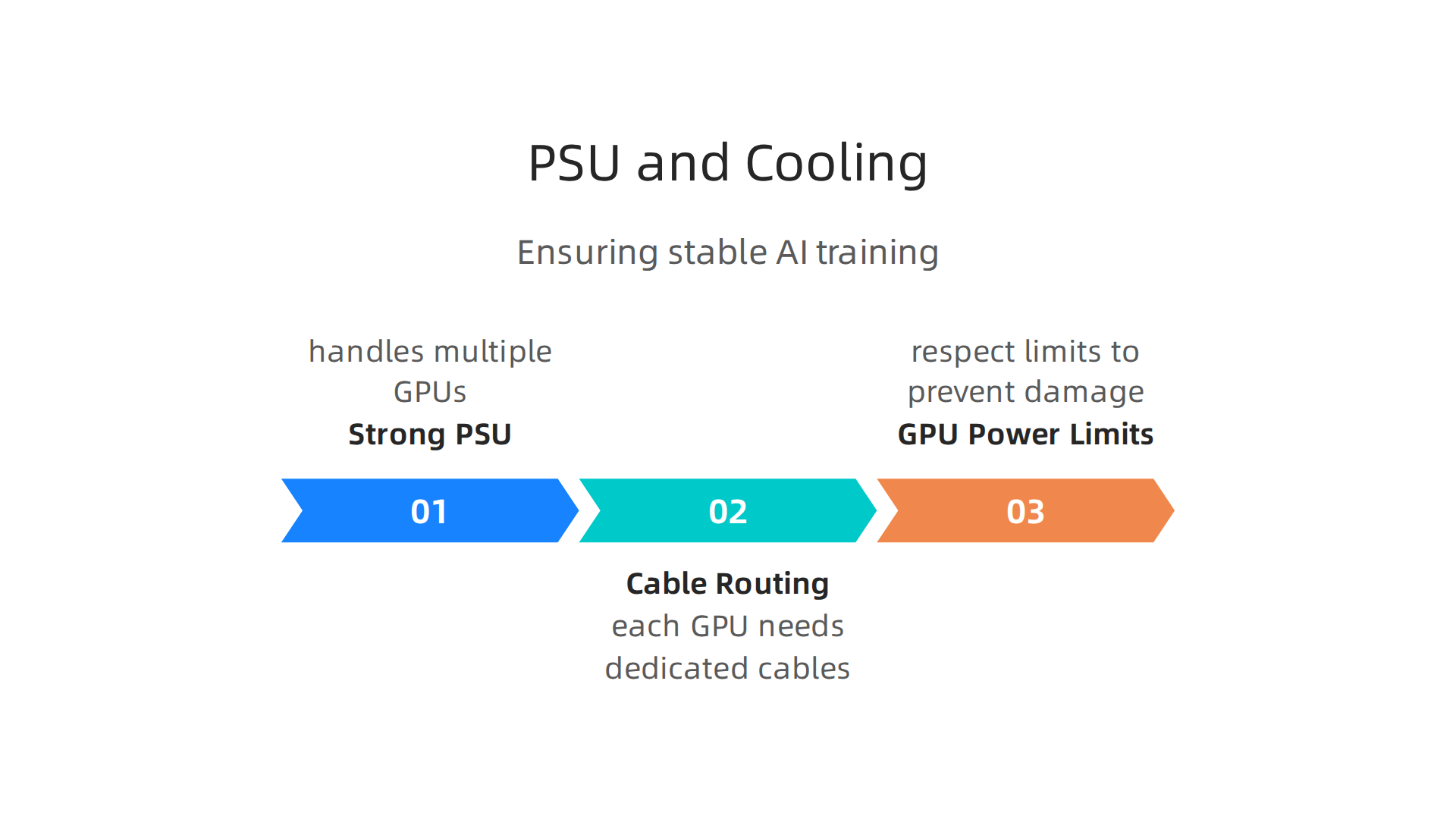
    Choosing the right PSU is key. You need one strong enough to handle all your components, especially if you plan to use multiple powerful GPUs.

    An infographic illustrating the critical considerations for power supply units in AI computer builds.

    For example, modern high-end NVIDIA RTX 5000 series graphics cards often need power supplies around 1000W or even higher NVIDIA RTX 5000 series graphic card PSU recommendation. If you’re building a system with one of these, or even considering two for a dual-GPU setup, you will need a very powerful PSU. Experts suggest looking for a PSU with at least 1200W or more to ensure you have enough power, especially for future GPU upgrades 7 Best Pre-Built AI Workstations 2026 — Tested & Ranked.

    When you have more than one GPU, like in a multi-GPU setup, power distribution becomes even more important.

    • Cable Routing and Connectors: Each powerful GPU needs its own set of power cables from the PSU. Make sure your PSU has enough PCIe power connectors (often 6-pin or 8-pin) for all your graphics cards. Connect them directly to the PSU. Do not daisy-chain cables if you can help it, as this can lead to unstable power delivery.
    • GPU Power Limits: Some GPUs have limits on how much power they can draw. You need to respect these limits to prevent damage and ensure stability. A good PSU provides clean, stable power even when all parts are working hard.

    Cooling strategies for AI workloads

    AI training pushes your components, especially GPUs, to their limits. This creates a lot of heat. Keeping these parts cool is not just about making them last longer; it is also about keeping them running fast. When a part gets too hot, it automatically slows down to protect itself, which means your AI training takes longer.

    • GPU Cooling: Modern GPUs come with strong cooling systems, but for AI, you might need even more. Good airflow in your computer case is a must. Many AI workstations are designed with chassis and power supplies ready for continuous workloads, and stable cooling is a top priority Workstation for Artificial Intelligence: AI Hardware Guide ….
    • Case Airflow: Make sure your computer case has plenty of fans pulling cool air in and pushing hot air out. A good case design helps move air over your hot components. You might want to invest in extra case fans. When buying an AI PC, always check that the cooling system is good enough for steady AI work Budget Guide: How to Buy an AI PC Without Breaking the ….
    • CPU Cooling: While GPUs do most of the heavy lifting in AI training, your CPU still needs good cooling. A large air cooler or a liquid cooler (AIO) is a good choice for keeping your CPU temperatures in check.

    Getting your power and cooling right is a big part of achieving great pc parts compatibility for your AI build.

    Depicting the confidence that comes from a well-planned and stable AI computer build with adequate power and cooling.

    It ensures that your expensive components can perform their best without overheating or crashing. If you want to dive deeper into making your AI setup perfect, exploring how to Build and Optimize Your AI Workstation for Peak Performance 2026 can offer more insights.

    Stay informed about the latest advancements in AI and technology that can impact your hardware choices.

    Get clear daily AI updates from The AI Newsletter Worth Reading.

    When you are building a computer for AI, the graphics processing unit, or GPU, is like the brain of your machine. It does most of the heavy math that AI needs, whether you are teaching an AI new things (training) or using an AI that has already learned (inference). Getting the right GPU and making sure it works well with all your other parts is a huge part of good pc parts compatibility.

    GPU selection and multi-GPU setups for AI

    Choosing the best GPU for AI depends on what kind of AI work you want to do. Different GPUs are better for different jobs. This choice greatly affects how well your whole system works together.

    What to look for in an AI GPU

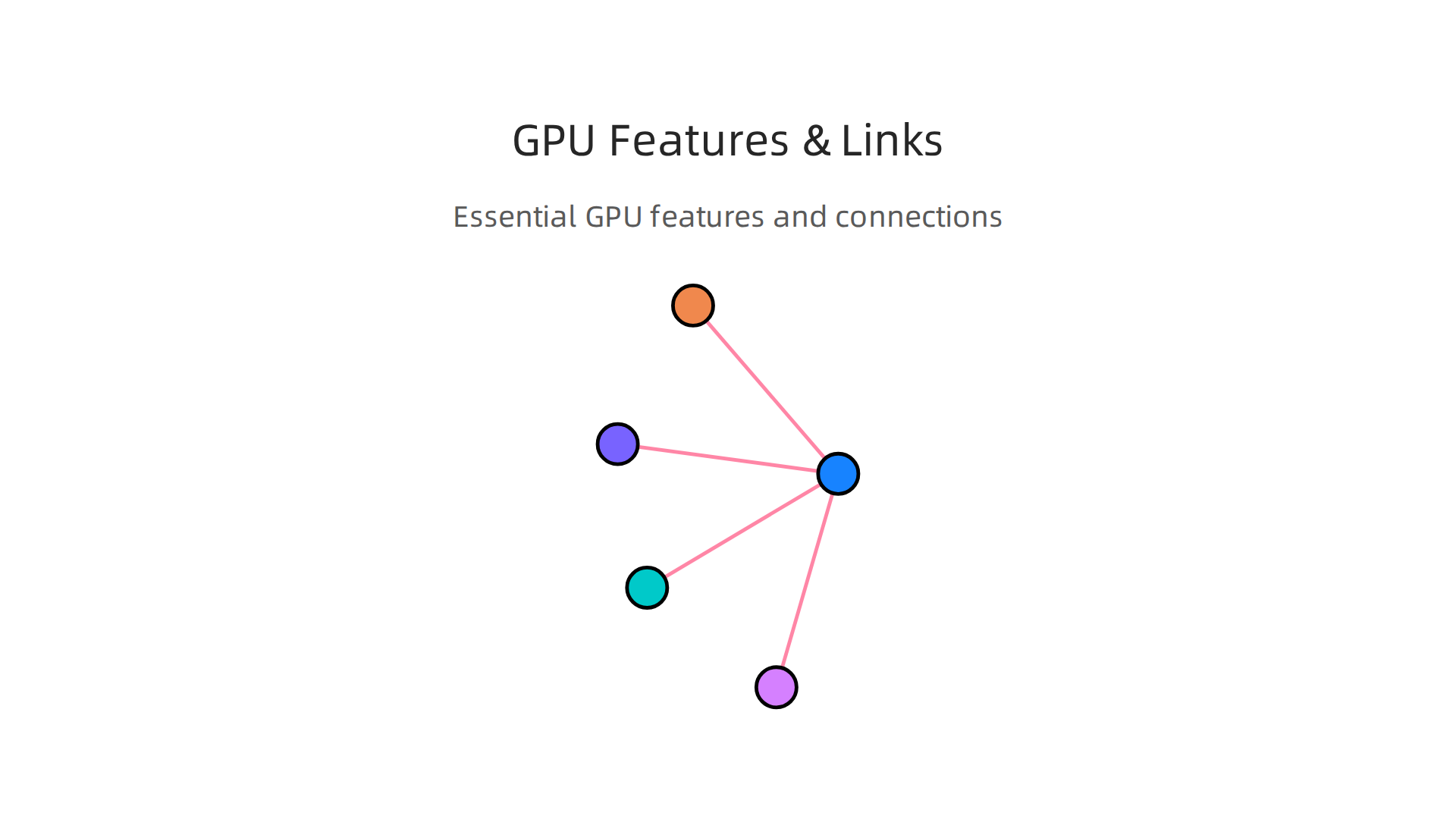
    Not all GPUs are made the same, especially for AI tasks. Here are the main things to think about:

    An infographic highlighting essential GPU features and interconnection methods vital for AI workloads.

    • VRAM (Video RAM): This is super important. VRAM is like the GPU’s own memory. The more VRAM a GPU has, the bigger and more complex AI models it can handle. For training large AI models, you need a lot of VRAM. For example, some of the top NVIDIA GPUs like the H100 or H200 have 80GB or even 141GB of HBM3/HBM3e memory, which is designed for very big AI tasks NVIDIA GPU Architecture Explained: A Guide for AI (August …. For using AI models (inference), you might not need as much, but more is always better. For serious AI work, aim for at least 24GB or more.
    • Tensor Cores: These are special parts inside NVIDIA GPUs that are built to speed up AI calculations. If your GPU has Tensor Cores, it can do AI math much faster. NVIDIA’s newer architectures like Hopper and Blackwell have advanced Tensor Cores that make AI training and inference very quick NVIDIA GPU Architectures Guide for 2026 – CloudMinister.
    • GPU Architecture: This refers to the overall design of the GPU. Newer designs, like NVIDIA’s Blackwell or Hopper, are made to be more powerful and efficient for AI work than older ones. These new designs often come with more VRAM and better Tensor Cores.

    Multi-GPU setups: more power for AI

    Sometimes, one powerful GPU is not enough. For really big AI projects or when you want to train models faster, you might need to use more than one GPU in your computer. This is called a multi-GPU setup. This is where pc parts compatibility gets even more important.

    How GPUs talk to each other

    When you have many GPUs, they need a way to share information and work together. There are two main ways they connect:

    1. PCIe (PCI Express): This is the normal way parts connect to your motherboard. GPUs use PCIe slots to plug in. PCIe 5.0 x16, a common type, offers good speed, but it routes data through your CPU first. While good for single GPUs or simple multi-GPU inference, it can become a bottleneck for heavy multi-GPU training Multi-GPU for AI – NVLink vs PCIe, Builds & Setup (2026) – VRAM First.
    2. NVLink: This is a special connection made by NVIDIA that lets GPUs talk directly to each other without going through the CPU. NVLink is much faster than PCIe. For example, NVLink 4.0 on an H100 GPU gives 900 GB/s of speed, while PCIe 5.0 x16 maxes out at about 128 GB/s NVLink vs PCIe: GPU Interconnect for AI 2026 | packet.ai. This huge speed difference means that with NVLink, your GPUs can share data very quickly, which is great for training large AI models. However, NVLink is usually found on high-end NVIDIA professional GPUs and only a few consumer cards like the RTX 3090, as the RTX 4090 and newer consumer cards don’t support it Multi-GPU for Local AI in 2026: NVLink vs PCIe and When a Second ….

    Compatibility for multi-GPU builds

    Using multiple GPUs needs careful planning:

    • Motherboard and CPU: Your motherboard needs enough PCIe slots, and they should be the right kind (like x16 slots) and spaced apart so your big GPUs can fit. Your CPU also needs enough PCIe lanes to support all those GPUs. If your CPU doesn’t have enough lanes, your GPUs might run slower. For serious AI work, you might want to consider a special CPU and motherboard setup that gives more PCIe lanes, like those found in workstation-class systems.
    • Physical Size: High-end GPUs are often very big. Make sure your computer case has enough room for all of them and that they get enough air for cooling. We talked about cooling in the last section, and it is even more important with multiple GPUs.

    Getting these parts to work together well is key to building an AI computer that performs great. If you are aiming for a powerful setup, exploring options like using AI Hardware 2026: A Business Leaders Guide to Growth can help you decide.

    To ensure all your parts fit and work together perfectly, you can use online tools. These tools check things like CPU socket fit, RAM type, GPU length, and power needs PC Part Compatibility Checker: CPU, GPU, PSU & Case | SpecsCalc. They help prevent common mistakes when building a custom PC.

    Making sure all your computer parts work together is a big deal, especially for AI builds. We just talked about how powerful GPUs and their connections are key for good pc parts compatibility. Now, let’s look at how to double-check everything before you buy and what to think about when you want to make your computer better later on.

    Your Essential PC Parts Compatibility Checklist

    Before you spend your money, it’s smart to have a checklist. This helps you avoid common mistakes and makes sure your new computer will run smoothly. Here are the main things to check for pc parts compatibility:

    • CPU and Motherboard Socket: This is the most important check. Your CPU needs to fit the exact socket type on your motherboard. For example, an Intel CPU might need an LGA 1700 socket, while an AMD CPU might need an AM5 socket. You can often find this info on the product page for each part PC Parts Compatibility Guide UK: How to Check Your ….
    • RAM Type: Computers today use either DDR4 or DDR5 memory. Your motherboard can only use one type, so your RAM sticks must match what your motherboard supports.
    • GPU Size: High-end GPUs for AI can be very large. You need to make sure your computer case has enough space for your GPU to fit. Also, check that your motherboard has the right type and number of PCIe slots for your GPU or multiple GPUs.
    • Power Supply (PSU) Wattage: Your power supply needs to be strong enough to power all your parts, especially a powerful GPU or several GPUs. It also needs the right cables to connect to your GPU and other components.
    • CPU Cooler Height: If you are using a large air cooler for your CPU, make sure it is not too tall for your computer case to close properly.
    • Case Size and Airflow: Beyond just fitting the GPU, your case needs to have good airflow to keep all your hot AI components cool. This is extra important for multi-GPU setups.

    Smart Tools to Check Compatibility

    Luckily, you do not have to guess if your parts will work together. There are many free online tools that can help you with pc parts compatibility. These tools let you pick your CPU, motherboard, RAM, GPU, power supply, cooler, and case. Then, they instantly tell you if there are any issues.

    Some popular compatibility checkers will review socket types, memory types, GPU physical size, power needs, and even cooler height to make sure everything lines up Build Compatibility Checker — Free Online PC Hardware Tool …. Tools like these are great for saving time and preventing headaches. For example, some tools check over 40 rules in real time to ensure your chosen parts will work together perfectly PC Builder Online India – Build Your PC Free · GetPC.co.in.

    Planning for Future Upgrades

    Thinking about future upgrades for your AI PC is also part of good pc parts compatibility. Sometimes you want to make your computer faster or more powerful down the road.

    • GPU-First Upgrade: Many AI builders choose to upgrade their GPU first, as it often has the biggest impact on AI performance. If you do this, make sure your existing CPU is still powerful enough to keep up, or it could slow down your new GPU. Also, your power supply needs to handle the increased power demand.
    • CPU-First Upgrade: If your CPU is old, upgrading it can make your whole system faster. But be careful: a new CPU often means you might also need a new motherboard and new RAM because of how parts fit together. This can turn a simple upgrade into a bigger project.
    • Platform Compatibility: Some computer platforms (the combination of CPU and motherboard) offer more room for upgrades than others. If you plan to upgrade often, look for platforms that support multiple generations of CPUs or have plenty of PCIe slots for extra GPUs. This flexibility is key if you want to scale up your AI work without rebuilding everything from scratch.
    • Budget Considerations: When planning upgrades, especially for an affordable gaming pc that also handles AI, always think about the cost versus the performance boost. Sometimes, small upgrades can give good results for the money. Other times, saving up for a bigger upgrade makes more sense for a much larger performance jump.

    By doing your homework and using the right tools, you can make sure your AI computer build is a success from the start and can grow with your needs. Building and optimizing your AI workstation for peak performance is a continuous journey.

    To stay on top of the latest AI hardware and software trends that impact compatibility and performance, you need reliable information.
    Get clear daily AI updates from The AI Newsletter Worth Reading.

    Summary

    This article explains why PC parts compatibility is critical when building machines for AI workloads and how that differs from standard gaming builds. It covers the distinct roles of CPUs and GPUs, why PCIe lanes and inter‑GPU links like NVLink matter, and how motherboard chipset, BIOS, RAM type, and NVMe storage affect performance. The guide also walks through PSU sizing and cooling strategies needed for sustained training runs, how to choose GPUs (and plan multi‑GPU setups), and practical checks such as socket matching, BIOS versions, and physical fit. You will learn concrete rules of thumb—like targeting larger GPU VRAM and high system RAM for big models—and get a simple pre‑purchase checklist plus tools to verify compatibility so you can avoid bottlenecks, wasted spend, and upgrade headaches.

  • AI Hardware 2026 A Business Leader’s Guide to Growth

    AI Hardware 2026 A Business Leader’s Guide to Growth

    Why AI Hardware Matters for Computer Companies and Business Leaders in 2026

    The world of technology is changing fast, and artificial intelligence (AI) is at the center of it all. In 2026, we are seeing a huge boom in special computer parts made just for AI. This is changing how all computer companies work and what business leaders need to know. No longer are simple, general-purpose computers enough. Now, there are many different types of AI hardware, from powerful chips in big data centers to smarter parts inside a small desktop computer.

    This big change means new chances for computer companies to make exciting products. It also means that businesses can do more amazing things with AI, like making work easier or understanding customers better.

    A business leader reflects on emerging technological opportunities and strategic decisions for company growth.

    The global market for AI hardware is growing very quickly. Experts say it was worth about $103.63 billion in 2026 and will keep getting bigger. This growth shows just how important these new specialized parts are becoming for every kind of business and for the big tech companies that make them, too Global Artificial Intelligence (AI) Hardware Market Size.

    But with all these new tools and fast changes, it can be hard to know what’s best. Business leaders often feel like there’s too much information. It’s tough to figure out which new AI hardware is truly good and which is just hype. Plus, everyone worries about how much things cost. Choosing the wrong hardware can waste money and slow down your business goals. For example, knowing if a simple, powerful desktop or one of the best mini pc options is good enough for your AI tasks can be tricky.

    That’s where this guide comes in. We want to help you understand all the new AI hardware trends that are happening in 2026. We’ll look at what big tech companies are doing and how different computer companies are trying to stand out. Most importantly, we’ll give you clear, easy steps to pick, buy, and use these new AI tools in your business. This way, you can make smart choices that truly help your company grow and do well. To learn more about selecting the right tools, you can explore our guide on how to choose AI-ready business computers in 2026.

    Staying on top of these changes is key for any business. The world of AI moves incredibly fast, and new hardware comes out all the time. Knowing the latest can give your business a real edge.

    Want to keep up with all the daily AI news and tech insights? The AI Newsletter Worth Reading delivers clear updates straight to your inbox.

    State of AI Hardware in 2026: Market Trends Affecting Computer Companies

    In 2026, the world of AI hardware is shaped by a few major trends that all computer companies need to watch. Businesses are thinking carefully about where they run their AI tasks. Do they use big cloud services or do they keep everything in their own offices?

    A team collaborates, discussing critical market trends and strategic choices affecting their business.

    This choice has a big impact on who buys what kind of hardware.

    Many businesses are choosing a "cloud-first" approach. This means they use the computing power of large cloud providers like Amazon, Google, or Microsoft. These providers have huge data centers filled with powerful AI chips. For computer companies, this means a big market to sell their chips and servers to these "big tech" giants. These cloud companies buy a lot of the best AI hardware to rent out to smaller businesses.

    However, some companies still prefer to keep their AI systems "on-premises" in their own buildings. This can be for privacy, special security needs, or simply to have more control over their data. This trend creates chances for traditional computer companies that build and sell high-end servers and workstations directly to businesses. It’s a balance between ease of use (cloud) and full control (on-premises). For those looking to set up their own powerful systems, learning how to build and optimize your AI workstation for peak performance 2026 can be a smart step.

    Another big trend is how special AI chips are being made. Instead of general-purpose chips, we see a rise in chips made just for AI. Companies like NVIDIA are leading the way, holding a very large share of the AI data center chip market in 2026, with AMD also growing its share significantly Cloud Ai Market Share: Aws…. What’s more, some big tech companies are now making their own custom AI chips, called ASICs, for their specific needs. This helps them save money and get exactly the performance they want. This shift means that traditional computer companies now need to think about sourcing these specialized chips or even designing their own.

    Finally, how businesses buy AI hardware is changing. It’s not just about how powerful a chip is anymore. In 2026, companies are also looking at how fast parts connect to each other, how much power they use, and how well they can be cooled down. These are big challenges for hardware makers and drive new ideas in chip design and system building Top 7 AI Chips Priorities Hyperscalers Accelerate for 2026. This means computer companies need to offer more than just raw power; they need to provide full solutions that manage energy and heat efficiently. As businesses look to leverage these advancements, understanding how to identify AI leadership among chip makers and system integrators becomes critical for smart investment.

    Key Hardware Innovations: Chips, Accelerators, and Custom Silicon

    Building on the idea of specialized AI chips from the previous section, let’s look closer at the amazing new parts that make AI work in 2026. Computer companies are always finding new ways to make these parts faster and better. It’s not just about one type of chip anymore; there’s a whole family of them, each good at different tasks.

    At the heart of AI power are different kinds of processors. Most people know about GPUs (Graphics Processing Units), like those from NVIDIA. These chips are great at handling many tasks at once, which is perfect for training big AI models. But now, we also have TPUs (Tensor Processing Units) from Google, NPUs (Neural Processing Units) often found in phones and laptops for on-device AI, and other special chips called IPUs (Intelligence Processing Units). Each one is designed to speed up AI in its own way. Many of these specialized AI accelerators are compared in detail for their performance and features AI Accelerators Beyond GPUs | Introl Blog.

    A big trend in 2026 is that chips are made for very specific jobs. Some chips are best for "training" AI models. This is like teaching a child from scratch, which takes a lot of power and time. Other chips are built for "inference." This is like when the child already knows something and just needs to give a quick answer. Inference tasks need chips that are super fast and use less power, like the ones you’d find in a best mini PC or a smart device. These chips can be up to ten times more power-efficient for tasks like understanding speech or recognizing faces Original Research Paper AI Hardware Accelerators ….

    Also, many "big tech" giants are now making their very own custom AI chips, known as ASICs (Application-Specific Integrated Circuits). These chips are tailor-made for their unique AI programs, helping them save money and get exactly what they need. This means computer companies that make standard hardware must also adapt. They either need to use these custom chips or come up with their own special designs. This change is shaking up how computer companies sell their products, pushing them to offer more complete, AI-ready solutions. For businesses, learning how to choose AI-ready business computers in 2026 is more important than ever.

    Staying on top of these rapid changes can be tough.
    If you’re looking to understand the latest developments in AI hardware and tools, we recommend checking out The AI Newsletter Worth Reading. Get clear daily AI updates from The Deep View Newsletter.

    Staying on top of these rapid changes can be tough. Now, let’s look at how major computer companies are changing their plans and products for the world of AI in 2026.

    Top Computer Companies – Product Strategies and Roadmaps

    The rise of AI has truly shaken up how computer companies create their products. Traditional companies that make PCs and servers, along with the big cloud providers, are all rethinking their strategies. They need to build hardware that can handle the heavy demands of AI, whether it’s for training complex AI models or running everyday AI tasks. According to a 2026 report, the enterprise hardware world is changing fast because of AI’s needs, leading to more AI servers and new data centers 2026 Global Hardware and Consumer Tech Industry Outlook.

    Many big tech companies are making smart moves. For example, NVIDIA is known for its powerful GPUs. Their roadmap for 2026 and beyond includes new generations of GPUs like the "Rubin" R200 and advanced server CPUs, showing a clear path for future AI power Driving Down The AI System Roadmap With Nvidia. AMD is also a major player, with its Instinct MI350 Series GPUs already being used by large cloud providers. They even showed off their "Helios" systems with the MI450 Series GPUs, aiming to deliver top-notch performance for AI AMD Unveils Strategy to Lead the $1 Trillion Compute …. These companies are not just making chips; they are building entire systems, like AMD’s Helios rack system, to make AI easier to use for businesses.

    Then there are companies like Apple and Meta. Apple is pushing its M5 chips to lead the AI PC market in 2026, putting special AI parts directly into devices you use every day Apple’s M5 Roadmap Revealed: The 2026 AI Silicon Offensive to …. Meta is also developing its own custom AI chips, called Meta Training and Inference Accelerator (MTIA), to power its huge data centers Meta outlines roadmap for four new in‑house AI chips to …. This trend of companies making their own chips means other hardware makers must work closely with these giants or create their own unique designs to offer complete AI-ready tools.

    When looking at what these companies plan for the future, called their roadmaps, we see a big focus on making AI systems more energy efficient.

    A professional sketches out a project roadmap on a whiteboard, outlining future strategies and goals.

    For example, AMD expects its 2026 rack-scale AI solutions to be much more efficient than older models AMD claims its 2026 rack-scale AI solution is 4X more …. These signals tell us which computer companies are truly committed to making AI hardware better for the long run. Understanding these shifts is key for any business looking to adopt AI and for anyone interested in future technologies, including iot companies as AI moves into more devices. If you want to dive deeper into selecting the right tools, learn how to Choose the Best AI Tech Products for Your Team.

    Knowing the plans and roadmaps of big computer companies is important. But just as crucial is understanding the real-world challenges of making these powerful AI tools. This means looking at how things are built, how they get from the factory to you, and what they cost.

    Manufacturing, Supply Chains, and Cost Trends for AI Hardware

    Making advanced AI hardware is not always easy. The process involves many steps and relies on a complex network of suppliers. In 2026, we still see challenges like getting enough materials and making sure parts are delivered on time. This is called supply-chain strain.

    Team members collaborate on logistics and supply chain management, addressing challenges in product delivery.

    For example, the global semiconductor industry, which makes the chips for AI, is seeing a big increase in demand, driven by AI. While chipmaking capacity is growing, it’s still a careful balancing act to keep up Global Semiconductor Industry Outlook – GSA. These delays can make it harder for businesses to get the AI-ready computers and systems they need when they want them.

    The actual cost of AI hardware is also a big factor. This cost comes from a few places. First, there’s the price of silicon wafers, which are the basic building blocks for chips. Then, there’s the cost of packaging these tiny, powerful chips so they can work in a computer. Energy efficiency is another key cost driver. The more power an AI system uses, the more expensive it is to run, especially for big data centers. Because of this, computer companies are working hard to make their AI chips use less power. Total Cost of Ownership (TCO) for data centers, which includes electricity, cooling, and maintenance, is a major concern for businesses investing in AI. To manage these expenses and get the most from new technology, businesses need a smart approach, like learning how to Cut Costs Without Cutting Corners in AI Operations.

    Another important trend is being kind to the Earth and following rules. Computer companies and even smaller iot companies are now thinking about how their products affect the environment. This means looking at where materials come from, how much energy factories use, and what happens to products when they are no longer needed. Governments also have a say. For example, the U.S. government has incentives for semiconductor manufacturing, showing how rules can impact where and how chips are made GAO-26-109121, SEMICONDUCTORS. These rules and desires for greener products mean that businesses must think carefully about how they buy and use AI hardware.

    Staying updated on these manufacturing and cost trends is important for anyone wanting to get the most out of AI technology in 2026.


    Get clear daily AI updates.

    The AI Newsletter Worth Reading

    Want to stay ahead in the fast-moving world of AI? The AI Newsletter Worth Reading delivers easy-to-understand daily insights right to your inbox.Knowing the plans and roadmaps of big computer companies is important. But just as crucial is understanding the real-world challenges of making these powerful AI tools. This means looking at how things are built, how they get from the factory to you, and what they cost.

    Manufacturing, Supply Chains, and Cost Trends for AI Hardware

    Making advanced AI hardware is not always easy. The process involves many steps and relies on a complex network of suppliers. In 2026, we still see challenges like getting enough materials and making sure parts are delivered on time. This is called supply-chain strain. For example, the global semiconductor industry, which makes the chips for AI, is seeing a big increase in demand, driven by AI. While chipmaking capacity is growing, it’s still a careful balancing act to keep up Global Semiconductor Industry Outlook – GSA. These delays can make it harder for businesses to get the AI-ready computers and systems they need when they want them.

    The actual cost of AI hardware is also a big factor. This cost comes from a few places. First, there’s the price of silicon wafers, which are the basic building blocks for chips. Then, there’s the cost of packaging these tiny, powerful chips so they can work in a computer. Energy efficiency is another key cost driver. The more power an AI system uses, the more expensive it is to run, especially for big data centers. Because of this, computer companies are working hard to make their AI chips use less power. Total Cost of Ownership (TCO) for data centers, which includes electricity, cooling, and maintenance, is a major concern for businesses investing in AI. To manage these expenses and get the most from new technology, businesses need a smart approach, like learning how to Cut Costs Without Cutting Corners in AI Operations.

    Another important trend is being kind to the Earth and following rules. Computer companies and even smaller iot companies are now thinking about how their products affect the environment. This means looking at where materials come from, how much energy factories use, and what happens to products when they are no longer needed. Governments also have a say. For example, the U.S. government has incentives for semiconductor manufacturing, showing how rules can impact where and how chips are made GAO-26-109121, SEMICONDUCTORS. These rules and desires for greener products mean that businesses must think carefully about how they buy and use AI hardware.

    Staying updated on these manufacturing and cost trends is important for anyone wanting to get the most out of AI technology in 2026.


    Get clear daily AI updates.

    The AI Newsletter Worth Reading

    Want to stay ahead in the fast-moving world of AI? The AI Newsletter Worth Reading delivers easy-to-understand daily insights right to your inbox.

    When picking AI hardware, just knowing the price isn’t enough. You also need to know how well it works and if it’s the right fit for your specific tasks. This means looking at performance benchmarks and understanding what different kinds of AI work need from their hardware.

    Performance Benchmarks and Workload Fit: How to Evaluate Hardware

    To truly know if an AI computer or chip is good, you have to measure its performance. These measurements are called benchmarks. They show how fast and efficient a piece of hardware is at doing AI jobs. When you talk to different computer companies, ask for these numbers. For example, some chips are great at training AI models, which is like teaching the AI new things. Others are better at "inference," which means using the AI model to do its job, like recognizing a picture or answering a question.

    Actually, GPUs (Graphics Processing Units) are often best for training big AI models. But special chips called ASICs (Application-Specific Integrated Circuits) can be much more efficient for inference tasks, sometimes doing the work ten times better for the same power Original Research Paper AI Hardware Accelerators …. This is why knowing your workload is so important.

    Here are some types of AI work and what they usually need:

    • Training: This is when AI models learn from lots of data. It needs powerful hardware that can do many math problems at once. GPUs are a common choice for this.
    • Inference: This is when the AI model is used after it’s been trained. It needs hardware that can quickly give answers or make decisions. Specialized chips like ASICs or even some CPUs can be very good here.
    • Large Language Models (LLMs): These are the AI brains behind chatbots and writing tools. They need hardware that can handle huge amounts of text and quickly process requests. Special benchmarks exist just for LLM inference performance, where different chips are ranked by how fast they can generate text The Best AI Chips Ranked by Inference Performance (2026).
    • Vision and Multimodal AI: These involve AI that "sees" images or videos and sometimes hears sounds too. They need hardware that can process visual and audio data very quickly.

    To make sure you pick the right hardware, it’s a good idea to test it yourself. This is called a "proof-of-concept benchmark."

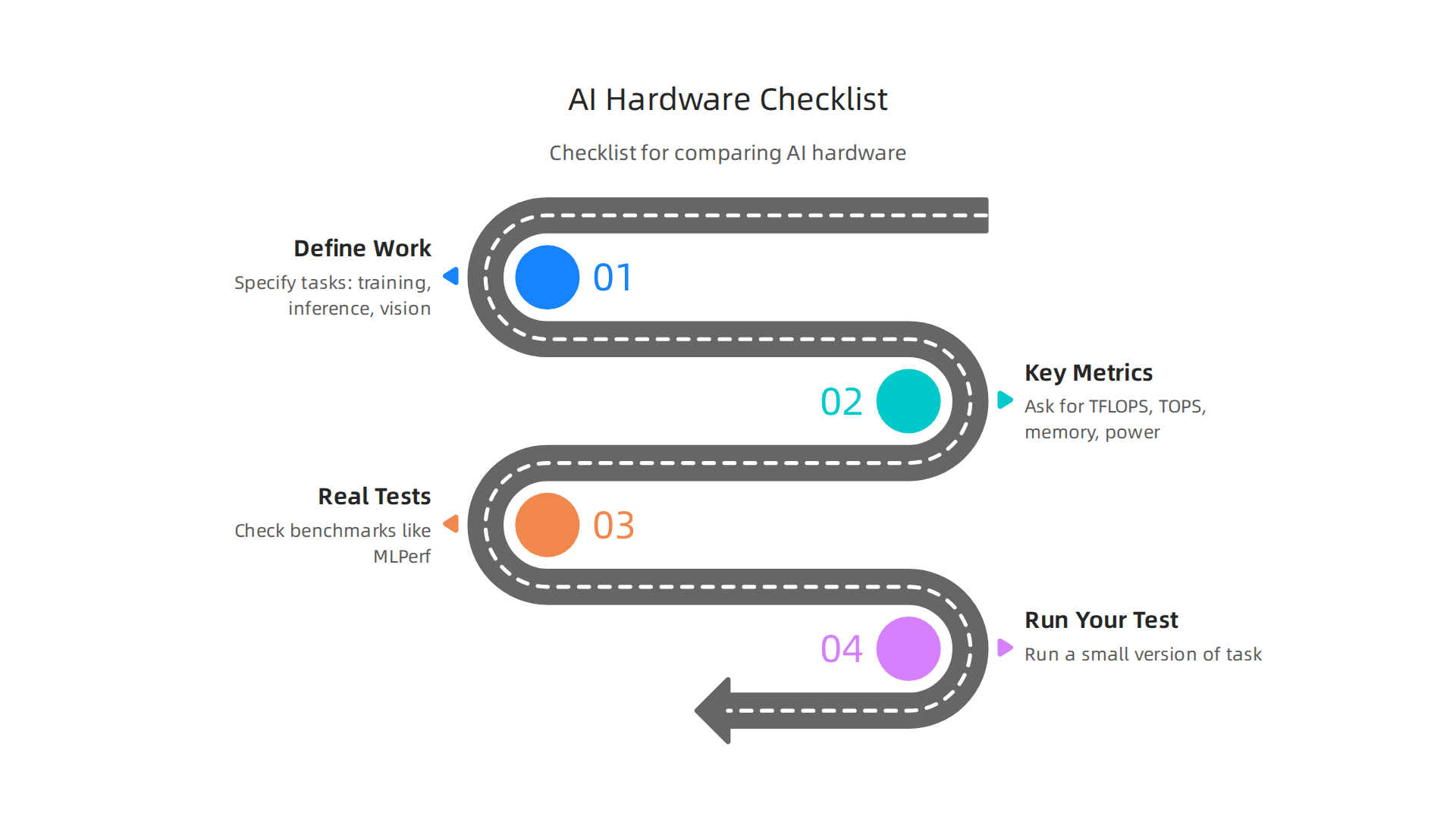
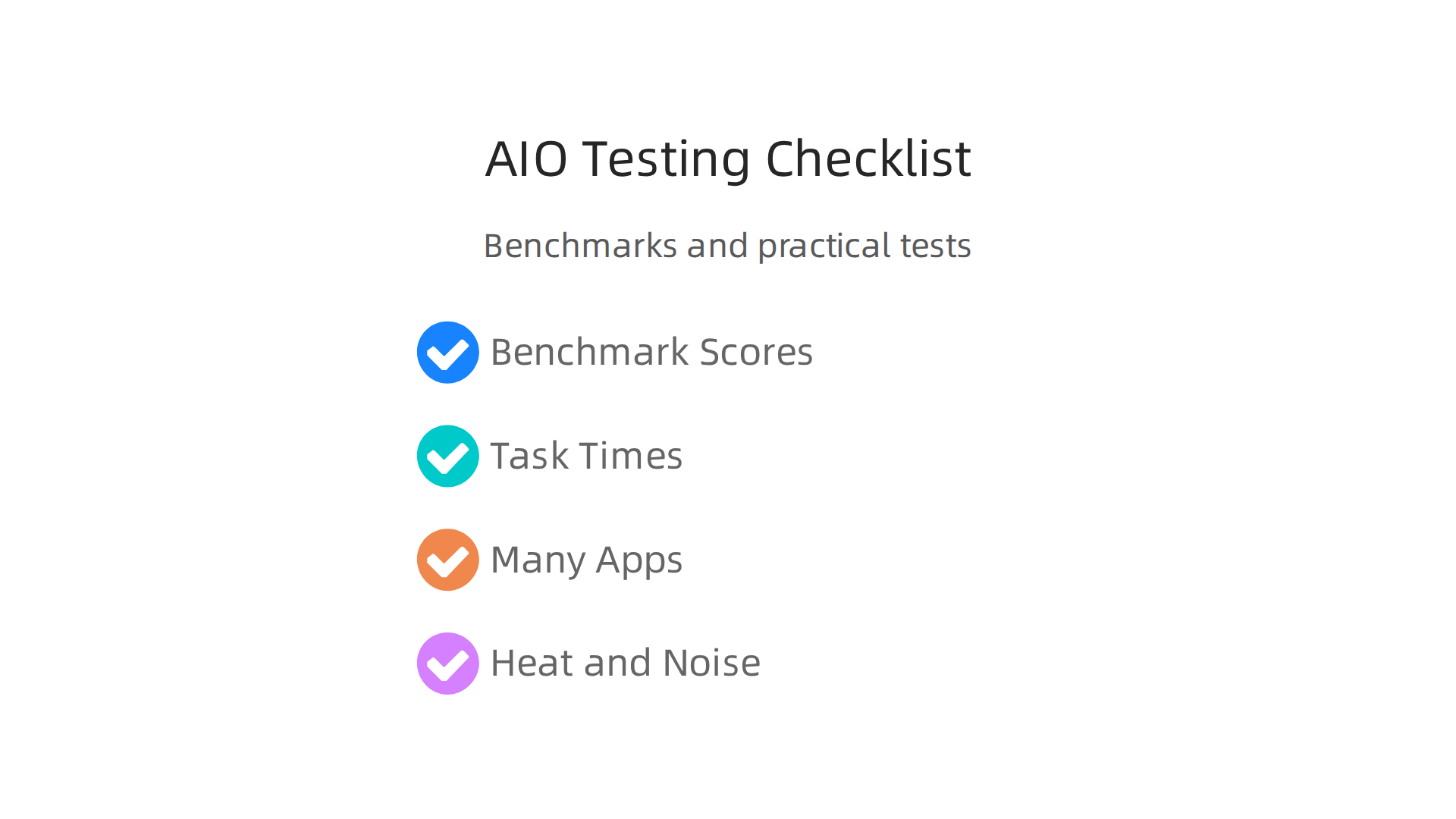
    Here’s a simple checklist to help you compare AI hardware:

    1. Define Your Work: What specific AI tasks will you run? Training, inference, LLMs, vision, or something else?
    2. Look at Key Numbers: Ask vendors for metrics like TFLOPS (how many math operations per second) for training and TOPS (for inference), memory size, and how much power it uses.
    3. Check for Real-World Tests: Are there independent tests or standard benchmarks like MLPerf that show how the hardware performs with real AI applications?
    4. Do Your Own Test: If you can, try running a small version of your AI task on the hardware.

    A clear checklist outlining practical steps for businesses to evaluate and select the right AI hardware.

    This helps you see how it really works for your needs. A good way to do this is to run the same task many times and see how consistent the results are Cloud to Edge: Benchmarking LLM Inference on Hardware ….

    By doing these checks, you can make a smarter choice for your AI hardware. If you’re looking for help deciding which computers are best for AI, learn more about how to choose the right AI-ready business computers in 2026. This careful planning helps you get the most value for your money.

    Choosing the right AI hardware is more than just looking at how fast it runs or its price tag. You also need to think about how well it will fit into your current systems, how you will use it every day, and its full cost over time. This is called the total cost of ownership.

    Integration, Deployment, and Total Cost of Ownership

    Getting new AI hardware to work properly means more than just plugging it in. You have to think about how it talks to your existing software. This involves things like software stacks, which are all the programs that make your AI work, and drivers, which help the hardware and software communicate. It also includes orchestration, which is like directing all the different parts of your AI system to work together smoothly. If these parts don’t play well, it can cause big headaches. Many computer companies offer tools and support to help with this, but it’s important to ask them about it upfront.

    Also, consider the ecosystem around the hardware. Does it have good support from other developers? Are there many tools that work with it? This maturity of the ecosystem can make a huge difference in how easy it is to use and manage your AI systems. Big tech companies often have wide support for their hardware, but you should still check.

    The price you pay for hardware is just the start. The true cost, or Total Cost of Ownership (TCO), includes many hidden fees. For example, AI hardware can use a lot of power. This means higher electricity bills. It also gets hot, so you might need special cooling systems, which also cost money to buy and run. Don’t forget software licensing fees, which you pay to use the programs that run on your AI hardware. And you’ll need people to set up, manage, and fix these systems, which adds to staff costs. All these things add up over time. Knowing the full picture helps you make smarter choices about which solutions truly save you money. The global semiconductor industry, which makes these chips, is always changing, with updates to supply chains and new reports coming out in 2026 that can affect prices and availability Global Semiconductor Industry Outlook – GSA.

    How you put your AI hardware to use is also key. This is called deployment. There are a few main ways:

    • Edge Deployment: This means putting AI hardware right where the work happens. For example, a smart camera at a factory that checks products instantly. This is great for speed and privacy. Many IoT companies use this method. Sometimes a powerful best mini PC can handle edge AI tasks.
    • Cloud Deployment: This is when you use AI power from big data centers over the internet, like from Google or Amazon. It’s flexible and you only pay for what you use, but it needs a good internet connection.
    • Hybrid and Cloud-Bursting: This mixes the two. You might do most AI work locally, but send big, tough jobs to the cloud when you need extra power. This gives you the best of both worlds.

    Thinking about these different ways of deploying AI helps you choose hardware that fits your business needs, not just today, but in the future too. To learn more about getting your AI systems ready, you might want to explore how to build and optimize your AI workstation for peak performance 2026.

    Keeping up with the fast-changing world of AI and tech can be hard.
    The Deep View Newsletter makes it easy, delivering clear daily AI updates right to your inbox. Stay informed without the info overload.
    The AI Newsletter Worth Reading

    Keeping up with the fast-changing world of AI and tech can be hard, especially when you’re trying to figure out the best way to buy new tools. For small and medium-sized businesses (SMBs) and internal teams, making smart choices about AI hardware needs a clear plan.

    Buying Guidance for SMBs and Teams: Practical Steps and Checklists

    When your team or small business thinks about getting new AI tools, it’s easy to feel lost with all the options. You want solutions that fit your budget and don’t need a tech expert to set up every time. That’s why having a simple guide can make a big difference.
    Staying informed without feeling overwhelmed is key.
    The AI Newsletter Worth Reading delivers clear, daily updates right to your inbox.

    One of the first big decisions is whether to use cloud services, buy your own hardware (on-premise), or mix both. Think of it this way:

    • Cloud capacity is like renting computing power. It’s great if your AI work changes a lot or if you only need extra power sometimes. You pay for what you use, and you don’t have to worry about maintaining the hardware. This can be very cost-effective for tasks that come and go.
    • On-premise hardware means buying and owning the AI computers yourself. This often makes sense if your AI work is constant and heavy. While the upfront cost is higher, it can be cheaper in the long run if your systems are used almost all the time. Actually, for tasks that are used a lot, having your own hardware can pay for itself quickly, sometimes in less than four months according to a 2026 report comparing on-premise versus cloud costs for generative AI On-Premise vs Cloud: Generative AI Total Cost of Ownership (2026 Edition).
    • Hybrid approaches blend these two. You might handle most tasks on your own computers but send very big jobs to the cloud when needed. This gives you flexibility and control.

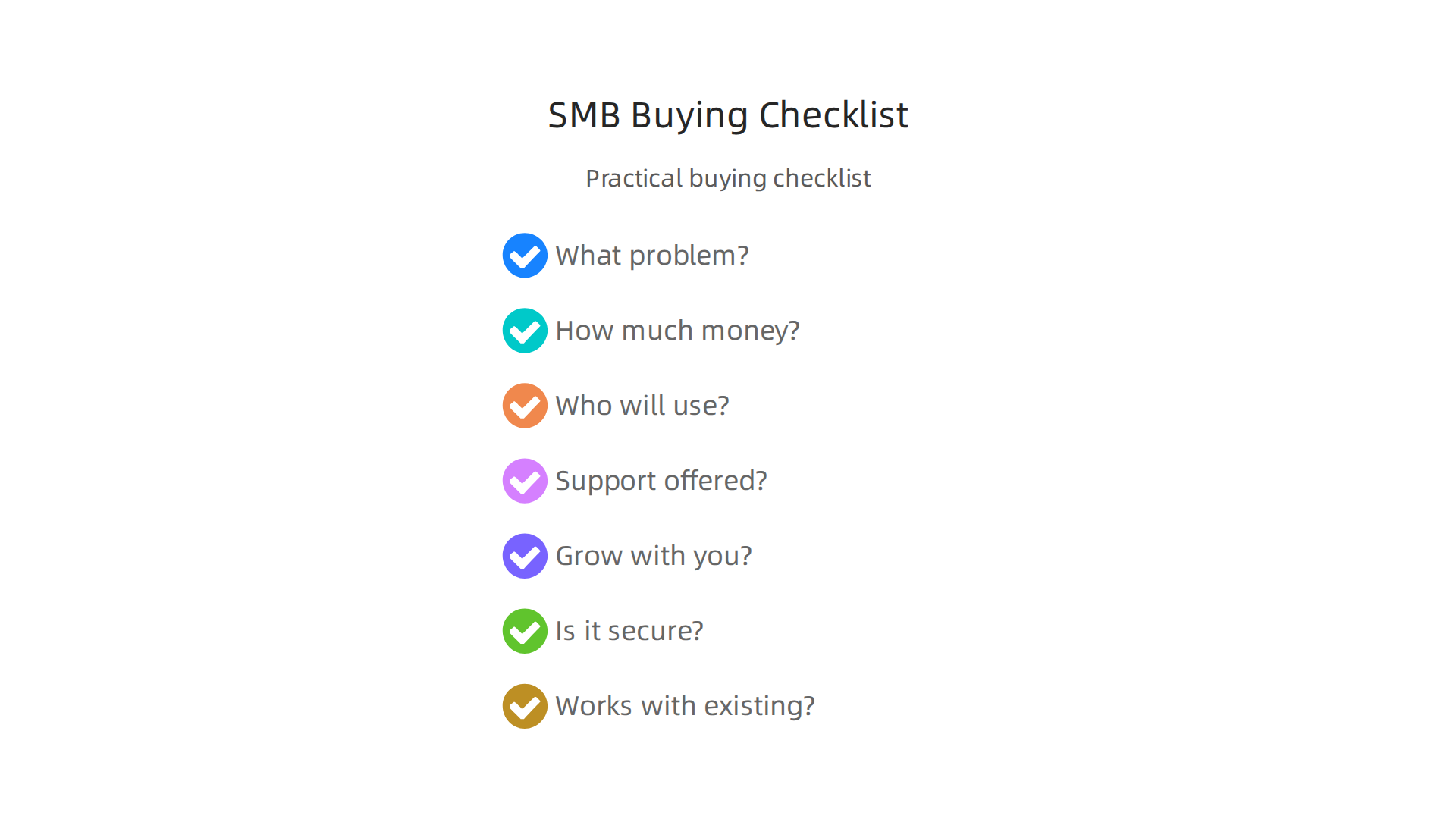
    To make sure you pick the right tools, here’s a simple checklist:

    • What problem are you solving? Clearly know what you want AI to do for your business.
    • How much money do you have? Set a clear budget for buying and running the AI tools.
    • Who will use it? Make sure the tools are easy enough for your team.
    • What kind of support is offered? Good help from the computer companies who sell the hardware is important for small teams.
    • Can it grow with you? Pick solutions that can handle more work as your business gets bigger.
    • Is it secure? Protect your important information.
    • Does it work with what you already have? New AI tools should fit smoothly into your existing setup.

    A practical checklist designed to guide small and medium-sized businesses in making informed AI hardware purchasing decisions.

    To reduce risks, start small. Try a pilot program with a few users before rolling it out to everyone. Then, do a phased rollout, which means slowly bringing in the new AI tools step by step. Also, always check vendor service level agreements (SLAs). These are like promises from the computer companies about how well their systems will work and the support they will give. Looking at how other successful AI companies make these decisions can also give you ideas. These steps help make sure your new AI tools really help your business grow without too much trouble.

    Summary

    This article explains why specialized AI hardware is a critical strategic issue for computer companies and business leaders in 2026, describing rapid market growth and the rise of purpose‑built chips across cloud, edge, and endpoint devices. It covers major trends—cloud‑first buys versus on‑premises control, custom ASICs from big tech, and a diverse landscape of GPUs, TPUs, NPUs and other accelerators—and why those choices affect performance, cost and sustainability. The guide walks through real operational concerns: supply‑chain strain, energy and cooling costs, vendor roadmaps, and how to read benchmarks and workload fit for training, inference and LLMs. It also explains total cost of ownership, integration challenges, and deployment models (edge, cloud, hybrid), and gives practical buying and pilot steps for SMBs and teams. After reading, leaders will know which questions to ask vendors, how to benchmark hardware for their workloads, and how to build a phased, cost‑aware AI hardware plan that limits risk and scales over time.

  • Choose the Best Prebuilt Gaming PCs for AI Work in 2026

    Choose the Best Prebuilt Gaming PCs for AI Work in 2026

    Why prebuilt gaming PCs are an attractive choice for AI work

    Many people think of big, fancy machines when they hear "AI work." But actually, the powerful computers gamers use are often perfect for doing smart AI tasks. This is because both gaming and artificial intelligence (AI) need very strong graphics cards, also known as GPUs, and lots of fast memory. These parts make up the core of any good desktop gaming PC and are exactly what AI programs use to learn and process information quickly. For example, a good gaming PC can run AI models that help make images or fine-tune bigger programs, making it a great choice for local AI tasks in 2026, as noted by experts
    in guides like the Best PC Builds for Local AI.

    Picking the right computer for AI can feel like a tough maze.

    Navigating complex choices requires careful thought and clear direction, much like selecting an AI-ready PC.

    There are so many choices for gaming equipment, and each one has lots of confusing details. You might wonder which brand, like a CyberPowerPC gaming PC or another popular maker, offers the best value. It’s hard to know if you’re spending your money wisely for AI jobs. Many buyers feel lost among all the different computer parts and prices, making it tricky to see if their investment will really pay off for their AI projects. That’s why many people look for a guide to the best prebuilt gaming pc company that fits their needs.

    This guide is here to help you solve those problems. We’ll make it easy to understand how gaming PCs can power your AI work. You will learn about the top companies that make these prebuilt computers and which models are best for different AI tasks. This way, you can choose a powerful computer without getting caught up in all the complicated tech talk. If you want to dive deeper into how different computers can serve your AI needs, check out our guide on how to choose AI-ready business computers in 2026.

    Stay informed about the latest breakthroughs in AI and technology to ensure your choices are always the smartest ones.
    The AI Newsletter Worth Reading

    How Gaming PC Hardware Maps to AI Workloads

    To really understand why gaming computers are great for AI, we need to look at their inner parts. The way a gaming computer is built helps it handle the tough jobs AI needs to do. It’s all about how the parts work together.

    The Power of the Graphics Card (GPU) for AI

    The most important part for AI work in any computer, especially a gaming one, is the graphics card, or GPU. Think of the GPU as a super-fast math wizard. While a regular computer brain (CPU) is good at doing one big math problem at a time, a GPU can do thousands of smaller math problems all at once. This is called "GPU compute," and it’s exactly what AI models need to learn and run quickly.

    A key part of the GPU is its own memory, called VRAM (Video Random Access Memory). This is like a special workspace for the GPU. The more VRAM a GPU has, the bigger and more complex AI models it can hold and work on at one time. For example, in 2026, a gaming GPU like the NVIDIA RTX 5090 can have 32 GB of VRAM, which is very helpful for AI tasks, as noted in comparisons of GPUs for AI in 2026. Some cards, like the RTX 4090, have 24 GB of VRAM, making them strong choices for many AI tasks too, according to a GPU Comparison: Data Centre report.

    Balancing the Brain (CPU) and Fast Storage

    While the GPU does most of the heavy lifting for AI, the computer’s main brain, the CPU, is still important. It helps get the data ready for the GPU and handles all the other tasks the AI isn’t doing. You need a good balance so your CPU doesn’t slow down your powerful GPU. Also, very fast storage, like NVMe drives, is key. These drives can feed data to the GPU super quickly, which is important when an AI is learning from huge amounts of information. Experts say that for a serious AI setup, you should have about twice as much regular system RAM as your GPU’s VRAM to avoid slowdowns, a detail discussed in a guide about CPU, RAM and Storage for AI Workstations.

    Gaming GPUs: Good Enough for Many AI Jobs?

    Actually, many gaming GPUs are surprisingly good for many entry-to-mid-level AI jobs.
    They are excellent for:

    • AI Inference: This means using an AI model that has already learned. For example, making AI images, using smart chatbots, or making videos. Gaming GPUs can do this quickly. The NVIDIA RTX 5090, for example, offers big gains for AI inference, as shown in the Ultimate 2026 GPU Showdown.
    • Fine-tuning Smaller Models: This is when you take an existing AI model and teach it a few new things with your own data. This doesn’t always need the biggest, most expensive hardware.

    However, gaming GPUs do have some downsides compared to special AI hardware. They usually have less VRAM than the big, professional AI cards, and they might not be designed to run at full power for weeks on end without a break. Still, for a lot of people just starting with AI or doing local projects, a good desktop gaming PC offers great performance for the cost.

    Consumer Gaming GPUs vs. Enterprise AI Hardware

    Here’s the main difference:

    • Consumer Gaming GPUs: These are what you find in a CyberPowerPC gaming PC or other prebuilt gaming computers. They are made for great graphics and fast gameplay. They are very powerful for their price and good for many AI tasks like inference and smaller training jobs.
    • Enterprise/Accelerator Hardware: These are special GPUs made just for huge AI training tasks in big data centers. Cards like NVIDIA’s H100 or the newer Blackwell B200 have much, much more VRAM (often over 100 GB) and are built to run nonstop. They are incredibly fast for training massive AI models and are the "baseline for production inference in 2026," according to reports like Best GPU for AI Inference in 2026. But they also cost many thousands of dollars, far more than any gaming equipment. For most people, a gaming PC is a much more practical and affordable way to get started with powerful AI work. If you’re looking to get the most out of your computer for AI, you might want to learn how to build and optimize your AI workstation for peak performance 2026.

    After learning how powerful gaming PCs are for AI, your next step is to figure out which company makes the right one for you. Many brands offer prebuilt gaming PCs that can handle AI tasks well. Finding the best prebuilt gaming PC company means looking at their specific offerings.

    Top prebuilt gaming PC companies and how they position for AI workloads

    When you shop for a desktop gaming PC that’s good for AI, you’ll see a few big names. Companies like CyberPowerPC, iBUYPOWER, Corsair, and NZXT are popular choices. Each offers different computer setups, usually grouped into entry-level, mid-range, and enthusiast tiers.

    For AI work, these tiers often map to different levels of power:

    • Entry-Level AI PCs ($1,200-$1,800) are good for running AI models that are already trained, like making AI images or using smart chatbots. You might find models like the Corsair Vengeance a7500 here, which can be a budget-friendly option for getting started with AI, as noted in expert reviews from 2026.
    • Mid-Range AI PCs ($1,800-$2,800) give you more power to fine-tune smaller AI models or run bigger ones more smoothly. This is a sweet spot for many people just diving into local AI projects.
    • Enthusiast AI PCs (often above $3,000) offer top-tier GPUs and components for more demanding AI training or running very large models. These systems are powerful and can cost more. For serious AI work, you might want to consider the pricing tiers for local AI workstations that can range up to $8,000 for professional needs, as suggested in guides for building an AI workstation.

    What to look for in prebuilt PC offerings

    When choosing a prebuilt PC, especially for AI, here are some key things to check from the manufacturer:

    • Official GPU Options: Make sure the company offers the latest NVIDIA RTX GPUs (like the RTX 4070, 4080, or 50-series) with plenty of VRAM. The GPU is the most important part for AI.
    • Upgradability: Can you easily swap out parts later? Many prebuilt PCs use standard parts, which makes upgrading easier. But some might have special parts or cases that limit what you can change. Standard ATX parts make upgrades smoother, while small cases or unique designs might be harder to improve later on, according to a Gaming PC Buying Guide 2026.
    • Warranty Terms and Support: This is super important. Most prebuilt gaming PCs come with a 1-year warranty for parts and labor, but some premium brands offer longer coverage, up to three years or even lifetime for parts and labor in some cases, as detailed by XOTIC PC on their warranty policies. A good warranty means less worry if something goes wrong, especially when you’re pushing your computer with heavy AI workloads. Look for companies that offer clear support and warranty terms that cover the entire system, not just individual parts, which can save you a lot of hassle.
    • Support for Heavy Compute Use: AI tasks run your computer hard. Good companies will use strong power supplies and effective cooling systems to keep the computer from getting too hot or failing. Cheap builds sometimes skimp on these parts, leading to problems when running AI for long hours.

    How companies make their PCs different

    Companies try to stand out from each other in a few ways:

    • Thermal Design: How well does the PC stay cool? AI work generates a lot of heat, so good fans, large heatsinks, and even liquid cooling can make a big difference. Better cooling means the computer can run faster for longer without slowing down.
    • Power Supply Sizing: A powerful GPU needs a strong power supply. Companies that put in larger, more reliable power supplies are better for AI workloads.
    • Noise vs. Performance Tuning: Some companies try to make their PCs very quiet, which might mean slightly lower performance. Others focus on maximum performance, even if it means a bit more fan noise. For AI, you often want performance first.
    • Bundled Software: Some PCs come with special software for tuning or monitoring. While not directly for AI, it can help manage your system.

    Choosing the right prebuilt gaming PC means carefully checking these details to make sure the computer can meet the demands of AI tasks. If you are looking for even more ways to stay updated on AI trends, consider subscribing.

    Get clear daily AI updates from The AI Newsletter Worth Reading.

    When looking at a desktop gaming PC for AI, you need to think about the parts inside. The main parts are the graphics card (GPU), the main processor (CPU), memory (RAM), and storage. These parts work together to handle tough AI jobs.

    Key components: choosing GPUs, CPUs, RAM, and storage for ML workloads

    Getting the right parts is like choosing the best tools for a job. For AI, some tools are more important than others.

    The GPU is the star for AI

    The Graphics Processing Unit, or GPU, is the most important piece of gaming equipment for AI tasks. Think of it as the brain for AI. It has many small cores that can do lots of math at the same time. This is perfect for teaching AI models.

    Here’s what to look for in a GPU:

    • VRAM (Video Random Access Memory): This is super important. VRAM is like the GPU’s short-term memory. AI models, especially big ones, need a lot of VRAM to store information they are working on. The more VRAM your GPU has, the bigger and more complex AI models you can run. For example, in 2026, NVIDIA’s RTX 5090 comes with 32GB of VRAM, while the RTX 5080 has 16GB, and even budget-friendly cards like the Arc B580 offer 12GB of VRAM, according to a July 2026 GPU market report. For serious machine learning, GPUs with 24GB or more are often recommended, especially for large models or training tasks, as highlighted in guides for the best GPUs for machine learning.
    • Tensor Cores and RT Cores: Many modern GPUs, especially NVIDIA’s RTX series, have special cores. Tensor cores help speed up AI math, while RT cores are for ray tracing in games, but can sometimes help with specific AI tasks too. For the best prebuilt gaming PC company offerings, make sure they list GPUs with these features if you want top AI performance.
    • Single vs. Multi-GPU: Most prebuilt systems come with one strong GPU. For many AI users, one powerful GPU like an RTX 4090 or upcoming RTX 5090 is enough. If you get into very advanced AI training, you might need more than one GPU. However, setting up multiple GPUs in a prebuilt system can be tricky and costly, and it often requires special software setups.
    • NVIDIA vs. AMD: NVIDIA GPUs with CUDA software are still the most popular choice for AI. But AMD has been catching up with its ROCm platform. In 2026, AMD ROCm officially supports consumer Radeon GPUs, meaning you can now run AI frameworks like PyTorch on certain AMD cards, making them a good alternative, as discussed in a ROCm vs CUDA comparison.

    CPU and RAM: the helpers

    While the GPU does the heavy lifting for AI math, the CPU and RAM play important supporting roles.

    • CPU (Central Processing Unit): The CPU is the general brain of your computer. For AI, it handles tasks like loading data, setting up the AI programs, and sending work to the GPU. A strong CPU helps keep the data flowing to your GPU smoothly, so it doesn’t sit idle. For a serious AI build in 2026, a CPU like the Core Ultra 9 285K is recommended, according to a guide on CPU, RAM and storage for AI workstations.
    • RAM (Random Access Memory): RAM is your computer’s short-term memory. It holds the data and programs that your CPU is actively using. For AI, it’s good to have enough RAM to feed large datasets to your GPU. A general rule of thumb is to have at least twice as much system RAM as your GPU’s VRAM. So, if your GPU has 24GB VRAM, aim for 48GB or 64GB of RAM. Many sources suggest 64GB of RAM as a good starting point for AI workloads in 2026.

    Storage and I/O: quick access to your data

    AI models and the data they use can be very large. Fast storage is key so your computer doesn’t waste time waiting for data to load.

    • NVMe SSDs: These are the fastest types of storage drives. They plug directly into your motherboard and are much quicker than older SATA SSDs or traditional hard drives. For AI, NVMe is best because it can load big datasets very fast, which saves time when training or running models. Look for a cyberpowerpc gaming pc or any other prebuilt system with an NVMe SSD for your main drive.
    • Capacity: You’ll need plenty of space for your operating system, programs, and all your AI datasets and models. A 1TB or 2TB NVMe SSD is a good starting point for most AI users. If you work with very large amounts of data, you might consider having a smaller, super-fast NVMe for programs and active projects, plus a larger, slightly slower SATA SSD or even a hard drive for storing less-used data.

    Choosing these key components wisely will help ensure your new best prebuilt gaming pc company system is ready for all your AI adventures. If you want to dive deeper into building a custom system that’s truly optimized, check out our guide on how to build and optimize your AI workstation for peak performance 2026.

    Staying on top of the latest AI hardware and software trends is crucial in 2026. For regular updates, you might enjoy subscribing to The AI Newsletter Worth Reading.

    Choosing the right parts for your AI-ready desktop gaming PC is just the start. How well those parts work together, especially when pushed hard, makes a big difference. This means looking at how the computer stays cool, how it gets power, and if it’s built to last.

    Thermals, power delivery, and reliability: what matters in sustained AI use

    When you make your computer do tough AI work, like teaching an AI model or running many AI tasks at once, it uses a lot of power. This creates a lot of heat.

    Keeping cool: why good cooling matters for AI

    If your computer parts, especially the GPU and CPU, get too hot, they will slow down. This is called "thermal throttling." Think of it like a car engine that gets too hot and has to go slower to avoid breaking down. For AI tasks that can run for hours, this slowing down means your work takes much longer. Data shows that keeping temperatures in check is key for steady performance during AI workloads, as highlighted in "Iv Evaluation" research from 2026 where peak temperatures directly relate to performance stability Iv Evaluation.

    A good best prebuilt gaming pc company will make sure their computers have strong cooling systems. This includes:

    • Good airflow: Fans placed correctly to pull cool air in and push hot air out.
    • Big heatsinks: Metal parts with fins that help move heat away from the CPU and GPU.
    • Liquid cooling: Some high-end systems use a liquid system to carry heat away, which can be even better than just fans.

    Without good cooling, your expensive gaming equipment won’t be able to work at its best for AI.

    Powering your AI machine: the importance of a strong PSU

    The Power Supply Unit (PSU) is like the heart of your computer. It gives power to all the parts. AI-focused systems, especially with powerful GPUs, need a lot of stable power.

    Here’s what to look for:

    • Enough wattage: The PSU must have enough "watts" to power everything. For a high-end desktop gaming pc in 2026 with a flagship GPU, you’ll often need a PSU between 850 watts and 1000 watts, just for the computer, as discussed in a Gaming & Workstation PSU Guide 2026. For AI, more is usually better to ensure steady power even when all parts are working hard.
    • Quality and efficiency: Look for PSUs with "80 PLUS" ratings (like Bronze, Gold, Platinum). This rating tells you how efficiently the PSU turns wall power into computer power, wasting less energy as heat. A more efficient PSU is usually a sign of better quality and can save you money on electricity over time. Choosing a quality PSU with good efficiency is important for avoiding power problems in AI builds, according to an AI Power Supply Sizing & Reliability Guide for GPU Rigs (2026).

    A reliable PSU means your computer gets clean, steady power, which is important for the health and long life of all your parts, especially when running demanding AI programs.

    Built to last: reliability and support

    Running AI tasks can put a lot of stress on a computer over time. This is why reliability matters.

    • Component longevity: A good cyberpowerpc gaming pc should use high-quality parts that can handle constant heavy use without breaking down quickly.
    • Warranties and support: Even the best computers can have issues. A good warranty and helpful customer support from the company can save you a lot of trouble and money if something goes wrong.

    When choosing an AI-ready computer, think about how it will perform not just today, but months or years from now. Picking a system that is well-cooled, has a strong power supply, and comes with good support is a smart choice for any serious AI user.

    Achieving consistent, reliable performance from a powerful system brings confidence and satisfaction.

    If you are exploring different systems for your business, consider reading our guide on how to choose AI-ready business computers to make informed decisions.

    After picking out the best parts for your AI-ready computer, you also need to think about the software. Even the most powerful hardware can’t do much without the right programs and tools to make it work. This is especially true for AI tasks.

    Software, drivers, and ML framework compatibility

    When you want to run AI programs, your computer needs special software. This includes drivers, which help your graphics card (GPU) talk to the rest of the system. It also means having the right AI frameworks, like TensorFlow or PyTorch, that actually do the AI work.

    The GPU language: CUDA and ROCm

    Graphics cards from NVIDIA and AMD use different "languages" for AI.

    • NVIDIA uses CUDA: This is very popular and has been around for a long time. Most AI tools are made to work well with CUDA right out of the box. If you have an NVIDIA GPU in your desktop gaming pc, you will use CUDA drivers. As of 2026, CUDA is still the main choice for many AI developers State of PyTorch Hardware Acceleration: May 2026.
    • AMD uses ROCm: This is AMD’s answer to CUDA. For a long time, ROCm mostly worked with AMD’s expensive data center GPUs. But in 2026, things changed! AMD ROCm now officially works with some of their regular gaming GPUs, like the Radeon RX 9070 XT and RX 7700 series AMD ROCm Radeon RX 9070 XT: CUDA Alternative at $599. This is good news if you have an AMD card in your gaming equipment and want to do AI work.

    So, when picking a best prebuilt gaming pc company, think about which type of GPU it has and if you want to use CUDA or ROCm. Both systems let you do AI work, but one might be easier to set up depending on your GPU.

    Making AI frameworks work

    Once you have your GPU drivers, you need the AI frameworks. The most common ones are PyTorch and TensorFlow.

    • PyTorch and TensorFlow with CUDA: If you have an NVIDIA GPU, getting these frameworks to work is usually straightforward. They have official versions that support CUDA very well.
    • PyTorch and TensorFlow with ROCm: For AMD users, ROCm’s support for PyTorch and TensorFlow has gotten much better in 2026. PyTorch now has official support for ROCm on Linux, and even preview versions for Windows AMD ROCm on Consumer GPUs: The Open-Source CUDA …. TensorFlow also works, though PyTorch often gets more attention.

    You need to match the right versions of these frameworks with your specific CUDA or ROCm driver. For example, in 2026, the current stable PyTorch needs CUDA 12.8 or ROCm 7.0 for the newest features NVIDIA Toolkit, AMD ROCm, and AI Framework Releases (2026).

    A quick checklist for your AI software setup

    When you get a new cyberpowerpc gaming pc or any prebuilt system for AI, keep these things in mind:

    • Operating System (OS): Many AI tools work best on Linux. If your computer comes with Windows, you might need to install Linux alongside it or instead of it.
    • Driver Versions: Don’t just install the newest drivers. Sometimes, older but specific driver versions work better with your AI frameworks. Always check the framework’s website for recommended driver versions.
    • GPU Firmware: Make sure your GPU’s internal software (firmware) is up-to-date. This can sometimes fix issues before they start.
    • Installer Problems: Setting up AI software can be tricky. You might run into problems like missing parts (dependencies) or conflicts with other software. Take your time and follow guides carefully.

    How computer makers help with AI

    Some computer companies understand that people want to do AI work. A good best prebuilt gaming pc company might:

    • Bundle Drivers: They may pre-install the correct GPU drivers and even some AI tools for you.
    • Factory Images: They might offer a special version of the operating system with all the AI software already set up. This can save you a lot of time.
    • Support: For bigger businesses, some vendors offer special support for AI workflows.

    Taking care of your software is just as important as having great hardware for your AI projects. For more insights on leveraging AI for business, you might want to explore our Smart AI for Business Your 2026 Guide to Successful Adoption.

    Staying updated on the latest AI trends and tools can feel like a full-time job. To make it easier, consider subscribing to The AI Newsletter Worth Reading for clear daily updates on AI and technology.

    Now that you know how important the right software is for your AI computer, let’s talk about money. Buying a computer for AI is a big choice. You need to think about the full cost, what kind of promise (warranty) you get, and if you can make it better later on. This is called "value."

    Value considerations: pricing, warranties, upgrade paths, and ROI

    When you pick a computer for AI, especially a desktop gaming pc that will also run AI, it’s not just about the sticker price. You have to consider the total cost over time. This includes the initial price, power bills, and possible upgrades.

    Total cost: prebuilt vs. custom vs. cloud

    You have a few ways to get a powerful AI computer:

    • Prebuilt Gaming PC: This is a computer already put together by a company. It’s often ready to go right out of the box, saving you time. For many, a prebuilt gaming PC is worth it, especially if you want a machine backed by a warranty and ready to use immediately Are Prebuilt Gaming PCs Worth It? – XOTIC PC. These can be great for both gaming and AI tasks.
    • Custom-Built PC: You buy all the parts and put them together yourself. This can sometimes save you money on parts and gives you full control over what goes inside. If you want maximum freedom to upgrade later, building your own can be a good choice, but it takes more effort Build vs Buy 2026: Prebuilt PC Decision Guide – gamings.store.
    • Cloud Services: Instead of buying a physical computer, you can rent computer power online. This is good if you only need AI power once in a while. You pay only for what you use, so there’s no big upfront cost. However, if you run AI tasks all the time, cloud costs can add up quickly, sometimes becoming more expensive than owning your own machine.

    For light or on-and-off AI work, a powerful gaming equipment setup or even cloud options might be best. For constant AI work, owning a best prebuilt gaming pc company system might save you money in the long run.

    Warranties and future upgrades

    One big advantage of a prebuilt computer from a cyberpowerpc gaming pc or another top brand is the warranty.

    • Prebuilt Warranties: Most prebuilt gaming PCs come with a warranty that covers the whole system, usually for one to three years for both parts and labor Gaming PC Buying Guide 2026 — Prebuilt vs Custom Build. This means if something goes wrong, you only have one company to call. Some companies like Gorilla Gaming offer longer plans, up to three years Warranty & Support | 3 Year Premium ….
    • Custom Build Warranties: If you build your own PC, each part has its own warranty. This means you might deal with many different companies if something breaks.

    Upgrade Paths: Most modern prebuilt gaming PCs let you upgrade parts like the graphics card (GPU), RAM, or storage drives. However, some cheaper prebuilt systems might use parts that are harder to swap out later. It is wise to check if your chosen best prebuilt gaming pc company uses standard parts, which makes upgrading easier. You can find more details in a Prebuilt Gaming PCs: The Ultimate Buyer’s Guide 2026 Edition.

    Estimating your return on investment (ROI)

    Thinking about ROI for your AI PC means figuring out if the computer will save you money or make you more productive.

    Careful financial planning and consideration of return on investment are key for major technology purchases.

    • Workload Hours: How much time will your AI tasks run? If it’s many hours a day, a powerful local machine is usually a good investment. If it’s just a few hours a week, cloud services might be smarter.
    • Software Costs: Factor in any special AI software you need to buy or subscribe to.
    • Productivity Gains: How much faster will you finish tasks with your AI PC? Will it let you do new things you couldn’t before? For example, faster AI model training means you can test more ideas or get results sooner. This speed can lead to real business benefits.

    By looking at these points, you can decide if buying a high-performance AI gaming equipment setup is worth it for your specific needs. Understanding the balance between upfront costs, ongoing power usage, and the benefits of faster AI processing is key to making a smart choice. Power supply sizing for AI GPU rigs, for example, is critical for reliability and performance AI Power Supply Sizing & Reliability Guide for GPU Rigs (2026).

    Choosing the right computer for AI can feel like a big puzzle. Now that you understand the money side of things, let’s look at how to pick a prebuilt gaming PC that works well for your AI tasks. We will give you some ideas for different budgets and what kinds of AI work they are good for.

    How to pick the right prebuilt gaming PC: sample configs by budget and use case

    Getting a desktop gaming PC for AI means finding a balance between power and cost. Here are some examples of what you might look for, depending on how much you want to spend and what you want to do with AI in 2026.

    Sample AI PC setups by budget

    1. Entry-Level AI PC: Around $1,200 to $1,800

      • Best for: Trying out AI. Good for tasks like "inference," which means running already made AI models. Think simple image creation or playing with small language models (like Llama 3/4 with 8-13 billion parts).
      • What to look for: A graphics card (GPU) like the NVIDIA RTX 4060 Ti with 16 GB of memory is a solid choice in this range Gpu Comparison: Data Centre. You will also want at least 16 GB of main computer memory (RAM) and a fast 1 TB storage drive. This setup is great for beginners to get started with local AI tasks Best Budget AI Workstations 2026.
      • Example Model: Some brands like iBUYPOWER offer models that fit this tier, such as the TraceMR 274i.
    2. Mid-Range AI PC: Around $1,800 to $2,800

      • Best for: More serious AI work. This budget lets you do "fine-tuning" on smaller AI models (teaching them new things with your own data) and run bigger models (30-70 billion parts) more smoothly.
      • What to look for: A more powerful GPU, such as an RTX 4070 Ti Super or RTX 4080 Super, offers better performance for AI tasks Best GPU for AI and Machine Learning 2026. Aim for 32 GB of RAM and a 2 TB fast storage drive. This level provides a good balance of cost and power. For tips on setting up, check out our guide on how to Build and Optimize Your AI Workstation for Peak Performance 2026.
      • Example Model: The NZXT BLD Starter Plus with an RTX 4070 Super is a great example of a computer in this range Best Prebuilt Gaming Desktops in 2026.
    3. High-End AI PC: $4,500 and Up

      • Best for: Professionals and researchers. This is for training large AI models from scratch, running multiple experiments at once, or needing the fastest results possible.
      • What to look for: A top-tier GPU like the NVIDIA RTX 4090 or the newer RTX 5090 (if available, offering big performance gains) The Ultimate 2026 GPU Showdown. You will want at least 64 GB of RAM and a very fast, large 2 TB or 4 TB storage drive. These setups are built for heavy tasks. You can also explore options with GPUs like the H100 SXM, which is a standard for production AI inference in 2026 Best GPU for AI Inference in 2026.
      • Example Model: The Corsair Vengeance a7500 with an RTX 5070 Ti and 32GB DDR5 RAM is a strong contender for local AI builds Best PC Builds for Local AI.

    Decision checklist: when to buy a prebuilt, customize, or use the cloud

    Deciding how to get your AI computer depends on what matters most to you:

    • Choose a prebuilt gaming PC if:
      • You want something ready to go right away.
      • You value a single warranty for the whole system.
      • You are new to building computers or don’t have much time.
      • You prefer dealing with one company like a specific best prebuilt gaming pc company for support.
    • Think about building your own PC if:
      • You want full control over every single part.
      • You enjoy the process of putting a computer together.
      • You want to save a little money by picking sales on individual parts.
    • Consider cloud services or a hybrid approach if:
      • You only need powerful AI computing now and then.
      • Your AI projects are very big and need many GPUs, which would be too costly to buy.
      • You want to avoid a large upfront cost.

    Short buying workflow for your AI PC

    Here’s a simple way to pick your next AI-ready computer:

    1. Confirm your AI tasks: What will you actually do with AI? Inference? Fine-tuning? Training big models? This helps decide how powerful your gaming equipment needs to be.
    2. Set your budget: How much can you really spend? This will narrow down your choices. You can find options from entry-level to professional use Build an AI Workstation.
    3. Shortlist vendors and models: Look at reputable brands like CyberPowerPC gaming PC, iBUYPOWER, or NZXT. Read reviews and compare specs.
    4. Validate warranty and upgradeability: Check the warranty length and what it covers. Make sure you can easily upgrade key parts like the GPU or RAM later if you need to. Many good prebuilt systems allow for such upgrades Best Prebuilt Gaming PC Brands in 2026 (US).
    5. Run smoke tests: Once you get your PC, test it with some AI tasks right away to make sure everything works as expected.

    By following these steps, you will be well on your way to getting a powerful AI computer that fits your needs. To keep up with the latest in AI tools and insights, make sure you’re informed.

    Get clear daily AI updates from The AI Newsletter Worth Reading.

    Summary

    This article explains why prebuilt gaming PCs are an attractive, cost-effective option for many AI tasks by mapping gaming hardware to common machine‑learning workloads. It covers the central role of GPUs and VRAM for inference and fine‑tuning, the supporting role of CPU, RAM and NVMe storage, and the tradeoffs between consumer GPUs and enterprise accelerators. You’ll learn how thermals, power supplies and build quality affect sustained performance, what to check in warranties and upgradeability, and how driver and framework compatibility (CUDA vs ROCm) shapes software setup. The guide also outlines value considerations—prebuilt vs custom vs cloud—offers sample configurations across budgets, and gives a practical buying checklist so you can pick a system that matches your AI goals. After reading, you’ll be able to evaluate prebuilt offerings, choose sensible specs for your workload, and avoid common pitfalls when launching local AI projects.

  • How to Choose Tech Gadgets for Business Productivity in 2026

    How to Choose Tech Gadgets for Business Productivity in 2026

    Why regional innovation and the right gadgets matter for productivity in 2026

    In 2026, many business leaders and busy professionals feel swamped by new information. Every day brings news of new tech gadgets, tools, and ideas. It’s hard to tell what’s truly helpful and what’s just noise. You want to make smart choices that help your business grow and make your work easier. But with so many options, how do you pick the best ones?

    A professional making thoughtful choices amidst many options to boost business growth.

    This is where understanding the world of technology, from big picture innovation to the small, useful tech gadgets you use every day, becomes super important. It’s not just about buying the newest thing. It’s about picking tools that actually fit your needs and help you do more. We want to help you cut through the confusion and find the best ways to boost your productivity.

    Think about how fast things change. The world is always creating new ideas and products. For example, countries around the globe are always working on new inventions, which we can track through things like patent applications and global innovation reports, showing how much new technology is being made worldwide Global Innovation Index – WIPO. This kind of big-picture view helps us see where the next big tech sights are coming from.

    In this article, we will help you learn how to choose the right tech gadgets for your work. We’ll give you simple rules for picking tools that offer good value and are easy to use. We’ll also look at how innovation in different places can bring new and exciting solutions. For instance, sometimes smaller, local tech hubs might create unique solutions that fit specific business needs, like something coming from Cape Cod tech innovators. Our goal is to give you clear tips so you can bring new technology into your daily tasks without any headaches. This way, you can get the best results from your tech investments and make your business more successful.

    To stay on top of all the important changes in the tech world and make smart choices for your business, it’s key to have reliable, up-to-date information.
    Get clear daily AI updates from The Deep View Newsletter.
    If you want to keep up with important news that affects your business choices, it’s also good to know how to track new trends. Discover more on tracking major technology news for smart business decisions in 2026.

    Beyond simply tracking global trends, it’s also helpful to look at where new ideas and tech gadgets actually come from. You see, geography still plays a big part in how technology grows and changes. This is why knowing about regional innovation hotspots matters when you pick tools for your business.

    Understanding the geographical factors that influence tech growth and gadget development.

    Think about local supply chains. These are the networks of companies that make, move, and sell products in a specific area. When a new tech gadget is made, its parts often come from nearby suppliers. This can make the gadget cheaper to produce and easier to get if it’s made closer to you. Strong local supply chains can mean faster repairs and better support if something goes wrong with your new devices. This helps businesses get the most out of their tech investments.

    Also, many new tech sights come from special places called startup ecosystems. These are like playgrounds where new businesses and ideas thrive. In 2026, we see these ecosystems popping up all over the world, not just in big cities.

    A team actively brainstorming and collaborating, symbolizing a thriving startup ecosystem.

    These places have lots of smart people, universities, and money to help new companies grow. They often create new and exciting tech gadgets that fit specific local needs. For example, reports like The Global Startup Ecosystem Report 2026 show how important these hubs are for creating new inventions and pushing technology forward.

    Regional rules and government support also shape what kind of tech is made and used. Some areas might have special tax breaks for green tech, or rules that make it easier for certain kinds of software to be developed. This means that gadgets and software from these areas might be extra good at those specific things. For businesses, this means you might find very specialized and high-quality solutions by looking at regional tech communities, like innovators from places such as Cape Cod tech.

    For business leaders, it’s smart to think about more than just the features and price of tech gadgets. You should also think about where the tech comes from. Is there good local support for it? Is the company that makes it close by? Having a vendor nearby can mean quick help when you need it and a better understanding of your local business needs. This can save you time and money in the long run. Choosing the right partners can be just as important as choosing the right tools. If you’re looking for practical tools built for local needs, exploring options like Warren Tech provides practical AI tools built for local enterprises could be a good next step.

    Now that we know where new ideas come from, it is time to look at the kinds of tech gadgets that can really help your business in 2026. Choosing the right tools is super important. Here are the top types of productivity tech gadgets and how to pick the best ones for you.

    Top categories of productivity tech gadgets in 2026 and how to pick the right one

    In 2026, there are three main kinds of tech gadgets that boost how much work your business can get done. These "tech sights" are changing how we work every day.

    • AI-Assisted Peripherals
      These are devices that work with smart AI to make your daily tasks easier. Think about headphones that cancel noise so you can focus, or smart cameras that keep you in frame during video calls. There are also mice and keyboards that learn how you work to help you be faster. These tech gadgets are great for making meetings smoother, helping creative people work faster, and automating small, repeated actions. The market for AI productivity tools is growing very fast, reaching an estimated $17.01 billion in 2026 alone. This shows how many businesses are using these smart tools to get more done. Reports also show that almost 9 out of 10 companies now use AI in at least one part of their business to make things better, according to The AI at Work Index: How Employees Use AI in 2026.

    • Collaborative Hardware
      This category includes devices that help teams work together, even if they are far apart. Imagine big touchscreens where everyone can draw and write ideas at the same time, or special cameras and microphones for better group video calls. These tech gadgets help teams brainstorm better, hold more effective meetings, and connect easily whether they are in the office or working from home.

    • Mobility and Workspace Tech
      These are the tools that let you work from anywhere and make your workspace more comfortable and effective. This includes light laptops, portable second screens, and things like ergonomic keyboards or special lighting for your desk. Even small tracking devices can help you keep an eye on important items, like an apple tracker for your work bag. These solutions help people who travel a lot for work or who often work from home.

    How to pick the right tech gadgets for your business

    Choosing the best tech gadgets means looking at more than just the cool features. Here is a simple checklist to guide you:

    • Compatibility: Will the new gadget work well with the computers and software you already use? You do not want to buy something that does not fit in with your current setup.
    • Security: How safe is your business’s information with this new device? Make sure it has strong security features to protect your data from bad actors.
    • Vendor Support: If something goes wrong, can you get help easily? Look for companies that offer good customer service and support when you need it.
    • Total Cost of Ownership: This is not just the price tag. Think about how much it will cost to keep the gadget running over time. This includes updates, repairs, and any extra tools you might need. Sometimes, a cheaper gadget can end up costing more in the long run.

    By thinking about these things, you can choose tech gadgets that truly help your business grow and make your team more productive.

    To stay on top of the latest smart tools and trends, consider getting regular updates. You can get clear daily AI updates by signing up for The AI Newsletter Worth Reading.

    After you have carefully picked out the right tech gadgets for your business, the next big step is to make sure they are actually helping. You need to know if these new tools are truly worth the money and effort. This is where looking at metrics and measuring your return on investment (ROI) comes in. It helps you see the real value your business gets from these new "tech sights."

    Evaluating gadgets for real business ROI: metrics and measurement

    To truly understand if your new tech gadgets are a smart choice, you need to look at specific numbers. Here are the key things to measure:

    • Time Saved: Does the gadget help your team do tasks faster? For example, if an AI-powered tool cuts down the time spent on scheduling meetings from 30 minutes to 5 minutes, that’s 25 minutes saved per meeting. You can measure this by timing tasks before and after using the new gadget.
    • Error Reduction: Do your employees make fewer mistakes with the new tool? Less errors mean less time spent fixing problems, which saves money. Track the number of mistakes in a process before and after the gadget is put in place.
    • Employee Adoption Rates: Are your employees actually using the new gadgets? A great tool does not help if no one uses it. You can check usage data or ask employees through simple surveys. High adoption means the tools are truly making work easier and more effective. To ensure your team embraces new tools, consider how to promote successful adoption of smart AI for business.
    • Support Costs: This looks at how much it costs to keep the gadget running. It includes money spent on updates, repairs, and the time your IT team spends helping people use it. This is part of what’s called the Total Cost of Ownership (TCO). This total cost includes everything from buying the device to operating, maintaining, and even getting rid of it when it’s old, helping you truly understand the investment needed to get real ROI from AI marketing cloud.

    By tracking these things, you can see if your investment in tech gadgets is paying off. It’s about looking at the big picture of savings and gains, not just the upfront price. Getting a clear view of ROI means separating the measured savings from just hoping for savings, as some experts suggest when calculating your ROI on an IoT investment.

    Running a pilot program for new gadgets

    You do not have to buy new tech gadgets for everyone all at once. A smart way to test new tools is by doing a pilot program. Here is how it works:

    1. Choose a Small Group: Pick a small team or a few people who would use the gadget most.
    2. Set Clear Goals: What do you want to improve? Is it speed, fewer errors, or better teamwork? Make sure your goals are easy to measure.
    3. Test It Out: Let the group use the new gadget for a set time, like a few weeks or a month.
    4. Gather Feedback and Data: Ask the users what they think. Collect data on the metrics we talked about above, like time saved or errors avoided.
    5. Review and Decide: Look at all the information. Does the gadget really help? Is it worth buying for more people? This kind of trial, often called a Proof of Concept, helps you test hardware in real situations before a bigger purchase, as explained in guides on IT Hardware Procurement.

    By using a pilot program, your business can try out new tools in a safe way. This helps you make smart decisions and ensures that every tech gadget you invest in truly helps your business grow and succeed in 2026.

    Once you decide that a new tech gadget is right for your business after a successful trial, the next big step is to make sure it works smoothly with your existing systems. It’s like adding a new player to a team: they need to learn how to play with everyone else so the whole team performs better. This is especially true for gadgets that need to connect with your AI tools and workflows in 2026.

    Practical steps for integration

    Making new tech gadgets work well with your current AI setup needs careful planning. Here are some key things to think about:

    • APIs (Application Programming Interfaces): Think of APIs as special connectors or translators. They allow different programs and gadgets to talk to each other and share information. When choosing a new tech gadget, check if it has good APIs that can link up with your AI tools. This helps your AI use the data from the gadget or tell the gadget what to do. Having strong API design is key for Internet of Things (IoT) devices, which many tech gadgets are, as experts explain in an article on the design and implementation of application programming interface for Internet of things cloud.
    • Standards and Interoperability: This is about different gadgets and systems following the same rules. If all your tech uses common standards, they can work together easily. Interoperability means that your new tech gadget can "understand" and "be understood by" your other systems. Without it, you might have great "tech sights" but they cannot be shared. For example, standards help medical devices work together, showing how important common rules are for different pieces of technology to communicate effectively, as seen in the Design Considerations and Pre-market Submission Recommendations for Interoperable Medical Devices. Integrating new tech with your existing setup often means choosing the right enterprise AI platforms 2026 that support these standards.
    • Edge vs. Cloud Considerations: This refers to where the "thinking" or data processing happens.
      • Edge computing means the gadget processes data right where it is, like an apple tracker figuring out its location. This is fast and can work even without constant internet.
      • Cloud computing means the gadget sends its data to powerful computers on the internet (the "cloud") to be processed. This is good for big tasks or when many gadgets need to share data. Deciding whether your gadget’s data should be processed at the edge or in the cloud depends on speed needs, privacy, and how much data is being sent.

    Avoiding common implementation pitfalls

    Even with the best planning, putting new tech gadgets into action can have challenges. Here are some common problems and how to dodge them:

    • Connectivity Problems: Sometimes gadgets just do not connect to the network or each other. Make sure your Wi-Fi or other connections are strong and reliable in all the places your gadgets will be used. Test this early and often.
    • Data Routing Issues: Data needs to go from the gadget to the right AI tool or storage place. If the data gets lost or sent to the wrong spot, your AI can’t use it. Plan out clearly how data will flow from your tech gadgets through your network.
    • Firmware Management: Firmware is the basic software inside your gadget. It needs to be updated regularly, just like the apps on your phone. Not updating firmware can lead to security risks or problems with how the gadget works. Have a clear plan for how you will manage and update all your gadgets’ firmware to keep everything running smoothly.

    Thinking about these steps helps your business bring new tech gadgets into your AI world without a hitch. It means your investments actually boost your work and help you grow.

    Thinking about these steps helps your business bring new tech gadgets into your AI world without a hitch. It means your investments actually boost your work and help you grow. Now, let’s talk about how to choose and buy these gadgets smartly.

    Procurement, budgeting, and vendor selection for tech gadgets

    Bringing new tech gadgets into your business needs more than just finding a cool new device. It also means thinking about how you buy them, how much they will truly cost over time, and who you buy them from.

    Professionals in a meeting discussing procurement, budgeting, and vendor selection for new technology.

    This careful planning helps make sure your new tech really helps your business grow.

    Smart ways to buy new tech

    When you want to get new tech gadgets, it is a good idea to start small.

    1. Pilot Programs: Before buying a lot of gadgets, try a small "pilot program." This means testing a few gadgets with a small group of people in your company. It lets you see if the tech works well for your needs without spending too much money upfront. This step is like a mini-trial to ensure the new hardware fits real-life situations, as mentioned in advice for IT Hardware Procurement.
    2. Vendor Trials: Many companies that sell tech will let you try their products for a short time. Take advantage of this. It gives you a chance to see how the gadget works in your own business setting.
    3. Total Cost of Ownership (TCO): This is a very important idea. TCO means looking at all the costs of a tech gadget, not just its price tag. It includes things like how much it costs to buy, to set up, to use every day, to fix when it breaks, to update, and even to get rid of later. By looking at the Total Cost of Ownership in Procurement, you get a full picture of the gadget’s value over its whole life. Calculating TCO helps you compare different options fairly and make better choices, as explained in a TCO calculator guide.

    You should also talk with your vendor about support. Ask them what kind of help they offer if things go wrong. Make sure you agree on a Service Level Agreement (SLA), which is like a promise about how quickly they will help you.

    Choosing the right seller

    Picking the right company to buy your tech gadgets from is just as important as choosing the gadgets themselves.

    • Regional Support: Does the vendor have support staff nearby? If you are in Cape Cod tech, you might want a vendor with local support, for example.
    • Security: How safe is the gadget and the vendor’s system? You need to know that your data will be protected.
    • Warranty: What happens if the gadget breaks soon after you buy it? A good warranty protects your investment.
    • Upgrade Policies: How often does the vendor release updates? What happens if you need to replace old tech gadgets with newer models?

    By thinking about these things, you can choose the best tech products for your team in 2026 and beyond. This way, your new tech gadgets, whether it’s an apple tracker for your assets or a smart sensor for your workspace, will truly boost your business.

    Want to stay informed about all the latest AI tools and tech trends that can help your business? Get clear daily AI updates from The AI Newsletter Worth Reading.

    After choosing the best tech gadgets and vendors, you need to think about something very important: rules and privacy. Different places have different rules about how businesses can use technology and keep people’s information safe. This is called compliance, and it helps you avoid problems with the law.

    A legal or compliance professional carefully reviewing regulatory documents and policies.

    Why regional rules matter for your tech gadgets

    Imagine you have a company in one country, like the US, but you also have workers or customers in another, like Europe. The rules for using and storing data can be very different.

    • Data Residency: This big word just means where your data lives. Some countries insist that certain information must be kept on computers within their borders. For example, some companies make sure that customer data and activity logs stay in the EU to meet local laws, as mentioned in a report on Zero Trust Platforms. If your tech gadgets collect data, you must know where that data is stored.
    • Device Certification: Before you can even use some tech gadgets, they need to be approved by local groups. These approvals make sure the gadgets are safe and work correctly. For example, medical devices have very strict rules for design and use to make sure they fit into interoperable systems. You do not want to buy an apple tracker or smart sensor only to find it cannot be used in a certain area because it does not have the right stickers or approvals.
    • Import Hurdles: Just bringing a new tech gadget into a country can have its own set of rules and taxes. You might face extra steps or costs that were not part of your first plan. Knowing these rules ahead of time helps.

    Think of it like this: if your business runs in a specific area like Cape Cod tech, you need to know the rules for that specific area, but also for any other region where your tech gadgets will be used.

    How to keep your business safe and compliant

    Here are simple steps to make sure your business follows all the rules for your new tech gadgets:

    1. Ask Early: When you are picking out new tech, ask the sellers about their products’ certifications and how they handle data privacy. They should be able to give you clear answers.
    2. Talk to Experts: If your business works across different regions, it is a good idea to talk to someone who knows a lot about legal rules for technology. They can help you understand all the laws.
    3. Check Local Laws: Always look into the specific rules for each place where you plan to use your tech gadgets. This includes rules about data, safety, and even how to get rid of old tech. Keeping up with these rules helps you manage risk and plan for growth, as explained in a guide about Mastering the AI Future Standard 2026.
    4. Have Clear Policies: Make sure your own company has clear rules about how your employees should use new tech gadgets and handle data. Everyone needs to know what is okay and what is not.

    By paying attention to these rules, you can make sure your business uses tech gadgets smartly and safely, no matter where you operate in 2026. This careful planning helps your company grow without legal worries.

    After thinking about all the rules and how to keep your business safe, let’s look at some real-world examples. Seeing how other companies use new tech gadgets can give you great ideas. We will explore how smart regional companies use technology and when to pick a local helper versus a bigger international company.

    Examples from the field: regional innovators and standout gadgets (selection guidance)

    When you look around, you’ll see many clever startups making a big difference with their tech gadgets. These companies often find smart ways to solve everyday problems. For instance, in San Francisco, a company called Based Hardware made an AI wearable device called Omi. This gadget aims to make people more productive by using artificial intelligence, as reported by Yahoo Finance. This shows how new tech gadgets can come from specific areas and make a big splash.

    Another way to see innovation is by looking at how smaller companies launch new hardware. It is not always easy to launch a product, but there are clear steps to follow, like those found in a guide on how to launch a hardware product in 2026. These stories help us understand what makes certain tech sights stand out. For example, if you are looking into smart sensors or an apple tracker type of device for your business, you can learn a lot from these success stories. You can also explore more about best startup gadgets 2026 that actually deliver results.

    Now, how do you pick a vendor for your own tech gadgets?

    • When to choose a local provider:
      • If you need special support right away or custom solutions that fit your local area, like a Cape Cod tech business might.
      • Local companies often understand your region’s specific rules and needs better.
      • It can be easier to meet face-to-face and build a strong relationship.
    • When to choose an international vendor:
      • If you need a very specific or advanced tech gadget that is not made locally.
      • International vendors might offer lower prices if you are buying many items.
      • They might have a wider range of standard products to choose from.

    No matter your choice, it is key to carefully consider your needs. Think about what kind of tech products will help your team the most. Learning how to choose the best AI tech products for your team in 2026 can guide you in making good decisions for your business.

    Summary

    This article explains why regional innovation and the right tech gadgets matter for business productivity in 2026 and shows how to pick, test, and integrate them effectively. It describes the main gadget categories—AI-assisted peripherals, collaborative hardware, and mobility/workspace tech—and gives a simple checklist covering compatibility, security, vendor support, and total cost of ownership. You’ll learn practical measurement methods (time saved, error reduction, adoption rates, and support costs) and a step-by-step pilot program to validate tools before wide rollout. The piece also walks through integration concerns like APIs, interoperability, and edge versus cloud processing, and flags common implementation pitfalls such as connectivity and firmware management. Finally, it covers procurement strategies, vendor selection (local vs. international), and regional compliance issues so you can choose tech that fits both operational needs and local rules. After reading, you’ll have a clear process to evaluate gadgets, run pilots, measure ROI, and integrate new tools safely into your business workflow.

  • ThinkPad Troubleshooting Guide Diagnose and Repair Your Laptop

    ThinkPad Troubleshooting Guide Diagnose and Repair Your Laptop

    Why a practical ThinkPad troubleshooting guide matters (and what you’ll learn)

    Have you ever had your trusty ThinkPad start acting up? Maybe your computer slows down, or your pc randomly freezes when you’re trying to get things done. It can be super frustrating when your machine, like a Lenovo ThinkPad P51 or any other model, doesn’t work right. You need quick answers so you can get back to what you were doing.

    That’s why knowing how to troubleshoot your ThinkPad is so important. One of the first and smartest things to do when you notice a problem is a quick thinkpad warranty check. Finding out if your computer is still under warranty can save you money and worry. Lenovo offers easy ways to check your warranty status right from their support pages, like the Device Warranty Lookup tool. If your ThinkPad is covered, Lenovo might fix it for you without extra cost.

    In this guide, we will walk you through simple steps to figure out what’s wrong with your ThinkPad. You’ll learn easy ways to keep your computer running smoothly, like how to clean my pc and how to optimize pc performance. We’ll also help you decide if your ThinkPad needs a simple fix or if it’s time to think about a replacement. By the end, you will feel much more confident in handling common ThinkPad problems yourself.

    Staying up-to-date with technology is key in 2026. For clear daily AI updates that help you make smart tech choices, you should consider getting The AI Newsletter Worth Reading.

    When your ThinkPad starts to act funny, one of the first and best things you can do is check its warranty. This can save you from worrying about repair costs. Luckily, checking your thinkpad warranty check status is pretty easy. Let’s walk through how you can do it.

    Follow these simple steps to determine your ThinkPad's warranty coverage.

    Find Your ThinkPad’s Special Number

    To check your warranty, you first need a special number called a serial number or product number (PN). Think of it like your computer’s ID card. Here’s where you can usually find it:

    • On the computer itself: Look for a sticker on the bottom of your ThinkPad. Sometimes it’s under the battery. It’s often a mix of letters and numbers.
    • Inside the computer’s settings: You can also find this number in your computer’s system information. Lenovo even has a video to help you find your Lenovo Warranty information using different methods, including special software like Lenovo Vantage.

    Once you have this important number, you are ready for the next step.

    How to Do a ThinkPad Warranty Check

    Lenovo has easy online tools to help you find your warranty status. These tools let you put in your serial number and see if your computer is still covered.

    1. Go to the Lenovo Support website: Start by visiting the official Lenovo Support page.
    2. Look for "Warranty Lookup": On the support page, you’ll find a section for checking your warranty. You can use tools like the Lenovo Support & downloads – Warranty Lookup site.
    3. Enter your serial number: Type in the serial number you found earlier. The website will then tell you details about your warranty. You can also use services like the Batch Warranty Lookup – Lenovo Support US if you have many devices to check.

    The information you get will tell you when your warranty started, when it ends, and what type of warranty you have.

    Understanding Your Lenovo Warranty

    Lenovo offers different kinds of warranties. Knowing what kind you have is helpful:

    • Base Warranty: This is the standard coverage that comes with your ThinkPad. It usually covers problems that happen because of how the computer was made, not because you dropped it or spilled something on it.
    • Extended Warranty: You can often buy extra time for your warranty. This extends the period your computer is covered beyond the base warranty.
    • Upgrades and Service Plans: Lenovo also offers upgrades like "on-site service" (someone comes to you to fix the computer) or "accidental damage protection" (which covers spills or drops). You can learn more about these options on the Lenovo Warranty Upgrade/Lookup & Services page. This is great for making sure your Lenovo ThinkPad P51 or any other model stays protected.

    Sometimes, if your ThinkPad is older and no longer under warranty, you might start thinking about what’s next. If your computer keeps having problems, it might be time to consider new options. Learning about things like how to choose AI ready business computers in 2026 can help you decide if an upgrade is smarter than constant repairs.
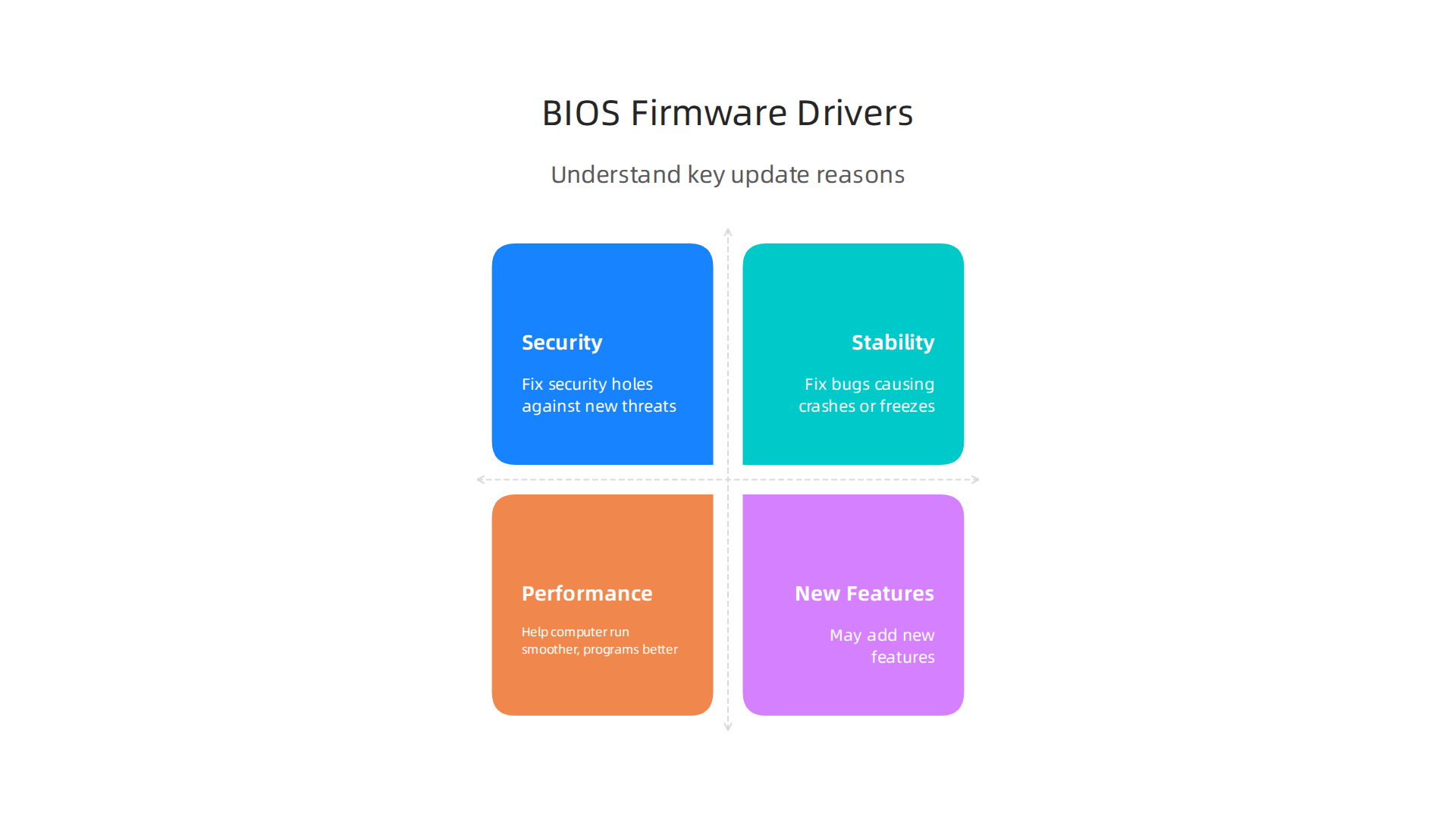
    Knowing your warranty status is a smart first step in troubleshooting any computer issue.

    A person carefully reviews documents, symbolizing the importance of understanding warranty details.

    It helps you understand your choices for repair and when it might be time to look into new tech.

    Knowing your ThinkPad’s warranty is a great start. But what if your computer is acting up and you’re not sure if it’s a small glitch or a bigger problem that needs a repair or even a warranty claim? This is where a little detective work helps. You can often figure out what’s wrong with your computer by checking some common parts yourself.

    A person carefully examining laptop components to diagnose potential hardware issues.

    Many laptops, including your trusty Lenovo ThinkPad P51, might start having issues after a few years. In fact, reports from 2026 show that about one-third of all laptops might have a problem within three years of buying them, not counting accidental damage 1 in 3 Laptops fail over 3 years:. So, it’s good to know what to look for!

    Diagnosing Hardware Issues: Battery, SSD, RAM, and Display

    Before you think about sending your laptop away or buying a new one, let’s look at how you can spot problems with the battery, SSD, RAM, and display. These are some of the most common things to go wrong.

    Is Your Battery Tired?

    A common problem is a battery that doesn’t last long or won’t charge up fully.

    • Signs of a bad battery:
      • Your laptop dies quickly, even when it says it has power.
      • It only works when plugged in.
      • The laptop battery feels hot to the touch.
      • The laptop’s bottom case might bulge a bit.
    • What to check:
      • You can often check your battery’s health in your computer’s settings. Windows has a special report you can run that tells you how well your battery is doing compared to when it was new.
      • Make sure your charger is working right. Try a different charger if you have one.

    Slowdowns and Freezes: Is Your SSD the Problem?

    If your pc randomly freezes or takes a very long time to start up programs, your Solid State Drive (SSD) might be having issues. The SSD is where all your computer’s information is stored.

    • Signs of an SSD problem:
      • Programs take ages to open.
      • Your computer gets stuck often.
      • Files go missing or get corrupted.
      • You see error messages about not being able to read or write data.
    • What to check:
      • There are free tools online that can check the "health" of your SSD. They look at special information called SMART attributes to tell you if the drive is failing. You can learn more about these tools and how to use them for an SSD Health Check.
      • Make sure your SSD isn’t too full. A very full drive can slow things down.

    Computer Crashing? It Could Be RAM

    RAM (Random Access Memory) is like your computer’s short-term memory. If it’s not working right, your computer can act very strange.

    Identify potential RAM issues with these key signs of computer instability.

    • Signs of RAM issues:
      • Your computer often crashes without warning.
      • You see "blue screen of death" error messages.
      • Programs close suddenly.
      • The computer runs very slowly, even with simple tasks.
    • What to check:
      • Modern computers have built-in memory diagnostic tools. You can run one to check your RAM for errors.
      • If you’re comfortable, and your laptop allows, sometimes you can take out and re-seat the RAM sticks to make sure they’re connected well.

    Display Troubles: Screen Goes Dark or Flickers

    Problems with your screen can be very annoying, making it hard to use your laptop at all.

    • Signs of display issues:
      • The screen flickers on and off.
      • There are strange lines or colored spots.
      • Parts of the screen are darker than others.
      • The screen doesn’t turn on at all, but the computer sounds like it’s running.
    • What to check:
      • Connect your ThinkPad to an external monitor or TV. If the picture looks good on the second screen, then the problem is likely with your laptop’s screen itself. If it’s bad on both, it might be the graphics chip.
      • Gently move the screen back and forth. If the problem changes, it could be a loose cable inside.

    Gathering Information Before You Act

    After doing these basic checks, gather all the details. Write down what you saw, any error messages, and when the problems happen. This information will be very helpful if you need to do a thinkpad warranty check or talk to a repair person. Sometimes, just doing a good clean my pc and making sure to build and optimize your AI workstation for peak performance 2026 can make a big difference for your computer’s health.

    When you’ve done your best to figure out the problem, you can then decide if it’s time to use your warranty or seek professional repair. Thinking about if you should repair or replace your computer is a big choice, and knowing what’s wrong helps a lot. For business users and those eager to keep up with the newest advancements in technology, staying informed is key.

    Get clear daily AI updates and more from The AI Newsletter Worth Reading.

    After you’ve looked into physical problems with your computer, it’s time to check its "brain" and how it talks to its parts. This means looking at BIOS, firmware, and driver updates. These are like the instruction manuals for your computer’s pieces. Keeping them fresh can often fix problems and even make your computer safer and faster.

    BIOS, Firmware, and Driver Updates: When and How to Update Safely

    Think of BIOS (Basic Input/Output System) and firmware as the very first set of instructions your computer runs when you turn it on. Drivers are special pieces of software that help your operating system (like Windows) talk to each part of your computer, like your graphics card or Wi-Fi chip. When these get old or have bugs, your computer might start to slow down, act strangely, or even experience a pc randomly freezes issue.

    Why Updates Matter So Much

    Updating these parts of your computer is super important for a few big reasons:

    Understand the crucial reasons to keep your computer's BIOS, firmware, and drivers updated.

    • Security: New updates often fix security holes that bad guys could use to get into your computer. In 2026, many companies like Lenovo release special updates to protect against new threats. For example, some ThinkPad models had important updates released this year to fix security issues, like an authorization bypass vulnerability Lenovo ThinkPad Auth Bypass Vulnerability. Keeping your Lenovo ThinkPad P51 updated helps keep your information safe.
    • Stability: Updates fix bugs that can cause crashes, freezes, or other weird behavior. If your pc randomly freezes, an updated driver might be the answer.
    • Performance: Sometimes, new updates can help your computer run smoother or make programs work better. This helps optimize pc performance overall.
    • New Features: Rarely, updates might even add small new features or support for newer accessories.

    Knowing Which Updates to Do

    Not all updates are equally important.

    • Priority 1: Security and Stability Updates: Always make time for these. If Lenovo releases a security advisory for your specific ThinkPad model, you should update it as soon as you can. These are the ones that prevent serious problems.
    • Optional Updates: Some updates just add small improvements or fix very minor issues. You can usually wait a bit for these if you’re busy, but it’s still a good idea to install them eventually to help clean my pc of small glitches.

    How to Update Your ThinkPad Safely

    Updating your BIOS, firmware, or drivers needs a little care. Here’s how to do it right:

    1. Back Up Your Files: Before any major update, especially a BIOS one, always make sure your important files are saved somewhere else. This is a golden rule for all computer care.
    2. Use Lenovo’s Official Tools: Go straight to the Lenovo support website for your specific Lenovo ThinkPad P51 model. They have tools like "Lenovo Vantage" that can scan your computer and tell you exactly which updates you need. Do not download drivers from random websites.
    3. Plug In Your Laptop: When updating BIOS or firmware, your laptop must be plugged into power. If it loses power during the update, it could damage your computer and make it unusable.
    4. Do Not Interrupt: Once an update starts, do not turn off your computer or close the update window. Just let it finish, even if it seems to take a long time.
    5. Read Instructions Carefully: Every update might have slightly different steps. Read all the on-screen prompts and any notes on Lenovo’s website. For BIOS updates, sometimes you need to update one part (like the Embedded Controller Program, or ECP) before another, then do them quickly one after the other BIOS Upgrade.
    6. Check for Advisories: Regularly check Lenovo’s official security advisories to stay informed about critical updates for your ThinkPad. This is part of keeping your system secure and well-maintained. You can find general security information from Lenovo on their Product Security Advisories and Announcements page.

    By following these steps, you can keep your ThinkPad running smoothly and securely. This can save you from bigger problems down the road and might even help prevent the need for a thinkpad warranty check. Staying informed about the latest tech news can also help you make smart choices for your business. For those looking to keep up with the fast-changing world of tech, especially AI, there’s a great resource available.

    Get clear daily AI updates from The AI Newsletter Worth Reading. Staying informed is crucial for business leaders in 2026. Learn how to track important changes in the tech world for better decisions by reading about tracking major technology news for smart business decisions in 2026.

    After making sure your computer’s brain and its instructions are up to date, there’s another big thing that affects how well your laptop runs: heat. If your Lenovo ThinkPad P51 or any PC gets too hot, it can slow down a lot. This is where cooling, thermal management, and smart performance tuning come in. Keeping your computer cool helps it run fast and prevents damage over time.

    A person working in a tidy space, emphasizing the importance of a clean environment for optimal laptop cooling.

    What is Thermal Throttling?

    Think of your computer’s parts, like the main processor (CPU) and graphics chip (GPU), as little engines. When they work hard, they make heat. Computers have fans and heatsinks to move this heat away. But if the heat builds up too much, the computer gets scared of burning itself out. To protect itself, it automatically slows down. This slowing down is called "thermal throttling." When your PC does this, it might feel like your pc randomly freezes or just becomes very sluggish.

    Diagnosing Too Much Heat

    How can you tell if your laptop is getting too hot?

    Recognize the common signs that your laptop might be experiencing excessive heat.

    • Loud Fans: If the fans are always spinning very fast and making a lot of noise, especially when you’re not doing much, it’s a sign it’s trying hard to cool down.
    • Hot to the Touch: The bottom or keyboard area of your laptop feels very warm or even hot.
    • Slow Performance: Your computer suddenly gets very slow during games, video calls, or when doing big tasks. This is often thermal throttling at work How to Stop Your Laptop Overheating and Thermal Throttling.
    • Unexpected Shutdowns: In very bad cases, an overheating laptop might just turn off by itself to prevent damage.

    You can also use special programs to check the temperature of your CPU and GPU. Knowing the exact numbers can help you understand if there’s a real problem How to Cool Down the Laptop: 2026 Cooling Guide.

    Cleaning Fans and Vents

    Dust is the biggest enemy of a cool laptop. Over time, dust and lint can build up inside your laptop, blocking the airflow to the fans and heatsinks. This makes it much harder for your computer to get rid of heat. Cleaning your laptop’s fans and vents is a great way to clean my pc and improve its cooling.

    Here’s how to clean them safely:

    1. Turn it Off and Unplug It: Make sure your laptop is completely off and not plugged into any power.
    2. Use Compressed Air: Get a can of compressed air. Use short bursts to blow dust out of the vents. These are the small openings on the sides or bottom of your laptop.
    3. Hold the Fan Still: If you can safely see the fan blades, gently hold them in place with a finger or a wooden toothpick while you spray. This stops them from spinning too fast and getting damaged How to Clean a Laptop Fan Safely: Step-by-Step Guide.
    4. Regular Cleaning: Most experts say you should clean your laptop vents every 6 to 12 months, or more often if you use it in dusty places or on soft surfaces like a bed Laptop Overheating and Fan Noise: What Buyers Need to Know in ….

    Smart Performance Tuning and Placement

    Beyond cleaning, you can also use your laptop’s settings and how you place it to help manage heat and optimize pc performance.

    • Power Profiles: Your computer usually has different "power plans" or "power profiles" you can choose from. These might be called "Balanced," "Power Saver," or "High Performance." "Power Saver" will make your laptop run cooler by using less power, but it will also be slower. "High Performance" uses more power, which means more heat, but also more speed. Choose the one that fits what you’re doing.
    • Firmware Thermal Settings: Sometimes, in your laptop’s BIOS settings, there are options to change how your fans behave or how your computer manages heat. Be careful with these, though. It’s usually best to leave them at their default settings unless you really know what you’re doing. Messing with these without care can sometimes lead to more heat problems or even needing a thinkpad warranty check if something goes wrong.
    • Proper Placement: Always use your laptop on a hard, flat surface like a desk. Soft surfaces, such as blankets or pillows, block the air vents on the bottom and sides, trapping heat inside. Elevating the back of your laptop a little bit, even with a book, can help a lot with airflow How to Cool Down Your Laptop: A Practical 2026 Guide.
    • Close Unneeded Apps: Running many programs at once makes your computer work harder and generate more heat. Closing apps you’re not using can help reduce the load and keep temperatures down Thermal Throttling in OMEN Laptops: Myths vs Reality – HP.

    By understanding how heat affects your computer and taking these simple steps, you can keep your Lenovo ThinkPad P51 running smoothly and prevent issues like thermal throttling. If you’re looking to push your system’s performance, learning how to improve its cooling and power management is key. This is especially true if you plan to build and optimize your AI workstation for peak performance in 2026.

    After making sure your computer stays cool, the next big thing that can make your laptop slow or cause issues is its software. This includes the main operating system, like Windows or Linux, and all the little programs called drivers. Sometimes, problems here can make your computer act weird, even causing a pc randomly freezes situation.

    Common Operating System Problems

    Even if your Lenovo ThinkPad P51 is super clean and cool, the software inside can still cause trouble. Think of your operating system (OS) as the boss of your computer. If it has too much work to do, or if some of its workers (programs) aren’t getting along, things can slow down.

    Here are some common OS-level issues:

    • Too Many Programs Starting Up: Lots of apps want to start automatically when your computer turns on. This can make your system feel very sluggish right from the start.
    • Background Processes: Many programs run quietly in the background, even when you’re not using them. They use up your computer’s brainpower and memory, making it harder for other tasks to run smoothly.
    • System Errors or Corrupted Files: Sometimes, important system files can get broken or mixed up. This can lead to crashes, freezes, or programs not working right.
    • Viruses and Malware: Nasty software can secretly run on your computer, stealing information or using up all its power, leading to major slowdowns and security risks.

    Regularly checking what programs run when your computer starts and cleaning up old files can help a lot to optimize pc performance.

    Driver Conflicts and Fixes

    Drivers are like instruction manuals that tell your computer’s parts (like the screen, keyboard, or Wi-Fi chip) how to talk to the operating system. If these manuals are old, wrong, or get mixed up with each other, your computer won’t know how to use its parts correctly. This often leads to problems like your screen flickering, Wi-Fi not working, or your pc randomly freezes.

    Here’s what you can do:

    • Update Drivers: Always keep your drivers up to date. Lenovo, like other computer makers, often releases new drivers to fix bugs and improve performance. You can usually find these on the Lenovo support website for your specific Lenovo ThinkPad P51 model.
    • Roll Back Drivers: If a new driver causes problems, Windows and Linux often let you "roll back" to an older version that worked fine. This is a helpful trick to undo bad updates.
    • Reinstall Drivers: Sometimes, a driver gets really broken. In this case, removing it completely and then installing a fresh copy can fix the issue.

    It’s also important to keep your computer’s core instructions, called the BIOS or firmware, updated. Just like drivers, old firmware can have security holes or simply not work well with newer software. For example, in 2026, there have been several important security updates for ThinkPads and other systems to fix issues that could allow bad guys to get into your computer CVE-2026-0421: Lenovo ThinkPad Auth Bypass Vulnerability. Checking for updates can help prevent such problems and ensure your system runs safely. You can always check official advisories for updates to your computer’s security Lenovo Product Security Advisories and Announcements.

    When a Clean OS Install is the Best Fix

    Sometimes, if your computer is still slow, crashing, or having weird issues after trying everything else, a "clean OS install" might be the answer. This means completely erasing everything on your computer’s main storage and installing a fresh copy of Windows or Linux. It’s like giving your computer a brand new brain, free from old programs, broken files, or hidden problems.

    This is a big step because you lose all your personal files and programs, so it’s super important to back up everything first. But for older computers or systems with lots of hidden issues, a clean install can make them feel brand new again. It’s often the fastest way to truly optimize pc performance when software problems are too deep to fix otherwise.

    If you’ve tried these steps and still have major issues, you might want to consider a thinkpad warranty check to see if your computer is still covered for professional repair. Making sure your software is healthy is just as important as keeping your hardware cool for a fast and reliable computer. To stay on top of the latest in technology and how it affects your devices, you might find a helpful resource.

    Get clear daily AI updates from The AI Newsletter Worth Reading.

    Preventive Maintenance: Cleaning, Battery Care, and Storage

    While keeping your software updated is key, giving your computer’s physical parts a little love helps a lot too. Regular care can stop problems before they start and truly optimize pc performance. Think of it as a routine check-up to keep your laptop running smoothly and avoid issues like your pc randomly freezes.

    Keeping Your Laptop Clean

    Dust is a computer’s worst enemy. It gets into vents and fans, blocking airflow and making your laptop heat up. When your computer gets too hot, it has to slow down to protect itself. This is why cleaning is so important.

    • Vents and Fans: Use compressed air to gently blow dust out of the cooling vents. Remember to hold the fan blades still with a finger or a toothpick while you spray. This stops them from spinning too fast, which can damage them. You should do this every 6 to 12 months, or more often if your home is dusty How to Cool Down the Laptop: 2026 Cooling Guide. Dell also recommends powering down and unplugging your laptop before cleaning the vents How to Clean a Laptop Fan Safely: Step-by-Step Guide.
    • Keyboard and Screen: A soft brush or a special cleaning cloth can remove dirt and smudges from your keyboard and screen. For deeper cleaning of the keyboard, compressed air can clear out crumbs and dust between the keys.
    • Outside Surfaces: Use a slightly damp, soft cloth to wipe down the outer case of your Lenovo ThinkPad P51. This keeps it looking good and helps to clean my pc from the outside in.

    Battery Care Tips

    Your laptop’s battery has a lifespan. You can make it last longer with a few simple habits:

    • Avoid Extreme Charges: Try not to always let your battery drain completely or charge it all the way to 100% and leave it plugged in. Keeping it between 20% and 80% can actually extend its life.
    • Cool Storage: If you’re not going to use your laptop for a long time, store it in a cool place with about 50% charge. This helps prevent the battery from losing its ability to hold a charge over time.

    Documenting for Warranty and Resale

    Keeping good records of your laptop’s health is a smart move. If you ever have a problem, having a history of what you’ve done can be very helpful.

    • Log Book: Jot down when you cleaned your laptop, updated drivers, or fixed any issues. This helps you remember what’s been done and when.
    • Warranty Check: If a serious problem comes up, your maintenance logs can support a thinkpad warranty check. Knowing when you cleaned the fans, for example, shows you’ve taken good care of the device.
    • Repair or Replace: Sometimes, your computer might need a big repair. In 2026, experts often say that if the repair costs more than half the price of a new, similar laptop, it might be better to buy a new one Is It Worth Repairing a Laptop? (2026 Repair vs Replace Guide). Your logs help you decide if a repair is worth the money. If you decide to sell your laptop, showing good maintenance records can also help you get a better price.

    When to Repair vs Replace: Cost, Parts, and Data Safety

    Knowing when to repair your laptop versus buying a new one can save you money and headaches.

    A person deliberates options, reflecting the decision-making process for laptop repair vs. replacement.

    As we mentioned, if a repair costs too much, getting a new computer might be smarter. Let’s look at how to make that choice.

    The Repair vs. Replace Decision

    Many experts in 2026 use a simple rule: if the repair costs more than half (50%) of what a new, similar laptop would cost, it’s usually better to replace it. For example, if a new Lenovo ThinkPad P51 costs $1000 and the repair bill is $600, you might want to consider a replacement instead. This "50% rule" helps businesses and regular users decide wisely Repair vs Replace Student Laptop: 2026 Guide. Another good idea is to replace your laptop if it’s older than three years and has many problems The Laptop Repair Decision Framework: When to Repair, Upg….

    Think about how old your laptop is. Most laptops will have some kind of issue within three years. Some reports show that about one-third of all laptops fail within three years of being bought 1 in 3 Laptops fail over 3 years:. If your laptop is already old and having issues like your pc randomly freezes, putting money into costly repairs might not be the best long-term solution. When deciding on a new device, you might want to consider how to choose AI ready business computers in 2026 to future-proof your tech.

    Warranty and Repair Costs

    Always check your warranty first! Your thinkpad warranty check can tell you if the repair is covered for free or at a lower cost. If it is, then repairing makes a lot of sense. Keep in mind that some repairs, like replacing a screen or motherboard, can be quite expensive. Parts alone can add up, not to mention the cost of labor. Simple fixes like a new battery or adding more storage are usually less costly and often worth doing.

    Protecting Your Data Before Repair

    Before sending your laptop in for any repair, protecting your data is super important. Here’s what you should do:

    • Back Everything Up: Copy all your important files, photos, and documents to an external hard drive or a cloud service. This way, if anything goes wrong during the repair, your data is safe.
    • Remove Sensitive Information: If possible, remove your hard drive or SSD if the repair doesn’t need it. This protects your private information from anyone who might work on your computer. If you cannot remove it, make sure everything is backed up and consider factory resetting the device if it’s going to a third-party repair shop.

    Making these choices helps you keep your computer running well and your important data secure.

    Knowing when to repair or replace your laptop is just one part of staying on top of tech. To get more helpful insights and keep up with the fast-changing world of AI and technology, consider subscribing.
    The AI Newsletter Worth Reading

    Summary

    This practical guide explains how to troubleshoot common Lenovo ThinkPad problems, starting with a fast warranty check and moving through hardware and software diagnostics. It shows where to find your serial or product number, how to spot failing batteries, SSDs, RAM, and display issues, and how to decide whether a problem is a simple fix or a warranty/repair job. The article also covers safe BIOS, firmware, and driver updates, how to diagnose and reduce overheating and thermal throttling, and when a clean OS install is the right solution. You’ll get clear steps for cleaning fans and vents, tuning performance, protecting your data before repair, and using a simple repair-vs-replace cost rule. After reading, you’ll be able to identify the likely cause of many ThinkPad issues, perform basic fixes safely, and make informed choices about repairs or replacement.

  • Unlock AI Power with the Best All In One PC for AI in 2026

    Unlock AI Power with the Best All In One PC for AI in 2026

    Choosing a new computer can feel like a big puzzle. With so many options, how do you know if an all-in-one (AIO) PC is the right choice for you in 2026?

    A person contemplating various technology options, symbolizing the challenge of choosing a new computer.

    These computers are super popular because they look clean and save space. Everything you need, like the screen and computer parts, is all in one neat package. This makes them a great pick for daily work, keeping your desk tidy, and even some fun creative tasks.

    But when it comes to bigger jobs, like using smart AI programs or playing intense video games, you might wonder if a sleek AIO can keep up. Desktops often have more power and are easier to change or upgrade later. Laptops give you the freedom to work from anywhere. So, what about the "best all in one pc"? Can it truly handle the demanding world of AI, or is it better for just everyday tasks?

    Many people get confused by all the tech words and numbers. It’s hard to tell if you’re spending your money wisely, and you might worry about not being able to make your computer better down the road. For example, powerful computer parts that AI needs can get very hot. Regular desktop PCs or a custom built PC can have big fans or water coolers to keep things running smoothly. For parts that use a lot of power, like modern CPUs, an all-in-one water cooler is often needed to keep them stable. This can be tricky in the smaller space of an AIO computer compared to a traditional tower AIO Water Cooler Guide: How to Choose the Right One in….

    This guide is here to help you understand all of this. We will break down the good and bad parts of AIO PCs. We’ll compare them to regular desktops and laptops, especially for using AI tools and getting things done every day. By the end, you’ll have a clear plan to pick the perfect computer for your needs, without all the stress. Learning how to pick computers that are ready for AI can make a big difference for your work How to Choose AI-Ready Business Computers in 2026.

    Want to stay sharp on the latest AI trends and tools?
    The AI Newsletter Worth Reading and get clear daily AI updates from The Deep View Newsletter.

    When we talk about picking a computer for AI tasks, it’s important to know how all-in-one (AIO) PCs are different from regular desktops and laptops. These differences really matter for how well your computer can handle tough AI work.

    Visualizing the inherent limitations of all-in-one PCs when handling demanding AI workloads compared to traditional desktops.

    Compact Design Limits Power

    The biggest difference for an AIO computer is its compact size. Everything, like the screen and all the computer parts, is packed into one slim box. This looks great and saves space, but it also means there isn’t much room for big, powerful parts or for them to stay cool.

    • Heat Management: Powerful computer parts, like those needed for AI, get very hot. Regular desktop PCs often have large cases with lots of fans, or even water cooling systems, to keep things from overheating. But an AIO has much less space. This can stop its powerful parts from running at their best for a long time, because they have to slow down to prevent damage from heat. Experts say that how well a computer handles heat is key for steady AI performance Guides & Resources | ABS AI Workstations.
    • Power Supply: AIOs also have smaller power supplies. This limits how much electricity can go to the main parts, which can affect overall speed, especially during intense tasks.

    AI Tasks: What AIOs Can Handle

    AI tasks come in different types. Some are light and easy, while others need a lot of computer muscle.

    • AI Inference (Lighter Tasks): This is when an AI model is already trained and you’re just using it to do things like recognizing faces in photos, suggesting words as you type, or helping with simple chatbots. Many modern AIO PCs, especially those with good processors, can handle these lighter AI tasks well. You can even check how well a computer performs with AI using tools like Geekbench AI.
    • AI Training (Heavier Tasks): This is when you are "teaching" an AI model, which needs a lot of processing power for long periods. This includes things like creating new AI models, making very complex images, or running big language models. For these jobs, a desktop computer or a specialized workstation is usually a much better fit. They have dedicated graphics cards and more robust cooling that can handle the work without slowing down. Benchmarks like Intel Delivers Open, Scalable AI Performance in MLPerf show the kind of power needed for serious AI workloads. For training new models, dedicated systems can dramatically reduce the time it takes MLPerf AI Benchmarks.

    So, while a good all-in-one PC might be the best all in one pc for everyday use and light AI, if you need to do heavy AI training or complex data work, a custom built PC or a powerful prebuilt gaming PC will give you the sustained power and cooling you need.

    A team actively discussing and working together on a complex project, illustrating the demanding nature of some AI tasks.

    They also make it easier to upgrade parts later. To learn more about setting up a computer for these bigger tasks, you can check out how to build and optimize your AI workstation for peak performance.

    When picking any computer for AI work, even the best all in one pc, you need to look closely at its inner parts. These are called hardware specs, and they tell you how powerful a computer truly is. Knowing about the CPU, GPU, memory, storage, and ports will help you pick a machine that can handle your AI tasks, whether they are light or need more muscle.

    Key Hardware Specs to Evaluate: CPU, GPU, Memory, Storage, and Ports

    Think of your computer as a team of workers. Each part has a special job for AI.

    The Brain: CPU (Central Processing Unit)

    The CPU is like the main brain of your computer. It handles most general tasks and is good for many AI jobs, especially for things like "inference." This means when an AI already knows what to do and just needs to give an answer, like telling you the weather. A good CPU can also help with encoding, which is like turning a big video file into a smaller one. For a best all in one pc, a newer, faster CPU will make a big difference for everyday speed and light AI work.

    The Artist: GPU (Graphics Processing Unit)

    If the CPU is the brain, the GPU is like a super-fast artist with many hands. It’s really good at doing many math problems at the same time, which is exactly what AI training needs. Even for lighter AI model training or making complex images, a strong GPU is key.

    Many regular computers, especially AIOs, have "integrated" GPUs that are built into the CPU and are not very powerful. For any serious AI, you need a "dedicated" GPU. This is a separate, more powerful card, usually found in a custom built pc or a buy prebuilt gaming pc. These dedicated GPUs greatly speed up tasks like creating new AI models or handling very big data. They are crucial for tasks where many calculations happen at once, as shown by AI Inference Performance Benchmarks.

    The Workspace: Memory (RAM)

    Memory, or RAM, is like your computer’s desk space. When you’re working on AI tasks, the computer needs to hold a lot of information ready to use quickly. The more RAM you have, the bigger your "desk" is, and the more things your computer can work on at once without slowing down. For AI, having at least 16GB of RAM is good, but 32GB or more is better for bigger projects.

    The Filing Cabinet: Storage

    Storage is where your computer keeps all its files, programs, and AI models. There are two main types:

    • HDD (Hard Disk Drive): This is an older, slower type of storage, like a big, traditional filing cabinet. It’s cheaper but takes longer to open files.
    • SSD (Solid State Drive): This is much faster, like a modern, digital filing cabinet. For AI, an SSD is a must-have. It helps load AI models quickly and speeds up your entire workflow. Look for NVMe SSDs, which are even faster. If you’re looking for a best all in one pc that performs well, ensure it has an SSD.

    The Connectors: Ports and Expansion

    Ports are the holes on your computer where you plug in other devices, like external hard drives, monitors, or even extra graphics cards. Good ports give you more flexibility:

    • USB ports: Common for many devices. Look for USB-C or USB 3.0 for faster speeds.
    • Thunderbolt ports: These are super-fast ports, often found on premium AIOs. They let you connect powerful external devices, including external GPUs, which can add a lot of AI power to a computer that doesn’t have a strong internal GPU.
    • M.2 slots: These are inside the computer and let you add more fast SSD storage later.

    Understanding these parts helps you choose a computer that fits your AI needs. Whether you’re eyeing a costco prebuilt gaming pc for its strong GPU or trying to get the most out of the best all in one pc for light tasks, these specs are what matter most.

    Stay ahead with daily insights into the world of AI. Get clear, useful updates delivered to your inbox.
    The AI Newsletter Worth Reading

    Now, let’s look at how different people use AI and what kind of computer is best for them. The right computer for you depends on what AI jobs you want it to do.

    Illustrating recommended all-in-one PC configurations tailored for specific AI-related professional use cases.

    Match AIO configurations to common use cases (marketing, content creation, light ML)

    Choosing the best all in one pc for AI work means thinking about your daily tasks. Are you mostly checking emails and doing light writing, or are you creating lots of videos and training AI models? Your job changes what computer parts are most important.

    For Marketing Managers and Consultants: Light AI Work

    If you’re a marketing manager or a consultant, your AI tasks might involve getting new content ideas, checking social media trends, or doing quick data reviews. These are often called "light AI inference" tasks. For these, a good CPU is important because it handles many smaller, quick calculations. You’ll want:

    • A strong, newer CPU (like an Intel Core i5 or AMD Ryzen 5 or better from 2026).
    • At least 16GB of RAM.
    • A fast SSD, preferably an NVMe type, so your AI apps open quickly.
    • An integrated GPU might be fine, but a low-end dedicated GPU would be a nice bonus for slightly heavier tasks.

    An all-in-one PC with these specs will run your AI-powered marketing tools smoothly.

    For Content Creators: Video, Image, and 3D AI

    Content creators, like those making videos, images, or 3D models with AI, need more power.

    A content creator focused on their work, possibly engaging in graphic design or video editing, reflecting AI-powered creative tasks.

    When you use AI to create art or edit videos, your computer has to do many complex calculations at once. This kind of work needs a powerful "artist," which is the GPU.

    • A very strong dedicated GPU is key. This is where a custom built pc or even a buy prebuilt gaming pc might be a better choice than a typical all-in-one. However, some high-end all-in-ones now offer dedicated GPUs that can handle these tasks.
    • You’ll need at least 32GB of RAM, but 64GB or more is better for heavy video editing or generating many high-res images.
    • A fast CPU (Intel Core i7/i9 or AMD Ryzen 7/9) and a large NVMe SSD for quick access to big files.
    • For these tasks, the GPU performs most of the heavy lifting. Actually, the GPU is the most important part for AI training and making predictions because it does most of the hard math quickly What Hardware Stack (GPU, CPU, Memory, Storage) Delivers….

    If an all-in-one is your choice, make sure it boasts a strong dedicated GPU to support these creative workflows. You can also explore how to Build and Optimize Your AI Workstation for Peak Performance 2026 for more insights.

    For Small Business Founders: General AI and Operations

    Small business founders often use AI for many different things. This could be for running a customer service chatbot (AI inference), helping with basic accounting, or checking sales data. Their needs are usually a mix.

    • A good balance of CPU and GPU power is smart. A mid-range dedicated GPU (not just integrated) will offer a lot of help for mixed AI tasks.
    • 16GB to 32GB of RAM will keep many programs running at once.
    • A fast NVMe SSD for the main drive, with a larger, cheaper HDD for storing old files.
    • For these varied tasks, a balanced system ensures you don’t hit slowdowns whether you’re working on AI or regular business documents. For certain business applications, a CPU is actually preferred over a GPU, like for data organizing or basic AI systems GPU vs CPU: Choosing the Right Compute for AI Workloads.

    No matter your role, knowing your main AI tasks will guide you to the best all in one pc or other computer type. Thinking about what your computer will mostly do helps you pick the right power balance and ensures you don’t overspend or underspend on key parts.

    Finding the right computer for AI work isn’t just about looking at specs. It’s also about seeing how well those parts work together. This means checking benchmarks. Benchmarks are like report cards for computers. They show how fast and strong a computer is at different tasks. For an all-in-one PC, these tests are especially helpful to make sure you get the best all in one pc for your needs.

    Benchmarks and a practical testing methodology you can run (or look for in reviews)

    When you’re trying to figure out which all-in-one computer is best for AI, you want to know how it handles real work. You can look at two types of tests: synthetic benchmarks and real-world tasks.

    Synthetic AI Benchmarks: Computer Speed Tests

    Synthetic benchmarks are special programs that put your computer parts under stress. They run tests that show the raw power of your CPU and GPU for AI tasks. Think of them as lab tests for your computer.

    These tests help compare different models side-by-side.

    Real-World AI Tests: What it’s like to actually use it

    While synthetic tests give numbers, real-world tests show how a computer acts when you’re actually working. This is where you see if a computer feels fast or slow in your daily tasks.

    • Image/Video Export Times: If you create content, you’ll want to see how fast the computer exports a video made with AI or generates high-quality images. Faster times mean less waiting.
    • Multitasking with AI Apps: Can your all-in-one PC run a video editor, an AI writing tool, and a web browser all at once without slowing down? This shows how good it is at handling many jobs.
    • AI Inference Speed: For tasks like quickly getting content ideas or using an AI chatbot, you want instant responses. Good "inference throughput" means the AI works smoothly and doesn’t make you wait. You might look at how many "tokens/sec" an AI can process, especially for large language models AI Inference Performance Benchmarks – NVIDIA Developer.

    A Simple Testing Checklist for Buyers

    When you are looking to buy the best all in one pc, here’s a short checklist to help you test it or look for in reviews:

    A straightforward checklist for evaluating all-in-one PCs, focusing on benchmarks, real-world performance, and practical considerations.

    • Check Benchmark Scores: Look for scores from Geekbench AI or MLPerf. Higher numbers are usually better.
    • Look for Real-World Task Times: If a review mentions how long it took to export a video or generate AI images, compare those times.
    • See How Many Apps It Handles: Does the review mention running multiple demanding programs at once?
    • Consider Heat and Noise: A powerful computer can get hot and loud. Good reviews will mention if the PC stays cool and quiet, even when working hard Five Best All In One Computers: Efficiency-Tested (2026).

    By checking these things, you can feel more sure about picking an all-in-one computer that really fits your AI needs in 2026.

    Ready to dive deeper into the world of AI tools and how they can boost your business? Get clear daily AI updates from The Deep View Newsletter.

    After looking at how well computers perform with benchmarks, it’s time to talk about how much they cost. Finding the best all in one PC also means picking one that fits your wallet. Computers that handle AI work come in different price ranges, and each has its own good points and things you might have to give up. Let’s look at value, midrange, and high-end all-in-one PCs for AI in 2026.

    Buying guide by budget tiers: value, midrange, and high-end AIOs

    When you want to buy an all-in-one PC for AI, your budget plays a big role. It helps you decide what kind of power you can get. No matter your budget, you can find a good option, but you’ll need to know what to expect.

    Value All-in-One PCs: For Beginners and Light Tasks

    These are the most wallet-friendly choices for an all-in-one computer. They are great if you’re just starting with AI or mostly use AI tools for simple, everyday tasks like writing emails or making small images.

    • What to Expect: You’ll usually find a decent main processor (CPU) and a basic graphics chip that’s built right into the CPU. This is called integrated graphics. They often have less memory (RAM), maybe 8GB or 16GB, and storage that’s fast enough but not huge, like a 256GB or 512GB SSD.
    • Who They Are For: Students, home users, or small businesses doing basic tasks. If you just need a computer for everyday use and light AI help, a value AIO could be your best all in one PC. These are also good if you’re looking for something like a "costco prebuilt gaming pc" but for general home and light AI use, rather than heavy gaming.
    • What You Give Up: AI tasks will run slower. You won’t be able to train big AI models or do very complex image or video work. The RAM is often soldered on, meaning you can’t easily add more later. To get the most for your money, focus on getting at least 16GB of RAM, as memory is important even for light AI workloads.

    Midrange All-in-One PCs: A Good Balance of Power and Price

    Midrange all-in-one PCs offer a sweet spot. They give you much more power for AI without costing as much as the top-tier models.

    • What to Expect: These computers often come with a stronger CPU and a separate (dedicated) graphics card (GPU). This GPU is key for faster AI work. You’ll likely get 16GB or 32GB of RAM and a faster, larger SSD, perhaps 1TB. Many of the best all in one computers in 2026 for most users fall into this category, like the Lenovo Yoga AIO 27-inch model.
    • Who They Are For: Content creators, small business owners who use AI for marketing or design, and people who want to explore more complex AI tools. If you’re wondering about a good "custom built pc" feel without the hassle, a midrange AIO offers that.
    • What You Give Up: While they are good for many AI tasks, they still aren’t designed for heavy, professional-level AI training that needs huge amounts of graphics memory (VRAM). You might have to choose between a slightly better CPU or a slightly better GPU, depending on if your AI work leans more on one or the other. For most AI tasks, a strong GPU is more important than the CPU.

    High-End All-in-One PCs: Top Performance for Demanding AI

    These are the most powerful all-in-one computers money can buy in 2026. They are built for serious AI work and professional tasks.

    • What to Expect: You’ll find the fastest CPUs, powerful dedicated GPUs with plenty of VRAM (like 16GB or 24GB), 32GB or even 64GB of fast RAM, and very quick, large storage (2TB or more NVMe SSDs). For example, a budget local AI setup in 2026 might include an RTX 5070 Ti GPU with 16 GB of VRAM and 64 GB of system RAM for under $1,000, while more powerful setups feature RTX 5090 GPUs with 24 GB of VRAM and 64-128 GB of RAM and 4 TB NVMe SSDs AI PC Hardware in 2026.
    • Who They Are For: AI developers, data scientists, professionals in graphic design, video editing, and anyone who needs their computer to run complex AI models or perform heavy computational tasks quickly. The Apple iMac (M4) is a standout in this category, often called the best AIO you can buy.
    • What You Give Up: The main downside is the high price. Also, while powerful, most all-in-one PCs can’t be upgraded easily, especially the GPU and CPU. If you’re building an AI workstation, the GPU is the most important part because it does most of the heavy lifting for AI processing What Hardware Stack Delivers Optimal Performance for AI. You will want to make sure the GPU has enough VRAM (graphics memory) for the AI models you plan to run.

    Choosing the right tier means thinking about what you need to do with AI, how much you want to spend, and what small compromises you are okay with. To get more ideas on building and tuning your AI setup, check out our guide on how to Build and Optimize Your AI Workstation for Peak Performance 2026.

    When picking an all-in-one PC for AI, it’s smart to think about more than just what it can do today. You also want to know how long it will last and if you can make it better later.

    A person thoughtfully reviewing documents or a plan, representing the process of future-proofing and long-term investment.

    This idea is called "future-proofing." It means preparing your computer for new challenges down the road.

    Checking for Upgrades: RAM, Storage, and Graphics

    One of the biggest things to look at is how much you can upgrade your all-in-one PC. Unlike a "custom built pc" where you can swap out almost any part, all-in-one PCs are often harder to change.

    • RAM (Memory): Many modern all-in-one PCs, especially the thinner ones, have RAM that is "soldered" directly onto the main board. This means you can’t add more memory later Should You Buy a Laptop with Soldered RAM in 2026? Pros and Cons. This is a big deal for AI tasks, which often need a lot of RAM. If you get a computer with soldered RAM, the amount you buy is all you’ll ever have. Look for models that use "SO-DIMM" slots, as these let you swap out or add more memory later LPDDR5 Soldered Means No Upgrade; SO-DIMM Means You Can.
    • Storage (SSD): Often, the storage drive (SSD) is easier to upgrade than RAM. You might be able to put in a bigger or faster SSD if you need more space for your AI projects or files. Always check with the maker to be sure.
    • GPU (Graphics Card): For AI, the graphics card is super important. But in most all-in-one PCs, the GPU is built-in and cannot be upgraded. A very few might let you connect an "eGPU" (external graphics processing unit), which is like an extra graphics card in its own box. This can give you more power without buying a whole new computer.

    Knowing these limits helps you decide if a certain all-in-one PC will meet your needs for years to come. For instance, if you’re looking for a "best all in one pc" that can adapt, choosing one with upgradeable RAM and storage is key.

    Warranty, Service, and Long-Term Costs

    Beyond upgrades, think about the computer’s warranty and how easy it is to get fixed.

    • Warranty: A good warranty protects your investment. Since all-in-one PCs are harder to fix yourself, a strong warranty can save you money if something goes wrong. Some companies offer extended warranties or onsite service, which is great for businesses. For businesses buying many computers, a 3-year onsite warranty is a smart choice Business PC Buying Guide 2026: Avoid Bad Laptop & Desktop ….
    • Serviceability: How easy is it to get help? Check what kind of support the computer maker offers. This is part of the "total cost of ownership," which means looking at all the costs over the life of the computer, not just the purchase price. For companies, these details are very important when evaluating PC technology evaluating PC technology for enterprises.

    By thinking about these points, you can pick an all-in-one PC that not only works well now but also stays useful and supported for a long time. This is especially true if you want to grow your business with AI tools. To stay on top of all the latest developments in AI for your business, consider subscribing to our newsletter.

    Get daily insights and stay ahead with The AI Newsletter Worth Reading.

    You’ve learned about features, power, and how long a computer might last. Now, let’s put it all together. To find the best all-in-one PC for your AI work, you need a smart way to compare different models. This helps you create a shortlist of computers that truly fit your needs.

    How to Shortlist Models and a Purchase Checklist

    When looking for the best all-in-one PC for AI, it’s wise to use a simple checklist. This helps you compare different options side by side.

    • Match Your Use Case: First, think about what kind of AI tasks you’ll do. Do you need a lot of power for big data or just enough for everyday AI tools? Knowing this helps you narrow down choices. For more help choosing the right computer, check out our guide on how to choose AI ready business computers in 2026.
    • Check Sustained Performance: AI tasks can run for a long time. You need a computer that won’t slow down when working hard. Look at reviews and benchmarks that show how well a computer performs over time, not just in short bursts. For example, some computers are known for their efficiency under load in 2026, like the Apple iMac (M4) or the Dell XPS 27, which keep their speed well even during heavy use Five Best All In One Computers: Efficiency-Tested (2026). Watching video reviews, like the HP 27” All-in-One AI PC review, can also give you real-world insights. You can also explore how to build and optimize your AI workstation for peak performance 2026.
    • Confirm Upgradeability: Remember what we talked about with RAM and storage. Can you add more later? This is key for future needs.
    • Verify Ports and Display: Make sure the computer has all the right plugs for your mouse, keyboard, and other devices. Also, a good screen is important for AI work, especially if you deal with images or complex data.
    • Validate Warranty and Support: Just like we discussed, a good warranty and easy access to help can save you trouble and money down the road.

    To make a good shortlist, combine all this information. Look at trusted tech sites that review the best all-in-one computer for 2026, like PCMag’s picks for the best all-in-one computers we’ve tested for 2026. They test things like how fast it is and how well it handles different tasks. Read what real users say too, for example, customer reviews for models like the HP All-in-One Desktop Next Gen AI. By doing this, you can pick a strong contender for your AI needs.

    Summary

    This article guides you through deciding whether an all‑in‑one (AIO) PC is the right choice for AI work in 2026 by explaining what AIOs do well and where they fall short. It covers heat and power limits from compact designs, which AI tasks (inference vs training) AIOs can realistically handle, and the hardware specs—CPU, GPU, RAM, storage, and ports—that matter most. You’ll learn how to match configurations to roles like marketing, content creation, and small business operations, plus how to read benchmarks and run simple real‑world tests. The guide also breaks down recommended specs by budget tier (value, midrange, high‑end), explains upgradeability and warranty considerations, and gives a practical shortlist and purchase checklist. After reading, you’ll be able to compare AIO models against desktops and laptops, pick the right specs for your AI workload, and make a confident, cost‑effective buying decision.

  • Choose the Best AI Tech Products for Your Team in 2026

    Choose the Best AI Tech Products for Your Team in 2026

    Using the right tools is super important for any job, and it’s especially true for teams working with Artificial Intelligence, or AI. In 2026, AI is changing how we do business at a very fast pace.

    Leaders strategize to harness AI's rapid advancements for business growth.

    This means that choosing the best tech products for your AI team is not just a small choice. It can make a big difference in how well your projects turn out.

    Think about it: AI professionals need strong computers, smart software, and smooth ways of working together. But sometimes, it feels like there are too many options. It can be hard to know which hardware will make your AI models run fastest, or which software will help your team work best without costing too much. Many companies use AI, but not all of them see a good return on their investment. Actually, a report from Q1 2026 showed that only 8 percent of companies get a clear return on their AI money spent Global AI Pulse Q1 2026. This often happens because they pick the wrong tech products or don’t use them well.

    This guide is here to help you. We will look at the common problems AI teams face when picking their tools. This includes everything from picking the right computers to setting up smart ways to work. We will make it easy to understand, giving you clear steps and tips. Our goal is to help busy team leaders and decision-makers like you make smart choices about your AI tech products. You’ll learn how to pick tools that truly help your team do amazing things. For a deeper dive into making smart choices, learn how to choose AI-ready business computers in 2026.

    Stay ahead with the latest insights and trends in AI.
    The AI Newsletter Worth Reading

    Moving from picking the right kind of computers for AI to the actual machines themselves, let’s look closely at the hardware that makes AI work. Picking the right workstation and its main powerhouse, the Graphics Processing Unit (GPU), is a big step.

    A professional carefully considers critical hardware choices for optimal AI performance.

    It’s like choosing the right tools for a builder: a small hammer won’t build a skyscraper.

    1) Workstations & GPUs: what to buy and when

    When it comes to the actual computers, AI teams need different kinds of tech products for different jobs.

    Different AI tasks require specific workstation types, from portable developer laptops to powerful rack servers.

    • Developer Laptops: These are good for people who are just starting out, or for lighter AI tasks like trying out small models or writing code. A strong laptop, like a good picking the best Macbooks for AI for your 2026 projects or a thinkpad for programming, lets developers work from almost anywhere. They are easy to carry and powerful enough for many daily tasks.
    • Desktop Workstations: These are more powerful. They can hold bigger and better GPUs and have more memory. Desktop workstations are great for training medium-sized AI models or for when a team member needs a lot of local computing power. If you are looking to build one, you might wonder about the best place to buy pc parts. For those who prefer a ready-to-go option, looking for a best buy prebuilt gaming pc can sometimes lead to good deals on powerful machines that can be used for AI. You can also learn how to build and optimize your AI workstation for peak performance 2026.
    • Rack Servers: These are the big guns. They are kept in special data centers and can hold many powerful GPUs. Rack servers are used for training very large AI models that need huge amounts of data and processing power, or for running many AI tasks at once. These are for serious, large-scale AI operations.
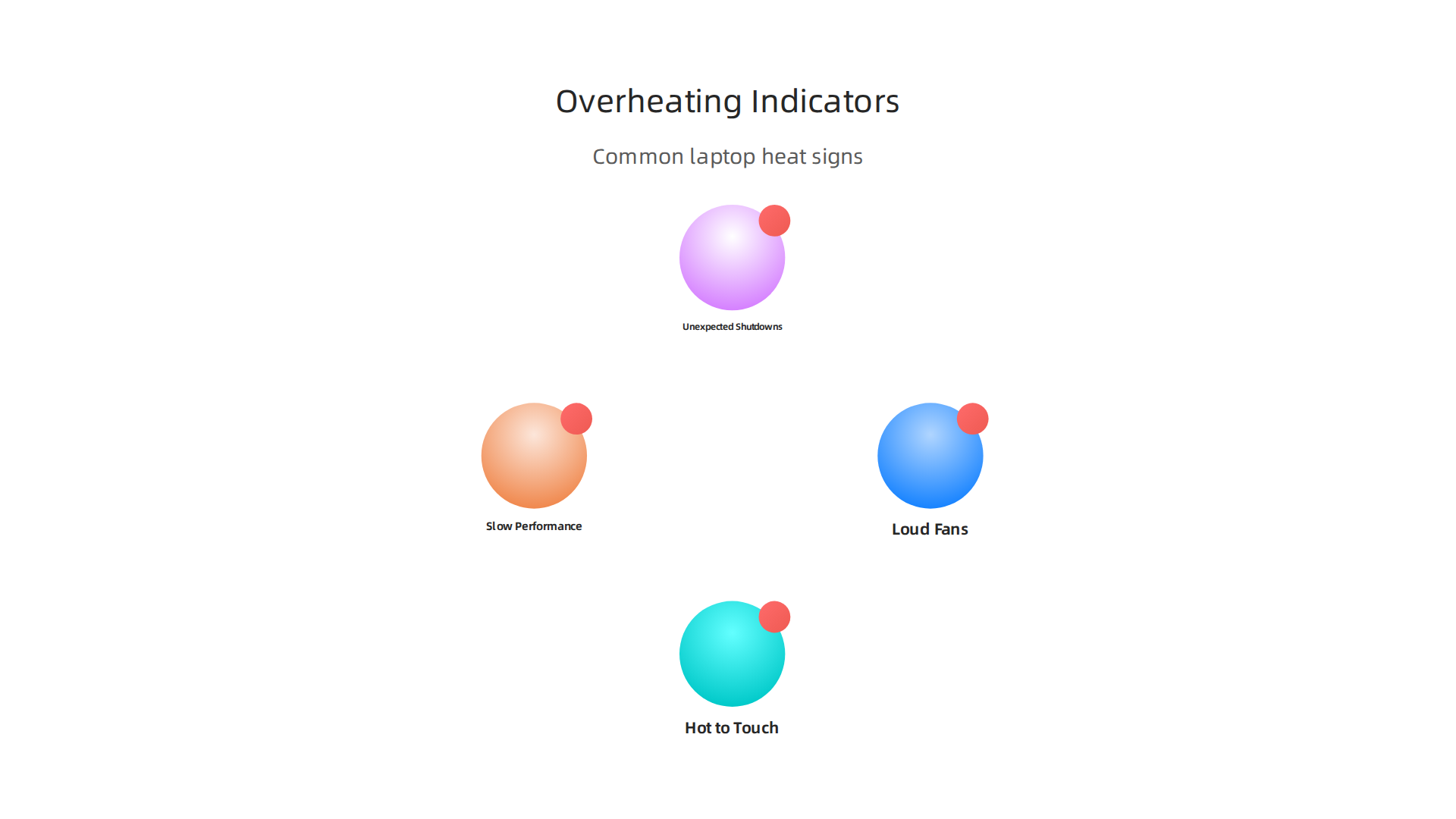
    Understanding GPUs: The Brains of AI Computing

    The GPU is the most important part of any AI workstation. It’s what actually does the heavy lifting for AI tasks. When choosing a GPU, here are the key things to think about:

    • Memory (VRAM): This is super important. More VRAM means you can work with bigger AI models and larger amounts of data at one time. For example, a GPU with 80 GB of memory can help you train models with around 13-15 billion data points, and even larger ones for just running them Best GPU for Data Science Workstations in 2026. Some newer GPUs in 2026 offer even more, like 192 GB of VRAM for the biggest tasks Best GPU for AI Inference in 2026: Benchmarks, Pricing, and ….
    • Compute Type: This refers to how fast the GPU can do math. You might hear terms like "FLOPS" (Floating Point Operations Per Second) or "Tensor Cores." Tensor Cores are special parts of NVIDIA GPUs that are really good at the kind of math AI needs, speeding up many common AI tasks Accelerating ML Workloads using GPU Tensor Cores. Different GPUs perform differently across various AI workloads, and benchmarks help compare them AI GPU Benchmarks 2026: H100 vs H200 vs B200 vs RTX ….
    • Power Budgets: Powerful GPUs use a lot of electricity and create a lot of heat. You need to make sure your workstation has enough power and good cooling to handle them. This is especially true for compact gaming pc setups, where space for cooling is limited.
    • PCIe vs. NVLink: These are ways GPUs connect to the computer’s main board or to each other.
      • PCIe (Peripheral Component Interconnect Express) is the standard way. It works well for one or two GPUs.
      • NVLink is a faster connection method, mainly used by NVIDIA GPUs. It lets multiple GPUs talk to each other much quicker. This is vital when you have many GPUs working together on a single, huge AI model, as it helps them share information faster.

    Choosing the right tech products for your AI hardware means thinking about what your team will actually be doing. Will they be training huge models daily, or mostly experimenting with smaller ones? Matching the right workstation and GPU to the task will save you time, money, and headaches.

    Choosing where your AI tech products and workloads live is just as important as picking the right machines. You have two main choices: using cloud services or keeping everything on your own computers, also known as "on-premise." Each option has its own upsides and downsides when we look at costs, how fast things work, and rules about data.

    2) Cloud vs. on-premise: cost, latency, and compliance trade-offs

    Let’s break down the main differences between using the cloud and keeping things on-premise for your AI tasks in 2026.

    A comparison of cloud and on-premise solutions for AI workloads, detailing costs, latency, and compliance factors.

    Understanding the Costs

    • Cloud Costs: Cloud services, like those from big companies, let you rent computing power. You pay for what you use. This can be great for trying new things or for tasks that don’t happen all the time. It avoids a big upfront cost. However, if you’re constantly running large AI models, the costs can add up quickly over time. Sometimes, yearly cloud costs can even be more than running your own setup, especially for heavy AI inference tasks. You can use tools to compare the total cost over time for cloud versus on-premise AI systems in 2026 to get a clearer picture AI Inference Cost 2026: CapEx vs OpEx, Edge vs Cloud + ….
    • On-Premise Costs: Buying your own servers and GPUs means a large cost at the start. You also need to pay for power, cooling, and people to manage the systems. But for companies that run AI tasks all the time, owning your tech products can be cheaper in the long run. For example, setting up a cluster of NVIDIA H100 GPUs for a large language model could cost around $200,000, plus about $30,000 a year for power and cooling, but these costs are spread out over several years LLM Inference Cost Calculator — Cloud vs. On … – Taction Software.

    Latency: How Fast Is It?

    Latency is how long it takes for a system to respond.

    • On-Premise: When your AI hardware is right in your office, the data doesn’t have far to travel. This means very low latency, which is super important for AI applications that need to react instantly, like self-driving cars or real-time factory controls.
    • Cloud: Data has to travel to and from the cloud data centers. This can add a small delay. For many tasks, this delay is not a big deal, but for those needing instant answers, it can be a problem.

    Rules and Privacy: Compliance and Data Residency

    This is often the biggest reason why companies choose on-premise or a mix of both.

    • Data Residency: This means where your data is actually stored. Many laws, especially for healthcare, finance, or government, require data to stay within a certain country or region. For AI, this includes all the data used to train models, the models themselves, and any results AI Data Residency Requirements by Region: The Complete ….
    • Data Sovereignty: This is about whose laws apply to your data. If your data must obey the laws of a specific country, having your own servers there ensures this.
    • Compliance: Following these rules is a must. If your business handles sensitive information, or operates in a regulated industry, you might be required to keep your AI workloads on-premise or use a hybrid setup where sensitive data stays local Hybrid LLM deployments, when to keep workloads on-prem.

    For businesses that need full control over their data’s location and legal framework, an on-premise or hybrid approach is often the only way to meet strict compliance rules. This helps avoid problems with things like GDPR in Europe, where rules about data are very strict On-Premise RAG: Deployment Guide for Regulated Sectors – edtek.ai.

    Hybrid Setups: The Best of Both Worlds

    Many companies use a hybrid setup. They use the cloud for tasks that are not sensitive or need a lot of flexible power. They keep sensitive data and critical AI processes on their own servers to meet rules and ensure low latency. This allows them to use the advantages of both cloud and on-premise solutions. To make smart choices for your business, it’s helpful to understand how to choose AI ready business computers in 2026 that can fit into either setup.

    Staying informed about these choices is key to making the best decisions for your business.

    Want to keep up with the newest trends and insights in AI and technology? Get clear daily AI updates from The AI Newsletter Worth Reading.

    After figuring out where your AI workloads will run, the next big step is choosing the right software tools. These developer tools are like the workbench and toolkit for creating, managing, and improving your AI models. Picking the right ones is just as important as selecting the powerful hardware or cloud services we talked about earlier.

    3) Developer tools: IDEs, model ops, and experiment tracking

    To build successful AI tech products in 2026, you need a set of smart software tools. These tools help developers at every stage, from the first idea to a working AI system.

    Essential Software Categories for AI Development

    Here are the main types of software tools every AI team needs:

    Key software categories that empower AI teams through the entire model development lifecycle.

    • Model Training Frameworks: These are the foundational tools for building AI models. Think of them as the programming languages specifically designed for AI. Popular examples include TensorFlow and PyTorch, which help developers write the code that teaches AI models.
    • MLOps Platforms: MLOps, or Machine Learning Operations, is all about making the process of creating and deploying AI models smooth and reliable. It helps teams manage the entire lifecycle of an AI model, from training to testing and putting it into action. MLOps helps companies get their AI models into production in days instead of months by automating many steps, as highlighted in the 2026 MLOps learning roadmap MLOps Learning Road: Step by Step Guide (2026).
    • Experiment Trackers: When you’re building an AI model, you often try many different settings and approaches. Experiment trackers keep a detailed record of each attempt. They log things like the settings you used, the data that went into the model, and how well the model performed. This way, you can easily compare results and know which changes worked best. Tools like MLflow are widely used for this, with a survey showing it dominates the experiment tracking space in 2026 Machine Learning & MLOps – Survey Results 2025–2026.
    • Version Control: Just like software developers use version control for code, AI teams use it for their code, data, and even the AI models themselves. This ensures everyone on the team is working with the latest versions and can easily go back to an older version if needed.

    Choosing the Right Tools for Your Team

    When picking these tech products, think about:

    • Team Size: For smaller teams, simpler tools might work fine. Larger teams often need more robust MLOps platforms that allow many people to work together efficiently.
    • Deployment Targets: Where will your AI models run? Some tools are better suited for cloud deployments, while others work well for on-premise systems or even smaller edge devices.
    • Integration Needs: How well do these tools work with your existing systems and other software? You want tools that play nicely together to avoid headaches.

    No matter the scale of your AI ambitions, from personal projects on a powerful computer to enterprise-wide deployments, choosing the right software can make all the difference. To ensure your hardware keeps up, learn how to build and optimize your AI workstation for peak performance in 2026. Making informed choices about these crucial tools helps your business reach its AI goals. If you’re looking for guidance on broad AI adoption, discover how to choose AI for business tools that deliver real results in 2026.

    Choosing the right software for building AI models is just one piece of the puzzle. You also need to make sure your AI has good data to learn from. This means having the right tools to bring in, clean, and prepare all that information. Without good data, even the best AI tech products won’t work well.

    Team members collaborate to ensure high-quality data powers AI models effectively.

    4) Data pipelines, labeling, and synthetic data tools

    Think of data as the food for your AI. Just like you need to prepare good food for yourself, AI needs well-prepared data. This is where data pipeline, labeling, and synthetic data tools come in. They help you get, clean, and make sense of all the information your AI needs.

    Tools for Managing AI Data

    Here are the main types of tools that help with AI data:

    • Data Ingestion Tools: These tools are like smart funnels. They help you collect data from many different places. This could be information from websites, sensors, apps, or even old files. These tools make sure the data flows smoothly into where your AI can use it.
    • Data Labeling and Annotation Tools: AI models learn by looking at examples. For instance, to teach an AI to spot cats in pictures, you need to show it many pictures of cats and label them as "cat." These tools let people draw boxes around objects, tag words, or mark sounds in the data. This "labeling" helps the AI understand what it’s looking at. It’s a key part of making useful AI tech products.
    • Synthetic Data Generation Tools: Sometimes, you might not have enough real data. Maybe the data is private, or a certain event happens very rarely. Synthetic data tools can create new, artificial data that looks and acts like real data. This fake data can be used to train AI models without using sensitive real-world information. This is a big help for privacy and for making AI smarter faster.

    Why Data Quality Matters So Much

    The quality of your data directly impacts how well your AI models perform. If your data is messy, incomplete, or wrongly labeled, your AI will learn bad habits. This can lead to wrong answers or even dangerous mistakes.

    High-quality data, on the other hand, helps AI models learn faster and be more accurate. This means you get results from your AI projects much quicker, boosting your business value. Actually, good data reduces the time it takes for your AI investments to start paying off.

    Also, in 2026, where your data is stored and how it’s handled is super important due to rules and laws. This is called "data residency" and "data sovereignty." Some rules say your data must stay in a certain country or region. Choosing the right tools can help you follow these rules. For example, AI data residency refers to where AI-related data, like training data and model outputs, is stored and processed physically, and these requirements vary by region AI Data Residency Requirements by Region: The Complete …. It’s vital for businesses to understand where their data sits to meet regulatory demands Data Residency for AI Workloads: Enterprise Cloud Guide. For more on keeping up with these important rules, learn about Mastering the AI Future Standard 2026: Your Guide to Compliance and Growth.

    To stay ahead in the fast-changing world of AI, keeping up with the latest insights is key.

    Get clear daily AI updates from The AI Newsletter Worth Reading.

    After making sure your AI has good data, the next step is getting those AI models to work fast and well. This is where cloud services and managed Machine Learning (ML) platforms come in handy. These are special online services that help you build, run, and watch your AI models without having to set up all the complicated computer systems yourself. They are a big part of modern tech products for AI.

    When to Choose Cloud Services Over Building Your Own

    Imagine you want to build a house. You could buy all the tools and materials, learn how to build, and do it all yourself. Or, you could hire a construction company that already has everything ready.

    • Building Your Own (In-House): This means you buy all the computer parts, like servers and special graphics cards (GPUs), and hire experts to set them up and keep them running. This can be cheaper in the very long run if you use them all the time and have a lot of specific needs. For example, if you need a thinkpad for programming or are building a compact gaming pc for AI work, you might consider buying individual pc parts. However, it takes more time and skilled people.
    • Using Cloud Services (Managed Platforms): These are like renting that construction company. You pay a service like Google, Amazon, or Microsoft to use their powerful computers and special software tools. This often means you can get your AI projects working much, much faster. It’s often the way to go for many businesses in 2026. While on-premise solutions are required for certain strict data rules, for many others, cloud options can be more flexible and cost-effective, balancing immediate needs with long-term expenses AI Inference Cost 2026: CapEx vs OpEx, Edge vs Cloud + …. You can compare the costs of cloud-based versus on-premise AI solutions using tools like an LLM Inference Cost Calculator.

    Choosing managed platforms can help you launch your AI tech products much quicker. This is known as speeding up your "time-to-market."

    Key Features of Managed ML Platforms

    Managed ML platforms offer some really helpful features that make building and running AI models easier:

    • Autoscaling: Imagine your AI tool suddenly becomes very popular. Autoscaling means the platform automatically adds more computer power when many people are using your AI. When fewer people are using it, it scales back down. This saves you money and makes sure your AI always runs smoothly, no matter how busy it gets.
    • Model Monitoring: Once your AI model is working, you need to make sure it keeps doing a good job. Model monitoring tools watch your AI closely. They check if it’s giving correct answers, if it’s using too much computer power, or if anything seems off. This helps you fix problems before they become big issues.
    • Built-in MLOps: MLOps stands for Machine Learning Operations. It’s about making the whole process of building, deploying, and managing AI models easy and organized. Managed platforms often have MLOps tools already built-in. This means you don’t have to spend a lot of time setting up complex systems. Instead, you can focus on making your AI smarter.

    These managed platforms help businesses big and small to use AI without needing to become experts in setting up huge computer systems. If you’re looking to understand the different options, check out our guide on Enterprise AI Platforms 2026: Top Providers and How to Choose the Right One.

    To keep learning about these powerful tools and more, don’t miss out on important updates. Stay informed with The AI Newsletter Worth Reading.

    After setting up efficient AI models and choosing the right cloud services, the next step is making sure the people who use and create with these AI tools also have the best equipment and ways of working. This is where special accessories and smart team tools come in. They help everyone be more productive.

    Essential Gear for AI Creators

    Good hardware can make a big difference in how fast and smoothly creative work gets done. Think about what a creator needs beyond just a powerful computer.

    AI Tools for Smarter Creative Work

    Today, many helpful software tools use AI to make creative jobs easier and faster. These are like having a smart assistant for your creative tasks.

    • Writing and Design Tools: AI can help you write better and design faster. Tools like ChatGPT and Claude are great for generating text ideas, while Midjourney and Adobe Firefly help with creating images. Canva AI can help with templates and graphics, making design simpler for everyone. Actually, in 2026, these are among the 9 Best AI Tools for Creating Digital Products in 2026.
    • Video and Productivity Tools: For video creation, tools like Synthesia and Descript use AI to help with editing and even creating AI-generated avatars. You can also explore best AI avatar tools for video content in 2026 for more options. For general tasks, AI productivity tools can help manage your schedule, take notes, and summarize information, speeding up everyday work 19 Top AI Productivity Tools for 2026 (Tested & Reviewed). Many top AI tools for creators are available to help with different parts of the creative process.

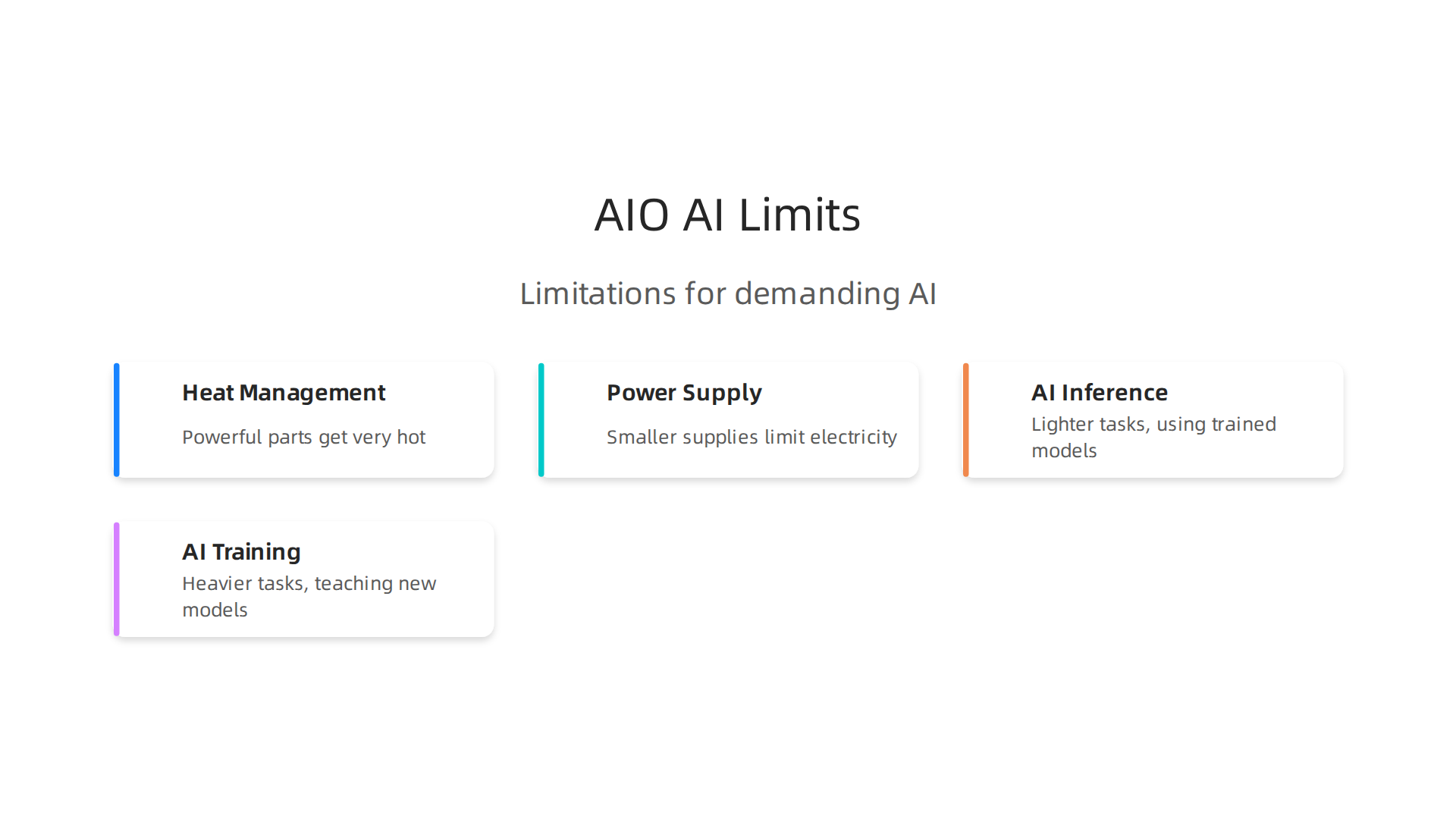
    Streamlining Workflows with AI Templates

    One big challenge is making sure creators and engineers work well together. AI workflow templates can help a lot.

    • What are Workflow Templates? Think of these as clear guides or "recipes" for how to do a task using AI. They tell you exactly what steps to take, what information you need to start, and what the final result should look like. These templates help automate parts of your creative work using AI tools like GPT prompts Top AI Workflow Templates (2026): Automations & G….
    • Reducing Friction: By using these clear steps, everyone knows what to expect. This means fewer misunderstandings and less wasted time between creators making new things and engineers putting them into real tech products. For example, using Best Notion AI Templates for Productivity 2026 can help teams stay organized. Building repeatable workflows is key to setting up an effective 2026 AI Productivity Stack.

    After mastering AI workflows, it’s time to talk about the money side of things. How do you buy these important AI tools and tech products smartly? And how do you know if they are actually helping your business grow? This section will help you understand how to buy, budget for, and measure the success of your AI investments.

    Smart Buying for AI Tech Products

    When you’re ready to get AI tech products, it’s like shopping for anything important for your business. You want to make sure you get the right stuff without spending too much. This means looking at hardware and software.

    First, think about the tools you need. Will you use powerful computers locally, like a dedicated workstation, or mostly cloud-based services? Sometimes, a good local computer is needed for creative work, while for heavy AI tasks, cloud services are best. You also need to think about the full cost over time, not just the starting price. This includes things like ongoing subscriptions, maintenance, and energy use. A 2026 report looked at the total cost of ownership for generative AI, comparing on-premise (local) versus cloud solutions, which can help guide your choices On-Premise vs Cloud: Generative AI Total Cost of Ownership 2026 Edition. Knowing this helps you pick the right mix of resources. You might even find value in exploring options like used PC parts for AI to get powerful performance without a huge budget.

    When buying, look for vendors that offer clear terms and good support. A 2026 guide on enterprise AI procurement offers tips on RFPs (requests for proposals) and vendor selection to help you make smart choices The 2026 Enterprise AI Procurement Playbook: RFPs, Vendors & TCO.

    Budgeting for AI

    Budgeting for AI means knowing where your money will go. Here are some common areas where costs add up:

    • Software Subscriptions: Many AI tools work on a monthly or yearly payment plan.
    • Hardware: This includes powerful computers for your team, like a ThinkPad for programming or even a compact gaming PC if you need strong graphics power for AI tasks.
    • Data Costs: Preparing and storing the data that AI models learn from can be a big expense.
    • Talent: Hiring experts to set up and manage AI systems also costs money.

    In 2026, the cost for enterprise AI is quite varied. Some large companies spend a lot, but the typical company spends less. Understanding these costs is crucial for planning your budget The AI Cost Stack in 2026: Data, Talent, Compute, and ….

    Measuring the Return on Investment (ROI)

    After you’ve bought and set up your AI tech products, how do you know if they’re actually making a difference? Measuring ROI means checking if the benefits you get are more than the money you spent.

    Business professionals review financial reports to evaluate the return on investment from AI initiatives.

    Here are some ways to measure if your AI tools are successful:

    Effective ways to evaluate the return on investment for AI tech products and initiatives.

    • Productivity Gains: Are your employees getting more done in less time? For example, if an AI writing tool helps a content creator finish articles faster, that’s a win.
    • Cost Savings: Is AI helping you save money in other areas? Maybe it automates tasks that used to require a lot of staff hours.
    • Time Saved: If AI helps reduce the time it takes to complete a project, that’s valuable. For example, some procurement AI deployments have shown a payback period of just 9 to 18 months Procurement AI ROI: Data From 50 Real Deployments.
    • Better Decisions: Is AI helping you make smarter choices that lead to more sales or happier customers?

    While many companies are using AI in 2026, actually measuring the ROI can be tricky. Only about 41% of companies using AI can clearly show a measurable ROI on their biggest AI programs State of Enterprise AI 2026 Report. This shows that tracking your AI investments is very important.

    For small and medium businesses (SMBs), there’s good news too. AI embedded in revenue or cost flows can show an ROI of 75% to 150% AI ROI for SMBs: 2026 Benchmarks. It’s all about choosing the right tools and tracking their impact carefully.

    Want to stay on top of all the latest AI trends and how they impact business?
    Join our community of informed professionals.
    The AI Newsletter Worth Reading

    Summary

    This article is a practical guide to choosing the right tech products for AI teams in 2026, covering hardware, software, deployment, data and procurement so leaders can make smarter investments. It explains which workstations and GPUs suit different workloads, and why VRAM, compute type and interconnects like PCIe or NVLink matter. The guide compares cloud, on‑premise and hybrid setups with a focus on cost, latency and regulatory compliance, and it shows when managed platforms make sense. It also outlines essential developer tools—training frameworks, MLOps, experiment trackers and versioning—and the data stack: ingestion, labeling and synthetic data. Finally, the article walks through creator gear, workflow templates, buying strategies, budgeting and practical ways to measure ROI so teams can reduce risk and accelerate value from AI projects.

  • Build and Optimize Your AI Workstation for Peak Performance 2026

    Build and Optimize Your AI Workstation for Peak Performance 2026

    It’s 2026, and artificial intelligence (AI) is no longer just a buzzword. It’s a tool that many businesses, big and small, use every day. From making special pictures to writing new ideas, AI helps teams get more done. But here’s the thing: for your team to really shine with AI, the computer they use needs to be up to the task. Having the right "optimum tech" or a powerful "pc setup" is super important.

    When your computer can handle AI tasks right on your desk, it changes a lot. First, it helps you work much faster. Instead of waiting for things to load or process on a faraway server, your ideas can come to life in moments. This quickness means your team can try out new things and fix problems much quicker. Think of it like drawing. If your pencil moves slowly, you can’t sketch as many ideas. A fast computer is like a super-fast pencil for AI.

    This speed also helps save money. When you run AI tasks on your own computer, you don’t have to pay for expensive cloud services as often. For small to medium businesses (SMBs), this can make a big difference in costs. Plus, when developers and creators have powerful tools that work smoothly, they are happier and get more done. It boosts their productivity and keeps them focused on creating, not waiting.

    For example, to run even a small AI model, you need a computer with at least 16GB of system memory (RAM) and a graphics card with 8GB of its own memory (VRAM). For bigger tasks, you’ll need 24GB or more VRAM and maybe 64GB to 128GB of system RAM [1, 2]. Picking the right parts for your pc setup is key to making sure your AI efforts pay off.

    Screenshot of the AI Tools News Today website, a resource for businesses seeking insights on AI-ready computer configurations.

    In this guide, we’ll walk you through how to build an AI workstation that balances great performance with a smart budget. You’ll get an easy-to-follow checklist and recommendations for hardware that will keep your team at the top of their game without breaking the bank.

    Do you want to stay updated on the latest AI trends and tools that can help your business thrive?
    Get clear daily AI updates from The Deep View Newsletter.

    Choosing the right parts for your computer is a big step in getting your team ready for AI tasks.

    A person intently planning and making strategic decisions regarding optimal hardware choices for an AI workstation.

    Think of these parts like the different players on a sports team. Each one has a special job that helps the whole team win. For AI, you need a strong CPU (the "brain"), a powerful GPU (the "muscle"), lots of RAM (the "short-term memory"), and fast storage (the "long-term memory"). Getting the right optimum tech in your pc setup means your AI projects will run smoothly and quickly.

    Graphics Card (GPU) is Key

    The most important part for most AI tasks is the Graphics Processing Unit, or GPU. It’s like the main engine for AI. GPUs are very good at doing many calculations at once, which is exactly what training AI models and using them (called "inference") needs.

    • Training small models or fine-tuning: If you’re working with smaller AI models, or just tweaking existing ones, a GPU with about 8GB to 16GB of its own memory (VRAM) is often enough. For example, running a 7-billion parameter AI model comfortably needs 16GB of VRAM Local AI Hardware Requirements (2026): Complete Guide.
    • Larger AI models: For bigger jobs, like training large language models or working with complex image AI, you’ll need much more VRAM. A graphics card with 24GB or even 32GB of VRAM is much better. Some of the best consumer-grade cards in 2026, like the NVIDIA RTX 4090, offer 24GB VRAM, which is great for many tasks Best AI PC Builds for Running Local LLMs in 2026 – Newegg.

    Screenshot of the Newegg homepage, a prominent online retailer for computer hardware components relevant to AI PC builds.

    You might wonder about consumer GPUs (made for gamers) versus professional GPUs (made for serious work). Consumer GPUs, like the RTX series, offer great performance for their price, especially if you’re building a budget-friendly AI workstation. Professional cards are more expensive but offer more VRAM and special features for huge projects. For most small and medium businesses, a powerful consumer GPU can be a very smart choice for your AI pc setup.

    Central Processing Unit (CPU) and System Memory (RAM)

    While the GPU does the heavy lifting for AI math, the CPU is still very important. It handles everything else, like getting your data ready for the GPU (data preprocessing), running the operating system, and managing other programs. A CPU with many "cores" (the parts that do work) helps a lot with these tasks. It keeps the data flowing smoothly to the GPU so your graphics card isn’t waiting around.

    For system memory, or RAM, you need a good amount too. It holds all the data that your CPU and GPU are working on at that moment. For basic AI tasks, 32GB of RAM is a good start in 2026. But for more serious work, like if your GPU doesn’t have enough VRAM and needs to use some of the system RAM (called "CPU offloading"), 64GB or even 128GB of RAM is much better How Much RAM for Local AI in 2026? Memory Guide. This makes sure everything runs quickly without slowing down.

    Fast Storage for Data

    Finally, don’t forget storage. AI models and the data they learn from can be very large. You need fast storage, like NVMe SSDs, to quickly load and save these files. Slow storage can make your whole system feel sluggish, even if you have a powerful GPU and lots of RAM. Having 2TB or more of fast NVMe storage is often recommended for serious AI work Best PC for AI, Machine Learning & Data Science (2026) | CORSAIR.

    Smart Choices for Your Budget

    Building an AI workstation is about finding the right balance. You want enough power without spending too much.

    An infographic illustrating recommended hardware specifications for entry-level, mid-range, and heavy AI workloads.

    • For entry-level AI: A strong CPU, 32GB of RAM, and a consumer GPU with 8-16GB VRAM, along with a fast 1TB NVMe SSD, can get you started.
    • For mid-range tasks: Upgrade to a faster CPU with more cores, 64GB of RAM, and a GPU with 24GB VRAM.
    • For heavy AI workloads: Consider a top-tier CPU, 128GB+ of RAM, and a GPU with 32GB+ VRAM (or even two GPUs), plus multiple large, fast NVMe drives.

    You can often save money by looking into options like used PC parts for AI or even finding a used gaming PC for AI that you can upgrade. This smart approach to building your pc setup means you can get the optimum tech you need without stretching your budget too thin.

    Choosing the right computer parts is just the first step for AI work. Think of it this way: even the fastest race car needs a good driver and the right fuel to win. For your AI pc setup, the "driver" is the software that makes everything run. Getting this software stack right is key to having the most optimum tech and smooth performance. It makes sure your powerful GPU can actually do its job well.

    Understanding the AI Software Stack

    The software stack for AI has different layers, much like a sandwich. Each layer needs to work with the ones above and below it.

    An infographic illustrating the hierarchical layers of the AI software stack, from GPU drivers to AI frameworks.

    1. GPU Drivers: These are special programs that let your operating system (like Windows or Linux) talk to your graphics card. Without the right driver, your GPU can’t do much.
    2. CUDA or ROCm (The GPU Language): This is the magic layer that lets AI programs tell your GPU what to do.

    Screenshot of the NVIDIA homepage, highlighting their leadership in GPU technology and AI computing solutions.

    *   **ROCm** is AMD's answer, and it works with AMD GPUs. It has gotten much better in 2026, with more official support for consumer cards like the RX 7900 XTX [AMD ROCm vs CUDA for Local AI [2026 Compared]](https://www.kunalganglani.com/blog/amd-rocm-vs-cuda-local-ai-open-source-guide). However, CUDA often still performs 10% to 30% better than ROCm [ROCm vs CUDA: GPU Computing Comparison (July 2026)](https://www.thundercompute.com/blog/rocm-vs-cuda-gpu-computing).
    
    1. AI Frameworks: These are the big toolkits that AI developers use, like PyTorch and TensorFlow. They use CUDA or ROCm to send tasks to the GPU.

    Avoiding Software Conflicts

    The tricky part is making sure all these layers are compatible. For example, a new version of PyTorch might need a specific version of CUDA, which in turn needs a certain NVIDIA driver. If these versions don’t match, your AI programs might crash or run very slowly. AMD’s ROCm also has detailed compatibility lists, showing which versions work with different GPUs and operating systems ROCm 7.14.0 compatibility matrix – ROCm Documentation.

    It’s a good idea to always check the "compatibility matrix" for your chosen CUDA or ROCm version and your AI frameworks. This small step can save you a lot of headaches. Staying on top of updates and new releases in the world of AI technology is essential for any business.

    Boosting Performance Without New Hardware

    Even with your current pc setup, you can make your AI tasks run faster by tuning your software.

    • Mixed Precision Training: This is a smart trick where your AI model uses smaller, simpler numbers for some calculations. This speeds up training and saves GPU memory (VRAM). It’s like doing some math with rough estimates instead of always exact numbers, which is often good enough for AI and much faster. Many modern AI frameworks support this.
    • Memory Management: Being careful about how your programs use VRAM and system RAM can make a big difference. Closing other programs, reducing the "batch size" (how many pieces of data the GPU processes at once), or optimizing your code to use less memory can lead to faster training and inference.
    • Software Updates: Keeping your GPU drivers, CUDA/ROCm, and AI frameworks updated to compatible versions can often bring performance improvements and new features. It’s like getting a tune-up for your car.

    By focusing on these software aspects, you can squeeze out more performance from your existing hardware, ensuring you truly have the optimum tech for your AI projects. If you’re looking to understand more about choosing the best systems, check out our guide on how to choose AI ready business computers in 2026.

    Staying informed about the latest developments in AI tools and compatible software can also help you make smart choices. It ensures your software stack remains efficient and powerful.

    Get clear daily AI updates from The AI Newsletter Worth Reading.

    Okay, your powerful AI graphics card needs to crunch huge amounts of data. But if that data can’t get to the GPU fast enough, it’s like having a super-fast car stuck in traffic. That’s why memory, storage, and how your computer moves data around (called I/O) are just as important for a truly optimum tech setup.

    A person focused on a screen displaying complex charts and data, representing efforts to analyze and optimize data flow.

    We need to prevent any slow-downs, or "bottlenecks," that stop your AI projects from running smoothly.

    Making Sure Your AI Data Flows Fast

    When you train an AI model, it needs to read huge collections of information, called datasets. It also saves its progress often, creating "checkpoints." If these files are slow to load or save, your GPU will sit idle, waiting for data. That’s wasted time and power.

    1. Dataset Formats:
    The way your data is stored matters. Some formats, like TFRecord for TensorFlow or Arrow for PyTorch, are made to be read very quickly. They pack data efficiently and can be streamed to the GPU without much fuss. Using these formats can speed up your AI work a lot.

    2. Smart Storage Choices (Storage Tiers):
    Think of your storage as different lanes on a highway.

    • NVMe SSDs: These are the fastest lanes. They’re like rocket ships for data. For AI work, your active datasets and checkpoints should be on NVMe (Non-Volatile Memory Express) drives. These plug right into your motherboard and are much faster than older SSDs. Making sure your NVMe drive is running at its full speed, like PCIe Gen4 x16, is important to avoid a data jam Local AI Performance & Optimization (2026 Admin Guide).
    • SATA SSDs: These are still fast, like a regular highway. Good for less critical data or older projects.
    • HDDs (Hard Disk Drives): These are the slowest, like a country road. They’re good for storing really large amounts of archived data that you don’t need to access often.

    Having the right storage for the right job means your pc setup has the optimum tech for speed.

    3. Moving Data Smartly (I/O Strategies):
    Getting data from your storage to your GPU involves many parts, including your computer’s brain (CPU) and its operating system.

    • Operating System Tuning: Even the operating system (like Linux) can be tweaked to help. Special settings in the "kernel" (the core of the OS) can help data flow better. For example, using larger memory pages, called "Transparent Huge Pages," can make things faster Linux Kernel & OS Optimization for AI/ML Workloads in 2026. Some tools can even use AI to automatically fine-tune your Linux kernel for better performance Tuning the Linux kernel with AI brings significant performance.
    • Caching: Your computer can temporarily store frequently used data in a faster memory area, called a cache. This is like putting your favorite tools right next to you instead of walking to the shed every time. For large datasets, smart caching helps a lot.
    • RAID: This is a way to combine several hard drives to act like one. You can set it up for extra speed (reading and writing across multiple drives at once) or for safety (if one drive fails, your data is still safe on others). For AI, a RAID setup focused on speed can be helpful for very demanding projects.

    Practical Steps for a Better PC Setup

    To make sure your pc setup is ready for heavy AI work in 2026:

    • Invest in NVMe: Make sure your main drives for AI datasets and checkpoints are NVMe SSDs.
    • Check PCIe Lanes: In your computer’s settings (BIOS), make sure your GPU and NVMe drives are using all their available speed lanes, especially for PCIe Gen4 x16.
    • Optimize Your OS: If you’re using Linux, look into tools and settings for kernel tuning. For example, setting vm.swappiness to 0 can stop your computer from using slower storage as "fake" RAM, which is good if you have enough actual RAM Linux OS & Kernel Tuning – GPU Cluster Knowledge Base. You can also dedicate specific CPU cores and memory to your AI tasks.
    • Data Organization: Store your most important, actively used AI datasets on the fastest NVMe drives. Move older or less used data to slower, cheaper storage like larger HDDs.

    By paying attention to these details, you’re not just buying powerful parts; you’re building a truly efficient machine. This helps define technology that works for you, ensuring your AI work runs faster and smoother. If you are interested in seeing how operating systems are evolving to integrate AI, you can read about Integrating Artificial Intelligence into Operating Systems.

    After making sure your powerful AI graphics card gets data quickly, the next step is to look at how your computer’s main brain, the operating system (OS), and its core, the kernel, work. Getting these right is key for truly stable and optimum tech performance when doing AI tasks. Without proper settings, even the best hardware can slow down.

    OS-Level Settings for AI

    Think of your operating system as the boss of your computer. It decides who gets to use the CPU, memory, and other resources. For AI, you want your important AI programs to get priority.

    • CPU Scheduling: Your CPU has to manage many tasks at once. "CPU scheduling" is how it decides which task runs when. For AI, we want AI training or inference tasks to run smoothly without other programs hogging the CPU. You can often tweak settings in Linux to give your AI jobs more CPU time. Using special groups called "cgroups" helps you set aside CPU cores and memory just for your AI programs, keeping them separate from other tasks Beyond the GPU: Linux Kernel & OS Optimization for AI/ML Workloads in 2026.
    • Kernel Tuning: The kernel is the very heart of the OS. It manages everything. For AI, certain kernel settings can boost speed. For example, some tools can use AI itself to automatically find the best kernel settings for your system, leading to better performance Tuning the Linux kernel with AI brings significant performance. This kind of smart tuning can really make your pc setup shine.

    Containerization for AI Work

    Making sure your AI work can be repeated exactly the same way every time is super important. That’s where containers come in.

    • What are Containers? Imagine a small, self-contained box that holds everything your AI program needs to run: the code, its tools, and all its settings. This box is a container. Docker is a popular tool for making and running these containers.

    Screenshot of the Docker homepage, showcasing the platform for containerizing and managing applications, including AI workloads.

    • Why They Help AI:
      • Reproducible: Because everything is bundled, your AI model will run the same way on your computer as it does on a friend’s computer, or on a big server farm. This means fewer "it works on my machine" problems.
      • Consistent: Containers help keep your different AI projects separate. One project’s tools won’t mess with another’s.
      • Easy to Move: You can easily move your containerized AI projects from one machine to another. This is great for sharing your work or moving to bigger computers if your AI needs more power.

    Containers vs. Virtual Machines vs. Bare Metal

    When setting up your AI environment, you have choices for how isolated your programs are.

    An infographic comparing Bare Metal, Containers, and Virtual Machines for AI project deployment and isolation.

    • Bare Metal: This means your AI software runs directly on your computer’s hardware, with only the operating system in between. It’s the fastest way to run things because there’s no extra layer slowing it down. This gives you the maximum optimum tech speed. However, it can be harder to manage many different projects or quickly switch between environments.
    • Containers: As we talked about, containers add a light layer on top of your OS. They give you a good balance of speed and flexibility. They’re much faster than VMs because they share the OS kernel with the host machine.
    • Virtual Machines (VMs): A VM creates a whole fake computer inside your real computer, with its own OS. This offers the best isolation and security. You can run Windows on a Linux machine, for example. But VMs are slower than containers or bare metal because they have more layers to go through. They’re useful if you need to run AI on a very different operating system or need strict isolation.

    For most AI tasks in 2026, especially for local development on your pc setup, containers are a great middle ground. They offer solid performance and the flexibility to manage many projects. For the absolute fastest training or inference, bare metal is often preferred, but it needs more careful manual setup and management.

    To stay on top of all the new ways operating systems and other technology are evolving with AI, it helps to keep learning.

    For clear, daily AI updates that help you make sense of the fast-moving world of AI and technology, consider subscribing to The AI Newsletter Worth Reading.

    After setting up your computer’s brain and packaging your AI programs in containers, you might think you’re ready to go. But wait! How do you know if your setup is truly performing at its best? This is where measuring things becomes super important. You need to look at tooling, profiling, and observability to measure before you optimize.

    Think of it like tuning a car. You don’t just change parts; you first check what’s wrong with special tools. For your AI pc setup, you need similar checks to find out if anything is slowing it down.

    Tooling, profiling, and observability: measure before you optimize

    "Profiling" simply means watching your AI program as it runs to see which parts are fast and which are slow. This helps you find the weak spots that keep your computer from reaching its optimum tech potential. You need to keep an eye on a few key things:

    • CPU Usage: This shows how hard your computer’s main brain is working. Is it busy doing AI tasks, or is something else taking up its time?
    • GPU Usage: Your graphics card is like the powerhouse for AI. You want to make sure it’s working hard on your AI calculations and not just sitting idle.
    • Memory Usage: This includes both your computer’s main memory (RAM) and the special memory on your graphics card (VRAM). If you run out of memory, everything slows down.
    • Input/Output (I/O): This checks how fast data moves around your system. If your computer can’t get data to the GPU fast enough, your AI will wait, even if the GPU is powerful.

    Watching these numbers helps you see exactly where to make changes. For example, tools like the PyTorch Profiler can show you a detailed timeline of what your AI model is doing, frame by frame, to spot bottlenecks in its operation Profiling in PyTorch (Part 1): A Beginner’s Guide to torch. …. This kind of detailed view helps you understand the inner workings of your AI tasks.

    A Simple Plan for Better Performance

    To make sure your AI runs as fast as it can, follow these steps:

    1. Measure First: Before changing anything, measure how well your AI is performing right now. Note down the CPU, GPU, memory, and I/O numbers. Many useful technology tools exist for this Best Machine Learning Profiling Software.
    2. Change One Thing: Make just one small change to your settings, code, or hardware.
    3. Measure Again: Run your AI program and measure its performance again. Compare the new numbers to the old ones to see if your change helped or hurt.
    4. Repeat: Keep doing this cycle. Each time, you’ll learn more about what makes your specific AI work faster.

    This way, you’re not just guessing what might help. You’re using real numbers to guide your choices, making your performance checks "reproducible." This means you can do the same test multiple times and get the same results, confirming your improvements. It’s how experts ensure their pc setup is always top-notch for AI. For more tips on setting up your computer for AI, check out how to choose AI-ready business computers in 2026.

    Keeping track of these details is part of "observability." It’s about having a clear picture of what’s happening inside your system at all times. This helps you react quickly if problems come up and ensures your AI projects stay on track. Learning about new tools and trends can also help you keep your systems updated; you can even build a tech radar to track AI trends and tools in 2026.

    After you know how well your AI is running, the next big question is where it should run. Should your AI tasks stay on your own computer, known as your local pc setup? Or should you send them to the cloud, which is like using super powerful computers far away over the internet? This choice is called using "hybrid workflows," and it’s key to getting the most out of your optimum tech.

    A person thoughtfully considering options, symbolizing the decision-making process for hybrid AI workflows (local vs. cloud).

    Hybrid workflows: when to offload to cloud or keep work local

    Think of it like deciding where to do your cooking. You can cook at home (local) or order from a restaurant (cloud). Both have good and bad points. For AI, picking the right place helps you save money, finish tasks faster, and keep your information safe. Businesses in 2026 often use a mix of both. This blend of local and cloud resources for AI is often called a hybrid AI architecture Hybrid AI Architecture: 6-Criterion Decision Matrix (2026).

    Here’s how you can decide:

    An infographic outlining key factors to consider when deciding between local and cloud resources for AI workloads.

    • Data Security: If your AI works with very private or secret information, it’s often best to keep it on your local pc setup. This way, you have full control over your data. Many businesses choose local models for sensitive data Local AI vs Cloud AI in 2026: When to Run Models on Your Own ….
    • Cost: Running AI in the cloud can be like paying-as-you-go. You only pay for what you use. Setting up a powerful local computer for AI can cost a lot of money upfront, like buying all your own kitchen tools. But for many tasks, local can be cheaper in the long run Designing Hybrid Cloud‑Local LLMs: A 2026 Architecture ….
    • Speed and Time: For some fast, small jobs, your local computer might be quicker because there’s no internet delay. But for huge jobs that need a lot of computing power, the cloud can finish them much faster by using many computers at once On-Premise vs Cloud AI Deployment: A Decision ….
    • Growing Bigger (Scalability): The cloud makes it easy to handle much more work when you need to, and then shrink back down later. Your local computer has a fixed amount of power.

    Many people choose a mix, which is called a "hybrid approach." For example, you might use your local machine for everyday tasks or for data that needs to stay private. Then, for really hard problems or when you need a lot of power, you send those tasks to the cloud. This smart way of working helps you get the best of both worlds, leading to optimum tech performance.

    To set up these hybrid workflows, you can:

    1. Sort Your Work: Look at all your AI tasks and decide which ones need to stay local (due to privacy or cost) and which ones can go to the cloud (for speed or big jobs). You can classify tasks by how complex they are or how sensitive their data is Hybrid AI Strategy Guide — Achieving 50% Cost Reduction with ….
    2. Use Smart Routing: Set up your system to automatically send tasks to the right place. Simple or sensitive tasks stay local, while more complex tasks go to the cloud. This creates a "tiered inference architecture" that routes requests efficiently Local-First AI Agents: Hybrid Cloud-Edge Architectures for ….
    3. Use Tools that Help: There are tools that can help you manage where your AI runs, making it easier to switch between local and cloud.

    Choosing the right approach for your AI setup is a big part of mastering technology in 2026. For more ideas on finding the right tools, check out how to choose AI for business tools that deliver real results in 2026.

    Staying updated on these new ways of working is very important.

    Get clear daily AI updates from The Deep View Newsletter. The AI Newsletter Worth Reading

    Summary

    This guide explains how to build and optimize an AI workstation that balances performance and budget so teams can run local AI smoothly in 2026. It covers hardware essentials — why GPUs (VRAM), CPUs, system RAM and NVMe storage matter — and gives concrete spec ranges for entry, mid and heavy workloads. The article also walks through software considerations like drivers, CUDA vs ROCm, AI frameworks and containerization, plus OS and kernel tuning to avoid slowdowns. You’ll learn practical performance boosts such as mixed precision, memory management, and I/O strategies, how to measure bottlenecks with profiling tools, and when hybrid cloud workflows make sense. By the end you’ll know which parts to pick, how to tune the stack, and cost-saving options like used parts or hybrid routing to get optimum tech without overspending.

  • Meta Smart Glasses For Businesses 2026 Power Growth and Efficiency

    Meta Smart Glasses For Businesses 2026 Power Growth and Efficiency

    Why meta smart glasses matter for businesses in 2026

    Imagine wearing glasses that do more than just help you see. These are Meta smart glasses, and they are changing how we think about everyday tools in 2026. They look like regular eyeglasses or sunglasses, but they have special computer technology built right in. This means they come with a camera, microphones, and even an AI assistant to help you throughout your day. For example, many models feature a 12-megapixel camera, can record 3K video, and have a good microphone system to pick up your voice clearly, often lasting around 8 hours on one charge

    Visit TreeView Studio for insights into the best smart glasses and AI technologies of 2026.

    Best Smart Glasses & AI Glasses in 2026: 15 Models ….

    These smart glasses are more than just a cool gadget. For businesses, they represent a big step in the tech industry, offering new ways to work. Think about professionals who need to keep their hands free, like doctors, engineers, or people working in manufacturing.

    Professionals collaborate effectively using hands-free technology in a modern workspace.

    With meta smart glasses, they can get information, record important moments, or even communicate with others without reaching for a phone or tablet. This kind of wearable computer technology lets workers do things faster and with fewer mistakes. It marks a milestone technology in making AI and digital tools a natural part of our daily work.

    So, what kinds of chances do meta smart glasses open up for small and big companies?

    Meta smart glasses offer significant advantages for businesses, enhancing various aspects of work and customer interaction.

    • Hands-Free Work: Employees can follow instructions, check designs, or get help from an expert while still using both hands for their tasks.
    • Instant Information: An AI assistant can quickly look up facts, translate languages, or give directions, making staff more efficient.
    • Better Training: New employees can see exactly what an expert sees, learning faster and more effectively.
    • New Customer Services: Imagine a repair person streaming live video from their glasses to a customer service agent, getting instant help to fix a problem. This is how businesses can unlock growth by selecting the right smart technologies in 2026.

    However, bringing this century tech into your business isn’t without its challenges. One of the biggest concerns is privacy. Because these glasses can record video and audio, companies need to be careful about how and when they are used. Laws like GDPR, for example, have strict rules about recording people, especially in public places Smart Glasses and GDPR: Why Europe Is Cracking Down on …. Another barrier can be the cost of buying many pairs of smart glasses and making sure they work well with existing business systems. But with careful planning, these new tools can really help a business grow.

    Want to stay informed about all the latest AI tools and tech trends that can impact your business?
    The AI Newsletter Worth Reading

    So, how do these amazing meta smart glasses actually work? Let’s peek under the hood to see what makes this modern computer technology tick. It’s all about the parts inside and how they work together, especially with smart AI.

    Inside Your Meta Smart Glasses: Hardware and Sensors

    Meta smart glasses pack a lot of high-tech stuff into a small, stylish frame. Think of them as tiny, powerful computers that sit right on your face.

    A breakdown of the essential hardware and sensors that power Meta smart glasses.

    • Cameras: Most models feature a 12-megapixel camera. This isn’t just for taking simple photos; it can record crisp 3K videos. Some designs even have special features like an ultrawide view, portrait mode, and smart systems that adjust to light and faces automatically Introducing the New Ray-Ban | Meta Smart Glasses. This allows for rich visual input, which is key for many of their smart functions.
    • Microphones: To hear your voice clearly and pick up sounds from the world around you, these glasses come with a special setup. Many have five or six tiny microphones that work together. This helps the glasses understand your commands and record good quality audio, even in noisy places News – Shenzhen Mitacbattery Technology Co.,Ltd..
    • Processors: The "brain" of these glasses is a powerful chip. For example, many Meta smart glasses run on the Qualcomm Snapdragon AR1 Gen 1 platform. This chip is super important because it handles all the heavy lifting, making sure the glasses run smoothly and quickly. If you want to learn more about such advanced chips, you can read about Qualcomm’s 2026 innovations reshape business for future leaders.
    • Connectivity: These glasses connect to other devices, like your phone, using things like Bluetooth 5.3 and Wi-Fi 6. This allows them to send and receive information quickly.
    • Battery Life: Wearing a computer on your face means you need good battery life. Many models offer around 8 hours of use on a single charge. The special charging case can give you up to 40 more hours, so you can keep using them all day. The weight is also kept light, with many standard versions weighing around 53 grams Why Meta’s new smart AI glasses might not be for everyone, and why I still recommend them. Some newer models even feature a small display in one lens, showing you information directly in your view.

    On-Device AI: Smartness Without the Cloud

    One of the coolest things about modern meta smart glasses is their "on-device AI." This means that a lot of the smart thinking happens right inside the glasses themselves, not always needing to send information to the internet or a distant cloud server.

    Why does this matter?

    • Speed: When the AI works on the device, it’s much faster. There’s almost no delay, or "latency," between when you ask for something and when the glasses respond. This is super helpful for quick tasks like identifying objects or translating words right away.
    • Works Anywhere: Because the AI is built-in, some features can still work even if you don’t have an internet connection. This is great for workers in remote areas or places with spotty Wi-Fi.
    • Privacy: Processing information on the device can also be better for your privacy, as less data needs to be sent away.

    While some complex tasks, like generating long answers or creating images, might still use cloud processing, the glasses’ powerful chips allow for a lot of "inference" right there. This means they can understand and act on basic information instantly. This on-device smartness is a big step for wearable computer technology and a key part of why these glasses are becoming such a useful century tech tool. Businesses looking to use smart tools often think about how to choose AI-ready business computers in 2026, and these glasses are a prime example of such readiness.

    The on-device AI we just talked about is what truly lets meta smart glasses shine in the business world. This century tech is not just for fun; it is changing how many companies operate in 2026. These smart glasses are becoming key tools for improving work in many areas, helping with productivity, training new workers, giving remote help, and gathering important data.

    Key business use cases: productivity, training, remote assistance, and data capture

    Imagine wearing glasses that give you superpowers for your job. That is what meta smart glasses offer businesses right now. They deliver real value in many different industries by making everyday tasks easier and faster.

    Meta smart glasses transform operations in various sectors by boosting productivity and efficiency.

    This powerful computer technology is becoming a game-changer across the tech industry.

    • Remote Assistance and Field Services: For workers out in the field fixing things, like a technician repairing equipment, these glasses are a huge help. They can connect to an expert far away who sees what the technician sees through the glasses’ camera. The expert can then draw arrows or highlight parts on the technician’s view (called AR overlays) to give step-by-step guidance.

    An expert provides remote guidance to a field technician, enhancing problem-solving and efficiency.

    This means less travel for experts and faster fixes, cutting down on expensive downtime Meta’s Smart Glasses: Pioneering the Enterprise AR Revolution and …. It is a major boost for productivity.

    • Manufacturing and Assembly: In factories, workers often need to follow complex instructions. Meta smart glasses can show these instructions right in their line of sight, overlaid on the actual parts they are working with. This means fewer mistakes and quicker assembly. The glasses’ computer vision can even check if parts are put together correctly, ensuring quality control without needing extra tools or hands Smart Glasses for Enterprise: A Complete Guide.

    • Training: Teaching new employees can take a lot of time. With smart glasses, training can be much faster and more hands-on. New hires can get virtual guides and see how to do tasks correctly, which helps them learn quicker and make fewer errors. Many companies are seeing great returns on investment (ROI) from using these glasses for employee training in 2026 AR/VR in the Workplace: Real Enterprise Use Cases in 2026.

    • Retail and Logistics: Think about managing a warehouse or a store. Workers can use meta smart glasses to quickly find items, check inventory, and even get details about products right in front of their eyes. This boosts efficiency and makes sure customers get what they need faster. In retail, these glasses can even transform how products are displayed and how customers interact with them Meta Glasses Transform Retail With AI-Powered Display ….

    These business uses highlight how meta smart glasses are not just a fancy gadget, but a practical tool that helps companies solve real problems. They use features like AR overlays, contextual prompts (helpful hints that appear when needed), and computer vision (the glasses’ ability to "see" and understand images) to tackle common pain points such as high training costs, slow repair times, and errors in work. Many businesses are now looking to unlock growth by selecting the right smart technologies in 2026, and these smart glasses are definitely on their radar.

    This widespread adoption shows that meta smart glasses are quickly becoming one of the true milestone technologies of our century.


    Get clear daily AI updates from The Deep View Newsletter. The AI Newsletter Worth Reading

    To make smart glasses truly useful in business, they need to connect smoothly with other computer technology and systems. This is where how they "integrate" or link up becomes very important. There are a few main ways these powerful devices, like meta smart glasses, fit into a company’s tech setup. Understanding these ways helps businesses pick the best solution for their needs.

    Integration patterns: edge AI, cloud services, and enterprise systems

    Smart glasses use different setups to process information and work with other tools. Let’s look at the common ways these milestone technologies connect.

    • Fully Edge Model: In this setup, the smart glasses do most of the thinking right on the device itself. They have tiny but strong computer chips inside that handle a lot of the AI tasks. For example, the Ray-Ban Meta smart glasses use a Qualcomm Snapdragon AR1 Gen 1 processor that lets them do many things without needing to connect to the internet all the time Ray-Ban Meta Smart Glasses 2026 – Price, Features & …. This is great for speed and privacy, as information doesn’t have to travel far. It means tasks like simple voice commands or checking if a part is correct can happen very quickly. This setup also helps when internet connections are not strong.

    • Cloud-First Model: Sometimes, the smart glasses send most of their work to powerful computers on the internet, known as "the cloud." The cloud then does the heavy lifting, like running very complex AI programs, and sends the answers back to the glasses. This model allows for more advanced features because cloud computers have more power than what can fit into a small pair of glasses. However, it needs a good internet connection and can sometimes be a bit slower because the data has to travel.

    • Hybrid Edge-Cloud Model: Most meta smart glasses today use a mix of both. They do simpler, time-sensitive tasks right on the glasses (edge AI) and send harder tasks to the cloud. This way, they get the best of both worlds: speed for quick actions and powerful processing for complex problems How Smart Glasses AI Assists Your Daily Life. For instance, Meta’s own Ray-Ban smart glasses use a system that combines on-device processing, phone connection, and cloud AI services to work its magic Meta / Ray Ban: Edge AI Architecture for Wearable Smart Glasses …. This helps them manage tasks like analyzing what you see or understanding long questions. The edge hybrid approach is becoming very popular because it balances speed, power, and keeping things private Edge hybrid pattern.

    For these smart glasses to fit into a company’s computer technology world, they also need practical ways to connect. These connectors make sure the glasses can talk to other company programs and tools.

    • Identity Management: This ensures that only the right people can use the smart glasses and access company data. It links the glasses to a user’s company ID.
    • MDM (Mobile Device Management): This helps companies manage many smart glasses at once, making sure they have the right software and security settings.
    • APIs (Application Programming Interfaces): These are like secret codes that let different software programs talk to each other. APIs help smart glasses connect with a company’s specific apps, like inventory systems or training modules.
    • Analytics Pipelines: These are ways to collect all the useful data from the smart glasses, like how long a task takes or how many errors happen. This data then flows into systems that help businesses understand and improve their work.
    • Enterprise System Integrations: This means linking the smart glasses directly to big company systems like those for managing customers (CRM) or planning resources (ERP). This makes the glasses a seamless part of daily business operations.

    By using these integration patterns and connectors, meta smart glasses become powerful tools that can truly change how work gets done in the tech industry and beyond. For businesses looking to adopt the latest tech, knowing how these connections work is key to making smart choices about new computer technology. If you are interested in keeping up with the latest in AI and how it affects business, consider subscribing to The Deep View Newsletter. It’s The AI Newsletter Worth Reading.

    While meta smart glasses offer amazing ways to improve how businesses work, it’s super important to also think about privacy, security, and following the rules. These milestone technologies come with built-in cameras and microphones, which can bring up big questions about people’s private information.

    Privacy, security and compliance for wearable AI

    When companies use smart glasses that can record video and sound, they must be very careful. Many places around the world are creating new laws to protect people’s privacy from these advanced devices. For example, starting in May 2026, new global rules for wearable smart devices require physical switches for cameras and microphones. They also make sure people give clear permission before recordings happen in public

    An individual carefully reviews important privacy policy documents, emphasizing data protection concerns.

    AI Glasses Privacy Compliance 2026: Physical Switches …. Europe, in particular, is looking closely at how smart glasses fit with laws like GDPR, which protects personal data

    Learn about GDPR compliance and smart glasses regulations on GDPRLocal.com.

    Smart Glasses and GDPR: Why Europe Is Cracking Down on …. In fact, some parts of Europe are even thinking about banning certain meta smart glasses because of these privacy worries Meta Smart Glasses Face Calls for Bans Across Europe ….

    For businesses using this new computer technology, here’s a checklist of things to think about to avoid risks:

    • Camera Use: Are the glasses recording people without them knowing? This includes co-workers, customers, or sensitive company information.
    • Microphone Use: Are the glasses always listening? Could they pick up private conversations or trade secrets?
    • Biometric Data: Some smart glasses can recognize faces or voices. Laws like the Illinois Biometric Information Privacy Act (BIPA) say you need written permission before collecting such data Smart Glasses and Privacy Risks | Purdue Global Law School.
    • Location Tracking: Do the glasses keep track of where people go?
    • Data Storage: Where is the recorded information kept? Is it safe from hackers?
    • User Consent: Does everyone know and agree to be recorded or monitored by the smart glasses?

    To manage these risks, companies need strong security controls and good ways of working.

    • Device Management: Using tools like Mobile Device Management (MDM) helps companies keep track of all their smart glasses. It lets them set up security rules and make sure the software is up-to-date.
    • Data Encryption: All the information that goes into, out of, or is stored on the smart glasses should be scrambled (encrypted). This makes it hard for unwanted people to read.
    • Data Minimization: Only collect the information you truly need. Don’t gather extra data just because you can.
    • Permissions Models: Make sure apps on the smart glasses only have access to the parts of the device and information they need to do their job. For example, a training app might need the camera but not the microphone.
    • Clear Policies: Companies must have clear rules for how employees should use smart glasses. Everyone needs to understand what they can and cannot do with these devices. This also includes training employees on privacy best practices.
    • Regular Checks: Companies should regularly check their smart glasses to make sure they are still secure and following all the rules. It’s like checking a car regularly to make sure it’s safe to drive.

    The tech industry is moving fast, and wearable AI like meta smart glasses are a big part of this century’s tech growth. But with great power comes great responsibility. By thinking about privacy and security from the start, businesses can use these powerful tools wisely and make sure they follow all the necessary laws and rules. You can learn more about how to manage new technologies and their rules in our guide on Mastering the AI Future Standard 2026: Your Guide to Compliance and Growth.

    Choosing the right smart glasses for your business is a big step, almost as important as picking the right computer technology for other tasks. With so many new devices coming out, especially meta smart glasses, it’s easy to feel lost. To make sure you get the best fit for your company, here’s a checklist for buying these advanced devices.

    How to choose the right model and vendor: checklist for procurement

    After making sure your company is ready for new wearable AI devices in terms of privacy and security, the next big task is choosing which ones to buy. This is where smart planning helps you find the right meta smart glasses and the best companies that sell them.

    Consider these key things when looking at different options:

    • How it fits your business: The most important thing is how the smart glasses will help your daily work. Think about what problems you want to solve or how you want to make things better. For example, some companies use smart glasses to guide workers through assembly steps, which can lower errors by 40% and cut training time by 60% in manufacturing Smart Glasses for Enterprise: A Complete Guide. Others use them for remote help, letting experts guide technicians from far away, reducing travel and downtime Meta’s Smart Glasses: Pioneering the Enterprise AR Revolution and…. You can also watch a video to see AI Glasses for Business: Real Use Cases From Real Companies.
    • Software tools available (SDK maturity): Does the smart glass come with good tools for creating your own apps? This is called an SDK, and a mature one means it’s easier to build and change software for your specific needs.
    • Easy to connect with other systems (Integration support): Your new smart glasses shouldn’t work alone. They need to connect smoothly with your company’s existing systems, like inventory or customer service tools. This often involves thinking about integration patterns for public cloud platforms.
    • Simple to manage: You’ll want to be able to set up, update, and manage many smart glasses at once. Good management tools save time and effort.
    • Help and support (Support SLAs): What kind of help will you get if something goes wrong? Look for clear agreements on support, like how fast they will respond or fix issues.
    • Cost (Pricing models): Understand all the costs. This isn’t just the price of the glasses but also ongoing costs for software, support, and maybe even cloud services. Think about the total cost of ownership (TCO) over time, not just the initial purchase The Choice Between Enterprise and Consumer Smart….

    To help you decide, create an evaluation scorecard. List out these factors and give each smart glass model a score. This helps you compare them fairly. Many companies are seeing great success with these milestone technologies. For example, some Fortune 500 companies are using augmented reality and virtual reality to speed up training for millions of workers and even improve safety Fortune 500 Companies Using AR & VR (2026…).

    In 2026, the tech industry continues to grow at a rapid pace, and choosing the right AI tools is essential for staying ahead. By carefully evaluating options like meta smart glasses, businesses can unlock growth and make smart technology decisions. To learn more about selecting the right smart technologies for your business, explore our guide on how to unlock growth by selecting the right smart technologies in 2026.

    Keeping up with all the changes in the world of AI and computer technology can be tough. But having the right information can make all the difference for your business in this century tech era.

    Get clear daily AI updates from The AI Newsletter Worth Reading.

    After choosing the best smart glasses for your business, the next big step is putting them to use. This isn’t just about handing out the devices. It’s about having a clear plan to roll them out, manage costs, and make sure they truly help your company grow. Think of it as a roadmap for success in this new century tech era.

    Implementation roadmap: pilot to scale, costs and ROI considerations

    To bring meta smart glasses into your business smoothly, follow these steps from a small test to a full rollout.

    A five-step roadmap for successfully implementing smart glasses from pilot projects to company-wide scaling.

    Step-by-step roadmap for smart glasses

    1. Pilot Design and Goals: Start small. Pick one team or area where meta smart glasses can make a big difference. Clearly state what you want to achieve. For example, do you want to train new workers faster or help technicians fix things more quickly? Set clear goals you can measure.

    A manager presents a project roadmap to a team, outlining goals and implementation strategies for new technology.

    1. Key Metrics to Track: How will you know if your pilot project is working? Decide what to measure. This could be how much faster tasks are completed, how many errors are avoided, or how much time employees save. These numbers will show the real value.
    2. Integration Sprints: Your new smart glasses need to talk to your existing computer technology and systems. This might include connecting with inventory apps or work order systems. Many AI glasses use a mix of on-device smarts and cloud power to work best. This is called a hybrid architecture, where some tasks happen right on the glasses and others use the cloud for more complex things. For example, Meta’s own smart glasses use a setup that combines processing on the device, a smartphone connection, and cloud AI services to handle tasks Meta / Ray Ban: Edge AI Architecture for Wearable Smart Glasses …. Thinking about integration patterns for low-latency AR glasses can help ensure everything works together fast and smoothly.
    3. Training Your Team: Show your employees how to use the meta smart glasses. Make sure they feel comfortable and understand how these new tools will make their jobs easier. Good training helps everyone accept new milestone technologies.
    4. Scaling Best Practices: If your pilot project goes well, you can start to use smart glasses in more parts of your business. Share what you learned from the pilot and slowly expand. This careful growth helps you avoid big problems and makes sure the technology truly helps your whole company.

    Understanding the costs and getting your money back

    Bringing in new computer technology like meta smart glasses comes with costs, but also big chances to save money and make more.

    • Cost Components:

      • Hardware: This is the price of the smart glasses themselves. In 2026, companies like Meta are making smart glasses more affordable. Some new models from Meta start around $299 Meta launches cheaper range of AI smart glasses starting ….
      • Software Licenses: You’ll likely pay for the programs or apps that run on the glasses. These can be one-time fees or ongoing subscriptions.
      • Support: Getting help when things go wrong is important. This cost covers technical support and maintenance.
      • Training and Change Management: Teaching your staff to use new tools and helping them adjust is an important investment.
      • IT Infrastructure: You might need to update your network or other computer technology to support the new devices. Keep in mind that for a good setup, your network needs to handle timely updates and data sharing with the cloud The Future of Cloud Computing in Edge AI.
    • ROI Levers (How You Get Your Money Back):

      • Productivity Gains: Workers can do tasks faster and more efficiently.
      • Error Reduction: Smart glasses can guide users, leading to fewer mistakes.
      • Faster Training: New employees can learn jobs more quickly with visual guides.
      • Reduced Travel: Experts can help remote workers without needing to travel, saving time and money.
      • Better Decision-Making: Access to instant information helps employees make smarter choices.

    In 2026, the tech industry sees smart glasses as a big area for growth. Reports show that global shipments of AI smart glasses are expected to go over 20 million units this year, with Meta holding a large share of the market Meta’s Four-Wave Push Targets a 20M AI Smart Glasses …. This shows a strong belief in their value and potential for businesses.

    To make smart decisions about technology that really help your business, it’s key to understand how to pick and use the right tools. Learn more about how to choose AI for business tools that deliver real results.

    Summary

    Meta smart glasses are evolving from novelty gadgets into practical business tools in 2026, packing cameras, mics, powerful chips and on-device AI into lightweight frames. This article explains how the hardware and embedded AI work, why on-device processing matters for speed and privacy, and which real-world use cases—training, remote assistance, manufacturing, retail and logistics—deliver measurable productivity gains. It walks through integration patterns (edge, cloud, hybrid), necessary IT connectors like MDM and APIs, and the compliance issues businesses must address around recording, biometrics and data storage. The guide also gives a procurement checklist for choosing vendors and SDKs, plus a step-by-step pilot-to-scale roadmap with cost components and ROI levers. Read it to understand practical readiness steps, legal risks to mitigate, and how to evaluate whether meta smart glasses will boost efficiency and cut costs in your organization.